
1. Overview
The Roku Select Series HD TV provides a streamlined entertainment experience. This 32-inch 720p HD television integrates the Roku operating system for easy access to streaming content, live TV, and various applications. It features a voice remote for convenient control and includes technologies like Bluetooth Headphone Mode and Dolby Audio for enhanced sound.
Key Features
- Seamless Streaming: Fast Wi-Fi and quick app launches for immediate entertainment access.
- Extensive Content: Access to thousands of streaming apps, free movies, shows, and live TV channels.
- Customizable Home Screen: Organize apps and content for personalized viewing.
- Automatic Software Updates: Ensures access to the latest features and applications.
- Smart Home Integration: Compatible with Roku Voice, Siri, Alexa, and Google Assistant for voice control. Supports Apple AirPlay for content sharing.
- Clear HD Picture: 720p HD resolution with Roku Smart Picture technology for optimized visuals.
- Voice Remote: Search, play, and control streaming with voice commands.
- Enhanced Audio: Designed for clear speech and louder sound with Dolby Audio technology.
- Bluetooth Headphone Mode: Private listening with wireless headphones.

Image: Roku 32-inch Select Series HD Smart TV with included remote control.
2. What's in the Box
Verify that all components are present before proceeding with setup.
- Roku Select Series 32" HD TV
- Stands and screws
- Roku Voice Remote with batteries (2 AAA)
- Power Cable
- User Manual (this document)

Image: Contents of the Roku Select Series TV packaging.
3. Setup
3.1 Unpacking
Carefully remove the TV and all accessories from the packaging. Retain the packaging for future transport or service needs.
3.2 Attaching the Stand
- Place the TV screen-down on a soft, clean surface to prevent scratches.
- Align the TV stands with the screw holes on the bottom of the TV.
- Secure the stands using the provided screws. Ensure they are tightened firmly.
3.3 Connecting Peripherals
Connect your devices to the appropriate ports on the back of the TV.
- HDMI: Connect up to three HDMI devices (e.g., cable box, gaming console, Blu-ray player) to the HDMI ports.
- USB: Use the USB port for media playback or connecting compatible accessories.
- Optical (S/PDIF): For connecting to an external audio system.
- Power Cable: Connect the power cable to the TV and then to a wall outlet.
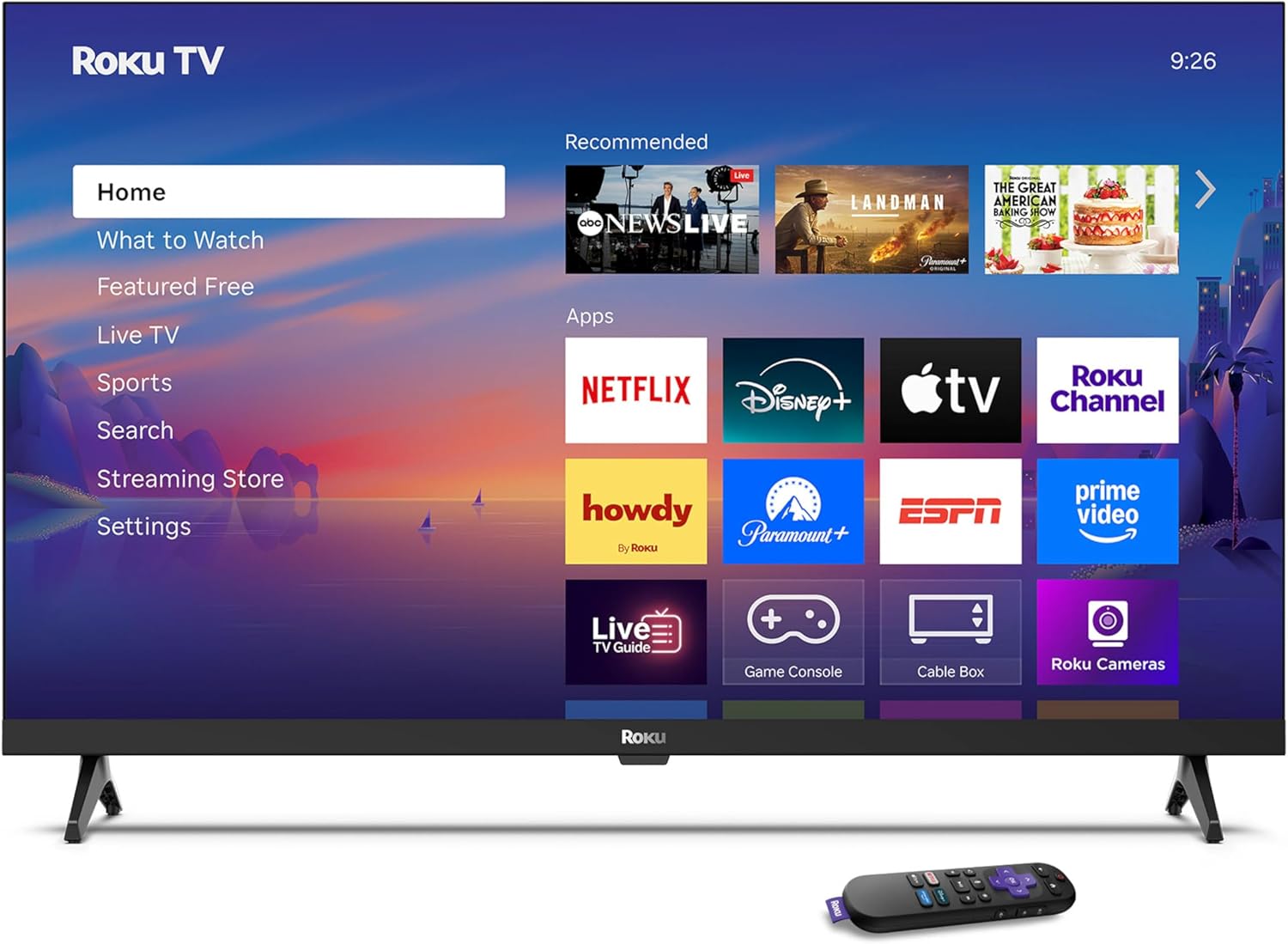
Image: Rear panel connections including HDMI, USB, and optical ports.
3.4 Initial Power On and Network Connection
- Plug in the TV and press the power button on the remote or TV.
- Follow the on-screen instructions to select your language and connect to your Wi-Fi network.
- Activate your Roku account or create a new one.
Video: An overview of the Roku TV operating system, demonstrating its user interface and features. This video is provided by Roku, Inc.
4. Operating Instructions
4.1 Using the Voice Remote
The Roku Voice Remote allows for intuitive control of your TV and streaming content.
- Voice Search: Press and hold the voice button and speak your command to search for content, launch apps, or control playback.
- Navigation: Use the directional pad to move through menus and select items.
- App Shortcuts: Dedicated buttons provide quick access to popular streaming services.

Image: Features of the Roku Voice Remote, highlighting voice control and shortcut buttons.
4.2 Navigating the Home Screen
The Roku Home Screen provides access to all your installed apps, inputs, and settings.
- Home: Returns you to the main home screen.
- What to Watch: Discover recommended content.
- Live TV: Access free live television channels.
- Streaming Store: Browse and add new streaming channels.
- Settings: Adjust TV and system preferences.

Image: The Roku TV home screen interface.
4.3 Adjusting Picture and Sound Settings
Customize your viewing and listening experience through the settings menu.
- Picture Mode: Select from predefined modes like Standard, Vivid, Sports, or Movie. Roku Smart Picture automatically optimizes settings.
- Sound Mode: Choose sound profiles or enable features like Night Mode for reduced volume fluctuations.
- Bluetooth Headphone Mode: Pair your wireless headphones for private audio.

Image: Picture mode settings on the Roku TV.

Image: Bluetooth Headphone Mode in use.

Image: Dolby Audio technology for clear sound.
5. Maintenance
5.1 Cleaning the Screen
To clean the TV screen, gently wipe it with a soft, dry, lint-free cloth. For stubborn marks, lightly dampen the cloth with water or a screen-safe cleaning solution. Avoid using harsh chemicals or abrasive materials.
5.2 Software Updates
Your Roku TV automatically receives software updates when connected to the internet. These updates provide new features, performance improvements, and bug fixes. Ensure your TV remains connected to the internet for optimal performance.
6. Troubleshooting
If you encounter issues with your Roku TV, refer to the following common solutions:
- No Power: Ensure the power cable is securely plugged into both the TV and a working electrical outlet. Try a different outlet.
- No Picture/Sound: Verify that the correct input source is selected. Check all cable connections (HDMI, audio). Restart the TV by unplugging it for 30 seconds and plugging it back in.
- Remote Not Working: Replace the AAA batteries in the remote. Ensure there are no obstructions between the remote and the TV. For voice remote issues, re-pair the remote if necessary (refer to Roku support for specific steps).
- Network Connection Issues: Restart your Wi-Fi router and modem. Go to the TV's settings menu, then Network, and try reconnecting to your Wi-Fi network.
- App Not Loading/Crashing: Try restarting the app. If the issue persists, remove the app from the home screen, restart the TV, and then re-add the app from the Streaming Store.
7. Specifications
| Feature | Detail |
|---|---|
| Screen Size | 32 Inches |
| Display Technology | LED |
| Resolution | 720p |
| Refresh Rate | 60 Hz |
| Special Features | Bluetooth Headphone Mode, Dolby Audio, Voice Remote |
| Connectivity Technology | Bluetooth, Wi-Fi |
| Total HDMI Ports | 3 |
| Total USB Ports | 1 |
| Audio Input | HDMI |
| Operating System | Roku OS |
| Mounting Type | Table Mount, Wall Mount |
| VESA Mount Standard | 200 x 200 mm |
| Product Dimensions (D x W x H) | 7"D x 28.3"W x 18.3"H |
| Item Weight | 7.5 Pounds |
| Model Number | 32R2D5 |
| UPC | 829610008974 |
8. Warranty Information
8.1 Limited Warranty
Roku warrants the hardware against defects in materials and workmanship under normal use for a period of one (1) year from the date of purchase ("Warranty Period"). If Roku determines that the device’s hardware is defective during the Warranty Period, Roku’s sole obligation, and your exclusive remedy, will be to either repair or replace the unit with either a new or rebuilt device, at its option. This warranty applies if the product is used in accordance with the provided documentation.
8.2 Returns Policy
You may return a device for any reason:
- Within thirty (30) days from the date of purchase from Roku.
- Within the applicable return period if purchased from an authorized reseller or distributor.
Additional details regarding product returns can be found on the Roku support site.
9. Support
For further assistance, troubleshooting guides, and frequently asked questions, please visit the official Roku support website: