
1. Product Overview
The BOTSLAB G980H is a sophisticated 3-channel 4K dash camera designed to provide comprehensive vehicle surveillance. It features front, rear, and interior recording capabilities, ensuring a 360° view around and within your vehicle. Equipped with a 3.18-inch touchscreen, night vision, voice control, 24/7 parking mode, 5.8GHz WiFi, and built-in GPS, this dash cam offers advanced safety and convenience features for drivers.
2. What's in the Box
- G980H Multi-Channel Dash Cam (Main Unit)
- Rear Camera (6.5M cable)
- 3M Tape (x2)
- Car Charger (3.5M cable)
- 128GB TF Card
- Electrostatic Film (x2)
- User Manual
- Quick Start Guide
- Warning Card
- Installation Pry Bar

Image: All components included in the BOTSLAB G980H Dash Cam package.
3. Product Features
3-Channel 4K Recording
The dash cam offers comprehensive 3-channel recording with a 170° front camera (4K), 120° side camera, and 150° rear camera (1080P). This setup provides a total 440° field of view, capturing all critical angles around your vehicle.

Image: Visual representation of the 4K front, 1080P cabin, and 1080P rear camera views.
24/7 Parking Mode
For continuous surveillance, the dash cam supports 24/7 parking mode (requires optional hardwire kit ASIN: B0DT1633D2). Features include Time-Lapse Recording (1 frame per second), Sentry Mode (1-minute emergency video if motion is detected within 5 meters), and Collision Lock (1-minute critical video upon impact).

Image: Illustration of Sentry Mode, Collision-Detected Recording, and Time-Lapse Recording for parking surveillance.
Video: A short demonstration of the 24/7 parking mode feature, highlighting enhanced vehicle safety.
Night Vision + 8s Pre-Recording
The 4K dash cam features an F1.8 aperture, 6-element all-glass lens, and 940nm infrared fill light for enhanced night brightness. WDR ensures balanced exposure in various lighting conditions. The built-in G-sensor automatically triggers emergency locking upon impact, saving 8 seconds before and 52 seconds after the incident.

Image: Demonstrates the dash cam's ability to capture clear footage in low-light conditions using night vision technology.

Image: Illustrates the G-sensor's emergency recording feature, capturing 8 seconds before and 52 seconds after an incident.
Voice Control + 3.18" Touchscreen
Operate the dash cam hands-free with voice commands like "Start Recording" or "Take Photo." The 3.18-inch touchscreen allows for quick parameter adjustments and triple-view playback, enhancing safety and convenience.
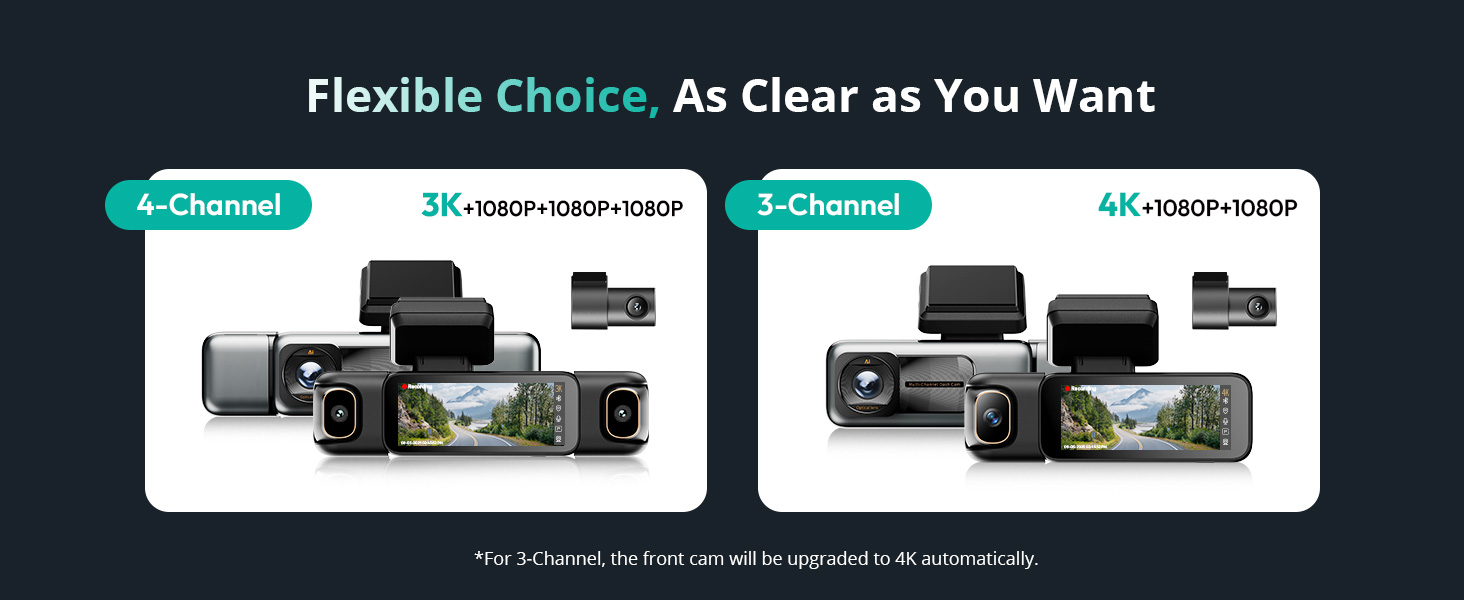
Image: Shows various voice commands supported by the dash cam for hands-free operation.

Image: Highlights the 3.18-inch touchscreen for easy navigation and control.
Smart Tracking (GPS) & 5.8GHz Wi-Fi
A built-in high-sensitivity GPS chip records location and movement trajectory. Paired with DVplayer software, it generates animated driving routes. The 5.8GHz Wi-Fi chip enables fast transfer speeds (up to 10 MB/s) for instant video transfer to your smartphone and one-tap footage export.

Image: Shows GPS tracking capabilities with Google Maps integration and animated driving routes.

Image: Illustrates the 5.8GHz Wi-Fi for quick video transfer and app connectivity.
Super Capacitor
The dash cam utilizes a high-temperature-resistant super capacitor, offering an ultra-wide operating range (-20℃ to 70℃) and a 10x longer lifespan than traditional batteries, ensuring reliable operation in extreme weather conditions.
4. Setup and Installation
Follow these steps for proper installation of your BOTSLAB G980H Dash Cam:
- Prepare the Windshield: Clean the area on your windshield where the dash cam will be mounted. Ensure it is free of dust and grease.
- Apply Electrostatic Film: Apply the provided electrostatic film to the cleaned area of the windshield. This helps protect your windshield and makes removal easier.
- Attach the Dash Cam: Peel off the protective film from the 3M adhesive on the dash cam mount and firmly press it onto the electrostatic film.
- Connect Power: Connect the car charger cable to the dash cam and plug the other end into your vehicle's 12V power outlet.
- Connect Rear Camera: Connect the rear camera cable to the main unit and route it to the rear of your vehicle. Attach the rear camera to the rear windshield using its adhesive.
- Route Cables: Use the installation pry bar to neatly tuck all cables along the vehicle's trim or headliner to conceal them and prevent obstruction.

Image: Diagram illustrating the easy installation process of the dash cam and its components.
Video: A step-by-step guide on how to install the BOTSLAB Multi Channel Dash Camera in a vehicle.
Hardwire Kit Installation (Optional)
For 24/7 parking mode functionality, a dedicated hardwire kit (ASIN: B0DT1633D2) is required. Refer to the hardwire kit's manual for detailed installation instructions, which typically involves connecting to your vehicle's fuse box.
Video: Instructions on how to install the Botslab dashcam Hardwired Kit for continuous power.
5. Operating Instructions
Power On/Off
The dash cam will automatically power on and begin recording when connected to your vehicle's power source and the ignition is turned on. To power off, simply turn off your vehicle's ignition or disconnect the power source.
Touchscreen Navigation
The 3.18-inch touchscreen allows for intuitive control. Swipe, tap, and adjust settings directly on the screen. You can switch between different camera views (front, interior, rear) and access various menus for playback and configuration.
Voice Commands
Utilize voice commands for hands-free operation. Common commands include "Start Recording," "Take Photo," "Turn on Screen," "Turn off Screen," "Show Front Camera," "Show Rear Camera," "Turn on Audio," and "Turn off Audio."
App Connection (5.8GHz Wi-Fi)
Download the Botslab APP to connect your smartphone to the dash cam via 5.8GHz Wi-Fi. This allows for instant transfer of 4K videos, real-time viewing, parameter adjustments, and sharing of footage.
Loop Recording
The dash cam continuously records, overwriting the oldest footage when the memory card is full. Emergency videos are locked and protected from being overwritten.
Emergency Recording
The built-in G-sensor detects sudden impacts or collisions. When an event is detected, the dash cam automatically locks the current footage (8 seconds before and 52 seconds after the impact) to prevent it from being overwritten.
Parking Mode
With the optional hardwire kit, the 24/7 parking mode offers:
- Time-Lapse Recording: Records at 1 frame per second to save storage space while monitoring.
- Sentry Mode: Automatically records a 1-minute emergency video if motion is detected within 5 meters of the front camera.
- Collision Lock: Instantly locks a 1-minute critical video upon detecting a collision.
Video: An overview of the Botslab 3-channel dash cam's features and operation.
6. Specifications
| Product Dimensions | 6.74 x 2.19 x 2.75 inches |
| Item Weight | 1.69 pounds |
| Item Model Number | G980H 3 Channel |
| Connectivity Technology | Wireless (5.8GHz Wi-Fi) |
| GPS | GPS Enabled |
| Special Feature | 3 Channel Recording, Night Vision, Voice Control, Parking Mode |
| Video Capture Resolution | 4K (Front) |
| Mounting Type | Windshield Mount |
| Field Of View | 360 Degrees (Combined) |
| Included Components | 128GB MicroSD card, 3M Tape, Car Charger, Front & Rear Inside Camera, Installation pry bar |
7. Troubleshooting
If you encounter any issues with your BOTSLAB G980H Dash Cam, please try the following:
- No Power: Ensure the car charger is securely plugged into both the dash cam and the vehicle's 12V outlet. Check your vehicle's fuse for the 12V outlet.
- Recording Issues: Format the 128GB MicroSD card within the dash cam's settings. Ensure the card is properly inserted. If issues persist, try a different compatible MicroSD card.
- Wi-Fi Connection Problems: Ensure the Botslab APP is updated to the latest version. Restart both your smartphone and the dash cam. Check your phone's Wi-Fi settings to ensure it's connected to the dash cam's network.
- GPS Not Working: Ensure the dash cam has a clear view of the sky for GPS signal acquisition. This may take a few minutes after startup.
- Screen Unresponsive: Try restarting the dash cam by disconnecting and reconnecting the power.
For further assistance, refer to the detailed user manual or contact customer support.
8. Warranty and Support
The BOTSLAB G980H Dash Cam comes with a 30-day return policy. For any product-related inquiries, technical support, or warranty claims, please contact BOTSLAB customer service.
- Customer Support: Available 24/7
- Technical Help: Lifetime technical support
- Professional Service: 365-Day Professional Service

Image: Contact information for BOTSLAB customer support, including website and email.


