
Introduction
Thank you for choosing the Sailstar DL-CLOCK LED Desk Lamp. This versatile lamp combines eye-caring LED illumination with convenient features such as a wireless charger, digital clock, and night light. This manual provides detailed instructions to help you set up, operate, and maintain your new desk lamp.

The Sailstar DL-CLOCK LED Desk Lamp features a flexible gooseneck, a base with a digital clock, and a wireless charging pad. The image displays the lamp illuminating a desk, with insets showing three different color temperature options.
Package Contents
Please verify that all items are present in the package:
- 1 x Sailstar DL-CLOCK LED Desk Lamp
- 1 x Power Adapter (5V/3A)
- 1 x User Manual

This image illustrates the 360-degree flexibility of the lamp's gooseneck arm, showing various positions. Below, it details the package contents: LED Desk Lamp, An Adapter, and User Manual.
Product Overview
Familiarize yourself with the components of your Sailstar DL-CLOCK LED Desk Lamp:
- LED Light Panel: Provides adjustable illumination.
- Flexible Gooseneck Arm: Allows for 360-degree light direction adjustment.
- Digital Clock Display: Shows current time.
- Wireless Charging Pad: For compatible devices.
- Touch Control Panel: Power, brightness, color mode, night light, and clock settings.
- Base: Stable support for the lamp.

A diagram showing the key dimensions of the Sailstar DL-CLOCK LED Desk Lamp, including its height (20.2 inches) and base measurements (5.1 inches by 6.3 inches).
Setup Instructions
- Unpacking: Carefully remove all components from the packaging.
- Power Connection: Connect the provided 5V/3A power adapter to the lamp's power input port located at the back of the base. Then, plug the adapter into a standard electrical outlet. Ensure you use only the specified 5V/3A adapter for optimal performance and to prevent damage.
- Initial Clock Setting: Upon first power-up, the clock display may need to be set. Refer to the 'Clock Functions' section for detailed instructions.
Operating Instructions
1. Power On/Off
- Tap the power button (⏻) on the base to turn the lamp on or off.
2. Adjusting Brightness (Stepless Dimming)
- With the lamp on, long-press the brightness button (☀) to cycle through dimming levels. Release the button when the desired brightness is reached.
3. Changing Color Modes
- Short-press the color mode button (M) to switch between three color temperatures: 3000K (warm light), 4000K (natural light), and 5000K (cool white light).

A hand touching the lamp's base, indicating touch control. The image displays the lamp's three color temperature options (3000K, 4000K, 5000K) and a gradient showing stepless dimming from 10% to 100% brightness.
4. Wireless Charging
- Place your compatible smartphone (e.g., iPhone, Samsung Galaxy, Google Pixel) or AirPods on the wireless charging pad. Ensure the device is centered for optimal charging.
- Note: Wireless charging supports phone cases less than 5mm thick. Incompatible devices include iPads, smartwatches, and Bluetooth headsets. Avoid placing metal objects, magnets, or credit cards on the charging pad.

This image focuses on the wireless charging pad on the lamp's base, illustrating compatibility with various smartphones (Apple iPhone, Samsung Galaxy, Google Pixel) and AirPods, while noting incompatibility with iPads, iWatches, and Bluetooth headsets.
5. Night Light & 30-Minute Auto-Off
- Tap the night light button (☾) to activate the soft ambient night light.
- To set the 30-minute auto-off timer, long-press the night light button until the light flashes three times. This indicates the timer is active.
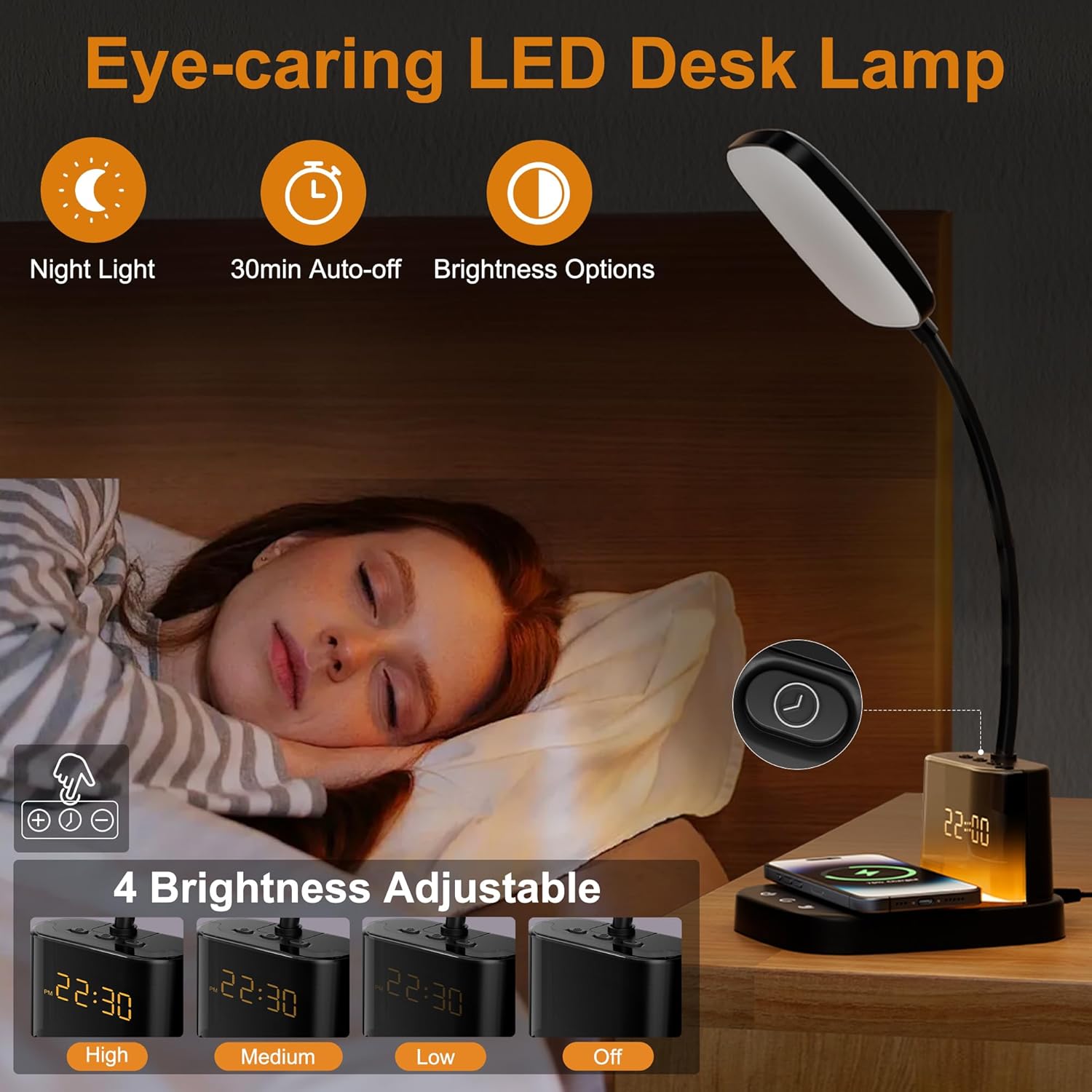
A person sleeping peacefully next to the lamp, which is set to a soft night light. Insets show the 30-minute auto-off timer and four brightness levels for the clock display (High, Medium, Low, Off).
6. Clock Functions
- Setting the Time:
- Press and hold the clock button (⏰).
- Use the '+' or '-' buttons to select either 12H or 24H format.
- Press the clock button again to set the hour, then use the '+' or '-' buttons to adjust.
- Press the clock button once more to set the minutes.
- Press once more to finish setting.
- Adjusting Clock Brightness: Short-press the clock brightness button to cycle through High, Medium, Low, and Off display brightness levels.
7. Flexible Gooseneck Arm
- The lamp features a 360-degree flexible gooseneck arm, allowing you to adjust the light direction and angle as needed for optimal illumination.
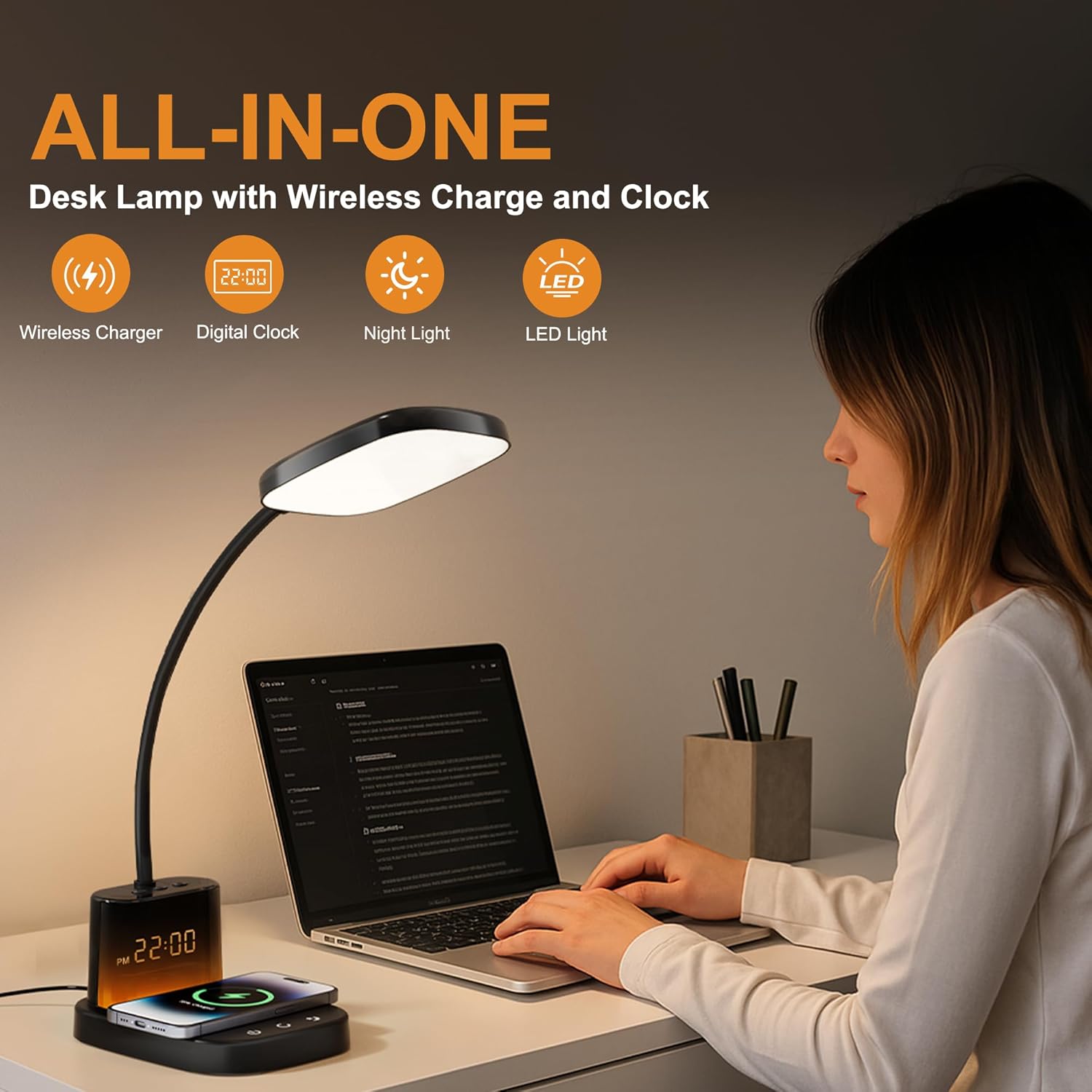
A user operating a laptop with the Sailstar DL-CLOCK LED Desk Lamp providing illumination. Icons indicate its functions: wireless charger, digital clock, night light, and LED light.
Maintenance
1. Cleaning
- Ensure the lamp is unplugged from the power outlet before cleaning.
- Use a soft, dry cloth to gently wipe the lamp's surfaces.
- Avoid using abrasive cleaners, solvents, or harsh chemicals, as these can damage the lamp's finish.
2. General Care
- Do not expose the lamp to excessive moisture, humidity, or extreme temperatures.
- Avoid placing heavy objects on the lamp or bending the gooseneck arm beyond its natural range of motion to prevent damage.
- Keep the lamp away from direct heat sources.
Troubleshooting
If you encounter any issues with your Sailstar DL-CLOCK LED Desk Lamp, please refer to the following common problems and solutions:
- Lamp Not Turning On:
- Check if the power adapter is securely connected to both the lamp's input port and a functional electrical outlet.
- Ensure you are using the correct 5V/3A power adapter provided with the lamp.
- Wireless Charging Not Working:
- Verify that your device is compatible with wireless charging (Qi-enabled).
- Ensure your device is placed correctly and centered on the wireless charging pad.
- Remove any phone cases thicker than 5mm or cases containing metal, magnets, or credit cards, as these can interfere with charging.
- Confirm the lamp is powered on and the correct 5V/3A adapter is used.
- Clock Display Issues:
- If the clock display is incorrect, reset the time using the instructions provided in the 'Clock Functions' section.
- If the display is too bright or dim, adjust its brightness using the dedicated clock brightness button.
- Light Flickering:
- Ensure the power connection is stable and the adapter is fully inserted.
- If flickering persists, try plugging the lamp into a different outlet. If the issue continues, contact customer support.
Specifications
| Feature | Specification |
|---|---|
| Model Name | DL-CLOCK |
| Wattage | 8 watts |
| Brightness | 800 Lumens (Max) |
| Light Source Type | LED |
| Color Rendering Index (CRI) | 95+ |
| Lifespan | Over 50,000 hours |
| Color Modes | 3 (3000K Warm, 4000K Natural, 5000K Cool White) |
| Control Method | Touch |
| Wireless Charging Output | 10W |
| Power Input | 5V/3A (Adapter Included) |
| Material | Acrylonitrile Butadiene Styrene, Plastic |
| Product Dimensions (D x W x H) | 5.11" x 6.29" x 23.85" |
| Item Weight | 1.5 Pounds |
Warranty and Support
Warranty Information
Sailstar offers a 24-month replacement service for confirmed issues such as missing or defective parts. A 30-day money-back guarantee is also provided from the date of purchase.
Customer Support
For any questions, technical assistance, or warranty claims, please feel free to contact Sailstar customer support. We are committed to providing a 12-hour fast response to address your concerns.
Please refer to the product packaging or the official Sailstar website for the most current contact information.