
1. Introduction
The Ulefone Armor 33 is a robust and versatile rugged smartphone designed for demanding environments. It features a large 25500mAh battery, a 6.95-inch 120Hz FHD+ display, and runs on Android 15. Equipped with advanced camera systems including a 64MP night vision camera, a powerful 118dB speaker, and a versatile LED light, this device is built to withstand harsh conditions while providing comprehensive functionality. Its IP68/IP69K and MIL-STD-810H certifications ensure durability against water, dust, and drops.
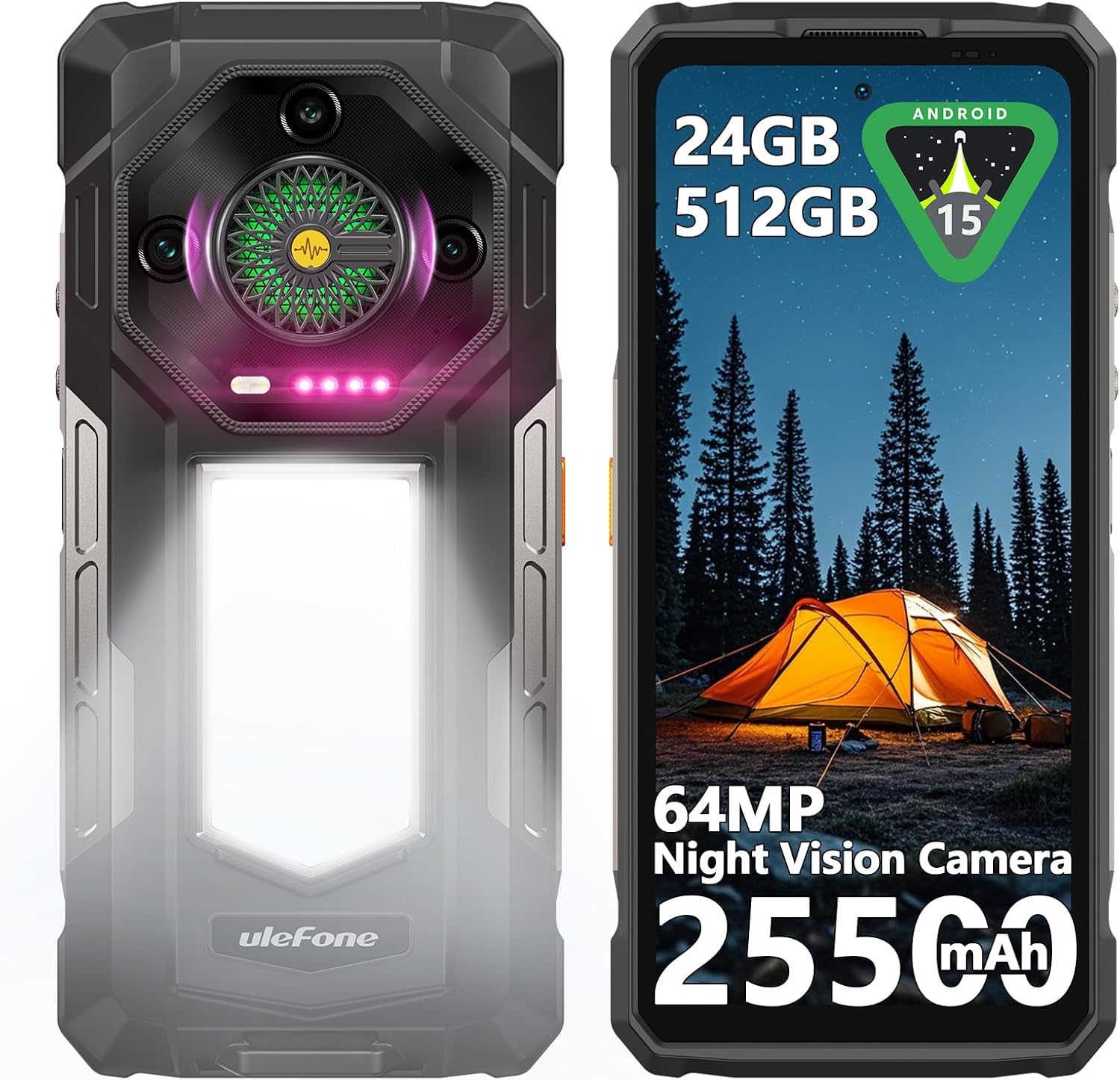
Figure 1: Ulefone Armor 33 Rugged Phone Overview
2. What's in the Box
Please verify that all items are present upon unboxing your Ulefone Armor 33:
- Ulefone Armor 33 Smartphone
- AC Power Charger (100~240V)
- Type-C to Type-C Data Cable (100cm)
- Screen Protector (pre-applied or in box)
- SIM Tray Ejector
- Lanyard
- User Manual (this document)
3. Setup
3.1. SIM Card and MicroSD Card Installation
- Locate the SIM card tray on the side of the device.
- Insert the SIM tray ejector tool into the small hole next to the tray and press firmly until the tray pops out.
- Place your Nano-SIM cards and/or MicroSD card into the designated slots on the tray. Ensure the gold contacts are facing down. The phone supports 2 Nano-SIM cards and 1 MicroSD card simultaneously.
- Carefully reinsert the tray into the phone until it clicks into place.
3.2. Initial Charging
Before first use, it is recommended to fully charge your Ulefone Armor 33.
- Connect the Type-C data cable to the charging port at the bottom of the phone.
- Connect the other end of the cable to the provided 66W AC power charger.
- Plug the charger into a power outlet. The phone supports 66W fast charging.
- The charging indicator will appear on the screen. Allow the phone to charge until it reaches 100% for optimal battery calibration.

Figure 2: Charging the Ulefone Armor 33
3.3. Powering On/Off
- To Power On: Press and hold the Power button (located on the right side) until the Ulefone logo appears.
- To Power Off: Press and hold the Power button, then select 'Power off' from the options on the screen.
- To Restart: Press and hold the Power button, then select 'Restart' from the options on the screen.
4. Operating Instructions
4.1. Display and Navigation
The Ulefone Armor 33 features a 6.95-inch FHD+ display with a 120Hz refresh rate, protected by Corning Gorilla Glass 5. Navigate the Android 15 operating system using touch gestures.

Figure 3: Android 15 Interface on Armor 33
4.2. Battery Management
With its 25500mAh battery, the Armor 33 offers extended usage. In addition to 66W fast charging, it supports 10W reverse charging, allowing you to use your phone as a power bank for other devices.
- To enable Reverse Charging: Connect a compatible device to your Armor 33 using a Type-C cable. The phone will prompt you to select the charging mode.
4.3. Camera Features
The Armor 33 is equipped with a versatile camera system:
- Main Camera: 50MP for high-resolution photos.
- Ultra-Wide Camera: 50MP for expansive landscape shots.
- Night Vision Camera: 64MP infrared camera for clear images in low-light or complete darkness.
- Front Camera: 32MP for selfies and video calls.
- Physical Camera Key: A dedicated button for quick camera access. Long press to launch the camera app, short press to capture a photo.

Figure 4: Ulefone Armor 33 Camera System
4.4. Versatile LED Light and Warning Light
The integrated LED light provides 1100 Lumens for various lighting needs, including maintenance, camping, hiking, and emergency situations. The Warning Light offers critical alerts.
- Activating LED Light: Access the 'Camping Light' app or use the customizable key if configured. Adjust brightness and mode (Lighting, Sharp Light, SOS, AlwaysLighting).
- Activating Warning Light: Use the dedicated app or customizable key. It features 44 LED beads for high brightness and various modes (One-touch Emergency Alert, Constant Mode, Blink Mode).

Figure 5: Versatile LED Light and Warning Light in Use
Video 1: Overview of Ulefone Armor 33 features, including battery, speaker, camera, and LED light functionality.
Video 2: Demonstration of the Ulefone Armor 33's versatile LED and warning light features in practical scenarios.
4.5. 118dB Speaker and Infinite Halo 2.0
Experience powerful audio with the 118dB HiFi quality speaker. The Infinite Halo 2.0 provides dynamic lighting effects that respond to music, calls, notifications, and charging status.
4.6. uSmart Expansion Connector
The custom uSmart Expansion Connector allows for integration with professional accessories such as endoscopes, magnifiers, and night vision cameras. Compatible accessories include Ulefone uSmart E01/E02/E03 endoscopes and uSmart C01 microscope.
4.7. Google Gemini AI
The Armor 33 is equipped with Google Gemini AI, offering personalized assistance, streamlined tasks, and efficient voice interaction tailored to your preferences.

Figure 6: Google Gemini AI on Armor 33
4.8. Other Features
- Connectivity: NFC, GPS+GLONASS+Beidou+Galileo+QZSS, 4G.
- Security: Fingerprint recognition, Face unlock.
- Utilities: Customizable key, IR transmitter, FM radio, 3.5mm audio jack, Digital toolbox.
5. Maintenance
To ensure the longevity and optimal performance of your Ulefone Armor 33, follow these maintenance guidelines:
- Cleaning: Wipe the phone with a soft, damp cloth. Avoid using harsh chemicals or abrasive materials. Ensure all port covers are securely closed before cleaning with water.
- Water and Dust Resistance: The phone is IP68/IP69K rated. Ensure all port covers are tightly sealed before exposing the phone to water or dusty environments. Do not intentionally submerge the phone in corrosive liquids.
- Temperature: Avoid exposing the phone to extreme temperatures (below -30°C or above 55°C) as this can affect battery life and performance.
- Impact Protection: While rugged, avoid unnecessary drops or impacts. The MIL-STD-810H certification provides enhanced durability, but extreme force can still cause damage.
- Software Updates: Regularly check for and install system updates to ensure your device has the latest security patches and performance improvements.

Figure 7: Ulefone Armor 33 Ruggedness
6. Troubleshooting
If you encounter issues with your Ulefone Armor 33, refer to the following common solutions:
- Phone not turning on: Ensure the battery is charged. Connect the phone to the charger and wait a few minutes before attempting to power on again.
- Screen freezing or unresponsiveness: Press and hold the Power button for about 10-15 seconds to force a restart. If the issue persists, try clearing the cache of recently installed apps or performing a factory reset (back up your data first).
- Call issues (unable to complete calls): Check your SIM card installation and network signal. Ensure your mobile data is active if making Wi-Fi calls. Contact your carrier to verify service status.
- Keyboard not responding properly: Restart the phone. If the issue continues, try clearing the cache and data of your keyboard app (Settings > Apps > Keyboard App > Storage > Clear Cache/Data).
- Apps not receiving messages until opened: Check app notification settings (Settings > Apps > [App Name] > Notifications) and ensure battery optimization is not restricting background activity for essential apps.
- Cool Buddy AI dog on desktop: To disable the AI Pet app, open the 'AI Pet' app, go to settings, and turn off 'Cool pet on desktop' and 'Cool pet floating ball'.
7. Specifications
| Feature | Detail |
|---|---|
| Model Name | Ulefone Armor 33 4G |
| Operating System | Android 15 |
| Screen Size | 6.95 inches |
| Resolution | 2460x1080 FHD+ |
| CPU Model | MediaTek Helio G100 |
| RAM | 12GB (up to 24GB with extended RAM) |
| Storage Capacity | 512GB (expandable up to 2TB via MicroSD) |
| Battery Capacity | 25500 mAh |
| Fast Charging | 66W |
| Reverse Charging | 10W |
| Main Camera | 50MP |
| Ultra-Wide Camera | 50MP |
| Night Vision Camera | 64MP |
| Front Camera | 32MP |
| Ruggedness | IP68/IP69K, MIL-STD-810H Certified |
| Connectivity | 4G, GPS, GLONASS, Beidou, Galileo, QZSS, NFC |
| Special Features | Versatile LED & Warning Light (1100 Lumens), 118dB Speaker, Infinite Halo 2.0, uSmart Expansion Connector, Google Gemini AI, Fingerprint Recognition, Face Unlock, Customizable Key, IR Transmitter, FM Radio, 3.5mm Jack, Digital Toolbox |
| Dimensions | 8.19 x 4.29 x 3.62 inches (Package) |
| Item Weight | 2.68 pounds |
8. Warranty and Support
The Ulefone Armor 33 comes with a standard manufacturer's warranty. For specific warranty details, please refer to the warranty card included in your product packaging or visit the official Ulefone website.
For technical support, FAQs, and further assistance, you can utilize the built-in service center app on your device. Alternatively, contact Ulefone customer support through their official channels.


