
1. Introduction
This manual provides detailed instructions for the assembly, operation, maintenance, and troubleshooting of your Bestier 77.8" H Executive Desk with Hutch. Please read all instructions carefully before beginning assembly and retain this manual for future reference.
2. Safety Information
- To prevent scratching, place a soft blanket or protective material on the floor during assembly.
- Exercise caution when using a power drill or screwdriver. Reduce speed and stop when screws are nearly tight to avoid overtightening or damaging components.
- Do not use harsh chemicals or abrasive cleaners on this item. Use only recommended cleaning methods.
- Move this item carefully by pushing or pulling. Avoid dragging to prevent damage to the desk or floor.
- The maximum weight recommendation for this desk is 200 pounds. Do not exceed this limit.
3. Package Contents
Your Bestier Executive Desk with Hutch will arrive in two separate packages, typically delivered a day or two apart. Ensure you have received both packages before beginning assembly.

4. Assembly Instructions
Assembly is required for this product. It is recommended that two people assemble the desk and hutch for ease and safety. All necessary installation tools are included. A screwdriver is also recommended.
4.1 Desk Dimensions

4.2 Assembly Videos
For visual guidance, please refer to the following official assembly videos:
Video 4.2.1: This video demonstrates the step-by-step process for setting up the hutch component of the Bestier 59 Inch Computer Desk.
Video 4.2.2: This video provides comprehensive instructions on how to set up the Bestier 59 Inch Modern Computer Desk.
5. Operating Instructions
5.1 Adjustable LED Lighting System
The desk features an integrated LED lighting system. Use the included remote control to select from 7 colors and 22 dynamic modes. The LEDs are USB-powered, providing task lighting or ambient light.

5.2 Built-In Charging Station & Cable Management
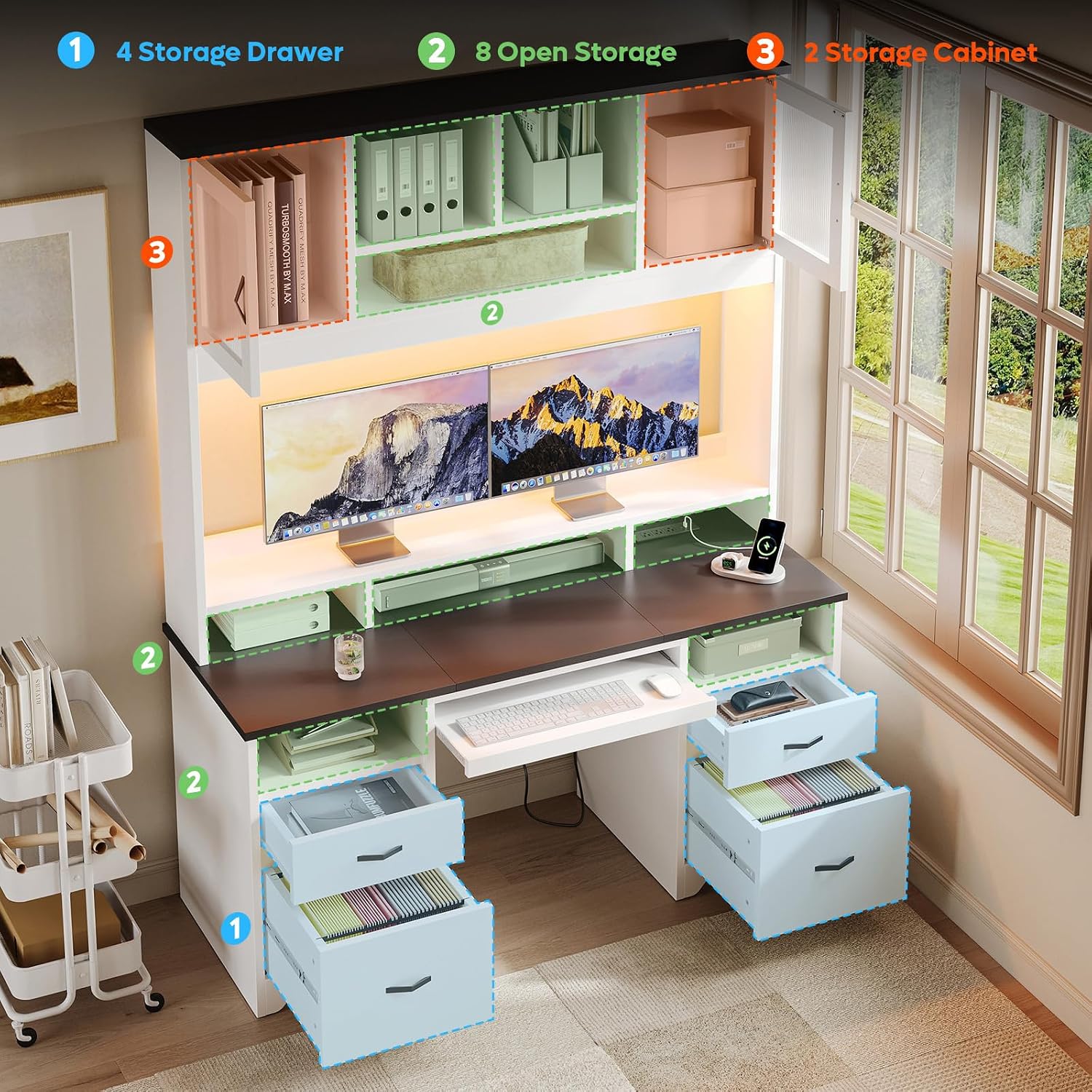
The desktop includes a built-in charging station with 3 AC outlets, 1 USB port, and 1 Type-C port. A 4.9 ft power cable is provided. Utilize the three cable holes to manage and conceal cords for a tidy workspace.

5.3 Ergonomic Monitor Stand
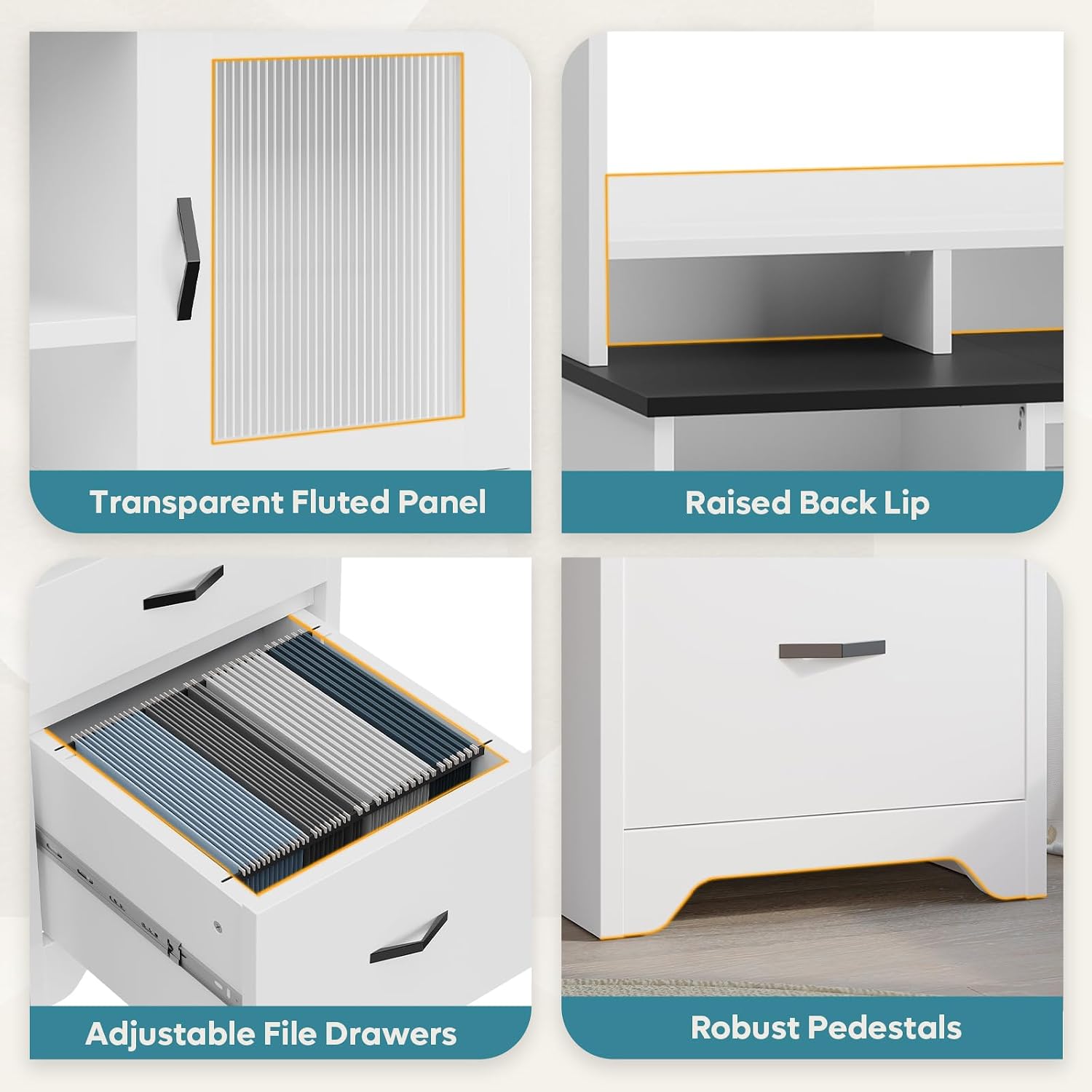
The 4.7-inch monitor stand elevates your screen to eye-level, promoting better posture and reducing neck strain. Three open compartments underneath provide convenient storage for small items. A raised rear lip prevents items from sliding off.
5.4 Storage and Organization
The desk offers ample storage options, including a vertical storage hutch with fluted cabinet doors and three open cubbies. Dual pedestals feature 2 open compartments, 2 utility drawers, and 2 file drawers with adjustable rails (fits A4/Letter/Legal documents). A smooth-sliding keyboard tray can be tucked away when not in use.
6. Maintenance
To maintain the appearance and longevity of your desk, follow these care instructions:
- Wipe surfaces with a damp cloth for general cleaning.
- For drying or polishing, use a dry cloth.
- Avoid using abrasive cleaners or harsh chemicals, as these can damage the wood finish.
7. Troubleshooting
If you encounter any issues with your Bestier Executive Desk, please refer to the following common solutions:
- Wobbly Desk: Ensure all screws and fasteners are securely tightened. Check that the desk is on a level surface.
- Drawers Not Sliding Smoothly: Verify that the drawer slides are correctly installed and free of obstructions. Apply a silicone-based lubricant if necessary.
- LED Lights Not Working: Check the USB power connection. Ensure the remote control batteries are functional and pointed directly at the receiver.
- Charging Station Not Functioning: Confirm the main power cable is securely plugged into a working wall outlet. Test other devices in the outlets/ports to isolate the issue.
For persistent issues, please contact customer support.
8. Specifications
| Feature | Detail |
|---|---|
| Brand | Bestier |
| Model Number | H104415SUS |
| Product Dimensions | 21.65"D x 59.06"W x 77.87"H |
| Item Weight | 168.9 Pounds |
| Color | White |
| Material Type | Engineered Wood, Metal, Wood |
| Number of Drawers | 4 |
| Number of Shelves | 5 (6 open, 2 enclosed) |
| Special Features | Built-In USB Outlet, Corded, Keyboard Tray Included, Monitor Stand, LED Lights |
| Maximum Weight Recommendation | 200 Pounds |
| Recommended Assembly Persons | 2 |
| Required Assembly | Yes |
9. Warranty
This Bestier product comes with an 18-month manufacturer's warranty. This warranty covers manufacturing defects and issues arising from normal use. Please retain your proof of purchase for warranty claims.
10. Customer Support
Should you encounter any product issues or require assistance, the Bestier USA customer support team is available to help. Please contact us for satisfying solutions.
For further information or to contact support, visit the Bestier Store on Amazon.


