
1. Important Safety Information
Please read this section carefully before using your Veidoo W40 tablet to ensure safe and proper operation. Keep this manual for future reference.
General Precautions
- Avoid exposing the tablet to extreme temperatures, direct sunlight, or high humidity.
- Do not drop, bend, or puncture the tablet.
- Keep the tablet away from water and other liquids. If it gets wet, power it off immediately and allow it to dry completely before use.
- Use only accessories approved by Veidoo. Unauthorized accessories may damage the tablet or pose safety risks.
- Do not attempt to disassemble, repair, or modify the tablet yourself. Contact customer support for assistance.
Battery Safety
- The tablet contains a non-removable lithium-ion battery. Do not attempt to replace it yourself.
- Do not expose the battery to fire or extreme heat.
- Dispose of the tablet and its battery responsibly, following local regulations.
Charging Safety
- Charge the tablet using the provided USB-C cable and a compatible power adapter.
- Do not charge the tablet in damp conditions.
- Unplug the charger when the tablet is fully charged or not in use.
2. Product Overview
The Veidoo W40 is an 11-inch Android tablet designed for versatile use, featuring an Octa-Core processor, ample storage, and modern connectivity options.
Key Features
- Display: 11-inch In-Cell HD Touch Screen with 1280x800 resolution.
- Processor: 2.0 GHz Octa-Core processor for smooth performance.
- Memory & Storage: 8GB RAM (4GB + 4GB expandable) and 128GB internal storage, expandable up to 1TB via MicroSD card.
- Operating System: Android 14.
- Cameras: 2MP front camera and 5MP rear camera.
- Connectivity: WiFi 6 (802.11ax) and Bluetooth 5.0.
- Battery: 5000mAh capacity.

Image: Veidoo W40 Tablet configuration summary, highlighting key features like Android 14, 11-inch In-Cell display, 1280x800 resolution, Octa-Core processor, 8GB RAM, 128GB ROM, 5000mAh battery, WiFi 6, Bluetooth 5.0, and dual cameras.
3. What's in the Box
The standard package for your Veidoo W40 tablet typically includes the following items:
- Veidoo W40 11-inch Android Tablet
- USB-C Charging Cable
- Power Adapter
- User Manual
Note: Contents may vary slightly depending on region or retailer.
4. Getting Started (Setup)
4.1 Charging the Tablet
- Connect the USB-C cable to the tablet's charging port.
- Connect the other end of the USB-C cable to the power adapter.
- Plug the power adapter into a wall outlet.
- Allow the tablet to charge fully before first use. The battery indicator on the screen will show charging status.
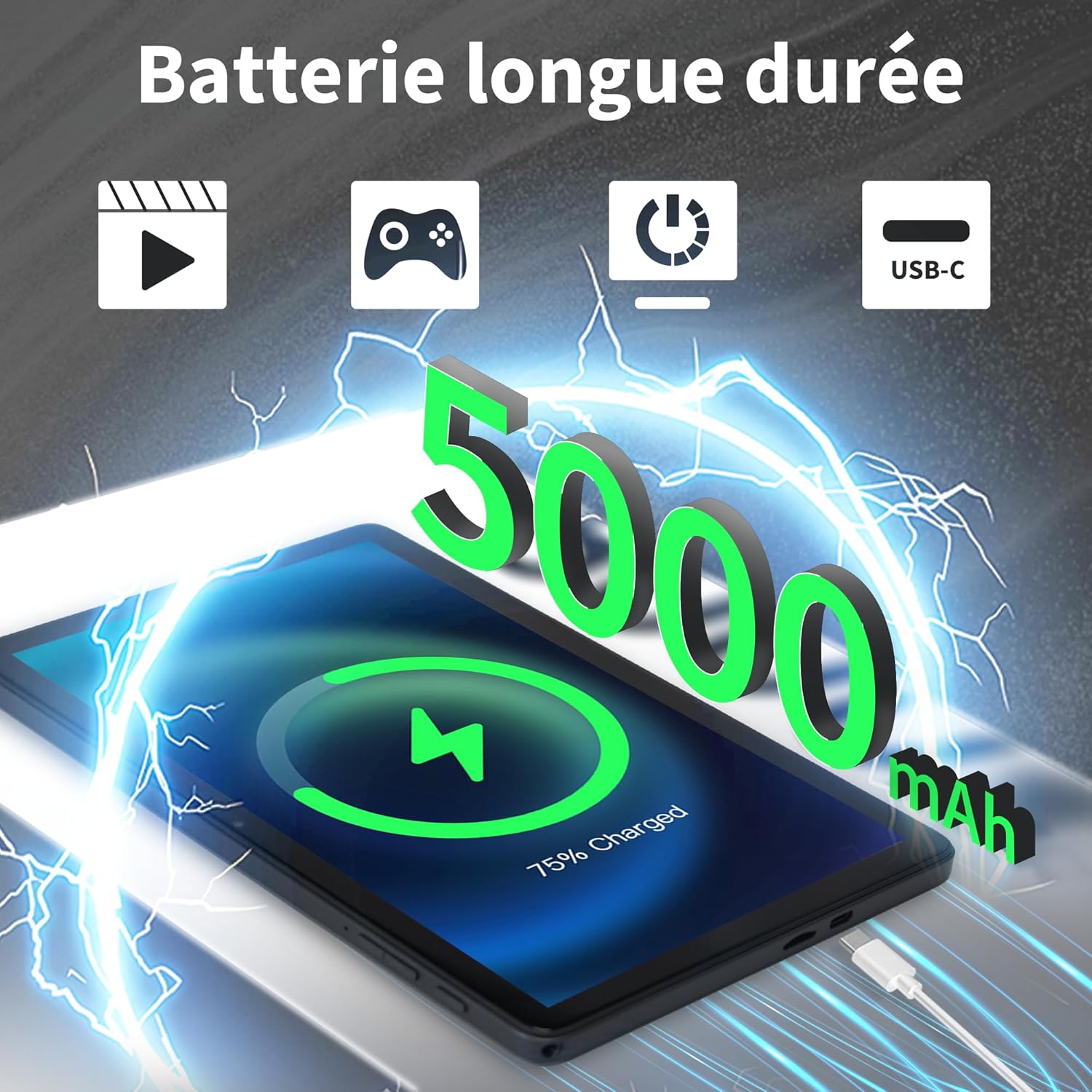
Image: Veidoo W40 Tablet connected to a USB-C charger, showing the battery icon and 5000mAh capacity.
4.2 Powering On/Off
- To Power On: Press and hold the Power button until the Veidoo logo appears on the screen.
- To Power Off: Press and hold the Power button until the power options menu appears. Select "Power off" and confirm.
- To Restart: From the power options menu, select "Restart" and confirm.
4.3 Initial Setup Wizard
Upon first power-on, the tablet will guide you through an initial setup process:
- Select your preferred language.
- Connect to a Wi-Fi network.
- Accept the terms and conditions.
- Sign in with your Google account or create a new one. This is necessary to download apps from the Google Play Store.
- Set up screen lock (PIN, pattern, or password) and other security features.
- Review and adjust other settings as prompted.
4.4 Inserting a MicroSD Card
The tablet supports expandable storage up to 1TB using a MicroSD card.
- Locate the MicroSD card slot on the side of the tablet.
- Gently insert the MicroSD card into the slot with the gold contacts facing down until it clicks into place.
- The tablet will detect the card and may prompt you to format it for use as portable or internal storage. Follow the on-screen instructions.
5. Basic Operation
5.1 Touch Gestures
- Tap: Touch the screen once to select an item or open an app.
- Touch & Hold: Press and hold an item to access contextual menus or drag items.
- Swipe: Drag your finger across the screen to scroll through pages or lists.
- Pinch: Use two fingers to zoom in or out on photos and web pages.
5.2 Connecting to Wi-Fi
- Go to Settings > Network & internet > Wi-Fi.
- Toggle Wi-Fi On.
- Select your desired Wi-Fi network from the list.
- Enter the password if prompted and tap Connect.
5.3 Connecting to Bluetooth Devices
- Go to Settings > Connected devices > Connection preferences > Bluetooth.
- Toggle Bluetooth On.
- Ensure your Bluetooth device is in pairing mode.
- Select the device from the list of available devices and follow any on-screen prompts to complete pairing.
5.4 Using the Cameras
The tablet features a 2MP front camera and a 5MP rear camera.
- Open the Camera app.
- Tap the camera icon to switch between front and rear cameras.
- Tap the shutter button to take a photo or start/stop video recording.
- Access photos and videos in the Gallery app.

Image: Tablet cameras (2MP front, 5MP rear) with example photos, demonstrating its capability to capture moments.
5.5 Managing Storage
The tablet comes with 128GB of internal storage and supports up to 1TB expandable storage.
- Go to Settings > Storage to view storage usage.
- You can free up space by uninstalling unused apps, deleting old photos/videos, or moving files to a MicroSD card.

Image: Tablet storage illustration, showing how photos, videos, and music can be stored on the 128GB ROM and expanded with 8GB RAM.
5.6 Installing/Uninstalling Apps
- Install Apps: Open the Google Play Store app, search for your desired app, and tap Install.
- Uninstall Apps: Touch and hold the app icon on the home screen or app drawer, then drag it to "Uninstall" or select "App info" and tap "Uninstall". Alternatively, go to Settings > Apps > select the app > Uninstall.

Image: Tablet in use for various activities such as watching movies, playing games, working, and video calls, demonstrating its versatility.
6. Maintenance and Care
6.1 Cleaning the Tablet
- Use a soft, lint-free cloth to clean the screen and body of the tablet.
- For stubborn smudges, slightly dampen the cloth with water or a screen cleaner designed for electronics.
- Avoid using harsh chemicals, abrasive cleaners, or aerosol sprays.
6.2 Battery Optimization
To maximize battery life (5000mAh):
- Reduce screen brightness.
- Turn off Wi-Fi and Bluetooth when not in use.
- Close background apps.
- Enable battery saver mode in Settings.
- Avoid extreme temperatures during charging and use.
6.3 Software Updates
Regularly check for and install software updates to ensure optimal performance and security.
- Go to Settings > System > System update.
- Follow the on-screen instructions to check for and install any available updates.
6.4 Factory Reset
A factory reset will erase all data from your tablet and restore it to its original factory settings. Back up important data before proceeding.
- Go to Settings > System > Reset options.
- Select Erase all data (factory reset).
- Confirm your decision and enter your PIN/pattern/password if prompted.
7. Troubleshooting
If you encounter issues with your Veidoo W40 tablet, try the following solutions:
Tablet Not Turning On
- Ensure the tablet is sufficiently charged. Connect it to a power source and wait a few minutes before attempting to power on.
- Press and hold the Power button for 10-15 seconds to force a restart.
Wi-Fi Connection Issues
- Ensure Wi-Fi is enabled in Settings.
- Restart your Wi-Fi router.
- Forget the network in tablet settings and reconnect.
- Ensure you are within range of the Wi-Fi signal.
Slow Performance or App Crashes
- Close unused background applications.
- Clear the cache of problematic apps (Settings > Apps > [App Name] > Storage & cache > Clear cache).
- Restart the tablet.
- Ensure sufficient storage space is available.
- Check for system and app updates.
Screen Not Responding
- Restart the tablet by holding the Power button.
- Ensure the screen is clean and free of debris.
8. Specifications
Below are the technical specifications for the Veidoo W40 11-inch Android Tablet:
| Feature | Specification |
|---|---|
| Model | W40 |
| Display Size | 11 Inches |
| Screen Resolution | 1280 x 800 pixels (In-Cell HD Touch Screen) |
| Processor | 2.0 GHz Octa-Core (Allwinner) |
| RAM | 8GB (4GB + 4GB Expand) |
| Internal Storage (ROM) | 128GB |
| Expandable Storage | Up to 1TB via MicroSD card |
| Operating System | Android 14 |
| Front Camera | 2MP |
| Rear Camera | 5MP |
| Wi-Fi | WiFi 6 (802.11ax) |
| Bluetooth | Bluetooth 5.0 |
| Battery Capacity | 5000mAh |
| Dimensions (LxWxH) | 9.57 x 6.34 x 0.31 inches |
| Weight | 1.13 pounds |
| Color | Gray |

Image: Octa-Core processor illustration, highlighting the 2.0 GHz speed and performance benefits.
9. Warranty and Support
Warranty Information
Your Veidoo W40 tablet is covered by a standard manufacturer's warranty. Please refer to the warranty card included in your package or visit the official Veidoo website for detailed terms and conditions regarding warranty coverage, duration, and claims process.
Customer Support
If you require technical assistance, have questions about your product, or need to report an issue, please contact Veidoo customer support. For inquiries, you may consult via email. Contact details are typically available on the official Veidoo website or through your purchase platform.


