Introduction
This manual provides detailed instructions for the installation, operation, and maintenance of your Diyeeni H511 Gaming Motherboard. Please read this manual thoroughly before proceeding with installation to ensure correct setup and optimal performance.
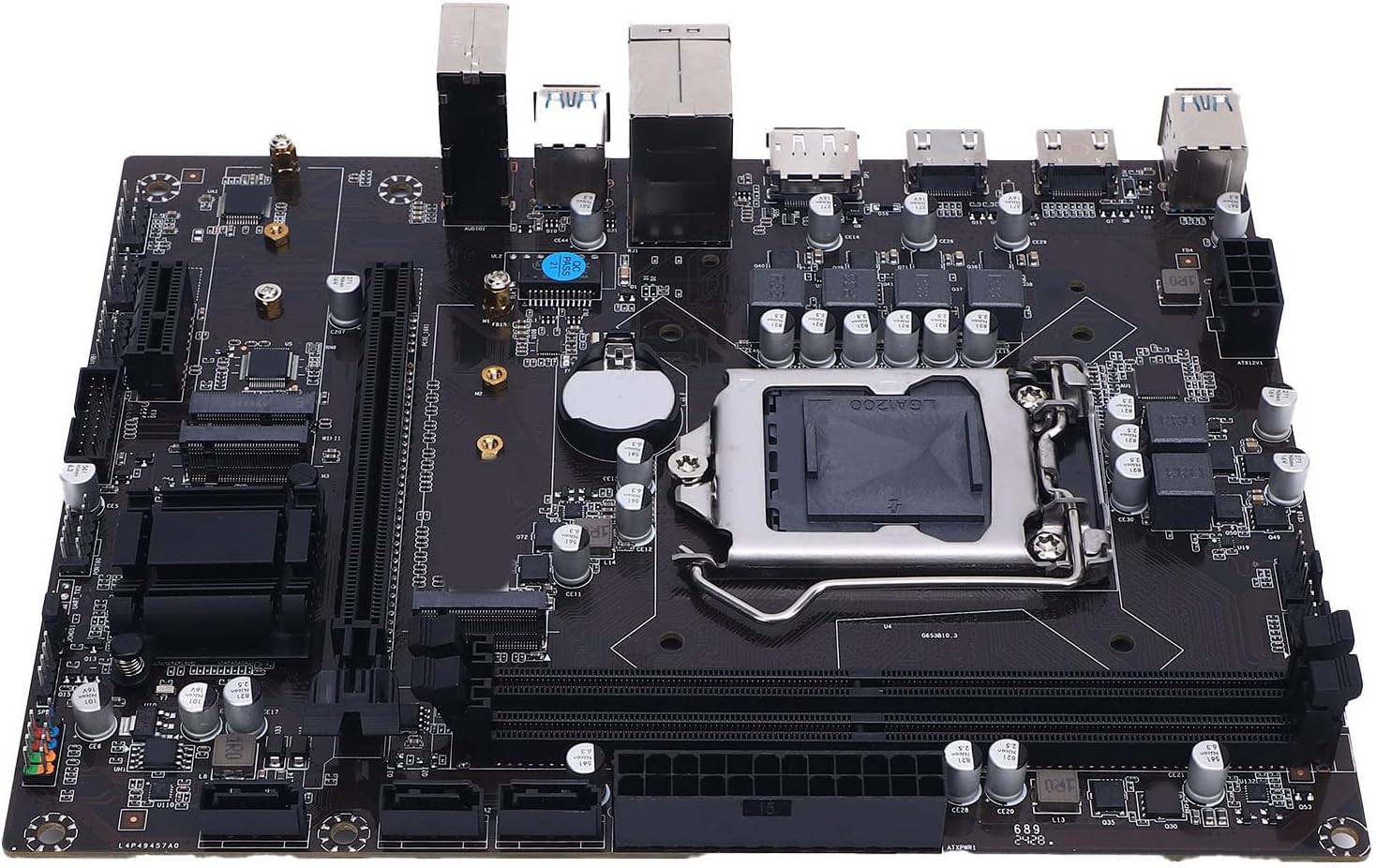
Image: Top view of the Diyeeni H511 Gaming Motherboard, showcasing the CPU socket, RAM slots, and various connectors.
Safety Information
- Always disconnect the power supply from your computer before installing or removing any components.
- Wear an anti-static wrist strap to prevent electrostatic discharge (ESD) damage to components.
- Handle components by their edges to avoid touching sensitive circuits.
- Ensure proper ventilation within your computer case to prevent overheating.
- Keep the motherboard away from moisture and extreme temperatures.
Package Contents
Verify that all items are present in the package:
- 1 x Diyeeni H511 Gaming Motherboard
- (Additional accessories such as SATA cables, I/O shield, and manual may be included depending on the specific retail package.)
Specifications
| Item Type | Gaming Motherboard |
| Material | PCB |
| Battery | Built-in CR2032 240mAh |
| Chipset | H511 Express Chipset |
| Socket | LGA 1200 |
| CPU Support | 10th and 11th Gen Core i3, i5, i7, i9, and Celeron Series Processors |
| Memory | 2 x 288-pin DDR4 SDRAM slots, Dual Channel, Max 64GB, Supports 3200/2933/2800/2666/2400/2133MHz |
| Expansion Slots | 1 x PCI Express x16, 1 x PCI Express x1, 1 x WIFI interface, 2 x NVME-M.2 interface |
| Integrated Sound Card | Realtek ALC 6-channel HD Sound Codec |
| Storage | 3 x Serial ATA 3.0 (6Gb/s) ports |
| I/O Ports | 2 x USB 2.0, 4 x USB 3.0, 1 x DisplayPort, 2 x HD Multimedia Interface, 1 x RJ45, 1 x 3-in-1 Sound Port |
| On Board Connectors | 1 x 24-pin ATX Power, 1 x 8-pin ATX 12V Power, 2 x USB 2.0 (supports 4 x USB 2.0), 1 x USB 3.0 (supports 2 x USB 3.0), 1 x F-Sound, 1 x PROT80, 1 x UART, 1 x F-SPK1, 1 x JCMOS1, 2 x Fan, 1 x F-PANEL1 |
| Product Size | Approx. 16.8 x 21.5 cm (6.61 x 8.46 in) |
| Model Number | Diyeenieuy6i4doza |
| Item Weight | 1.09 pounds |
Setup Guide
Follow these steps for proper installation of your motherboard and components.
1. CPU Installation
Carefully install the CPU into the LGA 1200 socket.
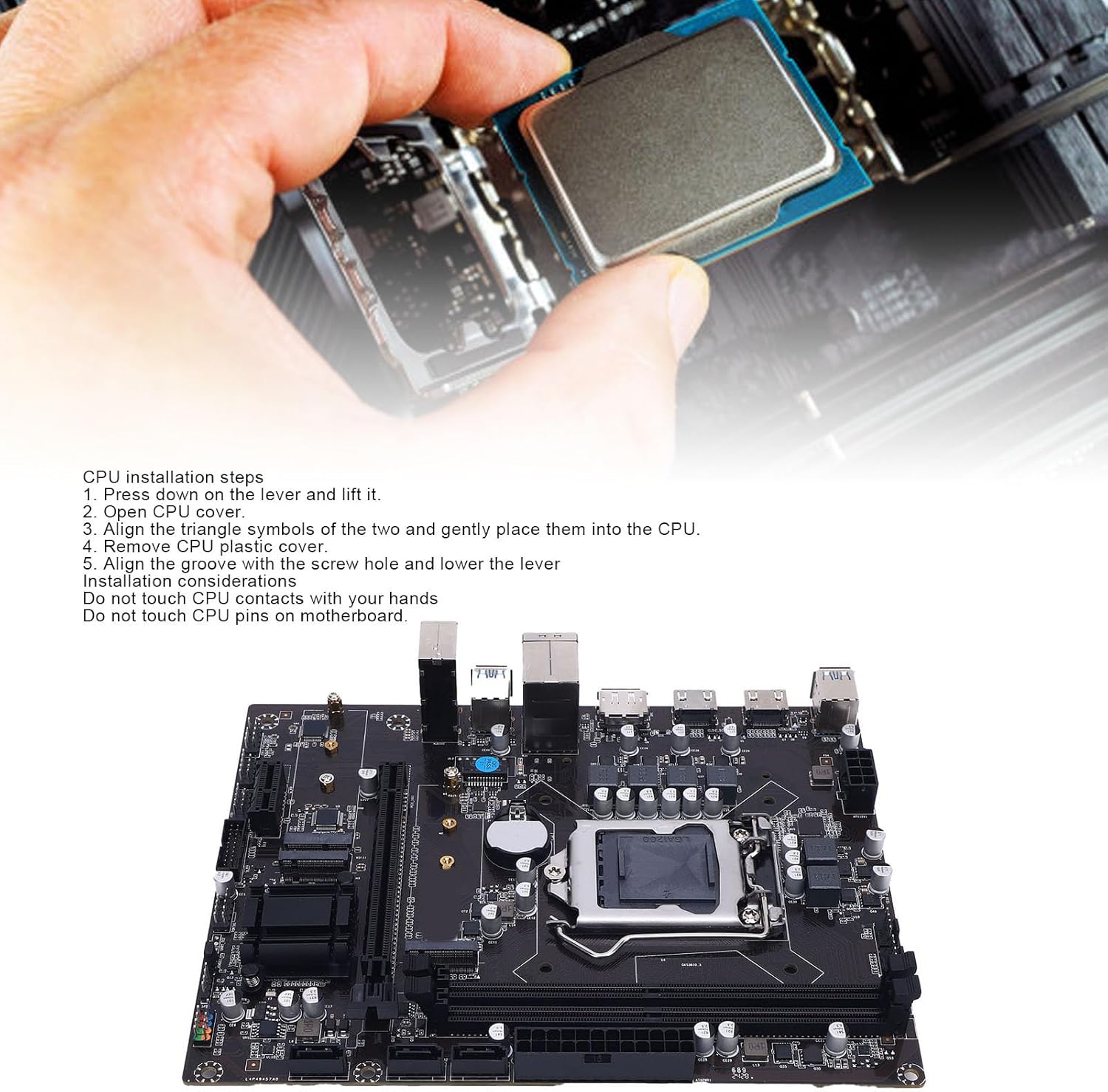
Image: A hand carefully placing a CPU into the motherboard's LGA 1200 socket, with installation steps visible.
- Press down on the lever next to the CPU socket and lift it.
- Open the CPU cover.
- Align the triangle symbols on the CPU and the socket, then gently place the CPU into the socket.
- Remove the CPU plastic cover.
- Align the groove with the screw hole and lower the lever to secure the CPU.
Important Considerations:
- Do not touch CPU contacts with your hands.
- Do not touch CPU pins on the motherboard socket.

Image: A close-up view of the LGA 1200 CPU socket on the motherboard, showing the retention mechanism.
2. Memory (RAM) Installation
The motherboard features two 288-pin DDR4 SDRAM slots. Install DDR4 memory modules into these slots.
- Open the clips at both ends of the DIMM slot.
- Align the notch on the DDR4 memory module with the key in the DIMM slot.
- Press down firmly on both ends of the memory module until the clips snap into place.
3. Storage Device Installation
The motherboard supports M.2 NVMe SSDs and SATA 3.0 devices.
M.2 NVMe SSD Installation:
- Locate the two NVME-M.2 interfaces on the motherboard.
- Insert the M.2 SSD into the slot at a 30-degree angle.
- Gently push the SSD down and secure it with the provided screw.
SATA 3.0 Device Installation:
- Connect one end of a SATA data cable to one of the three Serial ATA 3.0 ports on the motherboard.
- Connect the other end of the SATA data cable to your SATA hard drive or SSD.
- Connect a SATA power cable from your power supply to the SATA device.
4. Expansion Card Installation
Install graphics cards or other expansion cards into the PCI Express slots.
- Locate the PCI Express x16 slot (for graphics cards) and the PCI Express x1 slot.
- Align the expansion card with the chosen slot and press down firmly until it is seated correctly.
- Secure the card with a screw to the computer case.
5. Power Connections
Connect the main power cables from your power supply to the motherboard.
- Connect the 24-pin ATX power connector to the main power socket on the motherboard.
- Connect the 8-pin ATX 12V power connector to the CPU power socket.
6. Front Panel and Internal Connections
Connect the various cables from your computer case to the motherboard's internal headers.
- USB Headers: Connect front panel USB 2.0 and USB 3.0 cables to the corresponding headers (2 x USB 2.0 connectors, 1 x USB 3.0 connector).
- Audio Header: Connect the front panel audio cable to the F-Sound connector.
- Front Panel Headers: Connect power switch, reset switch, power LED, and HDD LED cables to the F-PANEL1 connector. Refer to your case manual for specific pin assignments.
- Fan Headers: Connect case fans to the two available fan connectors.

Image: A close-up view of the internal USB 3.0 header and other power/data connectors on the motherboard.
7. I/O Panel Connections
Connect external peripherals to the rear I/O panel ports.

Image: Diagram illustrating the various I/O ports on the motherboard, including USB 3.0, HD Multimedia Interface, DisplayPort, USB 2.0, and Audio jacks.
- USB Ports: Connect USB devices (keyboard, mouse, external drives) to the 2 x USB 2.0 and 4 x USB 3.0 ports.
- Video Outputs: Connect your monitor(s) to the DisplayPort or one of the two HD Multimedia Interface ports. Note: Integrated graphics support is required from your CPU to utilize these outputs.
- LAN Port: Connect an Ethernet cable to the RJ45 port for network access.
- Audio Jacks: Connect speakers, headphones, or a microphone to the 3-in-1 sound port (Sound In, Sound Out, Mic In).
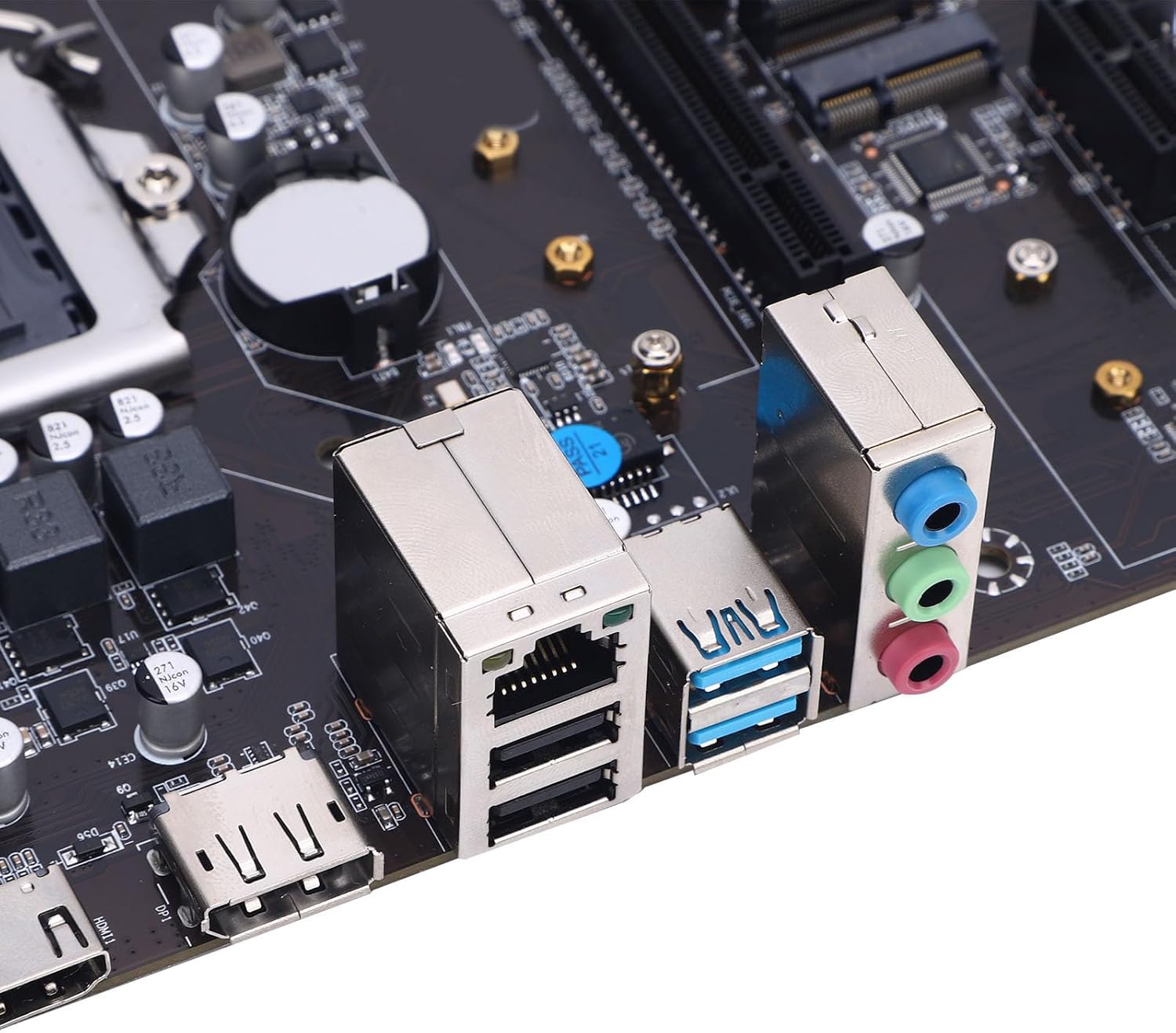
Image: A close-up view of the rear I/O panel, showing the Ethernet port, USB ports, and audio jacks.
Operating Instructions
First Boot and BIOS Setup
- After assembling all components, connect your monitor, keyboard, and mouse.
- Connect the power cord to your power supply and turn on the power switch.
- Press the power button on your computer case.
- During startup, repeatedly press the DEL key (or F2, F10, F12 depending on BIOS version) to enter the BIOS/UEFI setup utility.
- In the BIOS, you can configure boot order, system time, enable/disable integrated peripherals, and adjust performance settings. Save changes and exit to boot into your operating system installer.
Driver Installation
After installing your operating system, install the necessary drivers for optimal performance.
- Chipset Drivers: Install the chipset drivers first, usually found on the manufacturer's website or an included driver CD/USB.
- Graphics Drivers: Install drivers for your dedicated graphics card (if applicable) or the integrated graphics from your CPU.
- Audio Drivers: Install Realtek ALC audio drivers.
- LAN Drivers: Install network drivers for the RJ45 port.
- M.2/SATA Drivers: Ensure storage drivers are up to date for optimal SSD/HDD performance.
Always download the latest drivers from the official Diyeeni website or the component manufacturers' websites (e.g., Intel for chipset, Realtek for audio).
Maintenance
- Cleaning: Regularly clean dust from the motherboard and components using compressed air. Ensure the system is powered off and unplugged before cleaning.
- BIOS/UEFI Updates: Periodically check the Diyeeni support website for BIOS/UEFI updates. Updates can improve stability, compatibility, and add new features. Follow the update instructions carefully to avoid damaging the motherboard.
- Driver Updates: Keep all system drivers updated to ensure optimal performance and security.
- CMOS Battery: The motherboard uses a CR2032 battery for CMOS settings. If you experience issues with system time or BIOS settings resetting, the battery may need replacement.
Troubleshooting
- No Power:
- Check all power connections (24-pin ATX, 8-pin ATX 12V) are securely seated.
- Ensure the power supply switch is in the 'ON' position.
- Test the power supply with another system or a power supply tester.
- No Display:
- Ensure your monitor is connected to the correct video output (motherboard or dedicated graphics card).
- Verify that your CPU has integrated graphics if using motherboard video outputs.
- Reseat the graphics card and RAM modules.
- Try booting with only one RAM stick.
- System Instability/Crashes:
- Check CPU and GPU temperatures.
- Ensure all drivers are correctly installed and up to date.
- Run memory diagnostic tools to check RAM integrity.
- Verify power supply wattage is sufficient for all components.
- Operating System Not Booting:
- Check boot order in BIOS/UEFI to ensure the correct drive is selected.
- Verify SATA/M.2 connections for your storage drive.
- If recently installed, ensure the OS installation media is properly configured.
Warranty and Support
For warranty information, please refer to the documentation provided with your purchase or visit the official Diyeeni website. Warranty terms and conditions may vary by region and retailer.
For technical support, driver downloads, and further assistance, please visit the official Diyeeni support page or contact their customer service. Keep your product model number (H511) and serial number (if applicable) ready when seeking support.
Diyeeni Official Store: Visit Diyeeni Store on Amazon


