
1. Introduction
This manual provides detailed instructions for the Cosmic Byte Ares Pro Wireless Gamepad. Please read this manual thoroughly before using the device to ensure proper operation and to maximize your gaming experience. This gamepad offers versatile connectivity and advanced features for PC, Android, and iOS platforms.
2. Package Contents
- Cosmic Byte Ares Pro Wireless Gamepad
- 2.4GHz Wireless USB Dongle
- USB-C Charging Cable
- User Manual (this document)
3. Key Features
- Tri-Mode Connectivity: Supports 2.4GHz Wireless (via dongle), Bluetooth, and Wired (USB-C) connections for broad compatibility.
- 1000Hz Polling Rate: Provides ultra-fast response times for minimal input lag.
- Hall Effect Joysticks & Triggers: Utilizes magnetic sensors for enhanced precision and durability, reducing stick drift.
- Wireless 3.5mm Audio Port: Connects your headset wirelessly via dongle mode for in-game audio and voice chat.
- Dedicated Macro Buttons: Programmable rear buttons for assigning complex inputs.
- Turbo Function: Customizable rapid-fire action with speed adjustment.
- Textured Hand Grip: Anti-slip design for comfortable extended gameplay.
- ABXY Backlit Buttons: LED-lit buttons for visibility and aesthetic appeal.
- Adjustable Vibration: Fine-tune rumble strength for immersive feedback.
- Cross-Platform Compatibility: Works with Windows PC, Android smartphones/tablets, and iOS devices.
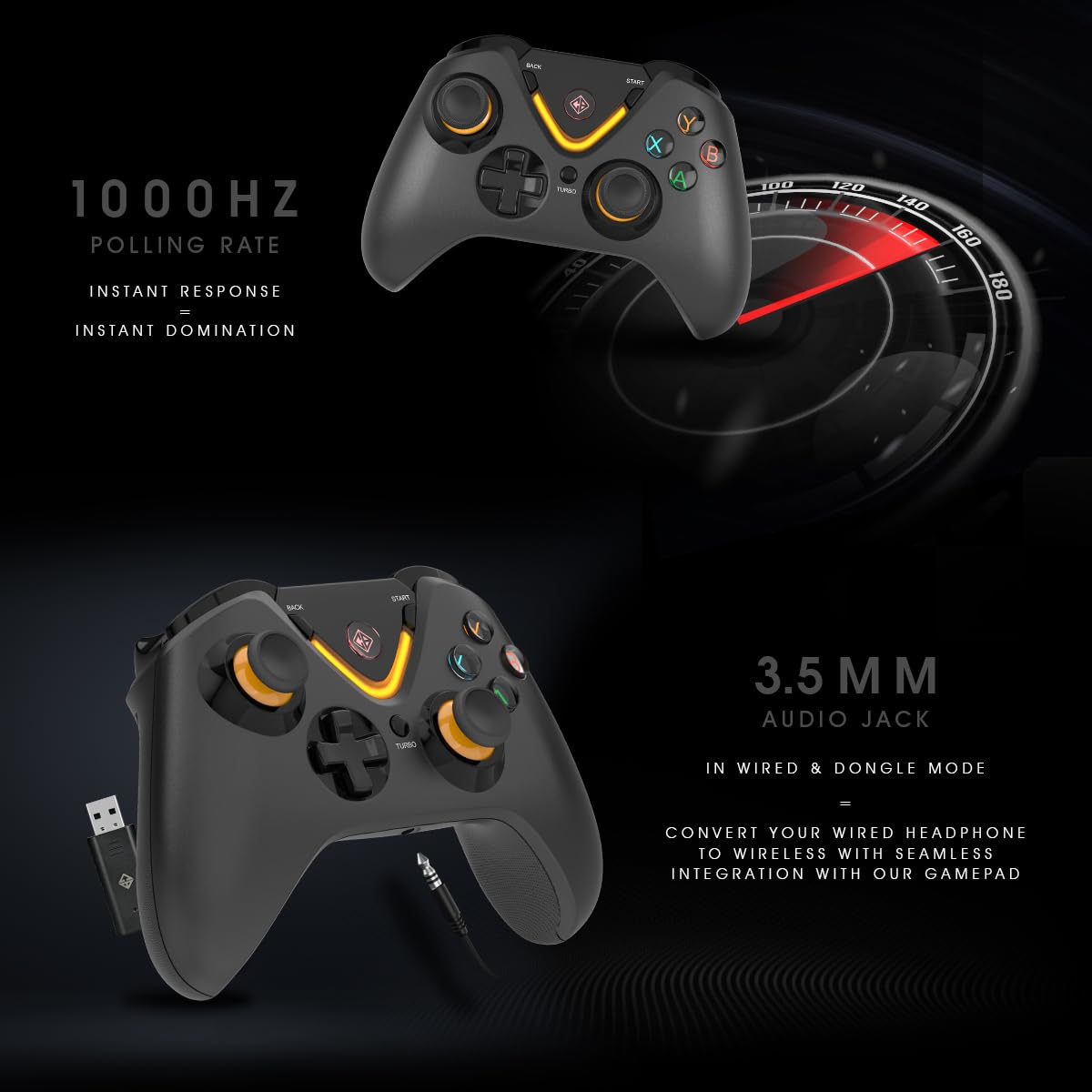
Figure 3.1: Hall Effect Joysticks and Triggers provide precise, anti-drift control.

Figure 3.2: Backlit ABXY buttons for enhanced visibility.
4. Device Layout
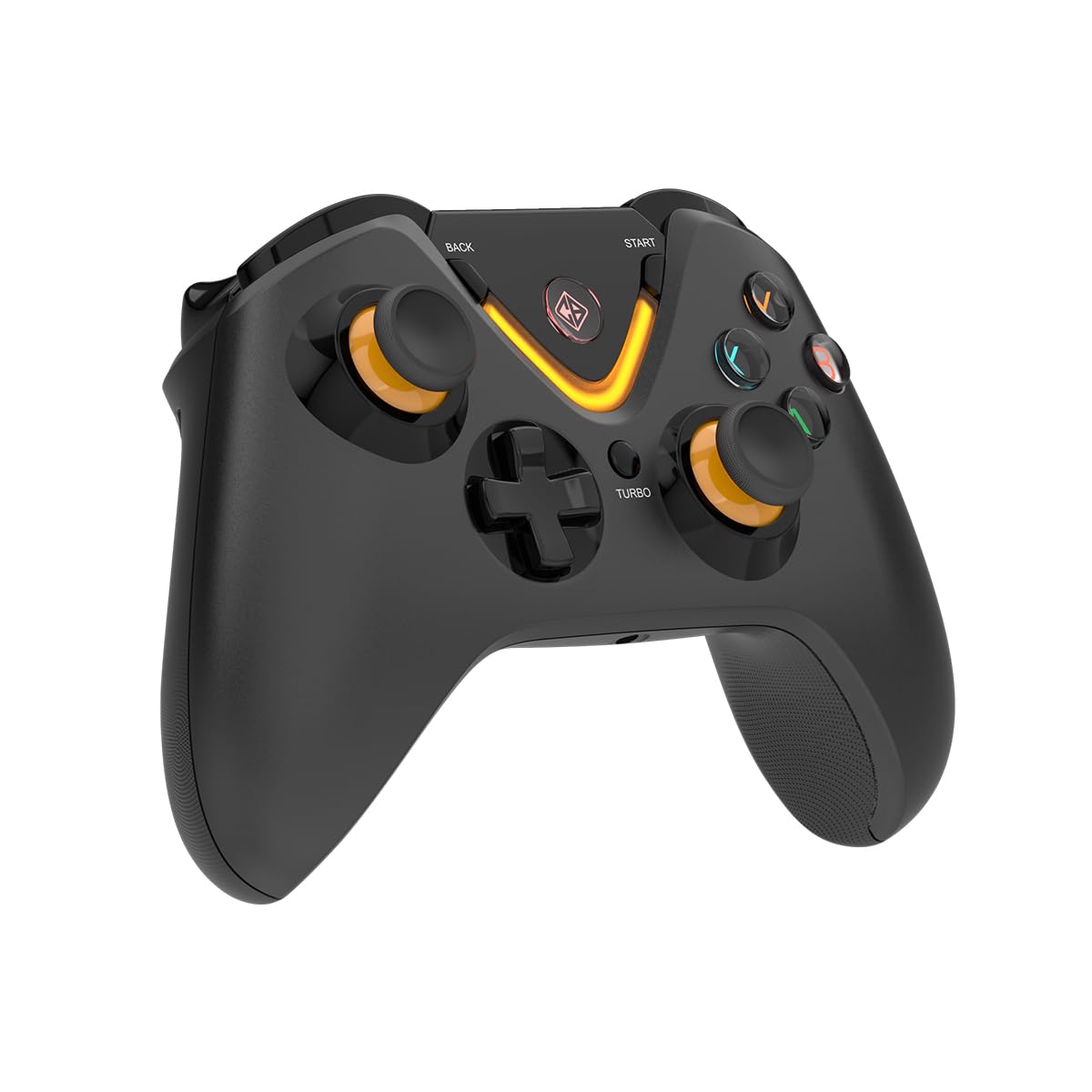
Figure 4.1: Front view of the Ares Pro Gamepad.
The Cosmic Byte Ares Pro Gamepad features a standard layout with:
- Two Analog Joysticks (Hall Effect)
- D-Pad
- ABXY Action Buttons (Backlit)
- Shoulder Buttons (L1/R1) and Triggers (L2/R2, Hall Effect)
- Start, Back/Select, Home Buttons
- Turbo Button
- Two Programmable Macro Buttons (M1/M2) on the rear
- USB-C Charging Port
- 3.5mm Audio Jack
5. Setup and Connectivity
5.1 Charging the Gamepad
Before first use, fully charge the gamepad. Connect the supplied USB-C cable to the gamepad's USB-C port and the other end to a USB power source (e.g., PC, wall adapter). The LED indicator will show charging status and turn off when fully charged.
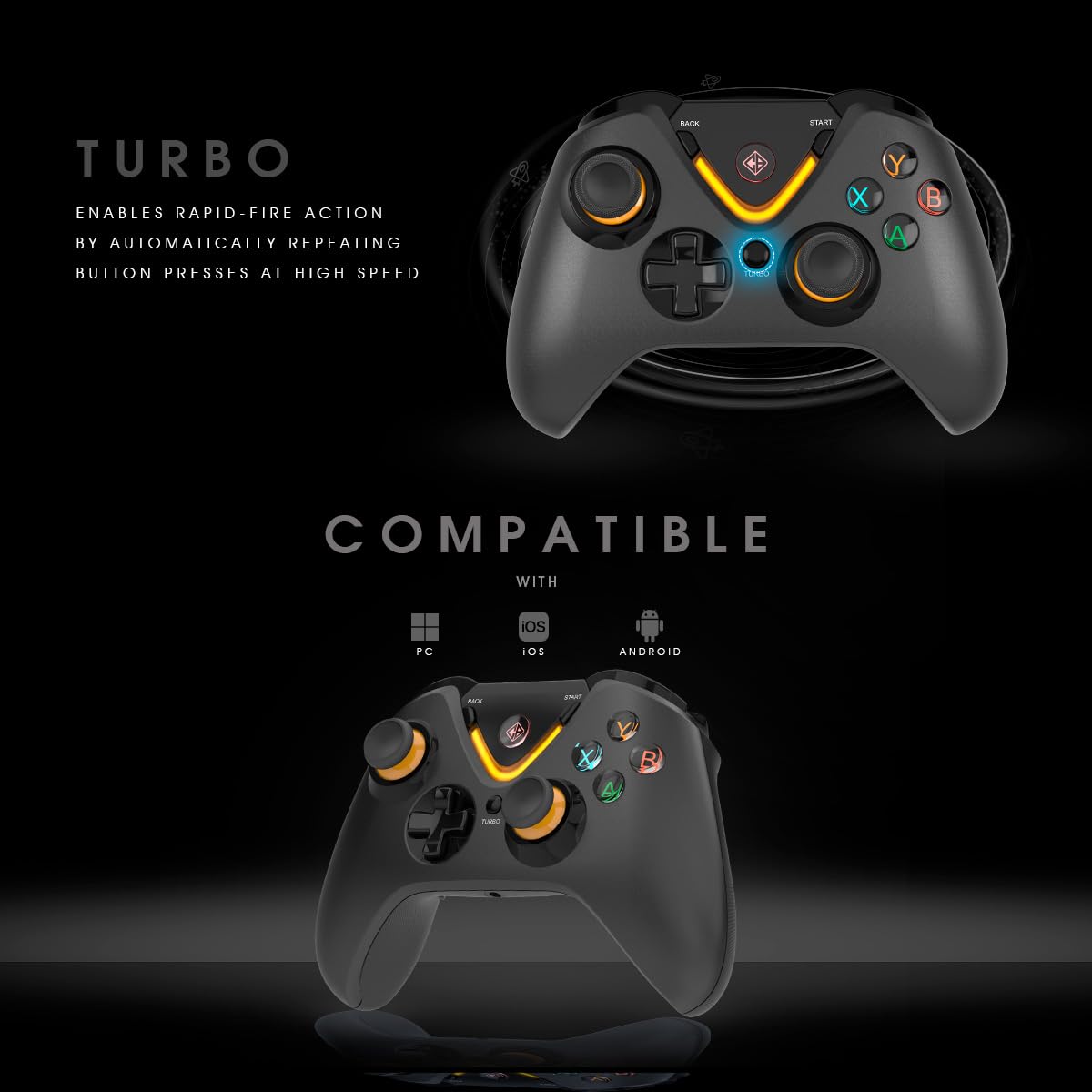
Figure 5.1: USB-C Charging Port location.
5.2 Connecting to Devices
The Ares Pro supports three connectivity modes:

Figure 5.2: Tri-Mode Connectivity options.
5.2.1 2.4GHz Wireless Mode (PC, Android)
- Insert the 2.4GHz USB dongle into an available USB port on your PC or Android device.
- Turn on the gamepad. It will automatically attempt to connect to the dongle.
- The connection indicator LED on the gamepad will stabilize once connected.
5.2.2 Bluetooth Mode (PC, Android, iOS)
- Ensure Bluetooth is enabled on your device (PC, Android, or iOS).
- Press and hold the Bluetooth pairing button on the gamepad (refer to device layout for exact location) until the LED indicator flashes rapidly, indicating pairing mode.
- On your device, search for new Bluetooth devices and select "Cosmic Byte Ares Pro" from the list.
- The LED indicator on the gamepad will stabilize once successfully paired.
5.2.3 Wired Mode (PC, Android)
- Connect the USB-C cable to the gamepad and the other end to your PC or Android device.
- The gamepad will automatically switch to wired mode and be recognized by your device.
6. Operating Instructions
6.1 Power On/Off
- Power On: Press the Home button to turn on the gamepad.
- Power Off: Press and hold the Home button for 5 seconds to turn off the gamepad. It will also automatically power off after a period of inactivity.
6.2 Turbo Function
The Turbo function allows for rapid, automatic repetition of button presses.
- Activate Turbo: Press and hold the Turbo button, then press the desired action button (e.g., A, B, X, Y, L1, R1, L2, R2). The button will now continuously repeat its input when held down.
- Adjust Turbo Speed: While holding the Turbo button, move the Right Analog Stick Up or Down to cycle through different turbo speeds (Slow, Medium, Fast).
- Deactivate Turbo: Press and hold the Turbo button, then press the action button again.

Figure 6.1: Turbo function for rapid-fire actions.
6.3 Macro Buttons (M1/M2)
The two rear macro buttons (M1 and M2) can be programmed to execute a sequence of button presses.
- Enter Programming Mode: Press and hold the Macro Program button (usually a small button near M1/M2) until the indicator LED flashes.
- Select Macro Button: Press either M1 or M2. The LED will flash slower.
- Record Sequence: Input the desired button sequence (e.g., A, B, X, Y, D-pad movements).
- Save Macro: Press the Macro Program button again to save the sequence. The LED will turn off.
- Use Macro: Press the programmed M1 or M2 button to execute the recorded sequence.

Figure 6.2: Programmable Macro Buttons M1 and M2.
6.4 Vibration Adjustment
The gamepad features adjustable vibration feedback for enhanced immersion.
- While the gamepad is connected, press and hold the Vibration button (if available, or a combination like Turbo + Left Analog Stick Down) to cycle through vibration intensities (e.g., Off, Low, Medium, High).

Figure 6.3: Adjustable vibration control for immersive feedback.
6.5 3.5mm Audio Port
The 3.5mm audio port is functional when the gamepad is connected via 2.4GHz wireless dongle or wired mode. Connect your wired headset to this port for in-game audio and voice chat.

Figure 6.4: 3.5mm Audio Jack for headset connectivity.
7. Maintenance
- Cleaning: Use a soft, dry cloth to clean the gamepad. Avoid using harsh chemicals or abrasive materials.
- Storage: Store the gamepad in a cool, dry place away from direct sunlight and extreme temperatures.
- Battery Care: To prolong battery life, avoid fully discharging the gamepad frequently. Charge it regularly, even if not in use for extended periods.
- Avoid Drops: Protect the gamepad from physical impact to prevent damage to internal components.
8. Troubleshooting
- Gamepad not turning on: Ensure the gamepad is charged. Connect it to a power source using the USB-C cable.
- Connectivity issues (2.4GHz/Bluetooth):
- Ensure the dongle is properly inserted or Bluetooth is enabled on your device.
- Try re-pairing the gamepad (refer to Section 5.2).
- Move closer to the receiver/device to rule out range issues.
- Ensure no other 2.4GHz devices are causing interference.
- Buttons or joysticks unresponsive:
- Restart the gamepad and your device.
- Ensure the gamepad is fully charged.
- Test in wired mode to determine if it's a wireless issue.
- Audio port not working: Ensure the gamepad is in 2.4GHz wireless or wired mode, as the audio port is not supported in Bluetooth mode.
- Macro programming not working: Ensure you are following the programming steps correctly (refer to Section 6.3).
9. Specifications
| Feature | Detail |
|---|---|
| Model Name | Ares Pro |
| Connectivity Technology | 2.4GHz Wireless, Bluetooth, USB-C Wired |
| Compatible Devices | Windows PC, Android, iOS |
| Controller Type | Gamepad |
| Joysticks & Triggers | Hall Effect |
| Polling Rate | 1000Hz |
| Battery Capacity | 700 mAh (approximate, inferred from image) |
| Audio Port | 3.5mm (Wireless via dongle, Wired) |
| Macro Buttons | Yes (2 rear programmable) |
| Turbo Function | Yes (with speed adjustment) |
| Vibration | Adjustable |
| Item Weight | 150 g |
| Product Dimensions | 10 x 7 x 5 cm |
10. Warranty and Support
For warranty information and technical support, please refer to the official Cosmic Byte website or contact their customer service. Keep your purchase receipt for warranty claims.