
1. Introduction
The ATOMSTACK R6 Laser Rotary Roller is an accessory designed to expand the capabilities of compatible laser engravers, enabling precise engraving on a wide range of cylindrical and irregular objects. This module facilitates stable rotation and accurate positioning for various materials, enhancing the versatility of your laser engraving projects.
2. Safety Information
When operating the ATOMSTACK R6 Rotary Roller in conjunction with a laser engraver, always adhere to the safety guidelines provided with your laser engraving machine. This includes, but is not limited to:
- Wearing appropriate laser safety glasses.
- Ensuring the work area is well-ventilated.
- Keeping flammable materials away from the engraving area.
- Never leaving the laser engraver unattended during operation.
- Familiarizing yourself with emergency stop procedures.
The R6 Rotary Roller itself does not emit laser radiation, but its use is directly linked to laser operation. Always prioritize safety.
3. Product Overview and Features
The ATOMSTACK R6 Rotary Roller is engineered for precision and ease of use. Key features include:
- Versatile Engraving: Ideal for engraving a variety of irregular cylindrical objects, including balls, rings, spherical items, and cups with handles.
- Adjustable Rotation: Offers an adjustment angle of up to 180° and a rotation capability of 360° for comprehensive coverage.
- Tool-Free Adjustment: The roller distance can be easily adjusted without the need for additional tools.
- Wide Compatibility: Supports popular software like LaserGRBL and LightBurn, making it compatible with 95% of desktop laser engravers, including ATOMSTACK, Creality, XTOOL, ORTUR, Sculpfun, Genmitsu, LONGER, Twotrees, and ATEZR.
- Extended Support Design: Capable of processing extra-long items, up to 1 meter in length, provided the item's weight is within the bearable range.

Figure 1: Key Features of the ATOMSTACK R6 Rotary Roller.
4. Setup Instructions
The ATOMSTACK R6 Rotary Roller is designed for quick and easy setup, requiring no complex assembly.
4.1 Unboxing and Initial Placement
The R6 Rotary Roller comes pre-assembled. Simply remove it from its packaging. The design allows for immediate use out of the box, with setup typically taking less than 10 minutes.

Figure 2: ATOMSTACK R6 Rotary Roller ready for use.
4.2 Connecting to Your Laser Engraver
To integrate the R6 Rotary Roller with your laser engraver:
- Locate the Y-axis terminal on your laser engraving machine.
- Disconnect the existing Y-axis connection, if any.
- Connect the ATOMSTACK R6 Rotary Roller to the Y-axis terminal.
- Connect the R6 Rotary Roller to your computer via USB. The system should automatically detect the roller and enter roller processing mode.

Figure 3: USB Connection and Software Interface for Roller Processing Mode.
4.3 Adjusting Roller Distance
The roller distance can be adjusted manually to accommodate objects of varying diameters. No tools are required for this adjustment.
5. Operating Instructions
Once the R6 Rotary Roller is connected and recognized by your engraving software, you can begin engraving cylindrical objects.
5.1 Placing Objects for Engraving
Carefully place the cylindrical object onto the rollers. Ensure the object is stable and centered to prevent movement during engraving.

Figure 4: Engraving Regular Cylindrical Objects.
For irregular cylindrical objects, such as bottles with varying diameters or cups with handles, position the object to ensure the engraving area is properly supported and can rotate freely.

Figure 5: Engraving Irregular Cylindrical Objects.
The extended support design allows for processing of longer items. Ensure the item's weight is within the module's capacity for stable operation.

Figure 6: Processing Extra-Long Items.
5.2 Software Configuration
Utilize your laser engraving software (e.g., LaserGRBL, LightBurn) to select the rotary engraving mode. Configure the object's dimensions and desired engraving path according to the software's instructions. The R6 supports a 180° adjustment angle and 360° rotation for comprehensive engraving.
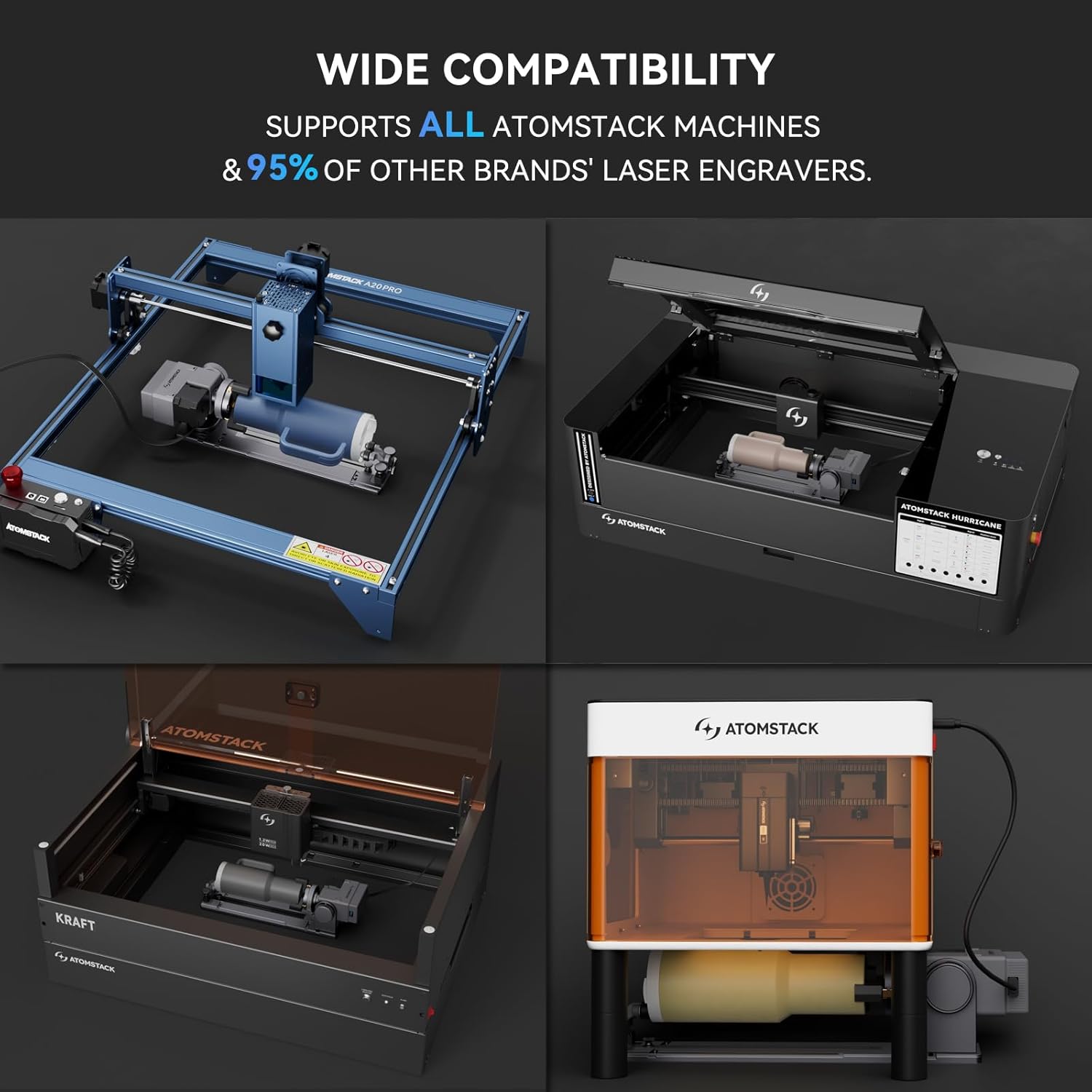
Figure 7: Wide Compatibility with Laser Engravers.
6. Maintenance
Regular maintenance ensures the longevity and optimal performance of your ATOMSTACK R6 Rotary Roller.
- Cleaning: Periodically clean the rollers and the module body to remove dust, debris, and engraving residue. Use a soft, dry cloth. Avoid abrasive cleaners or solvents.
- Inspection: Regularly inspect all connections and moving parts for any signs of wear or damage. Ensure all components are securely fastened.
- Storage: When not in use, store the rotary roller in a clean, dry environment away from direct sunlight and extreme temperatures.
7. Troubleshooting
If you encounter issues with your ATOMSTACK R6 Rotary Roller, consider the following troubleshooting steps:
- Roller Not Rotating:
- Check the USB connection to your computer and the Y-axis connection to your laser engraver.
- Ensure the rotary mode is correctly selected in your engraving software.
- Verify that the object is not too heavy or obstructing the rollers.
- Inaccurate Engraving:
- Ensure the object is securely placed and not slipping on the rollers.
- Check that the object's dimensions are accurately entered into the software.
- Confirm that the laser engraver's settings (focus, speed, power) are appropriate for the material.
- Software Not Detecting R6:
- Reconnect the USB cable.
- Restart your computer and engraving software.
- Ensure your software is updated to the latest version.
If problems persist, refer to the support information in Section 9.
8. Specifications
| Model Number | R6 |
| Product Dimensions | 3.94 x 7.87 x 1.97 inches (10 x 20 x 5 cm) |
| Item Weight | 2.64 pounds (1.2 kg) |
| Manufacturer | ATOMSTACK |
| Compatibility | ATOMSTACK, Creality, XTOOL, ORTUR, Sculpfun, Genmitsu, LONGER, Twotrees, ATEZR, etc. (95% of desktop laser engravers) |
| Software Support | LaserGRBL, LightBurn |
9. Warranty and Support
ATOMSTACK is committed to providing excellent customer service and product support.
9.1 Warranty Information
The ATOMSTACK R6 Rotary Roller comes with a 1-year warranty from the date of purchase. This warranty covers manufacturing defects and ensures replacement parts are available.
9.2 Technical Support
Our professional technical and support teams are available 24/7 to assist with any questions or concerns you may have regarding the setup, operation, or maintenance of your R6 Rotary Roller. We also offer lifetime technical support for our products.
For support, please visit the official ATOMSTACK website or contact our customer service team through the contact information provided with your product documentation.


