
1. Introduction
This manual provides essential instructions for the proper use and maintenance of your Reyke HB15 Android Smart Tag. Please read this manual thoroughly before using the device to ensure optimal performance and safety. The Reyke Smart Tag is a Google Certified Bluetooth tracker designed to help you locate your belongings using the Google Find My Device app on Android phones.
2. Safety Information
- Keep the device out of reach of small children to prevent accidental ingestion of small parts, especially the battery.
- Do not expose the device to extreme temperatures or direct sunlight for extended periods.
- Use only the specified battery type (CR2032).
- Do not attempt to disassemble or modify the device, as this may void the warranty and cause damage.
- Dispose of batteries and the device according to local regulations.
3. Package Contents
- Reyke HB15 Android Smart Tag(s) (4-pack)
- Lithium Metal CR2032 Batteries (pre-installed)
- Keychains/Lanyards (as pictured)
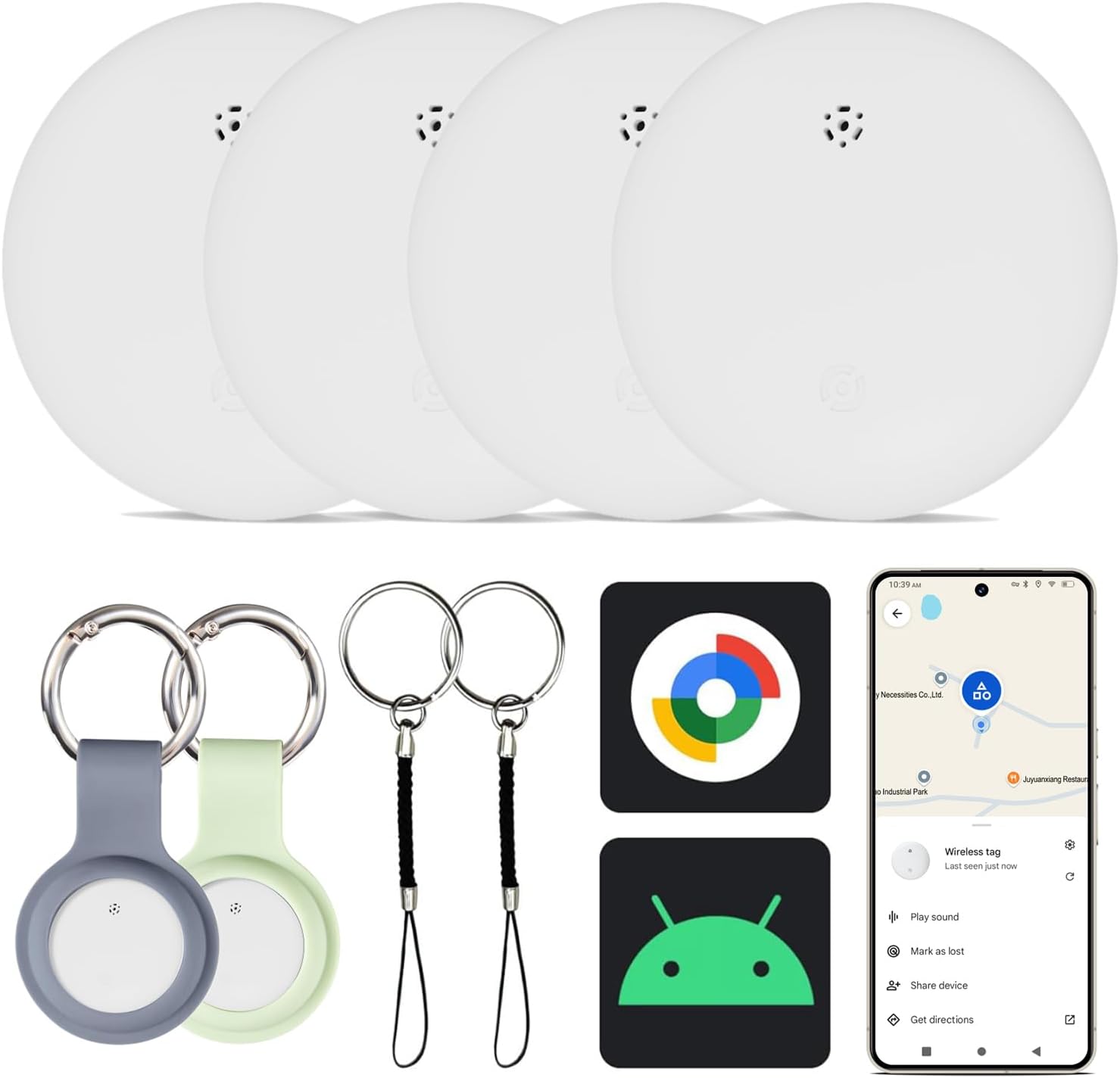
Image: The package includes four white Reyke Smart Tags, various keychains and lanyards for attachment, and is compatible with Google Find My Device on Android.
4. Setup Guide
4.1. Compatibility
The Reyke HB15 Smart Tag is designed exclusively for Android devices and works with the Google Find My Device app. It is not compatible with iOS devices.
4.2. Initial Setup and Pairing
- Ensure your Android phone's Bluetooth is enabled.
- Download and open the "Google Find My Device" app from the Google Play Store.
- Press and hold the button on the Reyke Smart Tag until you hear a beep or see an indicator light (if applicable).
- Follow the on-screen prompts within the Google Find My Device app to complete the pairing process.
- For optimal tracking, ensure "Find your offline devices" is enabled in your phone's settings, preferably set to "With networks in all areas." (Path: Settings > Security > Find your offline devices).

Image: An Android phone screen showing the Google Find My Device app, indicating the location of a wireless tag. A Reyke Smart Tag is held in hand, demonstrating its integration with the Android ecosystem.
5. Operating Instructions
5.1. Global Tracking
Use the "Google Find My Device" app to track your item. When the Smart Tag is within Bluetooth range (up to 180 feet), you can activate its built-in speaker to locate the item by sound. If the tag is out of Bluetooth range, its last known position will be displayed on the map within the app, leveraging the Google Find My network.
5.2. Locate Item with Sound
Within the Google Find My Device app, select your Reyke Smart Tag and tap the "Play sound" option. The tag will emit a loud beep (90-105dB) to help you pinpoint its exact location when nearby.

Image: An Android phone screen shows the "Play sound" function in the Find My Device app, with a Reyke Smart Tag depicted emitting sound waves, indicating its ability to be located audibly.
5.3. Left-Behind Remind
Configure the app to receive notifications on your phone if you leave your Reyke Smart Tag behind and it goes out of Bluetooth range. The app will show the tag's last known location on a map.
5.4. Share Device
You can share access to your Reyke Smart Tag's location with up to 5 other users through the "Google Find My Device" app. Shared users can view the item's location on a map. Note that borrowers will not receive tracking notifications as the item moves with them.

Image: The "Share device" interface of the Google Find My Device app on an Android phone, illustrating how to share a Reyke Smart Tag with others for collaborative tracking.
5.5. Mark as Lost
If an item with your Smart Tag is lost, activate "Lost Mode" in the app. The Google Find My network, composed of millions of Android devices, will help locate your item. You will receive an automatic notification when your tag is detected by another Google device in the network.
6. Maintenance
6.1. Battery Replacement
The Reyke Smart Tag uses a replaceable CR2032 Lithium Metal battery, which typically lasts over a year. To replace the battery:
- Gently twist or pry open the tag's casing (refer to product diagrams if available for specific opening points).
- Remove the old CR2032 battery.
- Insert a new CR2032 battery with the positive (+) side facing up.
- Close the casing securely.
6.2. Water Resistance
The Reyke Smart Tag has an IP66 rating, meaning it is protected against heavy splashing and water jets. It is suitable for outdoor activities and can confidently handle splashes and rain. However, it is not designed for prolonged submersion.
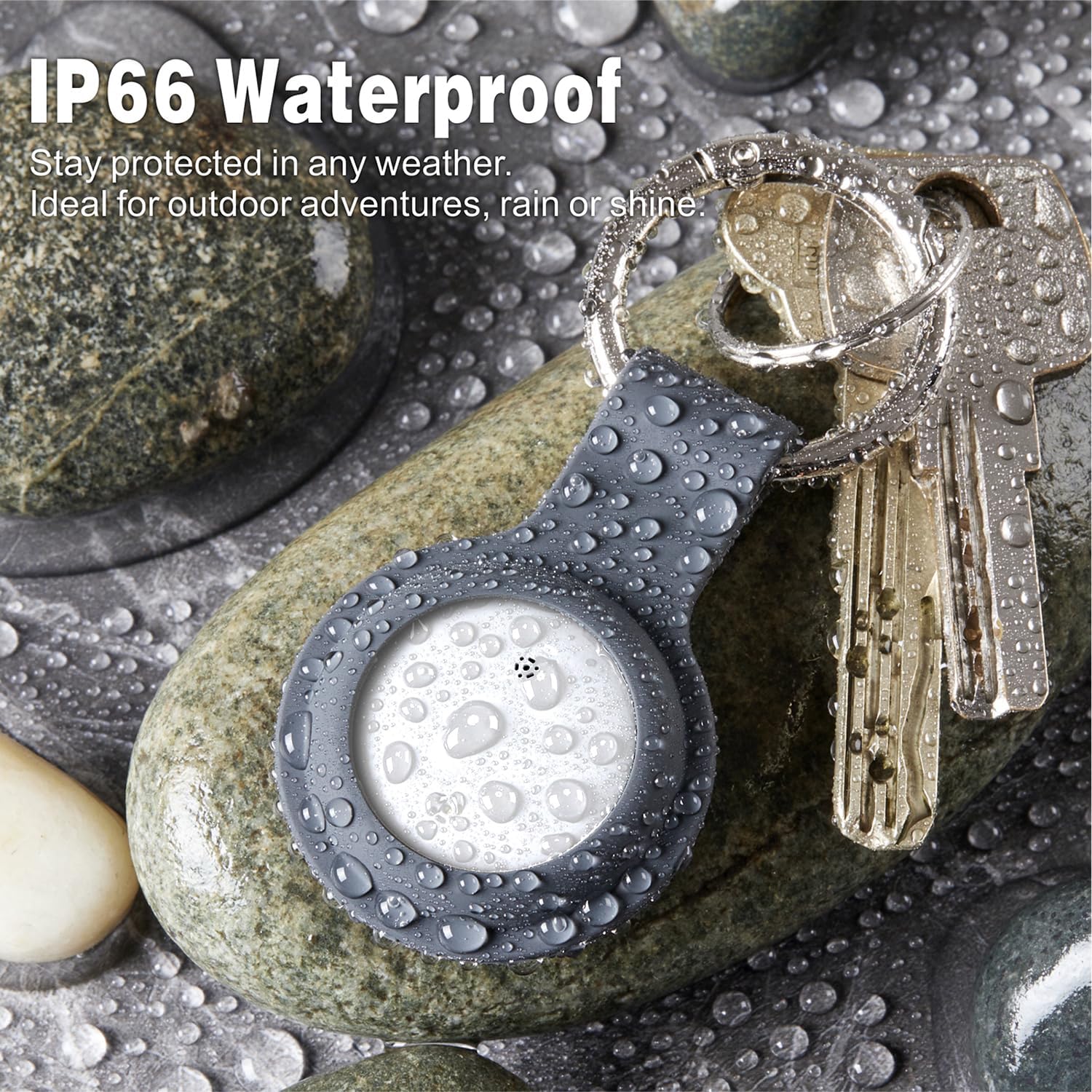
Image: A Reyke Smart Tag, attached to a keychain with keys, is shown covered in water droplets on a wet, rocky surface, emphasizing its IP66 waterproof capability.
7. Specifications
| Feature | Detail |
|---|---|
| Model Number | HB15 |
| Connectivity | Bluetooth |
| Compatibility | Android devices (Google Find My Device app) |
| Bluetooth Range | Up to 180 feet (50 meters) |
| Loudness | 90-105dB |
| Water Resistance | IP66 (Protected against heavy splashing and water jets) |
| Battery Type | CR2032 Lithium Metal (included) |
| Dimensions | 1.26 x 1.26 x 0.31 inches (32 x 32 x 7.9 mm) |
| Weight | 2.82 ounces (total for 4-pack, approximate) |
| Material | Plastic |

Image: A technical diagram illustrating the physical dimensions (diameter and thickness) of the Reyke Smart Tag, along with icons highlighting its key features: loud sound, Bluetooth range, IP66 waterproof rating, and replaceable battery.
8. Troubleshooting
8.1. Tag Not Connecting/Pairing
- Ensure Bluetooth is enabled on your Android phone.
- Make sure the tag is within Bluetooth range of your phone.
- Check the battery: A low or dead battery can prevent connection. Replace the CR2032 battery if necessary.
- Restart your phone and try the pairing process again.
- Ensure the Google Find My Device app is updated to the latest version.
8.2. Sound Not Loud Enough
- Ensure there are no obstructions covering the tag's speaker.
- The sound may be less audible in noisy environments.
- Check battery level; a low battery might affect sound output.
8.3. Inaccurate Location Tracking
- Location accuracy relies on the density of the Google Find My network. In areas with fewer Android devices, location updates may be less frequent or precise.
- Ensure "Find your offline devices" is enabled in your phone's settings and set to "With networks in all areas" for best results.
- The map displays the last known location when out of direct Bluetooth range.
9. Warranty and Support
For warranty information and customer support, please refer to the documentation included with your purchase or visit the official Reyke store on Amazon: Reyke Store.
Privacy Protection: The Google Find My app's network is encrypted and anonymous. Location data and history are not stored on the Reyke Google Tracking Tag itself, ensuring user privacy.
