
1. Product Overview
The karuisrc K417 Mini Drone is a compact, foldable, and feature-rich drone designed for both beginners and experienced pilots. It boasts a 1080P HD camera, intuitive control methods, and robust flight stability features.

Image: The karuisrc K417 Mini Drone in its unfolded state, showcasing its sleek design and camera module.
2. Package Contents
Ensure all items listed below are present in your package:
- 1 x K417 Mini Drone
- 1 x Remote Control
- 2 x Modular Batteries (3.7V Lithium, 1600mAh)
- 4 x Spare Propellers
- 4 x Protective Frames
- 1 x Screwdriver
- 1 x USB Charging Cable
- 1 x User Manual
- 1 x Carrying Case

Image: All components included in the karuisrc K417 Mini Drone package, neatly arranged.
3. Setup
3.1. Unfolding the Drone
- Gently pull out each of the four arms of the drone until they are fully extended.
- Ensure the propellers are unfolded and free from obstruction.
3.2. Battery Installation and Charging
- Insert a fully charged modular battery into the designated slot on the back of the drone until it clicks securely into place.
- To charge the battery, connect the USB charging cable to the battery and a suitable USB power source. The charging indicator will show status.
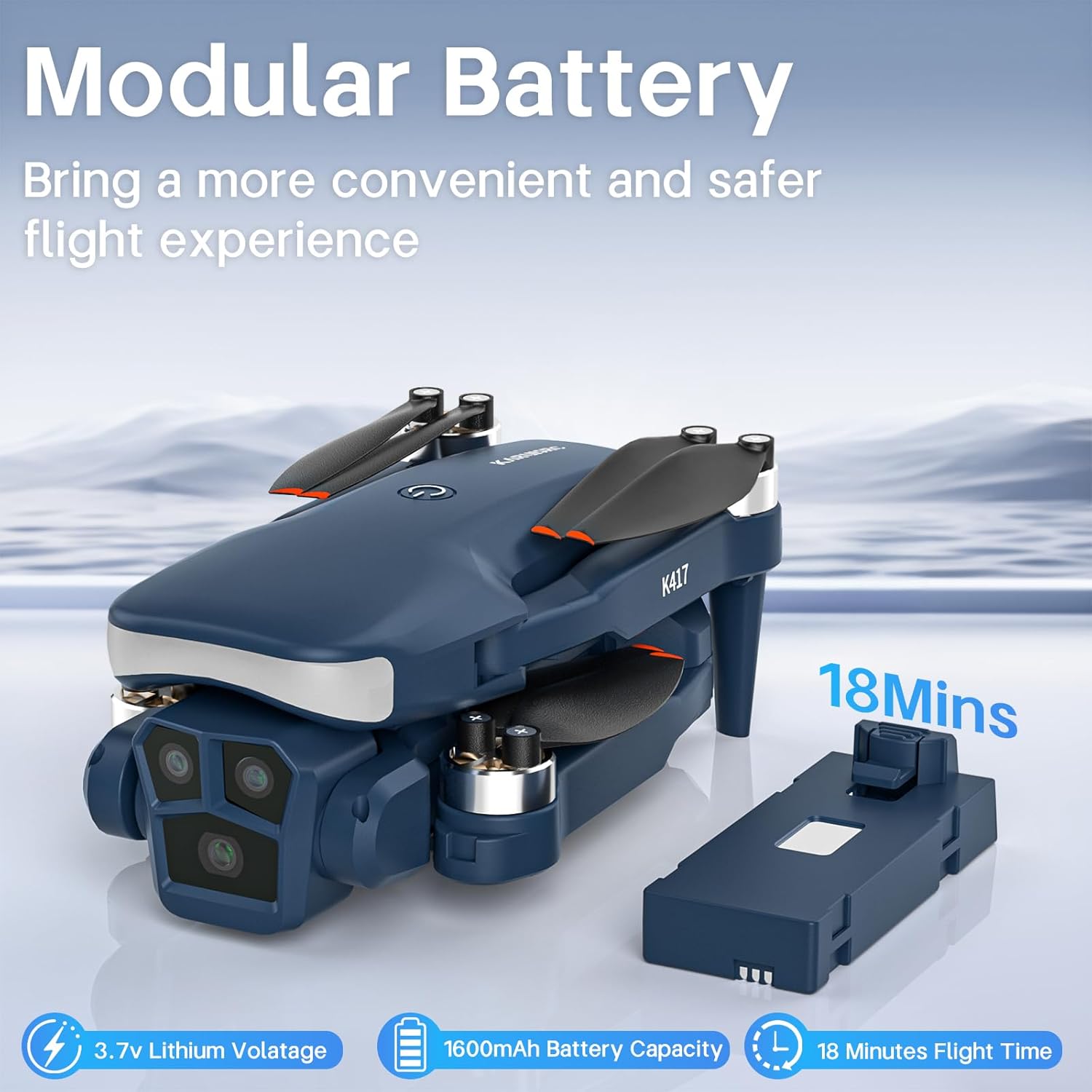
Image: A modular battery being inserted into the drone, highlighting its easy replacement.
3.3. Propeller Guard Installation
- Attach the protective frames to each motor arm by aligning the clips with the designated slots.
- Press firmly until each guard snaps into place.
3.4. Remote Control Setup
- Extend the phone holder on the remote control.
- Download the dedicated drone app by scanning the QR code in the user manual.
- Insert your smartphone into the holder.
4. Operating Instructions
4.1. Power On and Frequency Alignment
- Place the drone on a horizontal, flat surface.
- Long press the power button on the drone to turn it on. The drone's LED lights will flash.
- Turn on the remote control. Wait for the remote to emit a beep sound, indicating successful frequency synchronization. The drone's LED lights will become solid.
4.2. Horizontal Calibration
Move both joysticks on the remote control simultaneously to the lower-left and lower-right corners. The drone's LED lights will flash rapidly and then become solid, indicating successful calibration.
4.3. Takeoff and Landing
- One-Key Takeoff: Press the one-key takeoff button on the remote control, and the drone will automatically ascend and hover.
- One-Key Landing: Press the one-key landing button, and the drone will automatically descend and land.
- Manual Takeoff/Landing: Push both joysticks to the lower-left/lower-right to start the propellers. Slowly increase the left joystick to ascend. To land, slowly decrease the left joystick.
4.4. Flight Operation
- Ascend/Descend: Use the left joystick to control altitude.
- Forward/Backward: Use the right joystick to move forward or backward.
- Turn Left/Right: Use the left joystick to rotate the drone left or right.
- Fly Left/Right: Use the right joystick to move the drone sideways.
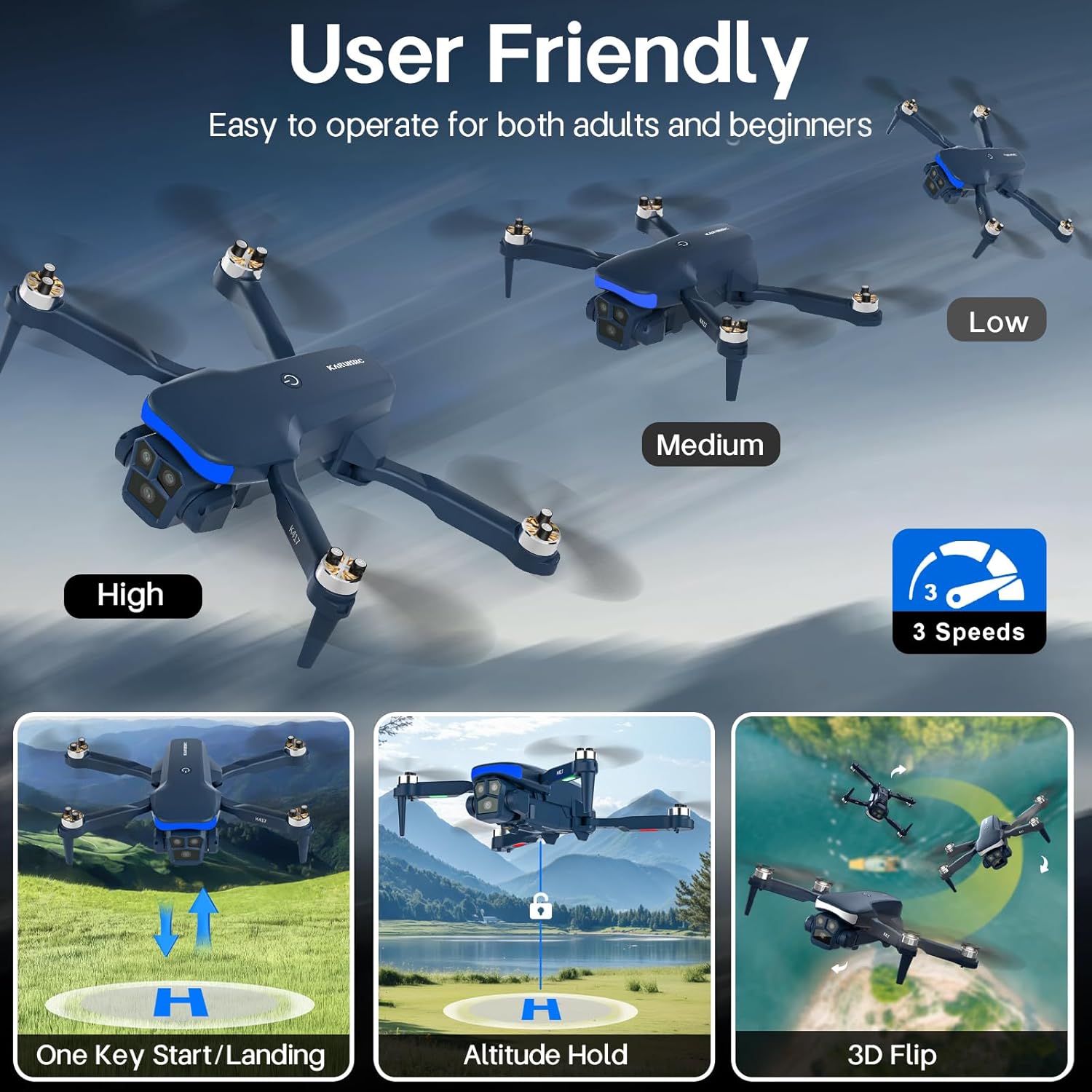
Image: Visual representation of the drone's user-friendly controls, including 3 speeds, one-key functions, altitude hold, and 3D flip.
4.5. Camera Operation
- 1080P HD Camera: The drone is equipped with a dual 90° electric adjustable camera for high-quality photos and videos.
- FPV Real-time Transmission: Connect the drone to the app on your smartphone to view live footage.
- Gesture Control: Use specific hand gestures (e.g., 'V' for photos, palm for videos) to control the camera functions.
- Gravity Control: Tilt your smartphone to control the drone's flight direction.
- Tap Fly: Draw a flight path on your smartphone screen, and the drone will follow it automatically.
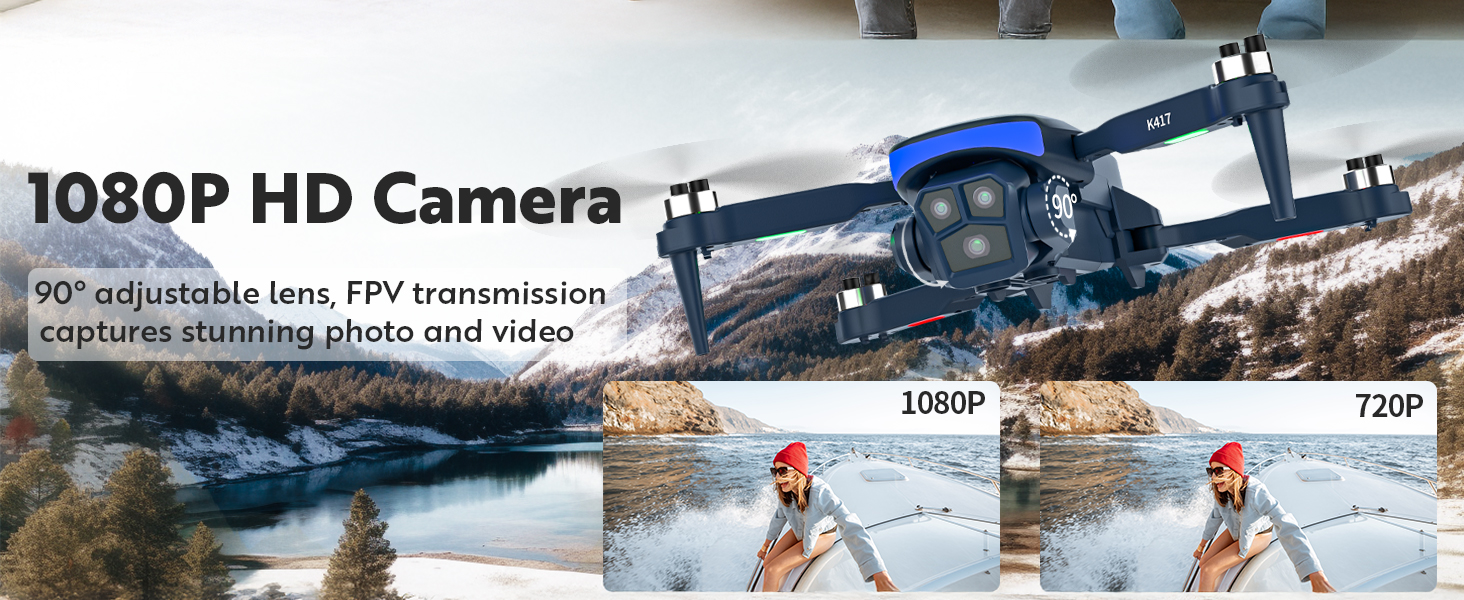
Image: Close-up of the drone's 1080P HD camera with 90° adjustable lens, showing its capability for FPV real-time transmission.

Image: Demonstrates the smart gesture control feature, allowing users to take photos or videos with hand gestures.
4.6. Special Flight Modes
- 3 Speeds: Adjust the drone's speed (low, medium, high) according to your skill level and environment.
- Headless Mode: The drone will fly according to the orientation of the remote control, regardless of the drone's front direction.
- 3D Flip: Press the 3D flip button and move the right joystick in any direction to perform aerial acrobatics.
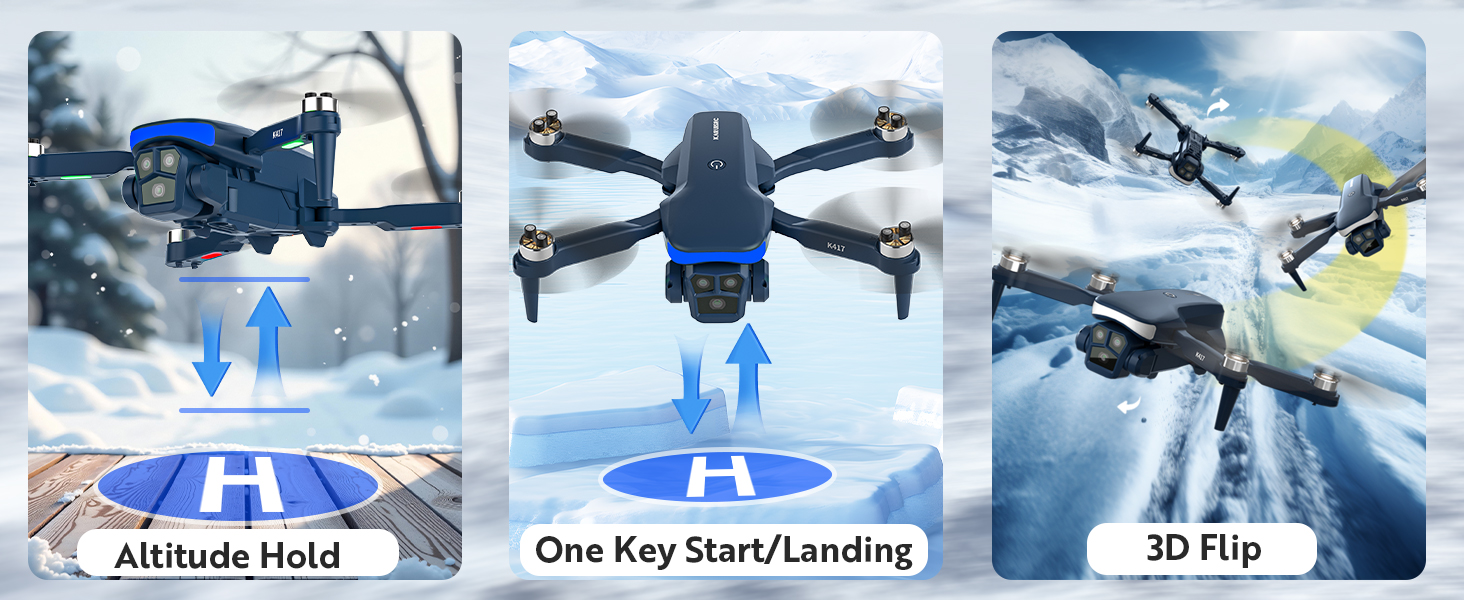
Image: Illustrates the Altitude Hold, One Key Start/Landing, and 3D Flip functions of the drone.
5. Maintenance
- Regularly check propellers for damage. Replace any broken or bent propellers using the provided spare parts and screwdriver.
- Clean the drone body with a soft, dry cloth. Avoid water or harsh chemicals.
- Store the drone and accessories in the carrying case in a cool, dry place when not in use.
6. Troubleshooting
- Drone not responding: Ensure the drone and remote control are properly paired and batteries are charged. Recalibrate if necessary.
- Unstable flight: Perform horizontal calibration. Check for damaged propellers and replace if needed.
- Camera not working: Ensure the app is correctly connected to the drone's Wi-Fi. Check smartphone settings for app permissions.
- Short flight time: Ensure batteries are fully charged. Flight time may vary based on flight conditions and usage of features.
- Emergency Stop: If the drone is out of control, press the emergency stop button on the remote control.
7. Specifications
- Brand: karuisrc
- Model Name: K417
- Special Features: Adjustable, Foldable, Rechargeable
- Color: Blue
- Video Capture Resolution: 1080p
- Connectivity Technology: Wi-Fi
- Item Weight: 143 Grams (approx. 5 ounces)
- Video Capture Format: MP4
- Control Type: Gesture Control
- Material: Plastic
- Battery Cell Composition: Lithium Ion
- Battery Capacity: 1600mAh (approx. 18 minutes flight time per battery)
- Product Dimensions: 0.49"L x 0.16"W x 0.65"H (folded)
8. Official Product Video
Video: An introduction to the K417 drone by KARUISRC, demonstrating its features and flight capabilities.
9. Warranty and Support
For warranty claims or technical support, please refer to the contact information provided in your product packaging or visit the official karuisrc website. Keep your purchase receipt as proof of purchase.
- Email: Karuisrc@gmail.com
- Phone: +44 7419 298225
