
1. Introduction
This manual provides detailed instructions for the installation, operation, and maintenance of your TMEZON Y10 Video Doorbell Camera System. This system allows you to monitor your entrance, communicate with visitors, and manage access using a 7-inch indoor monitor, a smartphone application, and RFID keys. Please read this manual thoroughly before installation and use to ensure proper functionality and safety.
2. Product Overview
2.1. System Components
- Outdoor Doorbell Camera Unit (1 unit)
- 7-inch Indoor Monitors (4 units)
- RFID Key Fobs (5 units)
- Mounting Hardware
- Power Adapters
- Wiring Cables
2.2. Key Features
- Smart Connectivity: Wi-Fi enabled for remote monitoring and communication via smartphone app.
- Display System: 7-inch LCD monitor for clear video display with 1080p resolution.
- Access Control: Includes 5 RFID key fobs for convenient keyless entry.
- Intercom Features: Two-way audio communication between the doorbell unit, indoor monitors, and smartphone app.
- Night Vision: Equipped with 6 IR LEDs for clear visibility up to 15 feet in low light conditions.
- Video Recording: Supports video capture in MOV format at 30fps, encoded with H.264.
- Storage: Supports SD card up to 32 GB for video storage.
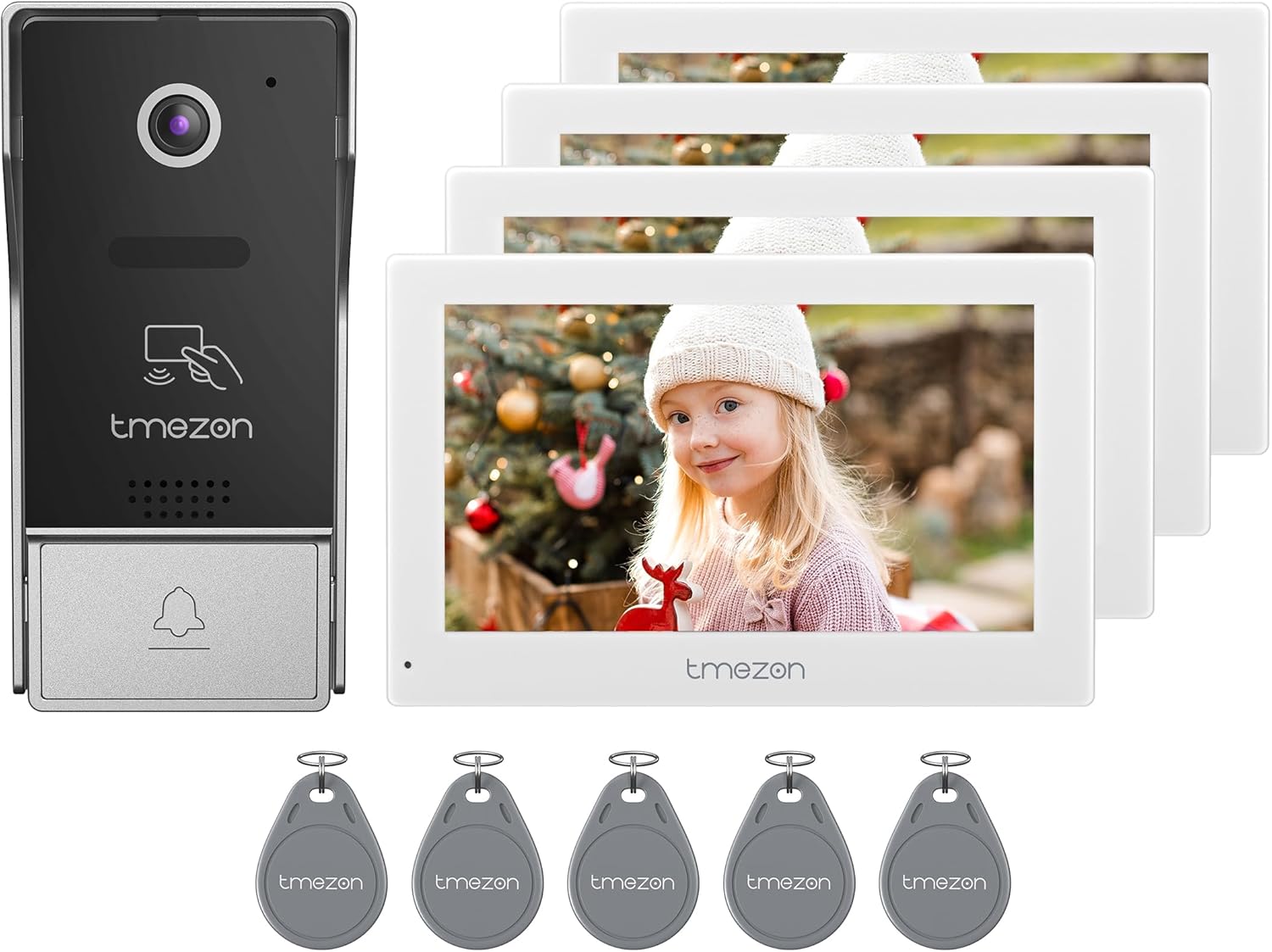
Figure 1: Overview of the TMEZON Y10 Video Doorbell Camera System components. This image displays the outdoor doorbell unit on the left, four white 7-inch indoor monitors stacked on the right, and five gray RFID key fobs arranged at the bottom.
3. Setup and Installation
3.1. Mounting the Doorbell Unit
- Choose a suitable location for the outdoor doorbell unit, typically near your main entrance, at a height of approximately 1.2 to 1.5 meters (4 to 5 feet) from the ground.
- Ensure the mounting surface is flat and stable. The unit is designed for wall mounting.
- Use the provided mounting bracket as a template to mark drilling points on the wall.
- Drill holes and insert wall anchors if necessary. Secure the mounting bracket to the wall using screws.
- Connect the necessary wiring (power, video, audio, lock control) to the doorbell unit. Refer to the wiring diagram in the included installation guide for specific connections.
- Attach the doorbell unit to the mounting bracket, ensuring it is securely fastened.
3.2. Installing Indoor Monitors
- Select locations for the indoor monitors where they are easily accessible and provide clear viewing.
- Mount each monitor to the wall using its respective mounting bracket and hardware.
- Connect the monitors to the doorbell unit and to each other using the provided wiring. Ensure proper power connections for each monitor (Corded Electric, 12 Volts).
- Power on all units.
3.3. Smartphone App Setup
- Download the TMEZON smartphone application from your device's app store (compatible with Android and iOS).
- Register for an account and log in.
- Follow the in-app instructions to add your TMEZON Y10 system. This typically involves scanning a QR code on the indoor monitor or entering a device ID.
- Ensure your system is connected to your home Wi-Fi network (2.4GHz only).
3.4. RFID Key Fob Programming
Refer to the detailed instructions provided with your system for programming the RFID key fobs. This process typically involves entering a programming mode on the indoor monitor and then presenting each key fob to the doorbell unit's RFID reader.
4. Operating Instructions
4.1. Answering a Call from the Doorbell
- When a visitor presses the doorbell button, the indoor monitors will ring and display the visitor's video feed.
- On the indoor monitor, press the "Answer" button to initiate two-way audio communication.
- To unlock the door (if connected to an electronic lock), press the "Unlock" button on the monitor.
- To end the call, press the "Hang Up" button.
4.2. Using the Smartphone App
- When a visitor presses the doorbell, you will receive a push notification on your smartphone.
- Open the TMEZON app and tap the notification to view the live video feed and communicate with the visitor.
- Use the microphone icon to speak and the speaker icon to hear the visitor.
- The app also allows you to remotely unlock the door and review recorded video footage.
4.3. RFID Key Fob Access
To gain entry using an RFID key fob, simply present the programmed key fob to the RFID reader area on the outdoor doorbell unit. The door will unlock momentarily.
4.4. Video Recording and Playback
- The system automatically records video when the doorbell is pressed or motion is detected (if enabled).
- Insert an SD card (up to 32 GB) into the designated slot on the indoor monitor for local storage.
- Access recorded footage through the indoor monitor's menu or via the smartphone application.
5. Maintenance
- Cleaning: Regularly wipe the camera lens and monitor screens with a soft, damp cloth. Avoid abrasive cleaners.
- Firmware Updates: Check the TMEZON website or smartphone app periodically for firmware updates to ensure optimal performance and security.
- Wiring Inspection: Periodically inspect all wiring connections for signs of wear or damage.
- SD Card Management: If using an SD card for recording, regularly back up important footage and format the card to maintain performance.
6. Troubleshooting
| Problem | Possible Cause | Solution |
|---|---|---|
| No video on indoor monitor. | Loose wiring connection; power issue; camera malfunction. | Check all wiring between the doorbell unit and monitors. Ensure all units are powered on. Restart the system. |
| No audio during communication. | Microphone/speaker muted; volume too low; wiring issue. | Check volume settings on the monitor and app. Ensure microphone is not muted. Verify audio wiring connections. |
| Smartphone app cannot connect to the system. | Incorrect Wi-Fi password; poor Wi-Fi signal; system offline. | Verify Wi-Fi credentials. Ensure the system is within Wi-Fi range. Restart your router and the doorbell system. Re-pair the device in the app if necessary. |
| RFID key fobs not working. | Key fob not programmed; RFID reader malfunction. | Ensure key fobs are correctly programmed according to the manual. Test with another programmed key fob. |
| Poor night vision quality. | Obstructed camera lens; IR LEDs blocked or faulty. | Clean the camera lens. Ensure nothing is blocking the IR LEDs. |
7. Specifications
| Feature | Detail |
|---|---|
| Model Name | Y10 |
| Brand | TMEZON |
| Connectivity Technology | Wired, Wi-Fi (2.4GHz) |
| Indoor/Outdoor Usage | Indoor (Monitors), Outdoor (Doorbell Unit) |
| Power Source | Corded Electric, 12 Volts, 10 Watts |
| Video Capture Resolution | 1080p (Effective Still Resolution: 1080 Pixels) |
| Frame Rate | 30fps |
| Video Encoding | H.264 |
| Video Capture Format | MOV |
| Night Vision Range | 15 Feet (6 IR LEDs) |
| Storage | SD Card (up to 32 GB Flash Memory) |
| Audio | 2-Way Audio Communication |
| Control Method | App, Remote, Touch |
| Alert Type | Mobile Push Notification |
| Material | Glass, Metal, Plastic |
| Dimensions (L x W x H) | 8.5 x 7 x 3 inches |
| Item Weight | 2.5 Pounds |
| Water Resistance Level | Water Resistant (IP54 International Protection Rating) |
8. Warranty and Support
For warranty information and technical support, please refer to the documentation included with your purchase or visit the official TMEZON website. You may also contact TMEZON customer service directly for assistance with product issues or inquiries.