
Introduction
The TECURS WK016 Wireless Bluetooth Keyboard is designed for versatile use across multiple operating systems and devices. It offers three distinct connection channels, including 2.4GHz wireless via a USB/Type-C receiver and two independent Bluetooth channels. This full-size keyboard features a German QWERTZ layout, multimedia quick keys, and an ergonomic design with a built-in rechargeable battery. This manual provides detailed instructions for setup, operation, maintenance, and troubleshooting.
Setup
1. Package Contents
Before you begin, please ensure all items are present:
- TECURS WK016 Wireless Bluetooth Keyboard
- USB/Type-C 2.4GHz Wireless Receiver (typically stored in the keyboard's battery compartment or a dedicated slot)
- USB Charging Cable

Image: Front view of the TECURS WK016 keyboard packaging box.
2. Charging the Keyboard
The keyboard is equipped with a built-in 450mAh lithium battery. For optimal performance, fully charge the keyboard before first use.
- Locate the Type-C charging port on the keyboard.
- Connect the provided USB charging cable to the keyboard's Type-C port and the other end to a USB power source (e.g., computer USB port, USB wall adapter).
- The charging indicator light will illuminate. Charging typically takes less than 3 hours.
- Once fully charged, the indicator light may change or turn off. A full charge provides up to 150 hours of continuous operation.
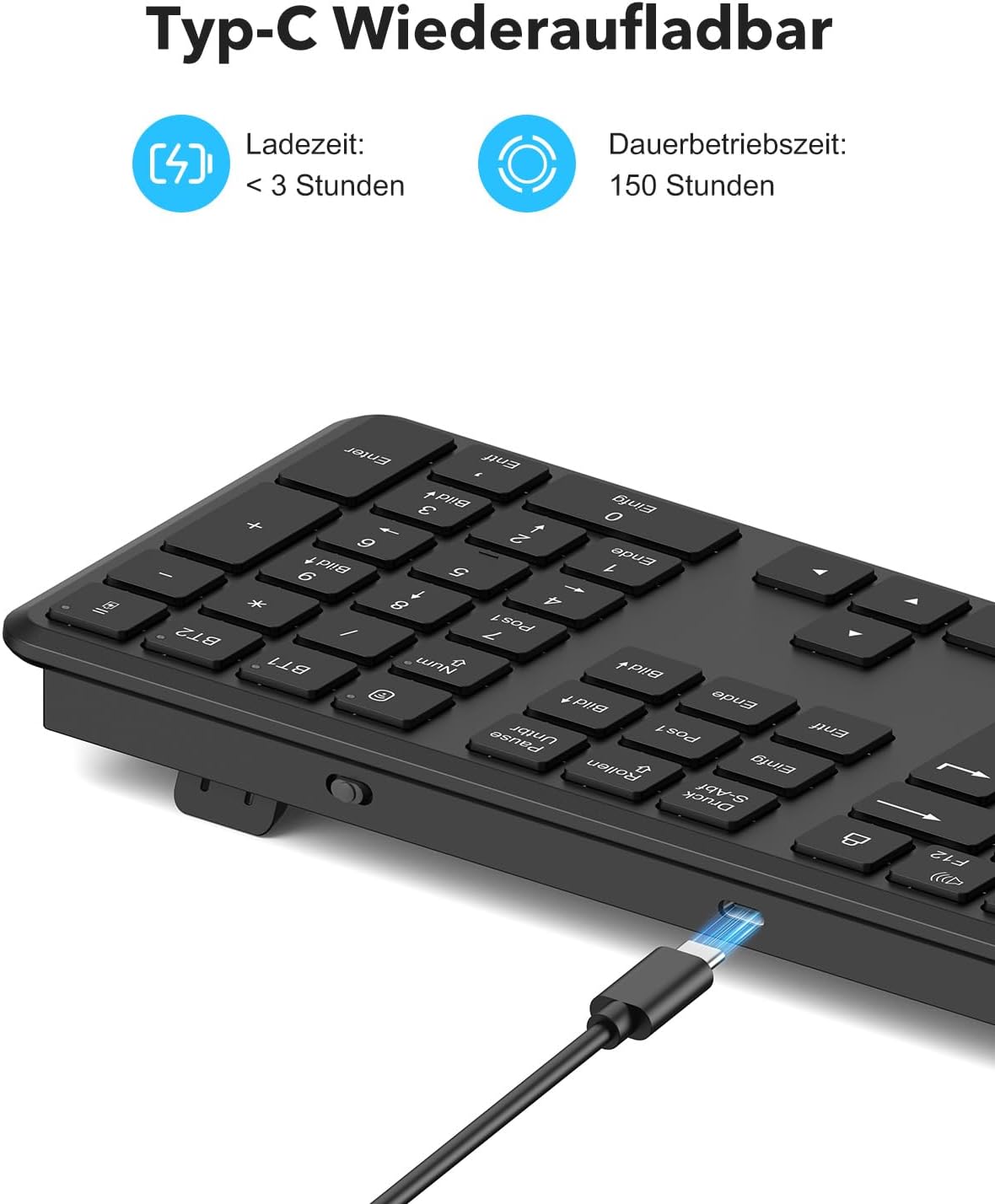
Image: Close-up view of the keyboard's Type-C charging port with a charging cable connected. Text indicates charging time is less than 3 hours and continuous operation is 150 hours.
3. Connecting the Keyboard
The TECURS WK016 keyboard supports three connection channels: one 2.4GHz wireless channel and two Bluetooth channels (BT1 and BT2).

Image: Diagram illustrating the keyboard's dual-mode connectivity, showing a 2.4G wireless connection to a laptop and two Bluetooth connections (BT1 and BT2) to a monitor and a tablet, respectively.
3.1. 2.4GHz Wireless Connection
- Locate the 2.4GHz wireless receiver. It is often stored in a dedicated slot on the keyboard's underside.
- Plug the USB/Type-C receiver into an available USB port on your PC, laptop, or desktop computer.
- Turn on the keyboard using the power switch, usually located on the side or back.
- Press the dedicated 2.4G wireless button on the keyboard (if available, otherwise it might automatically connect). The keyboard should connect automatically.

Image: Underside of the TECURS WK016 keyboard, highlighting the foldable stand, non-slip rubber feet, and the slot for the 2.4G wireless receiver.
3.2. Bluetooth Connection (BT1 / BT2)
The keyboard has two independent Bluetooth channels, allowing connection to two different Bluetooth-enabled devices.
- Turn on the keyboard using the power switch.
- To activate pairing mode for BT1, press and hold the BT1 button for 3 seconds until the blue indicator light begins to flash.
- On your device (PC, laptop, smartphone, tablet), enable Bluetooth and search for available devices.
- Select "BT Keyboard" from the list of available devices to pair.
- Once successfully paired, the blue indicator light will stop flashing and remain solid for a few seconds.
- To connect a second device, repeat steps 2-5, but press and hold the BT2 button instead.

Image: Step-by-step diagram illustrating the Bluetooth connection process for the TECURS WK016 keyboard, showing how to turn on the keyboard, activate pairing mode for BT1, search on a device, confirm pairing, and connect a second device via BT2.
Operating Instructions
1. Switching Between Connected Devices
The keyboard allows you to easily switch between the three connected devices:
- Press the 2.4G button to switch to the device connected via the 2.4GHz wireless receiver.
- Press the BT1 button to switch to the device connected via Bluetooth channel 1.
- Press the BT2 button to switch to the device connected via Bluetooth channel 2.
2. System Compatibility and Switching
The TECURS WK016 keyboard is compatible with both Windows and macOS systems.
- To switch to Windows system mode, press FN + Q.
- To switch to macOS system mode, press FN + W.

Image: Two panels demonstrating the keyboard's compatibility. The top panel shows a user with a laptop running Windows, and the bottom panel shows a user with a desktop computer running macOS, both using the TECURS WK016 keyboard.
3. Multimedia Quick Keys
The keyboard features 12 special quick keys (F1-F12) that provide quick access to various functions. These functions are typically accessed by pressing the FN key in combination with the desired F-key.
- FN + F1: Screen brightness down
- FN + F2: Screen brightness up
- FN + F3: Open Mission Control (macOS) / Task View (Windows)
- FN + F4: Open Search
- FN + F5: Media Play/Pause
- FN + F6: Previous Track
- FN + F7: Next Track
- FN + F8: Mute Volume
- FN + F9: Volume Down
- FN + F10: Volume Up
- FN + F11: Lock Screen
- FN + F12: Calculator (Windows) / Eject (macOS)
4. Ergonomic Design Features
The keyboard is designed for comfort during extended use:
- Folding Stand: Adjustable tilt angle to reduce hand fatigue.
- Scissor Mechanism Keys: Provide a quiet and comfortable typing experience with a responsive feel.
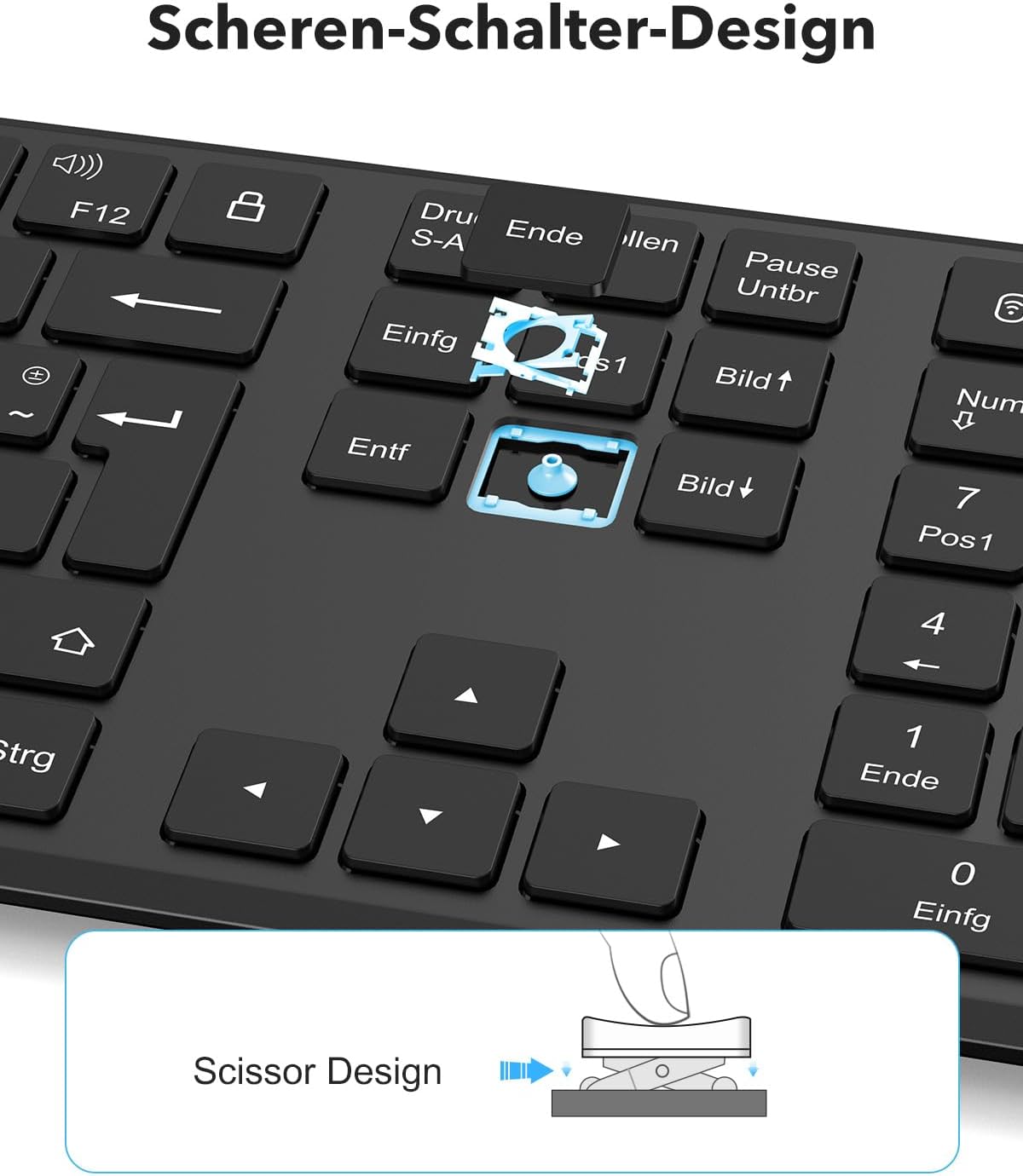
Image: Close-up view of a keyboard key, illustrating the internal scissor switch mechanism for quiet and comfortable typing.
Maintenance
1. Cleaning
To maintain the keyboard's appearance and functionality:
- Disconnect the keyboard from all devices and power sources before cleaning.
- Use a soft, lint-free cloth slightly dampened with water or a mild cleaning solution.
- Avoid using harsh chemicals, abrasive cleaners, or solvents.
- For dust and debris between keys, use compressed air.
2. Battery Care
The keyboard contains a rechargeable lithium-ion battery. Follow these guidelines for optimal battery life:
- Charge the keyboard regularly, especially if it will not be used for an extended period.
- Avoid fully discharging the battery frequently.
- Do not expose the keyboard to extreme temperatures (hot or cold).
- If the keyboard will be stored for a long time, charge it to about 50% before storage.
Troubleshooting
If you encounter issues with your TECURS WK016 keyboard, refer to the following common solutions:
1. Keyboard Not Connecting / Responding
- Check Power: Ensure the keyboard is turned on and has sufficient battery charge. Recharge if necessary.
- Check Connection Mode: Verify that the correct connection mode (2.4G, BT1, or BT2) is selected on the keyboard for your device.
- 2.4GHz Connection: Ensure the USB receiver is securely plugged into your device's USB port. Try a different USB port.
- Bluetooth Connection:
- Ensure Bluetooth is enabled on your device.
- Unpair and re-pair the keyboard from your device's Bluetooth settings.
- Ensure the keyboard is in pairing mode (flashing blue light for BT1/BT2).
- Interference: Move the keyboard closer to your device and away from other wireless devices that might cause interference.
- Restart Devices: Restart both the keyboard and your connected device.
2. Keys Not Responding or Typing Incorrectly
- System Mode: Ensure the keyboard is set to the correct system mode (Windows or macOS) using FN + Q or FN + W.
- Clean Keys: Check for any debris under the keys that might be obstructing their movement.
- Battery Level: Low battery can sometimes affect key responsiveness. Recharge the keyboard.
3. Charging Issues
- Cable Check: Ensure the USB charging cable is not damaged and is securely connected to both the keyboard and the power source.
- Power Source: Try a different USB power source or wall adapter.
- Charging Port: Inspect the keyboard's Type-C charging port for any obstructions.
Specifications
Below are the technical specifications for the TECURS WK016 Wireless Bluetooth Keyboard:
| Feature | Specification |
|---|---|
| Model | WK016 |
| Brand | TECURS |
| Connectivity Technology | 2.4GHz Wireless, Bluetooth (BT1, BT2) |
| Compatible Devices | Laptop, PC, Smartphone, Tablet |
| Keyboard Layout | German QWERTZ |
| Special Features | Ergonomic, Hotkeys and Media Keys, Rechargeable |
| Battery Type | Lithium-ion |
| Battery Capacity | 450 mAh |
| Continuous Operation Time | Up to 150 hours (fully charged) |
| Charging Time | Less than 3 hours |
| Dimensions (L x W x H) | 439mm x 125mm x 21.5mm (approximate) |
| Weight | 520g |
| Included Components | USB Cable |
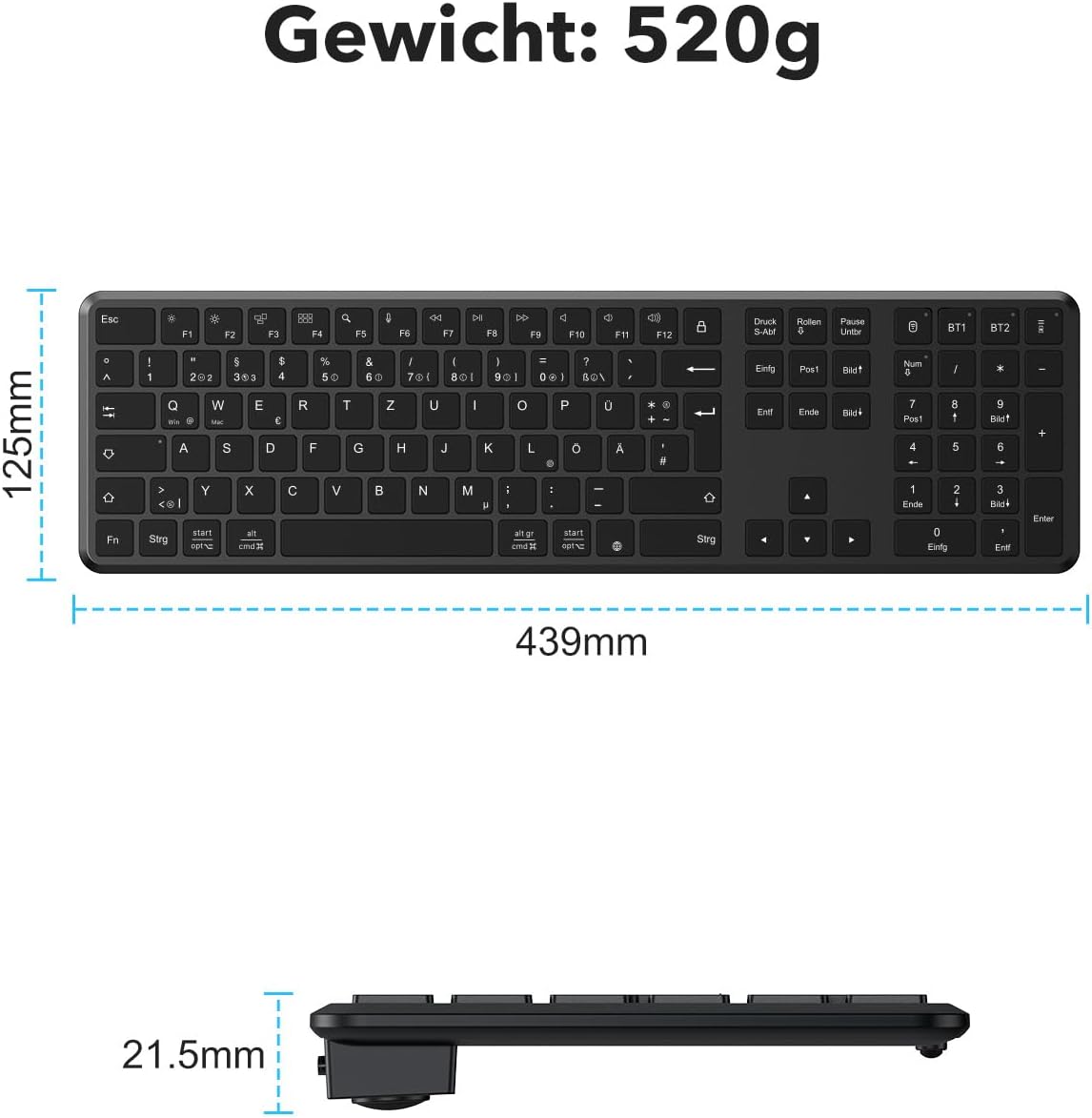
Image: Diagram showing the dimensions (length 439mm, width 125mm, height 21.5mm) and weight (520g) of the TECURS WK016 keyboard.
Warranty and Support
TECURS products are manufactured to high-quality standards. For information regarding warranty coverage, technical support, or customer service, please refer to the warranty card included with your product or visit the official TECURS website. Please retain your proof of purchase for any warranty claims.


