
1. Introduction
Thank you for choosing the BDFFLY TV LED Backlight with HDMI Sync Box. This product is designed to enhance your home entertainment experience by synchronizing ambient lighting with the content displayed on your TV screen. It provides an immersive viewing environment by detecting the predominant colors from your HDMI source and projecting them as backlighting.
This manual provides comprehensive instructions for the installation, operation, and maintenance of your BDFFLY TV LED Backlight system. Please read it thoroughly before use to ensure proper setup and optimal performance.
2. Package Contents
Please verify that all items are present in the package:
- LED Light Strip (for 55-65 inch TVs)
- HDMI Sync Box
- Power Adapter (12V/1A)
- HDMI Cables (quantity may vary, typically two are needed for setup)
- USB Cable
- User Manual (this document)
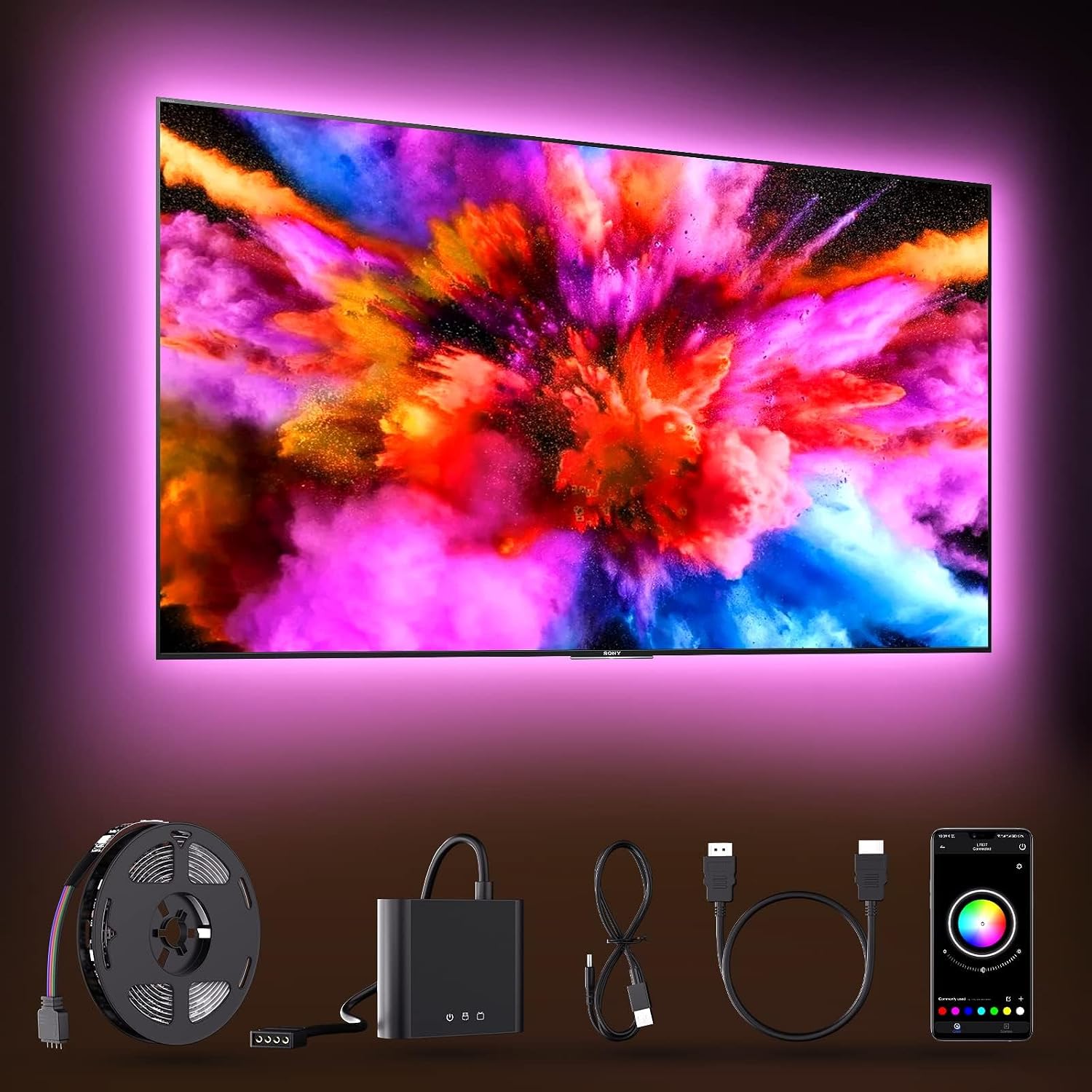
Image 2.1: Overview of the BDFFLY TV LED Backlight system components, including the LED strip, HDMI sync box, power adapter, and cables.
3. Safety Information
Please observe the following safety precautions to prevent damage to the product or injury to yourself:
- Ensure the power supply is 12V/1A. Using an incorrect power supply may damage the device.
- Do not expose the product to water or excessive humidity.
- Do not attempt to disassemble or modify the product. Repairs should only be performed by qualified personnel.
- Keep out of reach of children.
- Unspool the LED strips completely before turning them on to avoid damage from overheating.
4. Setup
4.1 LED Strip Preparation and Installation
Before installation, ensure the LED strip is fully unspooled to prevent damage.
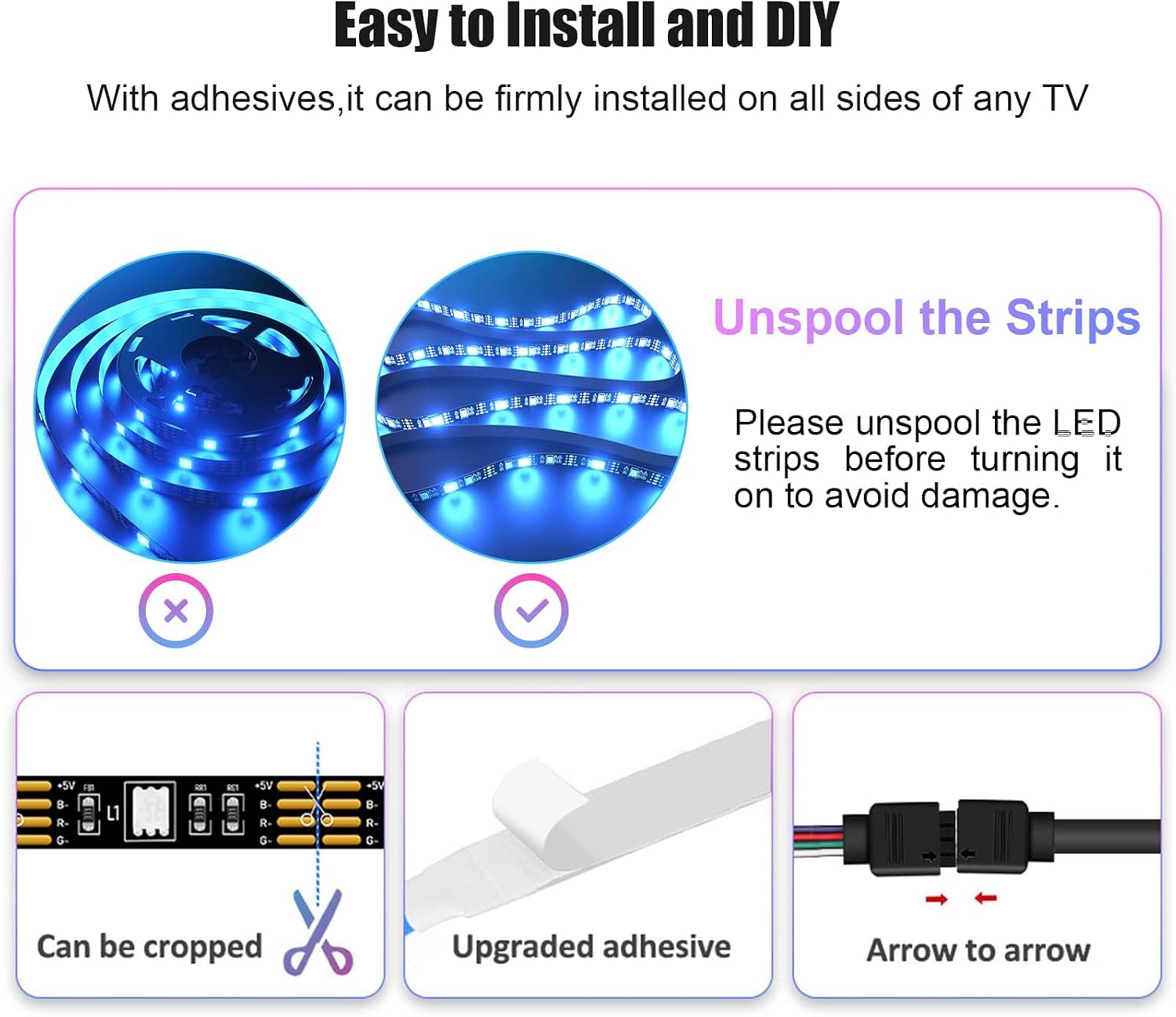
Image 4.1: Visual guide for preparing the LED strips, including unspooling, points where they can be cropped, and ensuring correct connector alignment (arrow to arrow).
The LED strips come with upgraded adhesive for firm installation. Carefully peel off the backing and attach the strips to the back of your TV. Ensure the strips are positioned evenly around the perimeter of the TV for optimal lighting effect. The strips can be cropped at designated points to fit your TV size.
4.2 HDMI Sync Box Connection
The HDMI Sync Box is crucial for the screen synchronization feature. Follow these steps for correct connection:
- Connect your external video source (e.g., TV Box, game console like Nintendo Switch, Xbox, PlayStation) to the HDMI IN port on the Sync Box using an HDMI cable.
- Connect the HDMI OUT port of the Sync Box to an HDMI input port on your TV using another HDMI cable.
- Connect the LED light strip to the designated light output port on the Sync Box.
- Connect the 12V/1A power adapter to the DC input port on the Sync Box and plug it into a power outlet.
Important Note: For the sync feature to work, all content must pass through the HDMI Sync Box. You cannot sync the TV's built-in apps as these do not have an HDMI source input that can be routed through the sync box. This system is designed for external HDMI sources only.

Image 4.2: Detailed connection diagram illustrating the flow from external devices (TV Box, game consoles) through the HDMI Sync Box to the TV, and the connection of the LED light strip and power.

Image 4.3: Illustration of the HDMI Sync Box, highlighting its 1080P@60Hz resolution support and various input/output ports for connecting to different devices.
4.3 App Download and Control
The BDFFLY TV LED Backlight can be controlled via the "HiLighting" app. This app is available for both Apple and Android devices.
- Scan the QR code provided in the image below or search for "HiLighting" in your device's app store (Google Play Store for Android, Apple App Store for iOS).
- Download and install the app.
- Follow the in-app instructions to pair your device with the HDMI Sync Box.
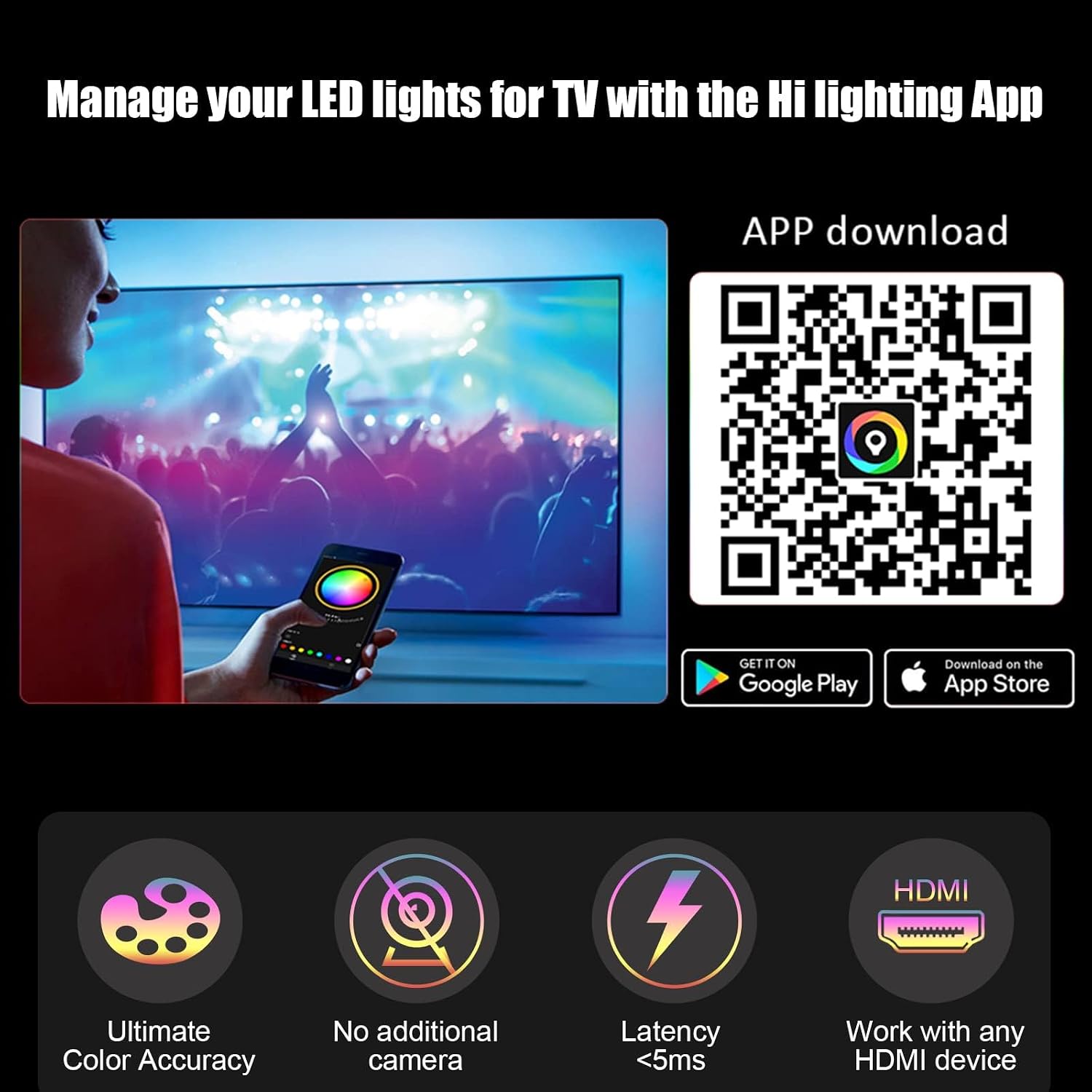
Image 4.4: Screenshot showing the "HiLighting" app interface, QR codes for Google Play and Apple App Store downloads, and key features like ultimate color accuracy, no additional camera needed, low latency, and compatibility with any HDMI device. You can also download the app from lixingzhaoming.com/downloads/.
5. Operating Instructions
5.1 Screen Sync Functionality
Once properly connected, the ambient light strips will automatically sync with your movies, videos, and games. The system detects the predominant color on the screen in real-time and displays a corresponding unique tone, creating an immersive experience with zero delay.
Note: This TV light only detects the predominant color in the picture and will display only that shade. It does not create a multi-color gradient effect based on multiple screen areas.
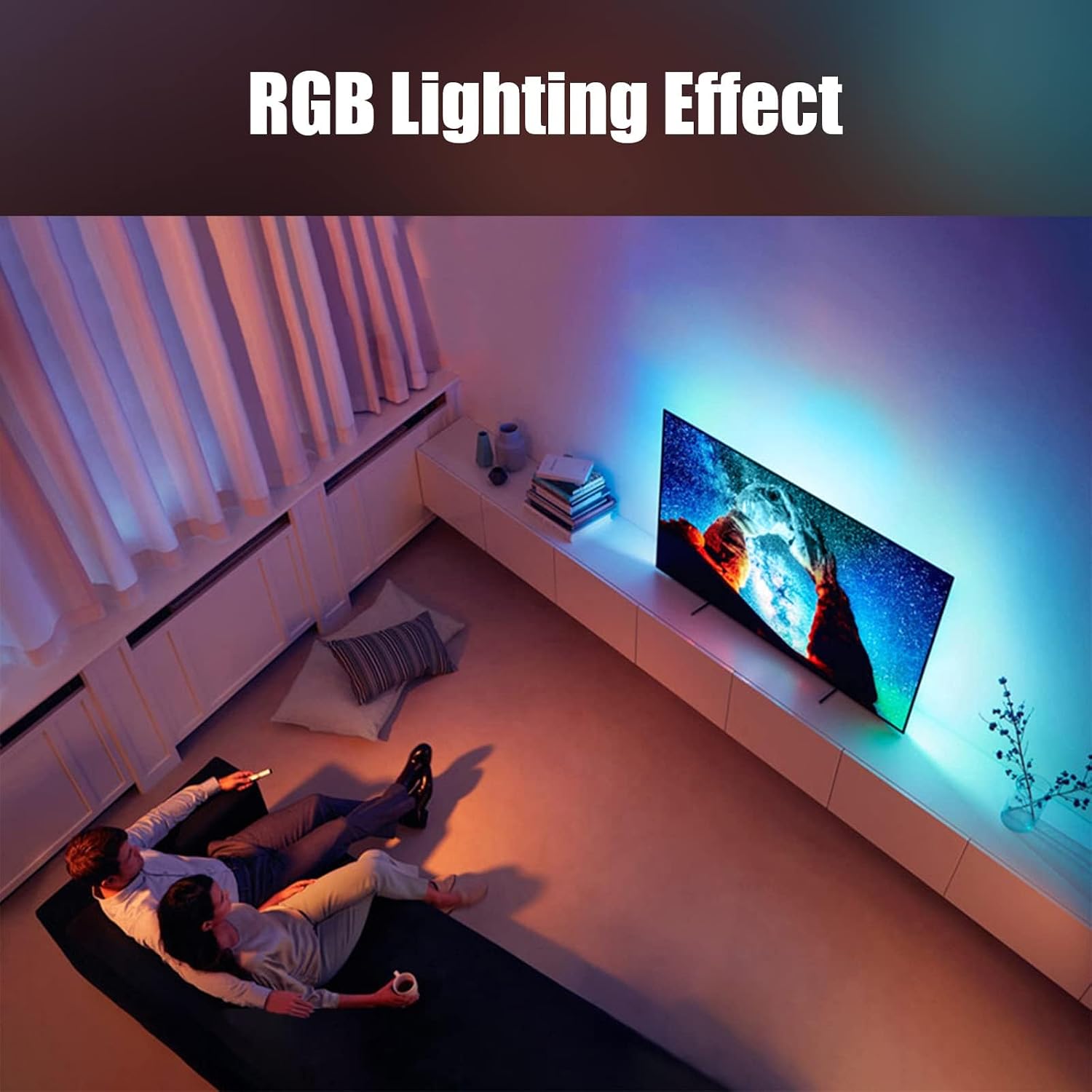
Image 5.1: An example of the RGB lighting effect in a living room setting, demonstrating how the backlight enhances the viewing experience by extending the screen's colors into the room.
5.2 App Control
The "HiLighting" app provides full control over your lighting preferences. Through the app, you can:
- Customize lighting colors and brightness.
- Select different lighting modes (e.g., static color, dynamic effects).
- Turn the lights on/off.
- Adjust synchronization settings.
6. Maintenance
To ensure the longevity and optimal performance of your BDFFLY TV LED Backlight system, follow these simple maintenance guidelines:
- Cleaning: Gently wipe the LED strips and Sync Box with a dry, soft cloth. Do not use abrasive cleaners or solvents.
- Dust Removal: Periodically remove any dust accumulation from the LED strips and Sync Box to prevent overheating and maintain light output.
- Storage: If storing the product for an extended period, disconnect it from power and store it in a cool, dry place.
7. Troubleshooting
If you encounter issues with your BDFFLY TV LED Backlight, please refer to the following common problems and solutions:
- Lights not turning on:
- Ensure the power adapter is securely connected to the Sync Box and a working power outlet.
- Check if the LED strip is properly connected to the Sync Box.
- Verify that the power outlet is functional.
- Sync function not working / Lights not changing color:
- Confirm that your external video source (e.g., TV Box, game console) is connected to the HDMI IN of the Sync Box, and the Sync Box's HDMI OUT is connected to your TV. Content from the TV's built-in apps will not sync.
- Ensure the HDMI cables are securely connected and not damaged.
- Restart the Sync Box by unplugging and re-plugging the power adapter.
- Remember that the system detects the predominant color, not a multi-color gradient.
- App not connecting to the Sync Box:
- Ensure Bluetooth is enabled on your mobile device.
- Make sure the Sync Box is powered on.
- Try restarting the app or your mobile device.
- Ensure your mobile device is within close proximity to the Sync Box.
- Lights flickering or inconsistent:
- Check the power connection for stability.
- Ensure the LED strips are not damaged or kinked.
- Verify that the LED strips are fully unspooled and not overheating.
8. Specifications
| Feature | Specification |
|---|---|
| Brand | BDFFLY |
| Manufacturer | BDFFLY |
| Model Number | B1 |
| Part Number | B1 |
| Compatible TV Size | 55-65 inches |
| HDMI Sync Box Resolution Support | 1080P@60Hz |
| Power Source | 12V/1A Power Supply |
| Control Method | APP Remote Control ("HiLighting" App) |
| Special Features | Colour Changing, Screen Sync (predominant color detection), Zero Delay |
| Type of Bulb | LED |
| Wattage | 15 watts |
| Item Weight | 230 g |
| Package Dimensions | 13.1 x 12 x 5.2 cm |

Image 8.1: Product packaging displaying key specifications, model information, manufacturer details, and compliance certifications (CE, FC, RoHS).
9. Warranty and Support
For product support, technical assistance, or warranty inquiries, please contact BDFFLY customer service. While specific warranty terms are not detailed in this manual, please retain your proof of purchase for any claims.
Contact Email: PROLARXINE@OUTLOOK.COM
Please provide your model number (B1) and a detailed description of the issue when contacting support.
