
Skytech Gaming Azure 3 5700 | 5060 (ST-AZURE3-2018-B-AM)
Skytech Gaming Azure 3 Gaming PC User Manual
Model: 5700 | 5060 (ST-AZURE3-2018-B-AM)
Introduction
This manual provides essential instructions for setting up, operating, maintaining, and troubleshooting your Skytech Gaming Azure 3 Gaming PC. This system is equipped with an AMD Ryzen 7 5700 processor, NVIDIA GeForce RTX 5060 graphics card, 32GB DDR4 RAM, and a 1TB NVMe M.2 SSD, running Windows 11 Home 64-bit.
Please read this manual thoroughly before using your new gaming PC to ensure optimal performance and longevity.
1. Setup
1.1 Unboxing and Inspection
Carefully remove all components from the packaging. Verify that the following items are included:
- Skytech Gaming Azure 3 PC Tower
- Power Cord
- Gaming Keyboard
- Gaming Mouse
- Quick Start Guide
Inspect the PC for any visible damage that may have occurred during shipping. If any damage is found, contact customer support immediately.
1.2 Initial Connections
- Power Connection: Connect the provided power cord to the power supply unit (PSU) at the rear of the PC and then to a wall outlet.
- Monitor Connection: Connect your monitor to the graphics card's display output (HDMI or DisplayPort) at the rear of the PC. Ensure it is connected to the dedicated graphics card, not the motherboard's integrated graphics ports (if present).
- Peripherals: Connect the keyboard and mouse to the available USB ports.
- Network Connection: For internet access, connect an Ethernet cable to the LAN port or ensure your Wi-Fi antenna is connected for wireless connectivity.

Image: Front view of the Skytech Gaming Azure 3 PC, showcasing the tempered glass side panel and internal components with RGB lighting. This view highlights the aesthetic design and internal layout.

Image: Detailed view of the front input/output (I/O) panel of the Skytech Gaming Azure 3 PC. Labeled ports include the power button, reset button, headphone/mic inputs, USB 3.0 ports (x2), and a USB-C port, facilitating easy access for peripherals.
1.3 First Boot and Operating System Setup
Press the power button on the front of the PC. The system will boot into Windows 11. Follow the on-screen prompts to complete the initial Windows setup, including language selection, network connection, and user account creation.
2. Operating Instructions
2.1 General Usage
Your Skytech Gaming Azure 3 PC is designed for high-performance computing and gaming. Ensure all drivers are up to date for optimal performance. Windows Update will handle most system drivers, but graphics card drivers may require manual updates from the NVIDIA website.
2.2 Gaming Performance
This PC is capable of running demanding games at 1080p Full HD resolution with smooth frame rates (60+ FPS) on Ultra settings. For specific game performance, refer to in-game settings and adjust as necessary to balance visual quality and frame rate.
2.3 RGB Lighting Control
The system features ARGB fans and internal lighting. You can control these lighting effects using the pre-installed SignalRGB software. This application allows for animated lighting effects, synchronization across devices, audio visualization, and game integrations.
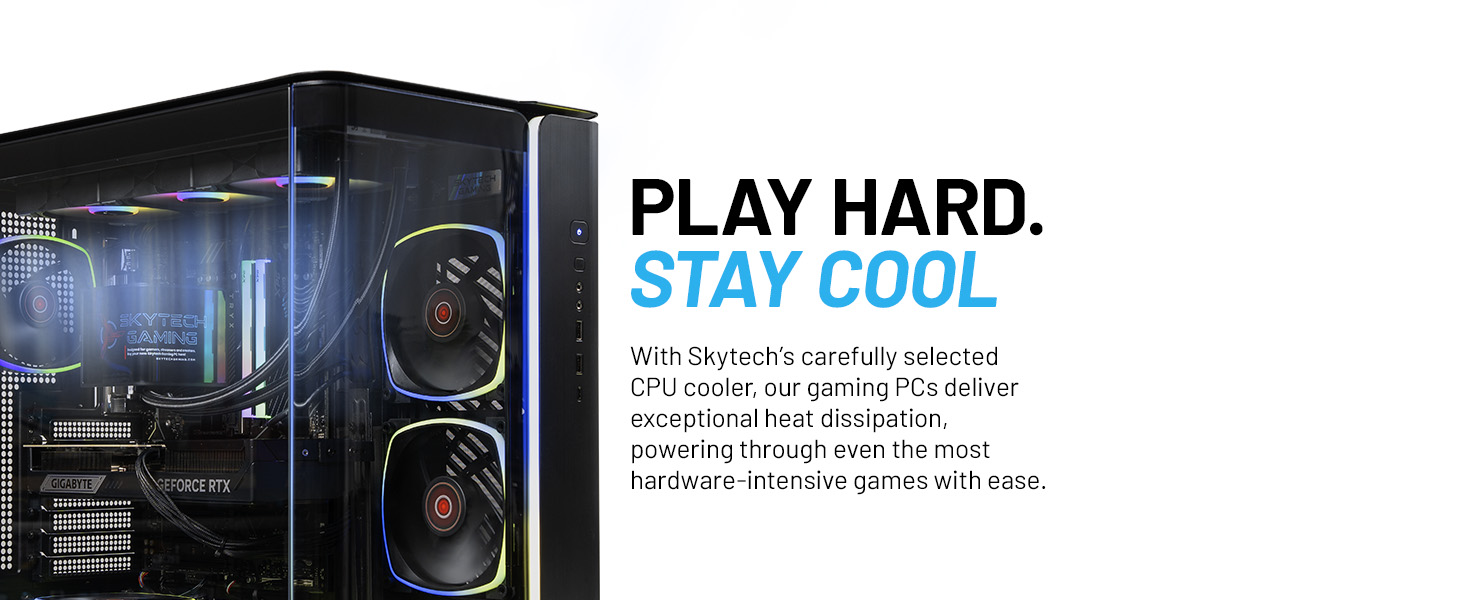
Image: A Skytech Gaming PC showcasing vibrant RGB lighting. The image highlights features like SignalRGB software for controlling lighting, audio visualizer, macros, and game integrations for dynamic lighting effects.
3. Specifications
| Component | Specification |
|---|---|
| Processor | AMD Ryzen 7 5700 3.7 GHz (4.6GHz Max Boost) |
| Graphics Card | NVIDIA GeForce RTX 5060 8GB GDDR7 |
| RAM | 32GB DDR4 3200MHz Gaming Memory with Heat Spreader |
| Storage | 1TB NVMe M.2 SSD |
| Operating System | Windows 11 Home 64-bit |
| Power Supply | 650W Gold PSU |
| Case | Skytech Azure Gaming Case with Tempered Glass, Black |
| Wireless Connectivity | 802.11AC Wi-Fi |
| Cooling | High-Performance Air Cooler, ARGB Fans |
| Dimensions (LxWxH) | 17.2 x 9.1 x 17.8 inches |
| Model Number | ST-AZURE3-2018-B-AM |

Image: Diagram illustrating the dimensions of the Skytech Gaming Azure 3 Mid-Tower PC. The image shows the height (17.80"), width (9.10"), and depth (17.20") of the chassis, emphasizing its expandability and premium build.
4. Maintenance
4.1 Cleaning
Regular cleaning helps maintain optimal performance and extends the lifespan of your PC. Use compressed air to clear dust from fans, vents, and internal components. Ensure the PC is powered off and unplugged before cleaning. Wipe exterior surfaces with a soft, damp cloth.
4.2 Software Updates
Keep your operating system and drivers updated. Windows Update manages most system updates. For graphics drivers, regularly check the NVIDIA website for the latest versions to ensure compatibility and performance improvements.
4.3 Cooling System
The Skytech Azure 3 features high-performance air cooling with ARGB fans. Ensure proper airflow by keeping the PC in a well-ventilated area and regularly cleaning dust filters. Optimal cooling is crucial for consistent performance and preventing thermal throttling.

Image: Diagram illustrating the airflow within the Skytech Gaming Azure 3 PC. Red arrows indicate optimal intake, and blue arrows show expansive exhaust, demonstrating the system's design for minimal thermal interference and low ambient temperatures.

Image: Close-up view of the internal cooling components and RAM modules within the Skytech Gaming Azure 3 PC. This image highlights the "Cooler Than Cool" and "Superior Thermals" features, emphasizing quiet fans, consistent low temperatures, and better clock speeds.
5. Troubleshooting
5.1 No Display Signal
If your monitor shows "No Signal" after powering on:
- Check Cable Connections: Ensure the display cable (HDMI/DisplayPort) is securely connected to both the graphics card (not the motherboard) and the monitor.
- Reseat Components: Power off and unplug the PC. Open the side panel and gently reseat the graphics card and RAM modules. Ensure they are firmly seated in their slots.
- Test with Another Monitor/Cable: If possible, test with a different monitor or display cable to rule out external issues.
5.2 System Performance Issues
If you experience slow performance or lagging:
- Check for Updates: Ensure Windows and graphics drivers are fully updated.
- Monitor Temperatures: Use monitoring software to check CPU and GPU temperatures. High temperatures can lead to performance throttling. Ensure proper airflow and clean dust.
- Background Applications: Close unnecessary background applications that consume system resources.
5.3 USB Port Malfunction
If USB ports are not working consistently:
- Restart PC: A simple restart can often resolve temporary USB issues.
- Check Device Manager: In Windows, open Device Manager and check for any errors related to USB controllers. Update or reinstall drivers if necessary.
- Test Different Ports: Try connecting devices to different USB ports (front and rear) to identify if the issue is port-specific.
6. Warranty and Support
6.1 Warranty Information
Your Skytech Gaming PC comes with a 1-Year Warranty on Parts and Labor. This warranty covers manufacturing defects and hardware failures under normal use conditions. Please retain your proof of purchase for warranty claims.
6.2 Technical Support
Free technical support is available for the lifetime of your product. If you encounter issues that cannot be resolved using this manual, please contact Skytech Gaming customer support. Refer to the Quick Start Guide or the official Skytech Gaming website for contact details.
For additional resources and FAQs, visit the Skytech Gaming Store.
Related documentsAzure 3 5700 | 5060 (ST-AZURE3-2018-B-AM)


Ask a question about this manual
Ask about setup, troubleshooting, compatibility, parts, safety, or missing instructions. Manuals+ will review the question and use this page’s manual context to help answer it.