
Introduction
This manual provides detailed instructions for the installation, operation, maintenance, and troubleshooting of your SIXWIN 2G+64G Android Car Stereo. This unit is specifically designed for Hyundai Elantra models from 2004 to 2012. Please read this manual thoroughly before using the product to ensure proper function and safety.
Product Overview
The SIXWIN Android Car Stereo is an advanced in-car entertainment and navigation system featuring a 9-inch touchscreen. It operates on Android 13 with 2GB RAM and 64GB internal storage, offering a responsive user experience. Key features include:
- Wireless CarPlay & Android Auto: Seamless smartphone integration for navigation, music, and communication.
- Built-in GPS Navigation: Supports both online and offline maps for reliable guidance.
- WiFi Connectivity: Access to online apps and services via the Play Store.
- Bluetooth Hands-Free & Music Streaming: Safe calling and audio playback.
- FM Radio: Enjoy local radio stations with 18 preset options.
- Backup Camera Support: Enhances safety during reversing maneuvers.
- Steering Wheel Control Compatibility: Convenient control of essential functions.
- Mirror Link: Display your smartphone screen directly on the stereo (not compatible with Samsung devices).
- Split Screen Functionality: Run two applications simultaneously.
- High Definition 1080P Touchscreen: Clear visuals and responsive touch.
- 26 UI Themes: Customizable user interface.
Setup and Installation
The SIXWIN Android Car Stereo is designed for a seamless fit into Hyundai Elantra models from 2004-2012. Professional installation is recommended. Ensure the vehicle's power is disconnected before beginning installation.
Package Contents
Verify that all components are present in the package:

Figure 1: Packing List and Stereo Dimensions. This image displays the physical dimensions of the 9-inch head unit and illustrates all included cables and accessories such as USB cable, GPS antenna, rear camera input cable, power cables, RCA cable, user manual, microphone, rear camera, and installation tools.
Installation Steps
Follow these general steps for installation. Specific vehicle wiring diagrams may vary.
- Remove Original Head Unit: Carefully remove the existing car stereo and trim panels from your Hyundai Elantra.
- Connect Wiring Harness: Connect the provided power cable and other necessary cables (RCA, USB, GPS antenna, rear camera input) to the new SIXWIN stereo. Ensure all connections are secure.
- Install GPS Antenna: Mount the GPS antenna in a location with a clear view of the sky, typically on the dashboard or under the windshield.
- Install Rear Camera (Optional): If using the backup camera, route the camera cable from the rear of the vehicle to the head unit and connect it to the 'Reversing Camera Input' port.
- Mount the Stereo: Secure the new SIXWIN stereo into the dashboard opening using the provided accessories and brackets.
- Test Functionality: Before reassembling the dashboard, reconnect the vehicle's power and test all functions of the stereo, including power, audio, touchscreen, and connected devices.
- Reassemble Dashboard: Once all functions are verified, carefully reassemble the dashboard trim panels.

Figure 2: Before and After Installation. This image demonstrates how the SIXWIN Android Car Stereo integrates into the dashboard of a Hyundai Elantra (2004-2012), showing the original setup for both left-hand and right-hand drive vehicles compared to the new stereo installed.
Operating Instructions
Wireless CarPlay and Android Auto
Connect your smartphone wirelessly or via USB to access navigation, music, calls, and more directly on the stereo screen.
- Ensure Bluetooth is enabled on your smartphone and the car stereo.
- Pair your smartphone with the car stereo via Bluetooth.
- Open the 'Zlink5' application on the car stereo.
- Follow the on-screen prompts to initiate Wireless CarPlay or Android Auto.
Note: Mirror Link functionality is not compatible with Samsung devices.

Figure 3: Wireless CarPlay and Android Auto. This image demonstrates the user interface when CarPlay and Android Auto are active, showing how smartphone applications are mirrored and controlled on the car stereo's display.
GPS Navigation
The stereo features built-in GPS navigation with support for both online and offline maps.
- Online Navigation: Connect to WiFi and use pre-installed or downloaded navigation apps.
- Offline Navigation: The 'Here We Go' app is pre-installed. Download desired regional maps for navigation without an internet connection.

Figure 4: GPS Navigation and WiFi Function. This image displays the GPS navigation interface with a map view and highlights the stereo's WiFi capability, showing various popular apps that can be downloaded and used.
Bluetooth Hands-Free and FM Radio
Enjoy hands-free communication and a wide range of radio stations.
- Bluetooth: Pair your phone to make and receive calls, and stream audio. The stereo allows downloading your phone's contact list.
- FM Radio: Access 18 preset stations. Tune to your preferred frequencies for news, music, and entertainment.

Figure 5: FM RDS Radio and Bluetooth Call & Music. This image illustrates the user interfaces for both the FM radio, showing frequency tuning and presets, and the Bluetooth function, including options for calls and music streaming.
Steering Wheel Control
Configure your steering wheel buttons to control the stereo's functions for convenience and safety.
- Navigate to the 'Settings' menu on the stereo.
- Locate the 'Steering Wheel Control' or 'SWC' option.
- Follow the on-screen instructions to map your vehicle's steering wheel buttons to desired functions (e.g., volume up/down, skip track, answer call).
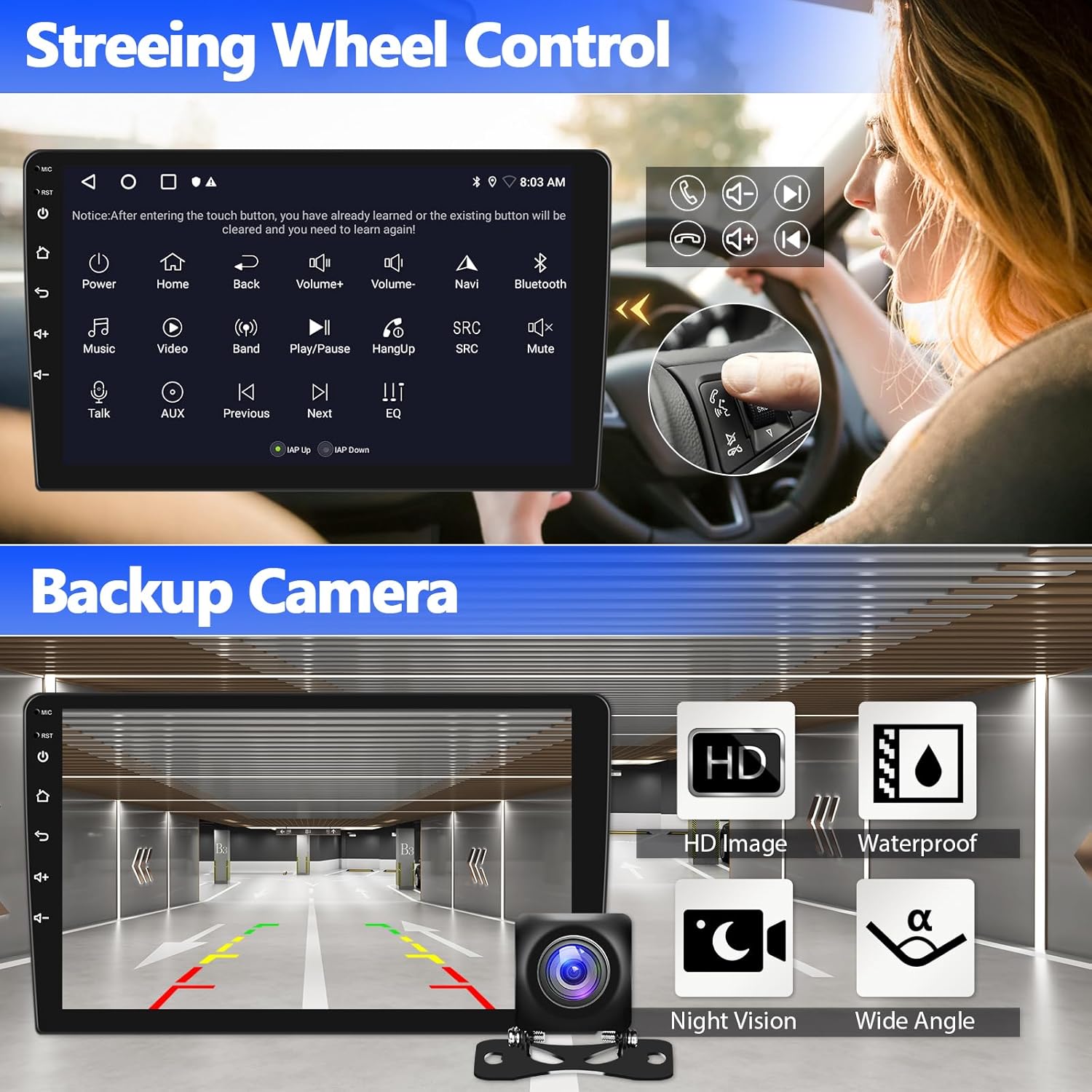
Figure 6: Steering Wheel Control and Backup Camera. This image shows the interface for programming steering wheel controls and the clear display from the backup camera, highlighting its features like HD image quality, waterproofing, night vision, and wide-angle view.
Backup Camera
The stereo supports a backup camera for enhanced safety when reversing. The display automatically switches to the camera view when the vehicle is in reverse gear.
- HD Image: Provides a clear, high-definition view.
- Waterproof: Designed to withstand various weather conditions.
- Night Vision: Improves visibility in low-light conditions.
- Wide Angle: Offers a broad field of view to minimize blind spots.
Mirror Link and Split Screen
Extend your smartphone experience and multitask efficiently.
- Mirror Link: Connect your iOS or Android smartphone to mirror its screen content onto the car stereo display. This allows you to view apps and media from your phone directly on the larger screen.
- Split Screen: Utilize the split-screen feature to run two applications simultaneously, such as navigation on one side and music playback on the other.

Figure 7: Mirror Link and Split Screen. This image demonstrates the Mirror Link feature, showing a smartphone's display replicated on the car stereo, and the Split Screen function, allowing two applications to be viewed simultaneously.
High Definition 1080P Touchscreen and UI Themes
Experience clear visuals and personalize your interface.
- 1080P Touchscreen: The 9-inch display offers full HD resolution for crisp images and videos, along with responsive touch controls.
- 26 UI Themes: Customize the look and feel of your stereo's interface by choosing from 26 different user interface themes.

Figure 8: High Definition 1080P and 26 UI Themes. This image highlights the sharp visual quality of the 1080P touchscreen and showcases the variety of 26 customizable user interface themes available for personalization.
Maintenance
Proper maintenance ensures the longevity and optimal performance of your car stereo.
- Cleaning: Use a soft, dry cloth to clean the screen and exterior. For stubborn smudges, lightly dampen the cloth with water or a screen-safe cleaner. Avoid abrasive materials or harsh chemicals.
- Software Updates: Periodically check for software updates via the system settings or the manufacturer's website. Keeping the software updated can improve performance and add new features.
- Temperature: Avoid exposing the unit to extreme temperatures for extended periods.
Troubleshooting
Refer to this section for common issues and their solutions.
| Problem | Possible Cause | Solution |
|---|---|---|
| No Power | Loose power connection, blown fuse. | Check power cables and vehicle fuses. Ensure proper wiring. |
| No Sound | Volume too low, incorrect audio source, loose speaker wires. | Increase volume. Select correct audio source. Check speaker connections. |
| GPS Signal Lost | GPS antenna obstructed or disconnected. | Ensure GPS antenna has a clear view of the sky and is securely connected. |
| Bluetooth Not Connecting | Bluetooth off, device not discoverable, interference. | Ensure Bluetooth is on for both devices. Restart devices. Try pairing again. |
| Touchscreen Unresponsive | Temporary software glitch, screen protector interference. | Restart the stereo. Remove and reapply screen protector if applicable. |
| Backup Camera Not Displaying | Camera cable loose, camera power issue, incorrect input selected. | Check camera wiring and power supply. Ensure vehicle is in reverse. |
Specifications
| Feature | Detail |
|---|---|
| Brand | SIXWIN |
| Model Number | B0F8Q1DRZ3 |
| Vehicle Service Type | Car (Hyundai Elantra 2004-2012) |
| Screen Size | 9 Inches |
| Operating System | Android 13 |
| Memory (RAM) | 2 GB |
| Storage (ROM) | 64 GB |
| Special Feature | Touchscreen, Wireless CarPlay, Android Auto, Mirror Link |
| Connectivity Technology | Bluetooth, WiFi |
| Map Type | Worldwide (Online/Offline) |
| Audio Output Mode | Stereo |
| Item Weight | 1.33 Kilograms |
| Human-Interface Input | Touchscreen, Voice |
| Supported Satellite Navigation System | GPS |
Warranty Information
The SIXWIN Android Car Stereo comes with a 1-year warranty from the date of purchase. This warranty covers manufacturing defects and malfunctions under normal use. Please retain your proof of purchase for warranty claims. For detailed warranty terms and conditions, refer to the official SIXWIN website or contact customer support.
Support
For further assistance, technical support, or to request a user manual, please contact SIXWIN customer service.
Email: sixwin_vip@163.com

Figure 9: Customer Support Contact Information. This image provides the email address for customer support and online help.
