
Alienware AA16250
Alienware 16 Area-51 Gaming Laptop AA16250 User Manual
Model: AA16250
1. Introduction
This manual provides essential information for setting up, operating, maintaining, and troubleshooting your Alienware 16 Area-51 Gaming Laptop. Please read this manual thoroughly to ensure optimal performance and longevity of your device.
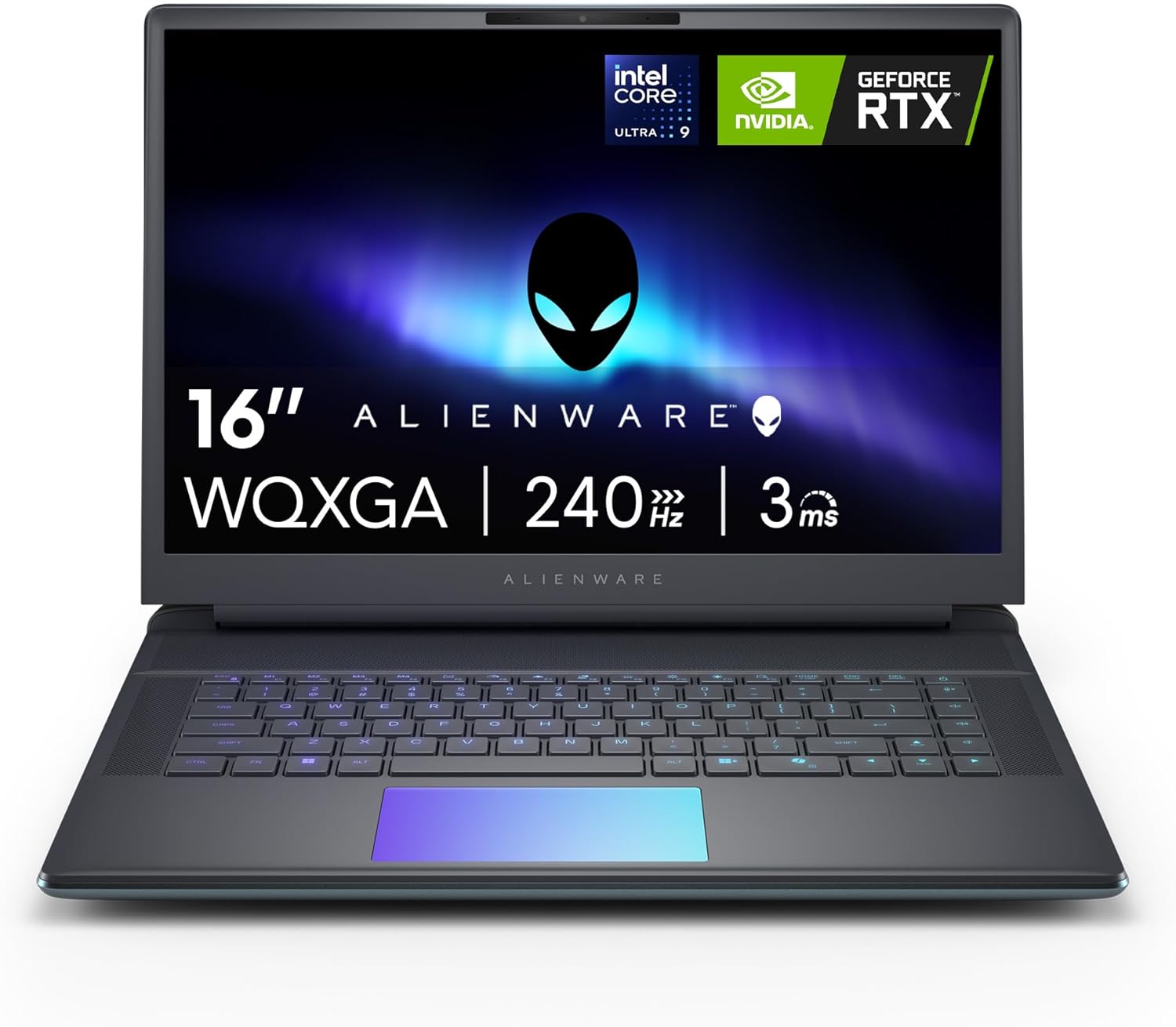
Image 1.1: Front view of the Alienware 16 Area-51 Gaming Laptop.
2. What's in the Box
Verify that all items are present in the packaging:
- Alienware 16 Area-51 AA16250 Gaming Laptop
- 360-Watt Small Form Factor Adapter
- Power Cord
- Documentation (including this manual)
3. Initial Setup
3.1 Connecting the Power Adapter
- Connect the power cord to the 360-watt small form factor adapter.
- Connect the adapter to the power/DC-in port on the rear of the laptop.
- Plug the power cord into a wall outlet.

Image 3.1: Rear and side port layout of the Alienware 16 Area-51 laptop. The power/DC-in port is located on the rear.
3.2 First Boot and Operating System Setup
Upon first power-on, the laptop will guide you through the Windows 11 Home setup process. Follow the on-screen instructions to configure your language, region, network, and user account.
Image 3.2: The Windows 11 logo, indicating the pre-installed operating system.
4. Operating Your Laptop
4.1 Powering On and Off
- Power On: Press the power button located on the keyboard deck.
- Power Off: Click the Start button in Windows, then select Power > Shut down.
4.2 Key Features and Components
- Display: The 16-inch WQXGA (2560x1600) display offers a 240Hz refresh rate for smooth visuals.
- Processor: Equipped with an Intel Core Ultra 9-275HX processor, integrating CPU, built-in GPU, and NPU for balanced performance and AI acceleration.

Image 4.1: Close-up view of the Intel Core Ultra processor, highlighting its integrated design.
- Graphics: Features an NVIDIA GeForce RTX 5070Ti Laptop GPU for high-fidelity graphics and gaming performance.
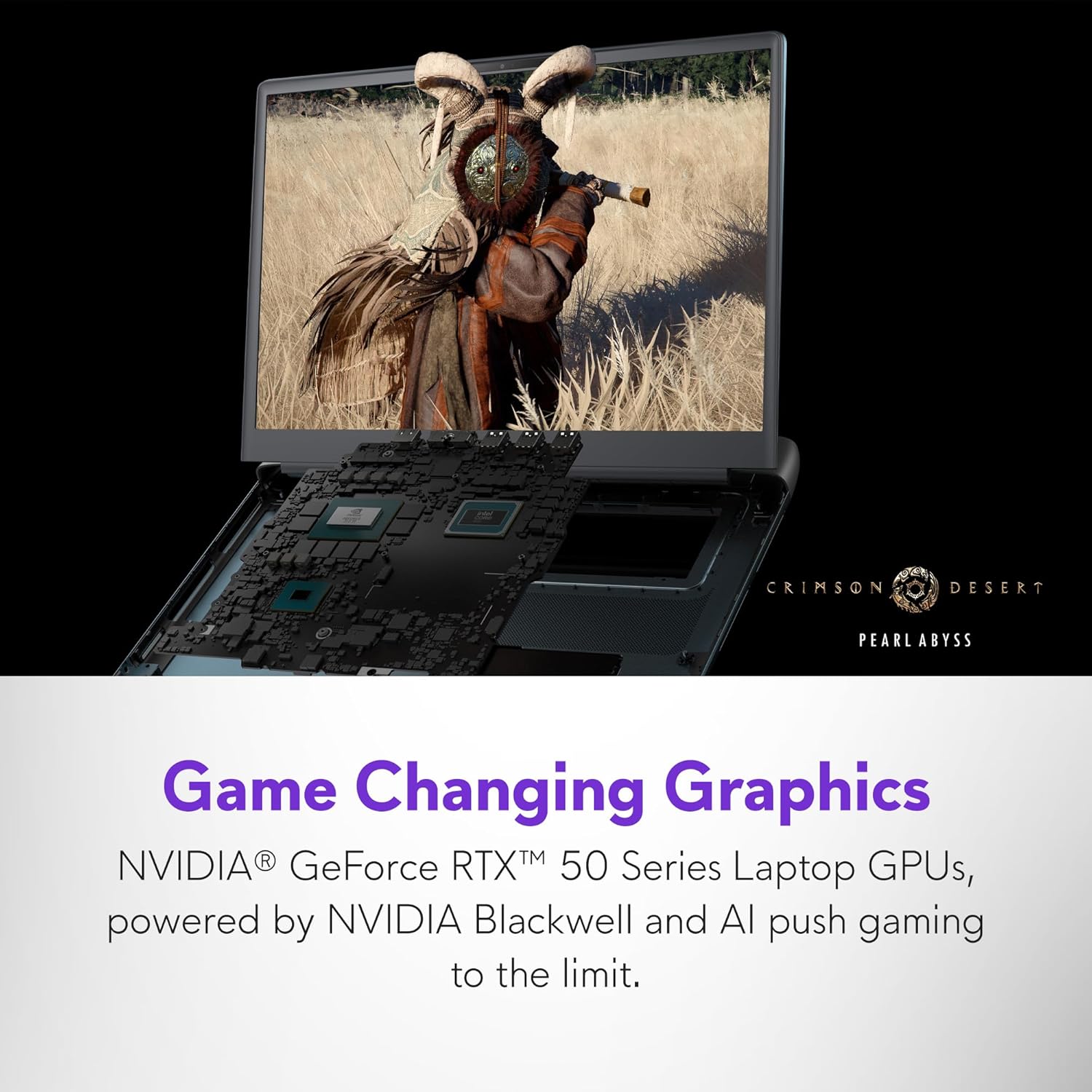
Image 4.2: The laptop screen displaying a high-fidelity game, showcasing the capabilities of the NVIDIA GeForce RTX 5070Ti GPU.
- Memory: 32GB DDR5 RAM (6400MHz) for efficient multitasking.
- Storage: 1TB NVMe M.2 PCIe Gen4 SSD for fast boot times and data access.
- Cooling System: The Cryo-Chamber design enhances airflow and cooling efficiency, visible through a Gorilla Glass panel.

Image 4.3: Underside view of the laptop, highlighting the Cryo-Chamber cooling system with visible fans.
- AlienFX Lighting: Customizable ambient lighting inspired by the aurora borealis.
- Alienware Command Center: Software for managing performance presets, overlays, and lighting.
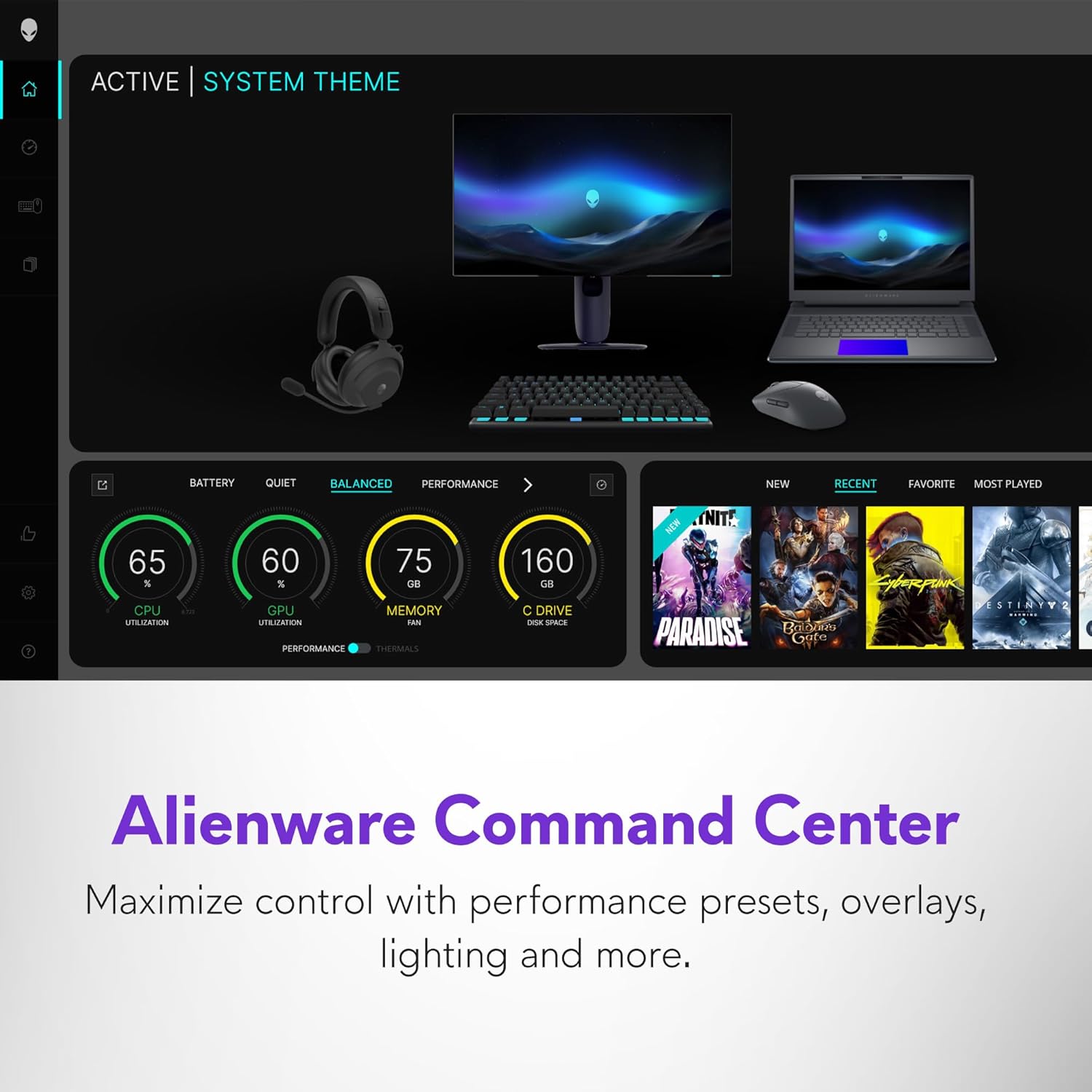
Image 4.4: Screenshot of the Alienware Command Center interface, showing options for system monitoring and customization.
5. Maintenance
5.1 Cleaning Your Laptop
- Use a soft, lint-free cloth to clean the screen and exterior surfaces.
- For stubborn smudges, lightly dampen the cloth with water or a screen cleaner. Avoid harsh chemicals.
- Use compressed air to clear dust from keyboard keys and ventilation grilles.
5.2 Software Updates
Regularly check for and install operating system and driver updates to ensure system stability and security. Use the Alienware Command Center for driver and firmware updates specific to your laptop.
5.3 Storage Management
Periodically review and manage your 1TB SSD storage to maintain optimal performance. Uninstall unused applications and delete unnecessary files.
6. Troubleshooting
6.1 Common Issues and Solutions
| Issue | Possible Solution |
|---|---|
| Laptop does not power on | Ensure the power adapter is securely connected to both the laptop and a working power outlet. Try a different outlet. |
| System is slow or unresponsive | Close unnecessary applications. Check for background processes. Ensure sufficient free storage space. Restart the laptop. |
| Overheating during use | Ensure ventilation grilles are clear of obstructions. Use the laptop on a hard, flat surface. Consider adjusting performance settings in Alienware Command Center. |
| Display issues (e.g., no image, flickering) | Restart the laptop. Update graphics drivers. Check external display connections if applicable. |
6.2 Diagnostic Tools
The Alienware Command Center includes diagnostic tools to help identify and resolve system issues. Refer to the software's help section for detailed instructions.
7. Specifications
| Feature | Detail |
|---|---|
| Model Name | Dell Alienware 16 Area 51 AA16250 Laptop |
| Processor | Intel Core Ultra 9-275HX (2.1 GHz) |
| RAM | 32 GB DDR5 (6400 MHz) |
| Storage | 1 TB SSD (NVMe M.2 PCIe Gen4) |
| Graphics Coprocessor | NVIDIA GeForce RTX 5070 Ti (12 GB GDDR6) |
| Display | 16-inch WQXGA (2560 x 1600 pixels), 240Hz |
| Operating System | Windows 11 Home |
| Wireless Connectivity | Bluetooth, Wi-Fi (specific standard not detailed) |
| Ports | 3x USB 3.0, 2x Thunderbolt, HDMI 2.1, Global headset jack, Full-sized SD card slot, Power/DC-In |
| Dimensions (LxWxH) | 11.41 x 14.37 x 1.12 inches |
| Item Weight | 7.49 pounds |
| Color | Liquid Teal |
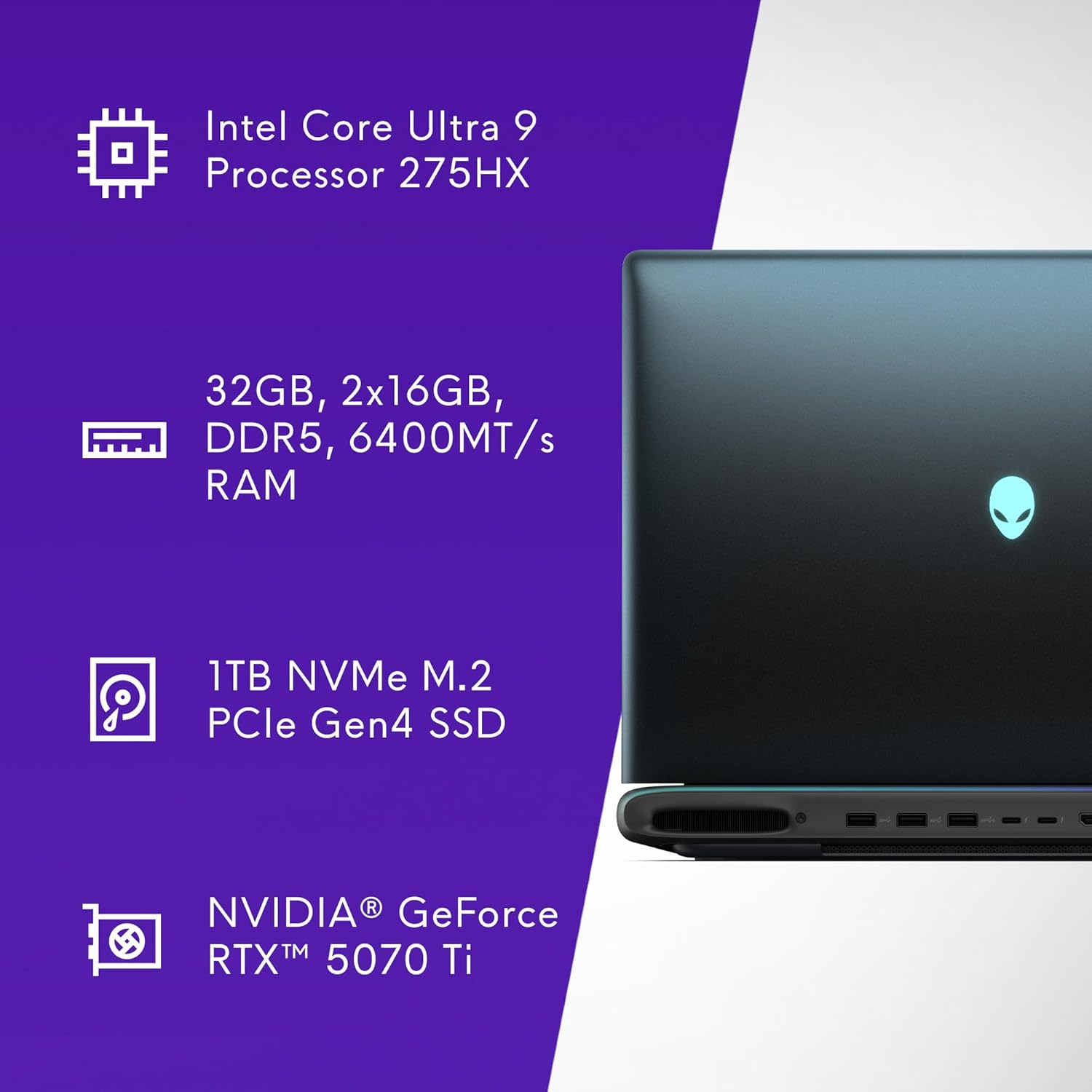
Image 7.1: Visual summary of key specifications including CPU, RAM, SSD, and GPU.

Image 7.2: Side profile of the laptop indicating a thickness of 28.50 mm.
8. Warranty and Support
8.1 Limited Hardware Warranty
Your Alienware 16 Area-51 Gaming Laptop comes with a 1-Year Onsite Service. This service provides support at your home, office, or chosen location if an issue covered by the Limited Hardware Warranty cannot be resolved remotely.
8.2 Contacting Support
For technical assistance, warranty claims, or service requests, please refer to the contact information provided in your product documentation or visit the official Alienware support website. Ensure you have your product model number (AA16250) and serial number ready when contacting support.
Additional support resources may be available through the Alienware Store on Amazon.
Related documentsAA16250


Ask a question about this manual
Ask about setup, troubleshooting, compatibility, parts, safety, or missing instructions. Manuals+ will review the question and use this page’s manual context to help answer it.