
EBTOOLS EBTOOLSzv63txyop5
EBTOOLS 15.6-inch Portable Monitor User Manual
Model: EBTOOLSzv63txyop5
Introduction
This manual provides essential instructions for the setup, operation, and maintenance of your EBTOOLS 15.6-inch Portable Monitor. Please read this manual thoroughly before using the product to ensure proper functionality and longevity.
Package Contents

Image: The portable monitor and its accompanying cables, including HD Multimedia Interface cable, USB cable, and Double Type C cable.
- 1 x EBTOOLS 15.6-inch Portable Monitor
- 1 x HD Multimedia Interface Cable
- 1 x Adapter (Power Adapter)
- 1 x USB Cable
- 1 x Double Type C Cable
- 1 x Instruction Manual (This document)
Specifications
| Item Type | Portable Screen |
| Material | ABS, In Plane Switching (IPS) |
| Resolution | 1920x1080 (Full HD) |
| Display Interface | HD Multimedia Interface, Type C |
| Viewing Angle | 178° |
| Color Gamut | Full sRGB |
| Maximum Brightness | 300cd/m2 |
| Contrast Ratio | 1000:1 |
| Refresh Rate | 60Hz |
| Backlight Adjustment | OSD Menu Adjustment |
| Compatibility | Mobile Phones (with full-featured USB-C), Nintendo Switch, Raspberry Pi (all versions, no driver needed for RasPi OS, Ubuntu, Kali, IoT), Laptops, PCs. |
| Dimensions (Package) | 19.29 x 10.63 x 2.36 inches |
| Item Weight | 2.57 pounds |
| Model Number | EBTOOLSzv63txyop5 |
Product Features
- High Definition Display: 15.6-inch Full HD (1920x1080) anti-glare display with 60Hz refresh rate, 300cd/m2 brightness, and 1000:1 contrast ratio for clear visuals.
- Wide Compatibility: Connects to laptops, PCs, smartphones, Nintendo Switch, and Raspberry Pi via two USB Type-C ports and one HD Multimedia Interface.
- Integrated Kickstand: Features a built-in stand for adjustable viewing angles and easy switching between horizontal and vertical orientations.
- Ultra-Slim and Lightweight: With a thickness of only 0.16 inches, it is highly portable for travel and business use.
- Plug and Play: Requires no additional applications or drivers for most connections; simply connect via USB-C for both video signal and power (for compatible devices).
Setup Guide
1. Identifying Ports

Image: Rear view of the monitor highlighting the various ports and controls: High Definition Multimedia Interface, Full-featured Type C connectors, Type C 5V power connector, Power Key, Menu Adjustment Keys, and 3.5mm sound connector.
Familiarize yourself with the monitor's ports and controls:
- High Definition Multimedia Interface: For video input from devices like laptops, PCs, and gaming consoles.
- Full-featured Type C Connectors: For video, audio, and power input from compatible devices (e.g., modern laptops, smartphones).
- Type C 5V Power Connector: Dedicated port for power supply if the source device cannot provide sufficient power via a full-featured Type C connection.
- Power Key: To turn the monitor on/off.
- Menu Adjustment Keys: To navigate and adjust settings in the On-Screen Display (OSD) menu.
- 3.5mm Sound Connector: For connecting external headphones or speakers.
2. Connecting to Devices
The monitor supports various connection methods. Ensure your device has the necessary ports.
2.1. Connecting to a Laptop/PC (USB Type-C)

Image: A portable monitor connected to a laptop using a single Type-C cable, illustrating a dual-screen setup.
- Connect one end of the Double Type C Cable to a full-featured USB Type-C port on your laptop/PC.
- Connect the other end of the Double Type C Cable to one of the full-featured Type C ports on the portable monitor.
- If your laptop/PC's USB Type-C port supports power delivery, the monitor will receive both video signal and power. If not, connect the provided Adapter to the Type C 5V Power Connector on the monitor.
- The monitor should automatically detect the signal. You may need to adjust display settings on your laptop/PC (e.g., Extend, Duplicate) via your operating system's display settings.
2.2. Connecting to a Laptop/PC (HD Multimedia Interface)
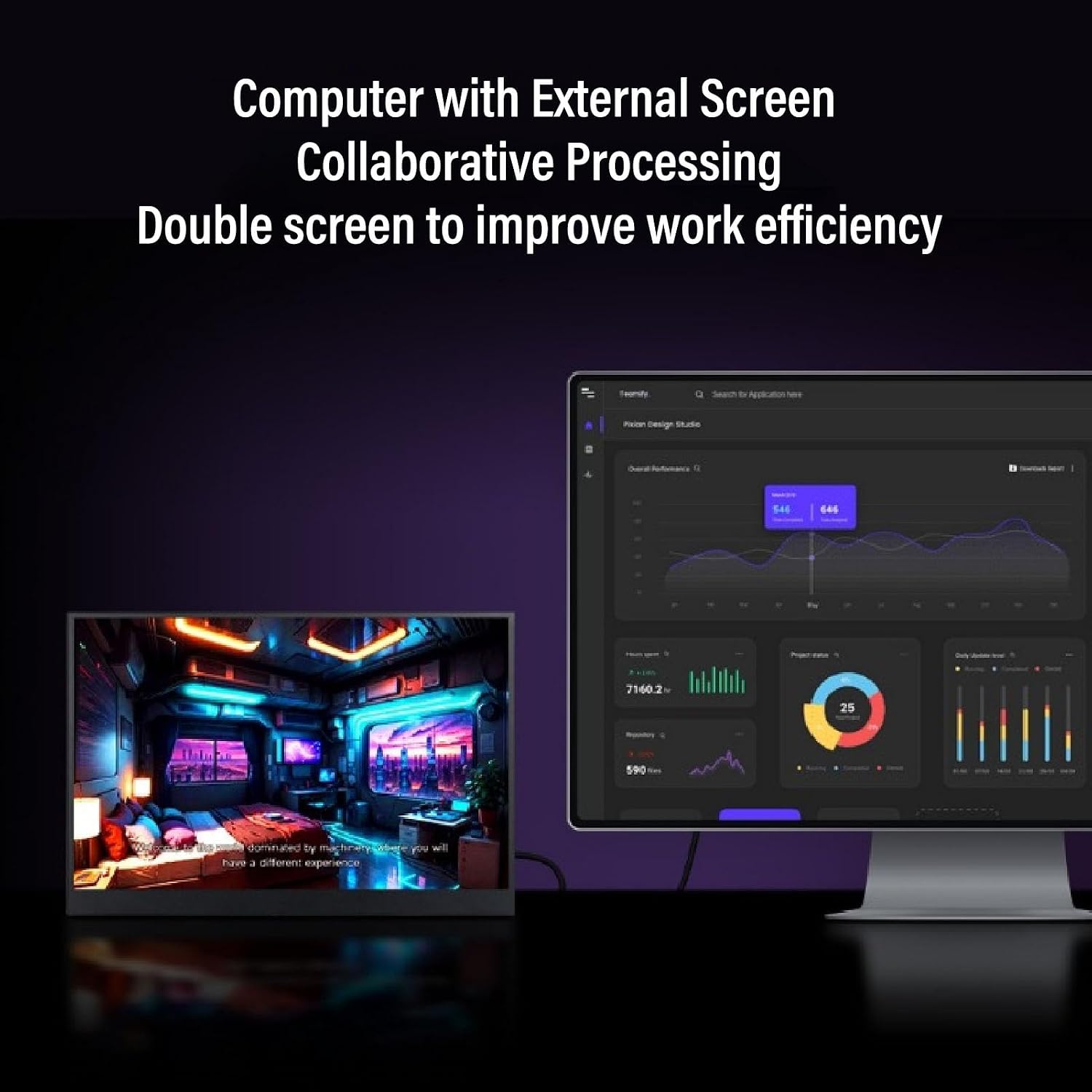
Image: A portable monitor displaying a desktop environment, positioned next to a larger desktop monitor, demonstrating a multi-monitor setup for enhanced productivity.
- Connect one end of the HD Multimedia Interface Cable to your laptop/PC's HD Multimedia Interface output.
- Connect the other end of the HD Multimedia Interface Cable to the HD Multimedia Interface port on the portable monitor.
- Connect the provided Adapter to the Type C 5V Power Connector on the monitor for power.
- Adjust display settings on your laptop/PC as needed.
2.3. Connecting to a Smartphone (USB Type-C)

Image: A portable monitor connected to a smartphone via a USB-C cable, demonstrating the "Plug and Play" functionality where the phone's display is mirrored on the monitor.
- Ensure your smartphone has a full-featured USB Type-C port that supports video output and power delivery.
- Connect one end of the Double Type C Cable to your smartphone.
- Connect the other end of the Double Type C Cable to one of the full-featured Type C ports on the portable monitor.
- The monitor should display your phone's screen. Some phones may require specific settings to enable screen mirroring or desktop mode.
- If the monitor does not power on, connect the provided Adapter to the Type C 5V Power Connector on the monitor.
2.4. Connecting to Nintendo Switch
- Connect the Nintendo Switch to the monitor using the HD Multimedia Interface Cable.
- Connect the provided Adapter to the Type C 5V Power Connector on the monitor for power.
- Ensure the Nintendo Switch is powered on. The monitor should display the game.
2.5. Connecting to Raspberry Pi

Image: A visual representation of the portable monitor's broad compatibility, showing connections to a laptop, Raspberry Pi, smartphone, and a traditional desktop setup.
- Connect the Raspberry Pi to the monitor using the HD Multimedia Interface Cable.
- Connect the provided Adapter to the Type C 5V Power Connector on the monitor for power.
- Power on the Raspberry Pi. The monitor supports RasPi OS, Ubuntu, Kali, and IoT without requiring additional drivers.
Operating Instructions
1. Power On/Off
Press the Power Key located on the side of the monitor to turn it on or off.
2. On-Screen Display (OSD) Menu
Use the Menu Adjustment Keys to access and navigate the OSD menu. Here you can adjust various display settings:
- Brightness: Adjust the screen's luminance.
- Contrast: Modify the difference between light and dark areas.
- Color Settings: Fine-tune color temperature, hue, and saturation.
- Input Source: Manually select the input source (HD Multimedia Interface, Type C 1, Type C 2).
- Aspect Ratio: Change the display aspect ratio.
- Volume: Adjust audio output if using the 3.5mm audio jack.
3. Using the Kickstand

Image: A series of illustrations demonstrating the flexibility of the monitor's integrated kickstand, which can be adjusted up to 180 degrees to support both horizontal and vertical screen orientations.
The integrated kickstand allows for flexible positioning:
- Gently pull out the kickstand from the back of the monitor.
- Adjust the angle to your preferred viewing position. The kickstand supports up to 180 degrees of rotation, enabling both horizontal and vertical screen orientations.
- Ensure the monitor is stable on a flat surface before use.
Maintenance
- Cleaning the Screen: Use a soft, lint-free cloth lightly dampened with water or a screen-cleaning solution. Do not spray liquid directly onto the screen.
- Cleaning the Casing: Wipe the monitor casing with a soft, dry cloth. Avoid abrasive cleaners or solvents.
- Storage: When not in use, store the monitor in a cool, dry place, away from direct sunlight and extreme temperatures.
- Handling: Avoid dropping or subjecting the monitor to strong impacts. Do not place heavy objects on the monitor.
- Power: Always use the provided power adapter or a compatible power source.
Troubleshooting
| Problem | Possible Cause | Solution |
|---|---|---|
| No display/Black screen |
|
|
| Flickering screen |
|
|
| No sound |
|
|
| Image not full screen |
|
|
Warranty and Support
For warranty information or technical support, please refer to the purchase documentation or contact EBTOOLS customer service through the retailer where the product was purchased. Keep your proof of purchase for warranty claims.
Manufacturer: EBTOOLS
Date First Available: May 14, 2025
Ask a question about this manual
Ask about setup, troubleshooting, compatibility, parts, safety, or missing instructions. Manuals+ will review the question and use this page’s manual context to help answer it.