
1. Introduction
The VILTROX DC-L1 is a professional 7-inch camera field monitor designed for DSLR and mirrorless cameras. It features a touchscreen IPS panel with a 170° wide viewing angle, 600 nits brightness, and HD 1280x800 resolution, supporting 4K HDMI loop in/out. This monitor provides advanced monitoring functions such as Peak Focus, Waveform, 3D LUT support, and more, enhancing your shooting and post-production workflow. This manual provides detailed instructions for setting up, operating, and maintaining your DC-L1 monitor.
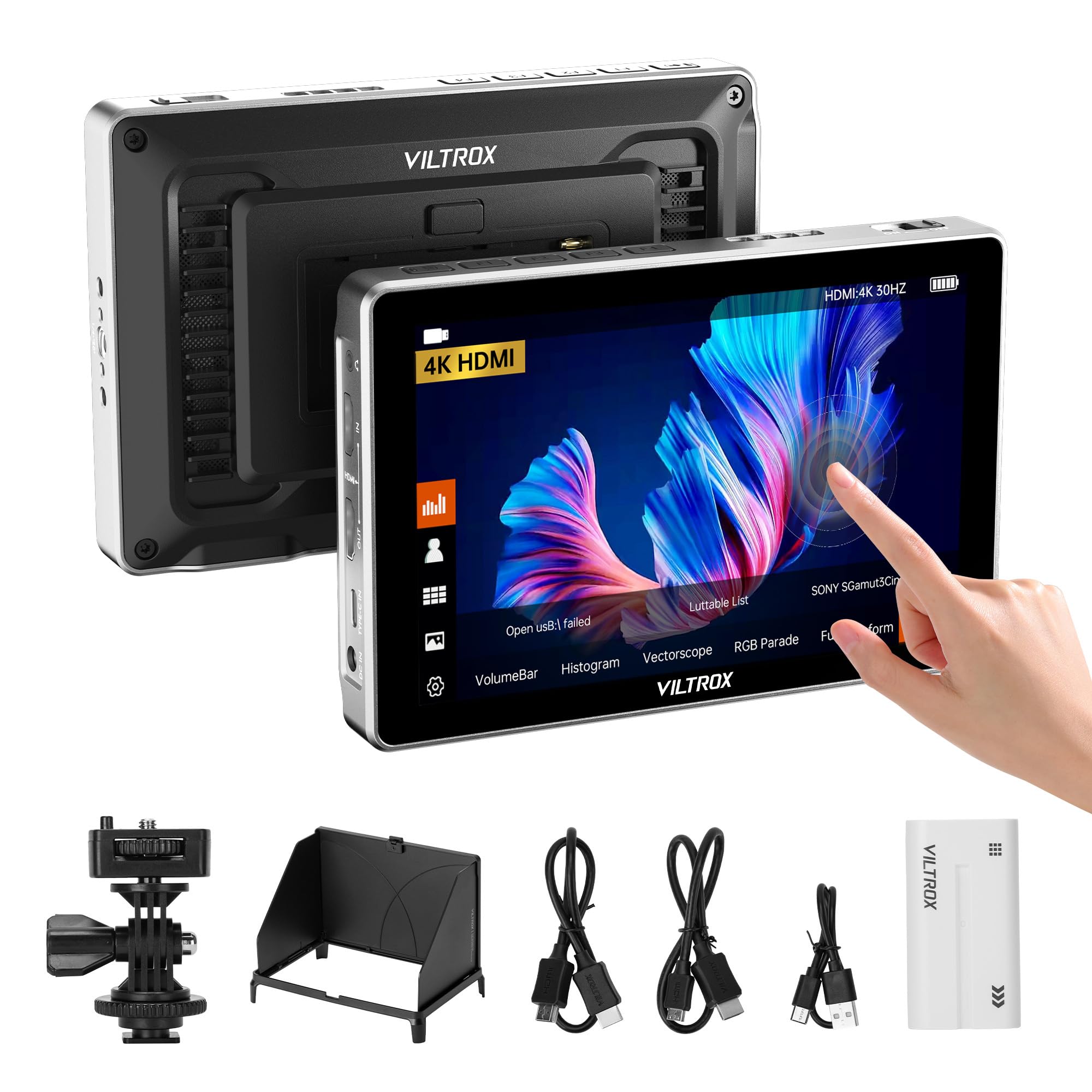
Figure 1: VILTROX DC-L1 7-inch Camera Field Monitor
2. What's in the Box
Please check the contents of your package to ensure all items are present:
- 1x VILTROX DC-L1 Camera Field Monitor
- 1x NP-F550 Battery
- 1x Sunshade Hood
- 1x Cold Shoe Adapter
- 1x Standard HDMI Cable
- 1x Mini HDMI Cable
- 1x USB Type-C Cable
- 1x Custom Screen Protectors
- 1x User Manual
- 1x Packing Box

Figure 2: Package Contents
3. Product Overview
Familiarize yourself with the components and interfaces of your VILTROX DC-L1 monitor.

Figure 3: DC-L1 Product Instruction Diagram
- Back/Menu Button
- Shortcut Key (F1-F4)
- Display Screen
- Heat Dissipation Port
- Signal Indicator
- Power Button
- Headphone Jack (3.5mm)
- HDMI Input
- HDMI Output
- Type-C Port (Power Supply)
- DC Port (Power Supply)
- 1/4 Screw Hole (Top)
- 1/4 Screw Hole (Bottom)
- USB Interface (for 3D LUT import/firmware)
- Heat Dissipation Port
- Battery Slot (NP-F series)
- Battery Release Button
4. Setup
4.1 Powering the Monitor
The DC-L1 monitor offers multiple power supply options:
- NP-F Series Battery: Insert a compatible NP-F550, NP-F750, or NP-F970 series battery into the battery slot on the back of the monitor. Ensure it clicks into place.
- DC Power Adapter: Connect a 10-12V/2A DC power adapter to the DC IN port.
- Type-C Power Bank: Connect a Type-C power source (≥9V, 3A) to the Type-C port.

Figure 4: Multiple Power Supply Options
4.2 Mounting the Monitor
The monitor can be mounted using the 1/4" screw holes located on the top and bottom. Use the included cold shoe adapter to attach it to your camera's hot shoe or a rig.
4.3 Connecting to a Camera
Use the provided Standard HDMI Cable or Mini HDMI Cable to connect your camera's HDMI output to the HDMI Input port on the DC-L1 monitor. The monitor supports up to 4K@30Hz HDMI signals.

Figure 5: HDMI Input/Output Connection
5. Operating Instructions
5.1 Power On/Off
Press and hold the Power Button (6) to turn the monitor on or off.
5.2 Touchscreen Control
The DC-L1 features an intuitive touchscreen interface. Tap and swipe gestures allow quick access to menus and settings.
- Tap: Select menu items or activate functions.
- Swipe: Navigate through menus or adjust parameters.
- Double Click: Access Main Menu.
- Swipe Left: Exit Menu.
- Swipe Up/Down: Adjust Volume/Backlight.
- Pinch In/Out: Zoom In/Out.

Figure 6: Touchscreen Control Interface
5.3 Shortcut Keys (F1-F4)
The four customizable shortcut keys (2) provide quick access to frequently used functions. You can configure these in the monitor's settings menu.
- Default F1: Full Waveform switch.
- Default F2: Pseudo Color function switch.
- Default F3: 3D LUT function switch.
- Default F4: Lock Screen switch.
5.4 Professional Monitoring Functions
The DC-L1 includes a suite of professional monitoring tools:
- 3D LUT: Import custom 3D LUT tables via the USB-A interface (14) for real-time color preview.
- Parade Waveform: Displays luminance and chrominance levels.
- Oscillogram (Y): Shows luminance distribution.
- Vector Graph: Visualizes color hue and saturation.
- Brightness Histogram: Indicates exposure levels.
- Auxiliary Focus (Peaking): Highlights in-focus areas.
- Audio Column: Monitors audio input levels.
- Image Flip: Flips the image horizontally or vertically.
- False Color: Helps evaluate exposure by displaying different exposure levels as distinct colors.
- Safe Area: Displays guides for broadcast-safe areas.
- Mark Ratio: Overlays various aspect ratio markers.
- Gridlines: Provides compositional guides.
- Color Temperature: Adjusts the color temperature of the display.
- Pixel to Pixel: Displays the image at 1:1 pixel ratio.

Figure 7: Professional Monitoring Tools
5.5 Sunshade Hood Installation
The detachable sunshade hood can be quickly installed to reduce glare and improve visibility in bright outdoor conditions.
5.6 Video Overview
Watch this video for a quick overview of the VILTROX DC-L1 monitor's features and accessories.
Video 1: VILTROX DC-L1 Monitor Overview
6. Maintenance
- Cleaning: Use a soft, dry cloth to clean the monitor's body. For the screen, use a specialized screen cleaning solution and a microfiber cloth. Avoid harsh chemicals.
- Storage: When not in use, store the monitor in a cool, dry place, away from direct sunlight and extreme temperatures. Use the provided packing box or a protective case.
- Battery Care: If using NP-F batteries, ensure they are charged regularly and stored properly to prolong their lifespan. Remove batteries if the monitor will not be used for an extended period.
- Firmware Updates: Periodically check the VILTROX official website for firmware updates to ensure optimal performance and access to new features. Updates can typically be installed via the USB-A port.
7. Troubleshooting
| Problem | Possible Cause | Solution |
|---|---|---|
| Monitor does not power on. | Low or depleted battery; power cable not connected properly; faulty power source. | Ensure battery is charged or replace with a charged one. Check power cable connections. Try a different power source (DC adapter or Type-C). |
| No signal displayed. | HDMI cable not connected properly; incorrect input selected; camera output settings. | Check HDMI cable connection to both camera and monitor. Ensure the camera's HDMI output is active. Verify the monitor's input source is set to HDMI. Try a different HDMI cable. |
| Image is distorted or incorrect colors. | Incorrect color settings; 3D LUT applied incorrectly; faulty HDMI cable. | Reset color settings in the monitor menu. Check if a 3D LUT is active and if it's the correct one. Try a different HDMI cable. |
| Touchscreen is unresponsive. | Screen lock activated; temporary software glitch. | Check if the screen lock (F4 default) is active. Restart the monitor. If the issue persists, consider a firmware update. |
| Monitor overheats. | Prolonged use in high temperatures; blocked ventilation. | Ensure heat dissipation ports are not blocked. Operate in a well-ventilated area. Allow the monitor to cool down if it becomes excessively hot. |
8. Specifications
| Feature | Detail |
|---|---|
| Brand | VILTROX |
| Model Number | DC-L1 |
| Screen Size | 7 Inches |
| Resolution | 1280x800 |
| Aspect Ratio | 16:9 |
| Screen Surface Description | Glossy |
| Contrast Ratio | 1000:1 |
| Display Type | IPS |
| Viewing Angle | 170 Degrees |
| Brightness | 600 candela_per_square_meter |
| Picture Quality Enhancement Technology | IPS panel, 3D LUT, REC-709 color calibration |
| Item Dimensions (D x W x H) | 1.18"D x 7"W x 4.72"H |
| Item Weight | 12.2 Ounces |
| Display Resolution Maximum | 4096 x 2160 |
| Native Resolution | 1280x800 |
| Additional Features | Portable, Touchscreen |
| Compatible Devices | DSLR Cameras |
| Connectivity Technology | HDMI |
| Hardware Connectivity | HDMI |
| Total Number of HDMI Ports | 1 |
| Number of Component Outputs | 1 |
| Total USB 3.0 Ports | 1 |
9. Warranty & Support
9.1 Warranty Information
The VILTROX DC-L1 Camera Field Monitor comes with a 1-year manufacturer's warranty. This warranty covers defects in materials and workmanship under normal use. Please retain your proof of purchase for warranty claims.
9.2 Customer Support
For technical support, service, or further inquiries, please visit the official VILTROX website or contact their customer service department. You can also visit the VILTROX Store on Amazon for additional product information and support resources.


