
RECCAZR B0F8NPXKWL
RECCAZR Wireless Keyboard and Mouse Combo User Manual
Model: B0F8NPXKWL
Introduction
This manual provides instructions for the RECCAZR Wireless Keyboard and Mouse Combo, designed for comfortable and efficient use. This combo features an ergonomic wave-key keyboard with a palm rest and a silent mouse with adjustable DPI settings, connecting wirelessly via a 2.4GHz USB receiver.
Key features include:
- Ergonomic wave-key design and integrated palm rest for natural typing posture.
- 2.4GHz wireless connection with a single nano USB receiver for both devices.
- Spill-resistant keyboard design for enhanced durability.
- Silent mouse with 3 adjustable DPI levels (800-1200-1600) and quiet clicks.
- Wide compatibility with Windows, Mac OS, and Linux operating systems.
Setup Instructions
1. Unpacking and Components
Ensure all components are present:
- Wireless Ergonomic Keyboard
- Wireless Silent Mouse
- Nano USB Receiver (stored in the mouse battery compartment)
- User Manual
2. Battery Installation
The keyboard requires 1 AA battery and the mouse requires 1 AA battery (batteries not included).
- Locate the battery compartment on the underside of the keyboard and mouse.
- Open the battery compartment cover.
- Insert one AA battery into each device, ensuring correct polarity (+/-).
- Close the battery compartment cover.

Figure 1: Battery installation and power management features. The USB receiver is stored next to the mouse battery compartment.
3. Connecting the Devices
The keyboard and mouse share a single nano USB receiver.
- Remove the nano USB receiver from the battery compartment of the mouse.
- Plug the USB receiver into an available USB port on your computer.
- Turn on the keyboard and mouse using their respective ON/OFF switches, located on the underside of each device.
- The devices should connect automatically. No additional drivers or software are required.

Figure 2: Wireless connection setup. The 2-in-1 USB receiver enables a stable 2.4GHz connection up to 33 feet.
Operating Instructions
Keyboard Usage
The ergonomic keyboard features a wave-key layout and an integrated palm rest for comfortable typing. It includes standard F-keys (function keys) and a number pad for efficient data entry.
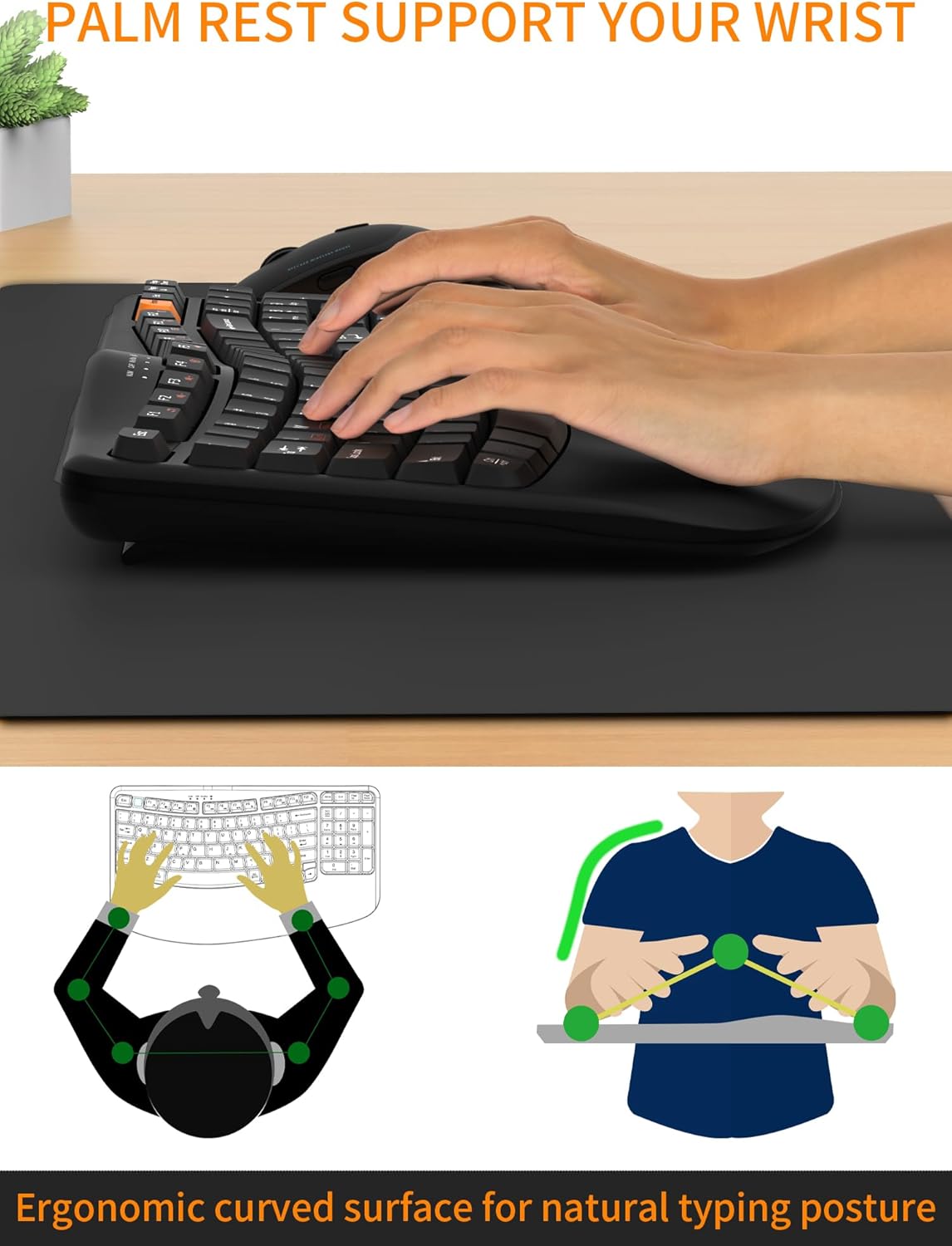
Figure 3: Ergonomic design with palm rest for improved wrist comfort.
Function Keys (F-keys)
The keyboard includes a row of F-keys (F1-F12) that can perform various functions depending on your operating system and active applications. Some keys may have secondary functions accessible by pressing the Fn key simultaneously.
Compatibility Layouts
The keyboard supports both Windows and Mac OS layouts. Use the following key combinations to switch between modes:
- FN + Q: Mac OS layout (Option, Cmd, Clear)
- FN + W: Windows layout (Win, Alt, Num Lock)
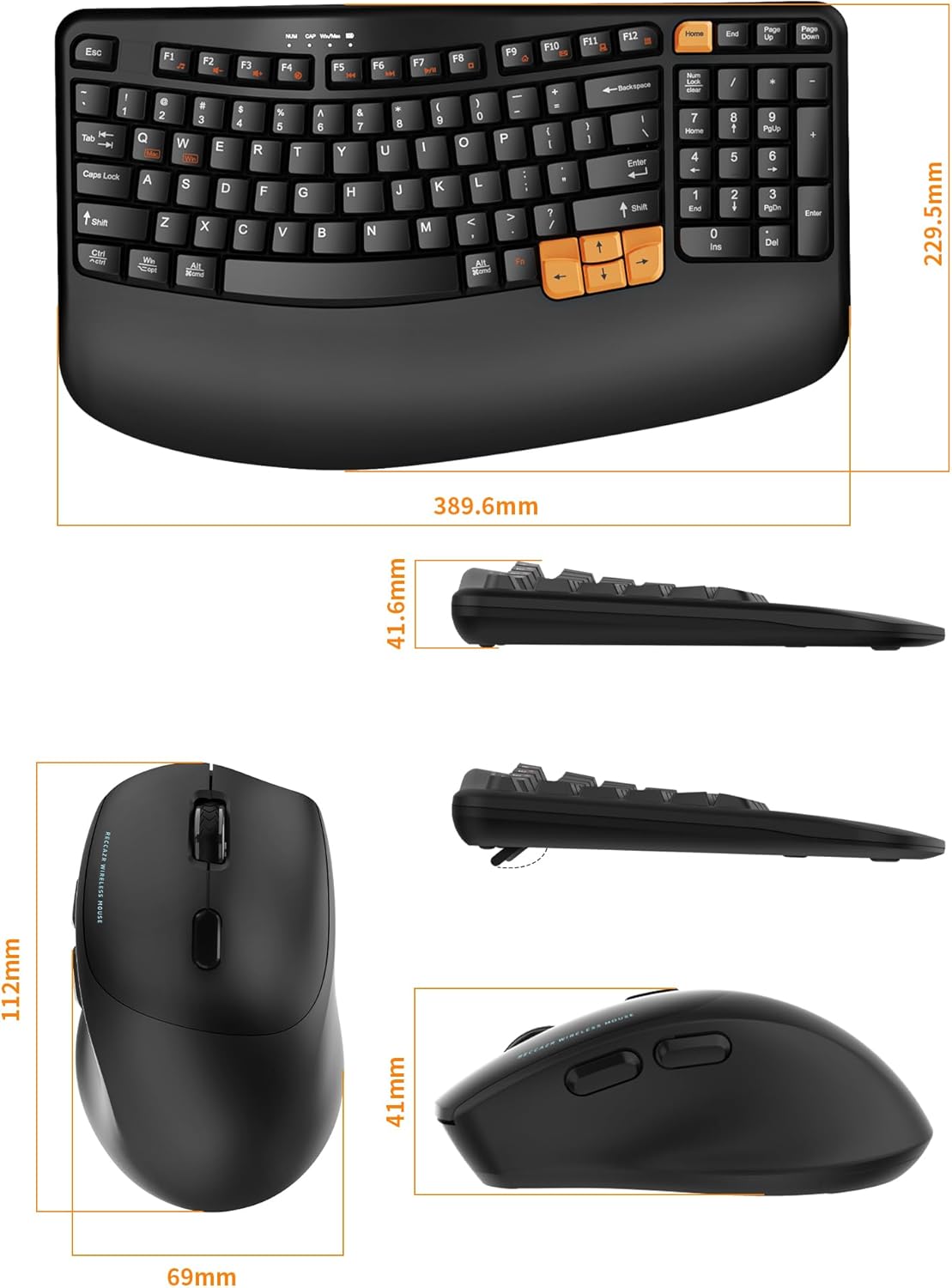
Figure 4: Keyboard compatibility with Windows and Mac operating systems.
Mouse Usage
The silent ergonomic mouse provides comfortable navigation with quiet clicks, reducing noise in shared environments.
DPI Adjustment
The mouse features 3 adjustable DPI (Dots Per Inch) levels to control cursor sensitivity. Press the DPI button, usually located near the scroll wheel, to cycle through the settings: 800, 1200, and 1600 DPI.
Additional Buttons
The mouse includes dedicated "Next" and "Previous" buttons on the side for convenient web page browsing.

Figure 5: Features of the silent ergonomic mouse, including DPI adjustment and navigation buttons.
Maintenance
Cleaning
To clean your keyboard and mouse, use a soft, damp cloth. Avoid using harsh chemicals or abrasive cleaners. Ensure devices are powered off before cleaning.
Spill-Resistant Design
The keyboard features a spill-resistant design with drainage holes at the bottom to protect against minor liquid spills. In case of a spill:
- Immediately disconnect the USB receiver from your computer.
- Turn off the keyboard and remove the battery.
- Invert the keyboard to allow liquid to drain through the drainage holes.
- Allow the keyboard to dry completely before reinserting the battery and reconnecting.
Note: The spill-resistant feature is designed for minor spills and does not guarantee protection against heavy liquid exposure or submersion.

Figure 6: Spill-resistant keyboard design.
Troubleshooting
If you encounter issues with your RECCAZR Wireless Keyboard and Mouse Combo, please refer to the following common solutions:
- Devices not responding:
- Ensure the ON/OFF switches on both the keyboard and mouse are in the "ON" position.
- Check if the batteries are correctly installed and have sufficient charge. Replace batteries if necessary.
- Ensure the USB receiver is securely plugged into a working USB port on your computer. Try a different USB port.
- Move the keyboard and mouse closer to the USB receiver to rule out range issues. The effective range is up to 33 feet (10 meters).
- Lag or intermittent connection:
- Reduce interference by moving other wireless devices (e.g., Wi-Fi routers, cordless phones) away from the receiver.
- Ensure there are no large metal objects between the devices and the receiver.
- Try plugging the USB receiver into a different USB port, preferably a direct port on the computer rather than a hub.
- Specific keys or mouse buttons not working:
- Check for physical obstructions or debris under the keys/buttons.
- If a spill occurred, ensure the device is completely dry.
- Re-establish the connection by unplugging and re-plugging the USB receiver.
- Mouse cursor erratic or not moving smoothly:
- Clean the mouse sensor on the underside of the mouse.
- Ensure you are using the mouse on a suitable surface (not highly reflective or transparent).
- Adjust the DPI setting using the DPI button on the mouse.
Specifications
| Feature | Detail |
|---|---|
| Brand | RECCAZR |
| Model | Wireless Keyboard and Mouse Combo (B0F8NPXKWL) |
| Connectivity Technology | 2.4GHz Wireless (USB Receiver) |
| Wireless Range | Up to 10 meters (33 feet) |
| Keyboard Layout | QWERTY, Full-size with Number Pad |
| Number of Keys | 97 |
| Keyboard Special Features | Ergonomic Wave Keys, Integrated Palm Rest, Spill-Resistant Design, Foldable Stands |
| Mouse DPI Levels | 800, 1200, 1600 (Adjustable) |
| Mouse Features | Silent Clicks, Next/Previous Buttons |
| Power Source | Battery Powered (1x AA for keyboard, 1x AA for mouse - not included) |
| Compatible Operating Systems | Windows XP/Vista/7/8/10/11, Mac OS, Linux |
| Keyboard Dimensions (approx.) | 389.6mm (L) x 229.5mm (W) x 41.6mm (H) |
| Mouse Dimensions (approx.) | 112mm (L) x 69mm (W) x 41mm (H) |
| Item Weight | 1.4 Kilograms (combined) |

Figure 7: Physical dimensions of the keyboard and mouse.
Warranty and Support
RECCAZR products are designed for reliability and performance. For any issues or inquiries regarding your Wireless Keyboard and Mouse Combo, please contact our customer support.
Customer Support: If you encounter any problems during use, please contact us via Amazon email. We are committed to providing a satisfactory solution.
Please refer to your purchase documentation for specific warranty terms and conditions.
Related documentsB0F8NPXKWL


Ask a question about this manual
Ask about setup, troubleshooting, compatibility, parts, safety, or missing instructions. Manuals+ will review the question and use this page’s manual context to help answer it.