
1. Introduction
This manual provides instructions for the installation, operation, and maintenance of your LAPCARE 4G LTE WiFi Router W666. This device is designed to provide high-speed internet access by utilizing a 4G LTE SIM card, distributing Wi-Fi connectivity to multiple devices, and offering a wired LAN connection. It supports various advanced features including MU-MIMO, Beamforming, and IPV6 for enhanced network performance and security.
2. Safety Information
- Ensure the router is placed in a well-ventilated area to prevent overheating.
- Use only the power adapter provided with the device.
- Keep the device away from water, moisture, and extreme temperatures.
- Do not attempt to open or repair the router yourself. Contact qualified service personnel for assistance.
- Keep out of reach of children.
3. Package Contents
Verify that all items are present in your package:
- LAPCARE 4G LTE WiFi Router W666
- Power Adapter
- Ethernet Cable
- Quick Start Guide (if included)
4. Product Overview
4.1 Front Panel
The front panel features LED indicators for power, Wi-Fi status, 4G/LTE signal strength, and LAN activity.

Figure 1: Front view of the LAPCARE W666 router, showing the four external antennas and status indicator lights.
4.2 Rear Panel
The rear panel includes ports for power, SIM card slot, WAN/LAN port, and reset button.
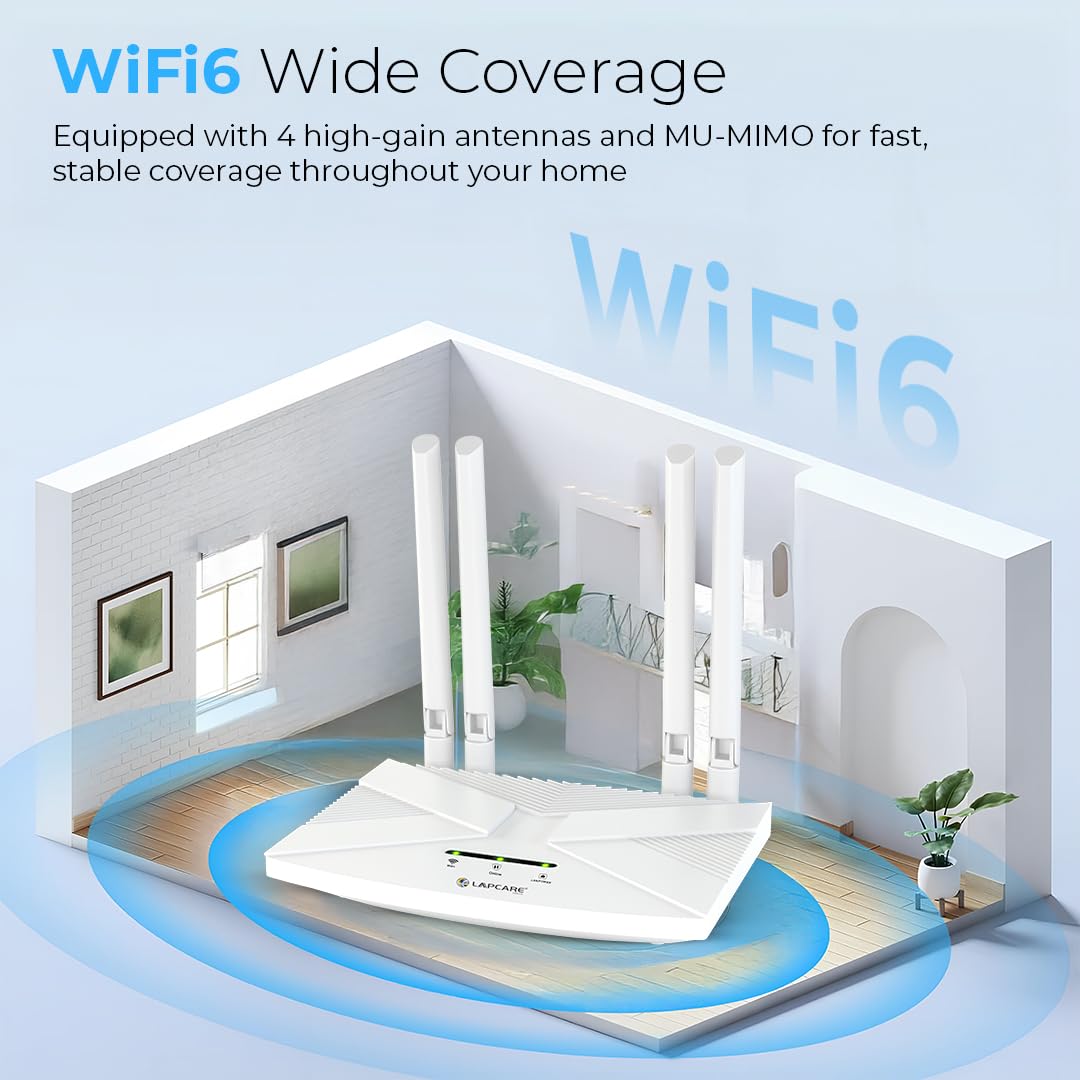
Figure 2: Rear view of the LAPCARE W666 router, highlighting the connectivity ports and SIM card slot.
5. Setup Instructions
5.1 SIM Card Installation
- Ensure the router is powered off.
- Locate the SIM card slot on the rear panel.
- Insert your 4G LTE SIM card into the slot with the gold contacts facing down and the notched corner oriented correctly. Push until it clicks into place.

Figure 3: Correct method for inserting the 4G LTE SIM card into the router.
5.2 Power Connection
- Connect the provided power adapter to the router's power port.
- Plug the other end of the power adapter into a standard electrical outlet.
- The router will power on automatically. Wait for the LED indicators to stabilize.

Figure 4: Connecting the power adapter to the LAPCARE W666 router.
5.3 Initial Configuration
- Connect your computer or mobile device to the router's default Wi-Fi network. The default SSID (network name) and password are usually printed on a label on the bottom of the router.
- Open a web browser and enter the default IP address (e.g.,
192.168.1.1or192.168.0.1) into the address bar. Refer to the router's label for the exact IP address. - Enter the default username and password (commonly
adminfor both) to log in to the web management interface. - Follow the on-screen wizard for initial setup, including changing the default Wi-Fi name and password, and configuring APN settings if necessary. The router supports over 3000 APN profiles for various SIM cards.
6. Operating Instructions
6.1 Connecting Devices
You can connect devices to the router via Wi-Fi or the LAN port.
- Wi-Fi Connection: On your device, search for available Wi-Fi networks, select your router's SSID, and enter the Wi-Fi password.
- LAN Connection: Use an Ethernet cable to connect a device (e.g., computer, smart TV, DVR/NVR) to the WAN/LAN port on the router.

Figure 5: The LAPCARE W666 router providing internet access to various connected devices.
6.2 Web Management Interface
The web management interface allows you to customize network settings. Access it by entering the router's IP address in a web browser.
- Network Settings: Configure WAN settings, LAN IP address, DHCP server.
- Wireless Settings: Change Wi-Fi SSID, password, security type, and channel.
- APN Settings: Manually configure or select APN profiles if your SIM card is not automatically detected.
- Advanced Features: Enable or disable features like MU-MIMO, Beamforming, and IPV6.

Figure 6: The router's high-performance antennas ensure strong signal and wide coverage for 4G LTE internet at up to 300 Mbps.
7. Maintenance
- Firmware Updates: Regularly check the manufacturer's website for firmware updates to ensure optimal performance and security. Follow the instructions provided with the update carefully.
- Restarting the Router: If you experience network issues, try restarting the router by unplugging the power adapter, waiting 10 seconds, and then plugging it back in.
- Cleaning: Use a soft, dry cloth to clean the router's exterior. Do not use liquid cleaners or aerosols.
- Reset to Factory Defaults: If the router is not functioning correctly, you can perform a factory reset by pressing and holding the reset button (usually located on the rear panel) for about 10 seconds while the router is powered on. This will erase all custom settings.
8. Troubleshooting
- No Internet Connection:
- Check if the SIM card is inserted correctly and activated.
- Verify APN settings in the web management interface.
- Check the 4G/LTE signal strength indicator on the router.
- Restart the router.
- Weak Wi-Fi Signal:
- Ensure the router is placed in a central location, away from obstructions and interference sources.
- Adjust the external antennas for optimal reception.
- Consider using a Wi-Fi extender for larger areas.
- Cannot Access Web Management Interface:
- Ensure your device is connected to the router's network.
- Verify the router's IP address and your device's network settings.
- Try a different web browser.
- Slow Internet Speed:
- Check your 4G LTE signal strength.
- Ensure no other devices are consuming excessive bandwidth.
- Restart the router and your connected devices.
9. Specifications
| Feature | Description |
|---|---|
| Model Name | W666 |
| Brand | Lapcare |
| Connectivity Technology | 4G, LAN, LTE, WAN |
| Data Transfer Rate | 300 Megabits Per Second |
| Frequency Band Class | Single-Band (2.4 GHz) |
| Antenna | External High-Gain Antennas |
| Special Features | 3000+ APN Support, Beamforming, IPV6 Ready, MU-MIMO |
| Number of Ports | 1x WAN/LAN Port |
| Compatible Devices | DVR/NVR Security Systems, Laptops & Desktops, Printers & IP Cameras, Smart TVs & Streaming Devices, Smartphones & Tablets |
| Operating System Support | Android & iOS, Linux, Windows (7/8/10/11), macOS |
| Item Dimensions (L x W x H) | 13L x 4.5W x 20H Centimeters |
| Item Weight | 300 Grams |
10. Warranty & Support
10.1 Warranty Information
This LAPCARE W666 router comes with a 1 Year Manufacturer Warranty from the date of purchase. Please retain your purchase receipt for warranty claims. The warranty covers manufacturing defects and does not cover damage caused by misuse, accidents, unauthorized repairs, or natural disasters.
10.2 Customer Support
For technical assistance, troubleshooting, or warranty inquiries, please contact Lapcare customer support. Refer to the product packaging or the official Lapcare website for the most up-to-date contact information.