
1. Introduction
Thank you for choosing the VCHICS 3D Holographic Fan PD42-P65. This device is designed to create stunning 3D visual effects for advertising, displays, and events. This manual provides essential information for the safe and efficient use of your holographic fan, including setup, operation, maintenance, and troubleshooting.
2. Safety Information
Please read all safety warnings and instructions carefully before installation and operation.
- Installation: Ensure the device is securely mounted in a location where it cannot be easily accessed or struck by people or objects.
- Power Supply: Use only the provided power adapter. Ensure the power source matches the voltage requirements of the device.
- Moving Parts: The fan blades rotate at high speed. DO NOT touch the blades while the device is operating or connected to power. Keep hands, hair, and loose clothing away from the fan.
- Ventilation: Ensure adequate ventilation around the device to prevent overheating. Do not block ventilation openings.
- Environment: Avoid exposing the device to water, moisture, extreme temperatures, or direct sunlight.
- Maintenance: Disconnect power before cleaning or performing any maintenance.
- Children: Keep out of reach of children. This is not a toy.
3. Package Contents
Verify that all components are present in the package:
- VCHICS 3D Holographic Fan Unit
- Power Adapter
- Remote Control
- Mounting Hardware
- User Manual

Image 3.1: The VCHICS 3D Holographic Fan unit, its remote control, and the product packaging box.
4. Setup Instructions
4.1 Assembly and Mounting
The VCHICS 3D Holographic Fan requires assembly before use. Follow these steps for proper installation:
- Unpack: Carefully remove all components from the packaging.
- Assemble Blades: Attach the fan blades to the central motor unit. Ensure they are securely fastened according to the included assembly diagram.
- Choose Location: Select a suitable mounting location. The fan should be installed at a height where the rotating blades are out of reach.
- Mounting: Use the provided mounting hardware to securely fix the fan unit to a wall or ceiling. Ensure the mounting surface can support the weight of the device.
- Power Connection: Connect the power adapter to the fan unit and then plug it into a power outlet.
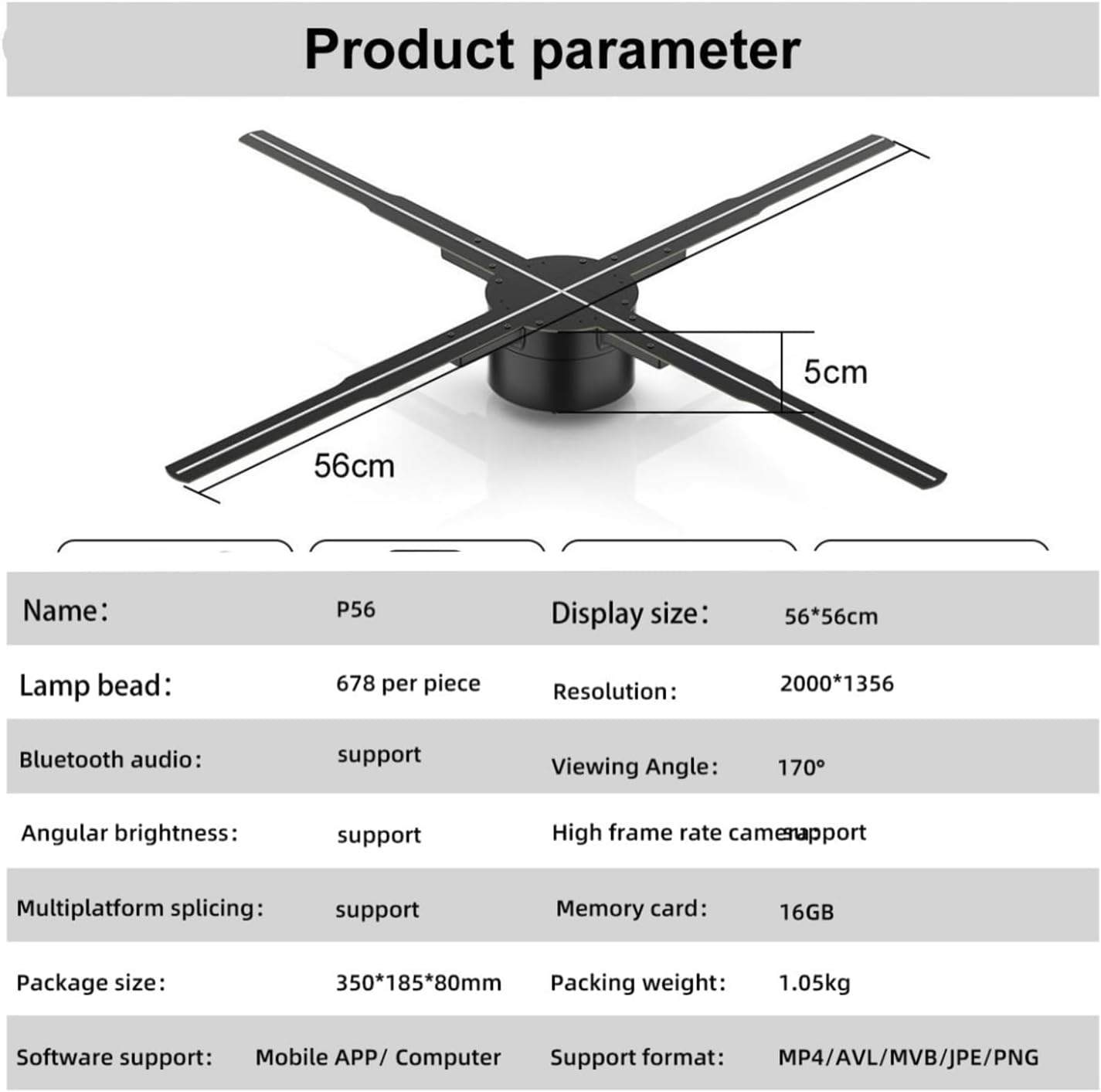
Image 4.1: The VCHICS 3D Holographic Fan unit, illustrating its approximate dimensions of 56cm in width and 5cm in height.
4.2 Content Preparation and Upload
The holographic fan supports various media formats for display. You can upload images, videos, or logos. For creating 3D images, contact customer service for assistance.
- Supported Formats: MP4, AVL, MVB, JPE, PNG.
- Software Support: Content can be managed via a Mobile APP or Computer software.
- Memory Card: The device includes a 16GB memory card for storing content.
Refer to the specific Mobile APP or Computer software instructions for detailed steps on uploading and managing your display content.
5. Operating Instructions
The VCHICS 3D Holographic Fan can be controlled via a remote control or a dedicated mobile application/computer software.
5.1 Powering On/Off
- Power On: Once connected to power, the fan will typically enter a shutdown state. Use the remote control or app to initiate startup.
- Startup Sequence: The fan blades will begin to rotate, and after a brief initialization period, the holographic effect will appear.
- Power Off: Use the remote control or app to shut down the device. The blades will slow down and stop.
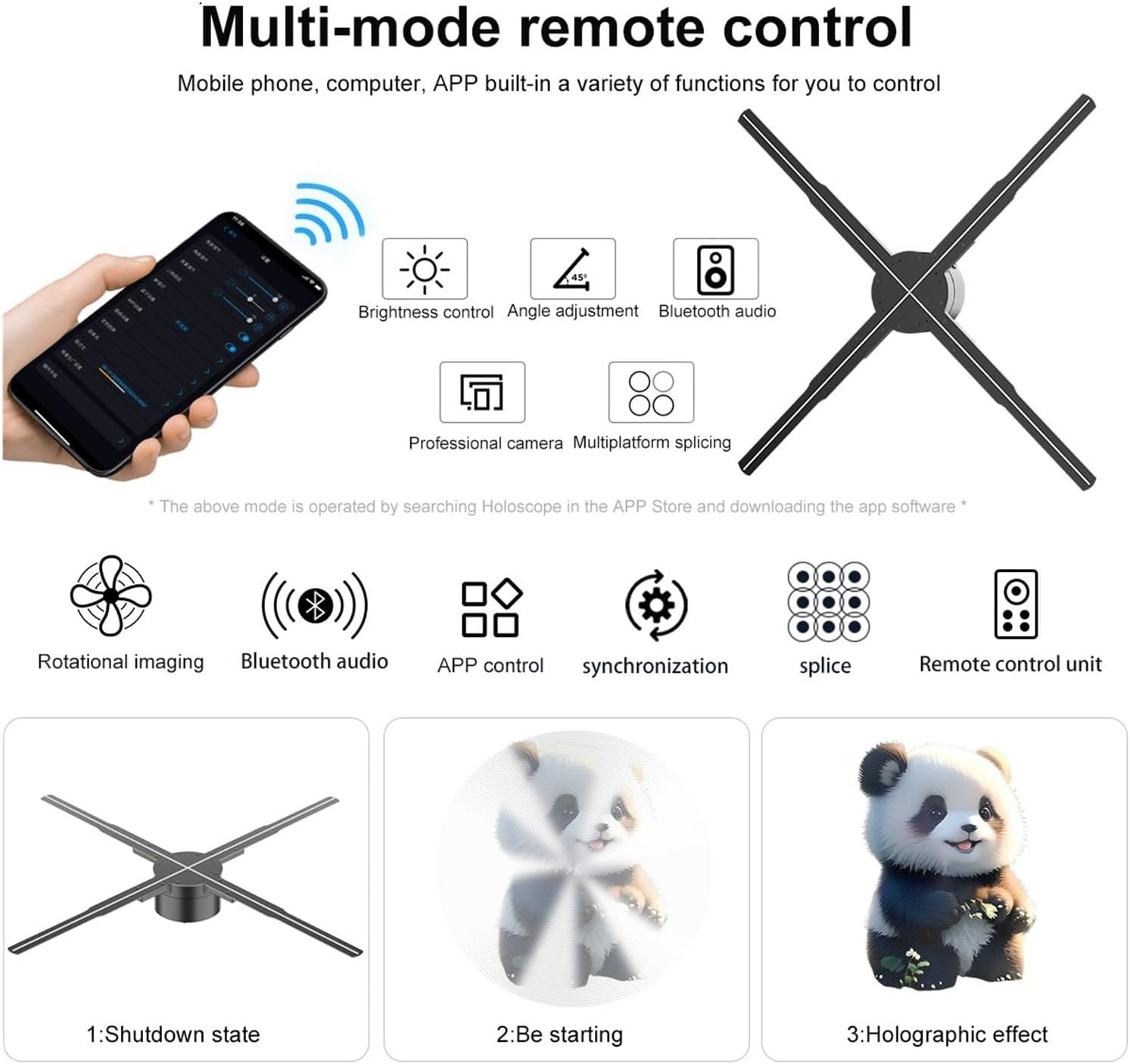
Image 5.1: Illustration of multi-mode control options via mobile phone app and remote, depicting the shutdown state, starting sequence, and the final holographic effect.
5.2 Remote Control and App Functions
The remote control and mobile application offer various functions for managing the display:
- Brightness Control: Adjust the intensity of the LED display.
- Angle Adjustment: Modify the display angle for optimal viewing.
- Bluetooth Audio: Connect to external Bluetooth speakers for synchronized audio.
- Content Selection: Choose from uploaded videos, animations, or images.
- Multiplatform Splicing: If using multiple units, control their synchronization for a larger display.

Image 5.2: The VCHICS 3D Holographic Fan demonstrating its Bluetooth audio capability by connecting to an external Bluetooth speaker, enhancing the 3D visual experience with sound.
5.3 Multi-Unit Splicing
For larger display areas, multiple VCHICS 3D Holographic Fan units can be synchronized to create a seamless, expansive holographic image. This feature is supported by the device and can be configured through the control software.

Image 5.3: An example of multiple VCHICS 3D Holographic Fans being spliced together to create a larger, continuous holographic display, showcasing a shark image.
6. Maintenance
Regular maintenance ensures the longevity and optimal performance of your VCHICS 3D Holographic Fan.
- Cleaning: Disconnect the power before cleaning. Use a soft, dry cloth to wipe the fan blades and housing. Do not use liquid cleaners or abrasive materials.
- Dust Removal: Periodically check for dust accumulation on the blades and motor unit. Use compressed air or a soft brush to gently remove dust.
- Storage: If storing the device for an extended period, ensure it is clean, dry, and stored in its original packaging or a protective case in a cool, dry place.
7. Troubleshooting
If you encounter issues with your VCHICS 3D Holographic Fan, refer to the following common problems and solutions:
| Problem | Possible Cause | Solution |
|---|---|---|
| Fan does not power on | No power supply; Loose connection | Check power adapter connection; Ensure power outlet is functional. |
| No holographic image | Incorrect content format; Fan not fully started | Verify content format (MP4, AVL, MVB, JPE, PNG); Allow fan to complete startup sequence. |
| Image flickering or distorted | Damaged content file; Loose blade connection | Re-upload content; Check if blades are securely attached. |
| Remote control not working | Dead batteries; Obstruction | Replace remote control batteries; Ensure no objects are blocking the signal path. |
| Bluetooth audio not connecting | Speaker not in pairing mode; Distance too far | Ensure Bluetooth speaker is in pairing mode; Reduce distance between fan and speaker. |
If the problem persists after trying these solutions, please contact customer support.
8. Specifications
The following table details the technical specifications of the VCHICS 3D Holographic Fan PD42-P65:
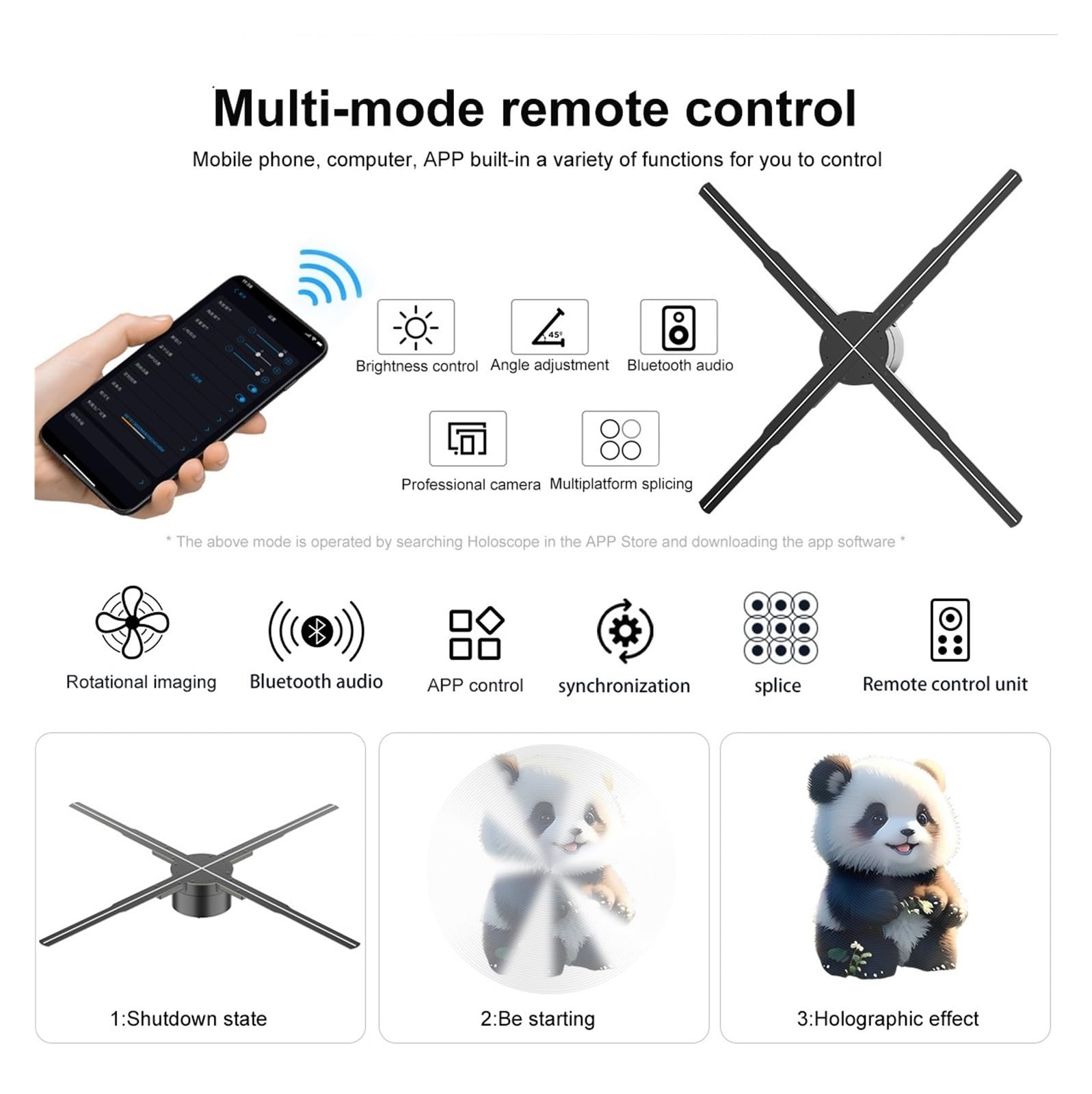
Image 8.1: Detailed product parameters for the VCHICS 3D Holographic Fan PD42-P65.
| Feature | Specification |
|---|---|
| Brand | VCHICS |
| Model | PD42-P65 |
| Display Size | 56 x 56 cm |
| Lamp Beads | 678 per piece |
| Resolution | 2000 x 1356 |
| Viewing Angle | 170° |
| Bluetooth Audio | Supported |
| Angular Brightness | Supported |
| High Frame Rate Camera | Supported |
| Multiplatform Splicing | Supported |
| Memory Card | 16GB |
| Software Support | Mobile APP / Computer |
| Supported Formats | MP4, AVL, MVB, JPE, PNG |
| Package Dimensions | 48.01 x 8 x 7.01 cm |
| Item Weight | 4.5 kg |
9. Warranty and Support
For warranty information and technical support, please refer to the documentation provided with your purchase or contact VCHICS customer service directly. Keep your purchase receipt as proof of purchase for warranty claims.
Customer Service Contact: Please refer to the contact details provided on the product packaging or the official VCHICS website.