
Introduction
The Rapoo P5 RGB Mouse Charging Dock provides continuous power for compatible wireless mice and enhances wireless signal stability. This manual outlines the setup, operation, and maintenance of your P5 charging dock.
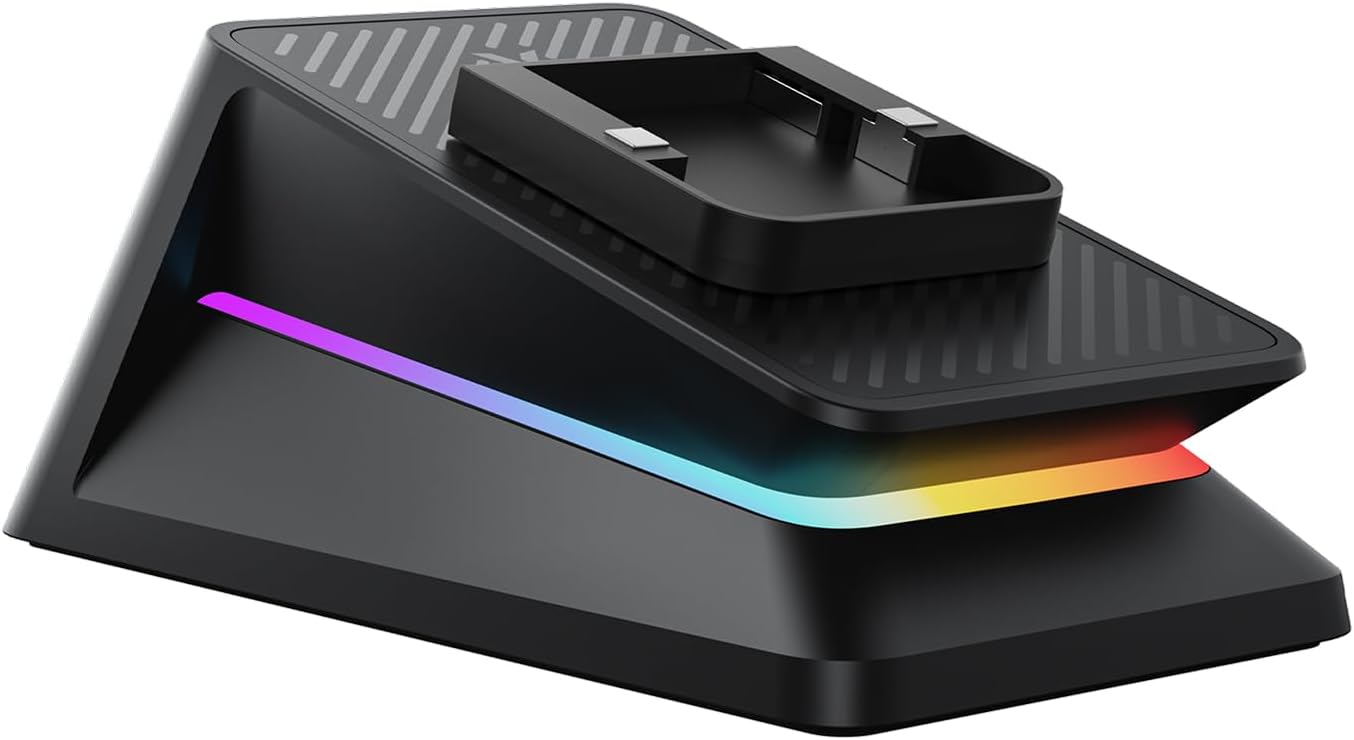
An image showing the Rapoo P5 RGB Mouse Charging Dock. The dock is black with a textured top surface and features an integrated RGB light strip along its base. A charging cradle for a compatible mouse is visible on the top platform.
Package Contents
The Rapoo P5 RGB Mouse Charging Dock package includes:
- 1 x P5 RGB Charging Dock
Note: Mouse, mousepad, and 8K Gaming USB Cable are not included with the P5 Charging Dock.
Setup Instructions
Follow these steps to set up your Rapoo P5 RGB Mouse Charging Dock:
- Insert Mouse USB Receiver: Insert your compatible mouse's USB receiver into the USB-A port located on the charging dock.
- Connect to PC: Connect the charging dock to your PC using the original Rapoo USB cable. Using other USB cables may affect performance, including the polling rate.
- Position the Dock: Place the charging dock near your mousepad. This positioning helps to improve the wireless signal stability and minimize potential signal interference during use.
Operating Instructions
Charging Your Mouse
Place your compatible mouse onto the charging cradle of the P5 dock. The dock will provide continuous power to your mouse while it is at rest, ensuring it is ready for use.
RGB Lighting Modes
The P5 charging dock features 4-mode RGB lighting. You can select the desired lighting mode to match your setup style:
- RGB Cycle
- RGB Fixed
- Solid Color Breathing
- Solid Color Fixed
Refer to your mouse's software or the dock's specific controls (if any, not detailed in provided data) for instructions on how to switch between these modes.
Maintenance and Safety
To ensure optimal performance and longevity of your P5 RGB Mouse Charging Dock, observe the following guidelines:
- Avoid Double Charging: Do not use an additional cable to charge your mouse simultaneously while it is on the charging dock. Double charging can cause permanent damage to both the mouse and the charging dock.
- Overcharge Protection: The P5 charging dock is equipped with over-voltage, over-current, and shortcut protection ICs to prevent damage from overcharging or short circuits.
- Cleaning: Use a soft, dry cloth to clean the dock. Avoid using harsh chemicals or abrasive materials.
- Environmental Conditions: Operate the dock in a dry environment and avoid exposure to extreme temperatures or direct sunlight.
Troubleshooting
If you encounter issues with your P5 RGB Mouse Charging Dock, consider the following:
- Mouse Not Charging:
- Ensure the mouse is correctly seated on the charging cradle.
- Verify the dock is properly connected to a powered USB port on your PC using the original Rapoo USB cable.
- Confirm your mouse is compatible with the P5 charging dock (refer to the compatibility list).
- Avoid charging the mouse via cable while it is on the dock.
- Poor Wireless Signal:
- Ensure the mouse USB receiver is securely inserted into the dock's USB-A port.
- Place the dock as close as possible to your mousepad.
- Confirm you are using the original Rapoo 8K Gaming USB Cable for connection to the PC, as this is intended for enhanced signal features.
- RGB Lighting Not Working:
- Check if the dock is powered on.
- Consult your mouse's software or the dock's specific controls for lighting settings.
Specifications
| Rated Voltage | 5V |
| Rated Current | 400mA |
| Product Dimensions | 75mm x 43mm x 32mm (2.95in x 1.69in x 1.26in) |
| Product Weight | 71g (2.5oz) |
| Power Source Type | Corded Electric |
| Connector Type | USB |
| Number of Ports | 1 (USB-A for receiver) |
Compatible Mice Models
The Rapoo P5 RGB Mouse Charging Dock is compatible with the following Rapoo mouse models:
Gaming Mice:
- VT7 MAX
- VT7
- VT3 MAX Gen-2
- VT3 Gen-2
- VT3 PRO MAX
- VT3 PRO
- VT1 PRO MAX
- VT1 PRO
- VT1 AIR MAX
- VT9 PRO 4K
- VT9 PRO
- V300 PRO
- V300 SE
- V20SE
Multi-Device Mice:
- MT760 PRO
- MT760L
- MT760
- MT760NL
- MT760 MINI
Warranty and Support
For warranty information and technical support, please refer to the official Rapoo website or contact Rapoo customer service directly. Keep your purchase receipt for warranty claims.
Rapoo Official Website: www.rapoo.com
