
Introduction
The VGN F1 Pro Max is an ultralight wireless gaming mouse designed for high-performance gaming. Featuring a PAW 3395 optical sensor, dual wireless and wired modes, and a long-lasting battery, it offers precision and flexibility for various gaming setups. This manual provides essential information for setting up, operating, maintaining, and troubleshooting your VGN F1 Pro Max gaming mouse.

Image: The VGN F1 Pro Max gaming mouse, showcasing both black and white color variants.
Package Contents
Please verify that all items are present in your product packaging:
- VGN F1 Pro Max Mouse
- USB Type-A Receiver
- Paracord style USB-C to USB-A Cable
- USB Extension Adapter
- Mouse Grip Tape
- User Manual (this document)

Image: The VGN F1 Pro Max mouse, its accessories, and packaging, illustrating the complete set of items included.
Product Overview
Familiarize yourself with the various components and buttons of your VGN F1 Pro Max mouse:

Image: A detailed diagram of the VGN F1 Pro Max mouse, with labels pointing to the LED indicator, scroll wheel, left button, right button, forward button, backward button, DPI button, optical sensor, power switch, receiver storage slot, and feet.
- Left Button: Primary click function.
- Right Button: Secondary click function.
- Scroll Wheel: For scrolling and middle-click function. Features an LED indicator.
- Forward Button: Navigates forward in web browsers or applications.
- Backward Button: Navigates backward in web browsers or applications.
- DPI Button: Located on the bottom, cycles through DPI settings.
- Optical Sensor: High-precision PAW 3395 sensor for tracking movement.
- Power Switch: Toggles the mouse on or off.
- Receiver Storage Slot: Securely stores the USB receiver when not in use.
- Feet: Low-friction pads for smooth gliding.
- USB-C Port: For wired connection and charging.
Setup
Connecting the Mouse
The VGN F1 Pro Max supports both 2.4GHz wireless and wired USB-C connections.
Wireless 2.4GHz Mode:
- Locate the USB Type-A receiver in the storage slot on the bottom of the mouse.
- Plug the USB Type-A receiver into an available USB port on your computer. For optimal signal, use the included USB extension adapter to bring the receiver closer to the mouse.
- Turn on the mouse using the power switch located on the bottom. The mouse will automatically connect to the receiver.
Wired USB-C Mode:
- Connect the USB-C end of the included paracord cable to the USB-C port on the front of the mouse.
- Connect the USB-A end of the cable to an available USB port on your computer.
- The mouse will function immediately in wired mode and will also charge its internal battery.
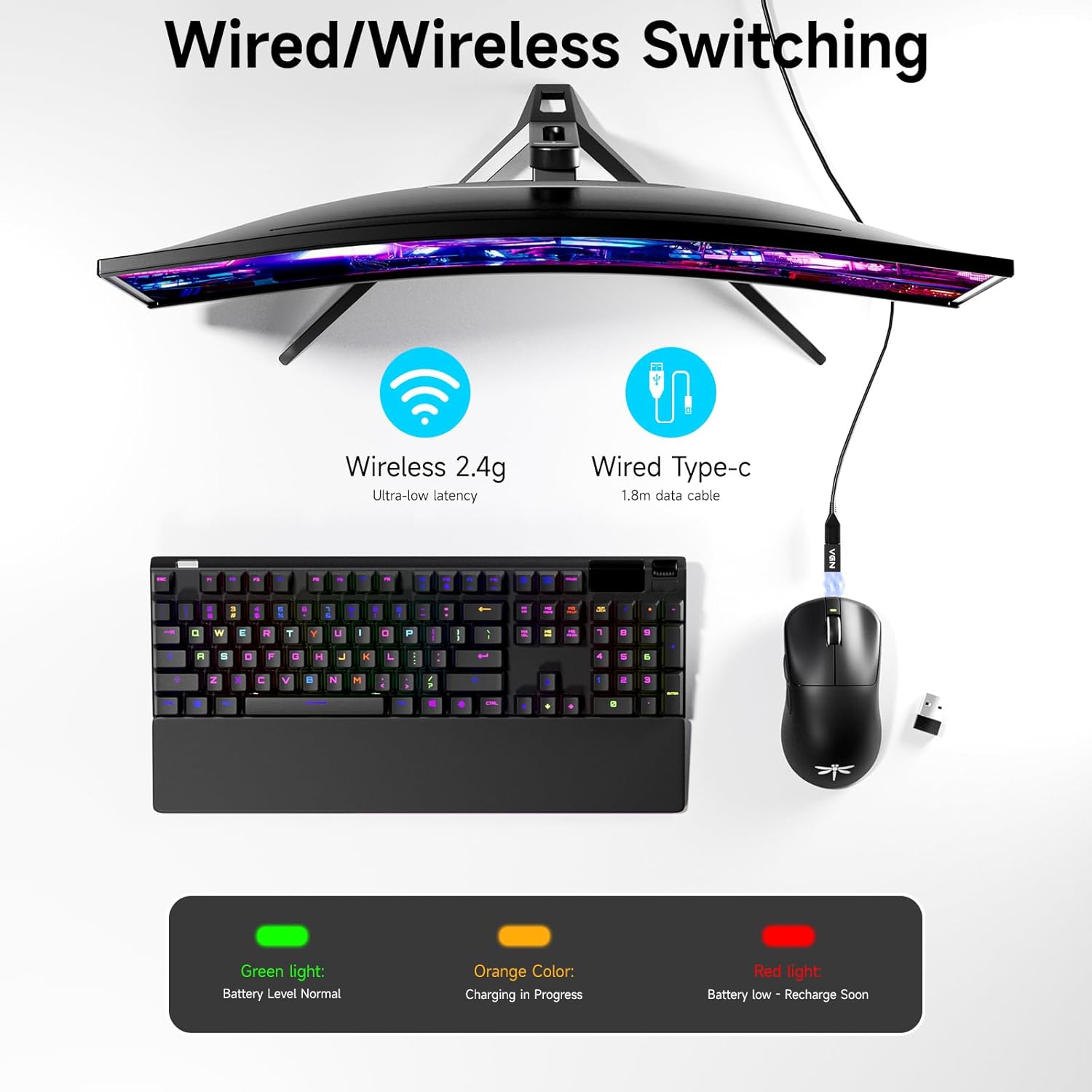
Image: An illustration demonstrating the flexibility of the VGN F1 Pro Max mouse, showing both its 2.4GHz wireless connection and its wired USB-C connection to a computer setup.
Initial Charge
The mouse comes with a pre-installed battery. For first-time use, it is recommended to fully charge the mouse by connecting it via the USB-C cable to your computer or a USB power adapter. The LED indicator on the scroll wheel will show charging status.
Operation
Power On/Off
Use the power switch on the bottom of the mouse to turn it on or off. Turning the mouse off when not in use helps conserve battery life.
DPI Adjustment
The VGN F1 Pro Max features a PAW 3395 optical sensor with adjustable DPI (Dots Per Inch) settings. You can cycle through preset DPI levels by pressing the DPI button located on the bottom of the mouse. The default DPI range is 50 to 26,000 DPI, allowing for precise control or rapid movement depending on your needs.

Image: The VGN F1 Pro Max mouse highlighting its capability for multi-stage DPI tuning, ranging from 50 to 26000 DPI, powered by the NRF52833 high-end MCU for precision.
Polling Rate
The mouse operates at a 1000Hz polling rate by default, ensuring rapid response times. For even lower latency, the mouse supports up to a 4000Hz polling rate with an additional high-speed receiver (sold separately).

Image: The underside of the VGN F1 Pro Max mouse, emphasizing the PAW 3395 optical sensor and its capabilities, including 26000 DPI, 650 IPS, and 125-4000Hz polling rate.
Programmable Buttons and VGN HUB Software
The VGN F1 Pro Max features 6 programmable buttons that can be customized using the VGN HUB software. This software allows you to remap buttons, create macros, adjust sensitivity settings, and fine-tune other performance parameters to suit your gaming style.
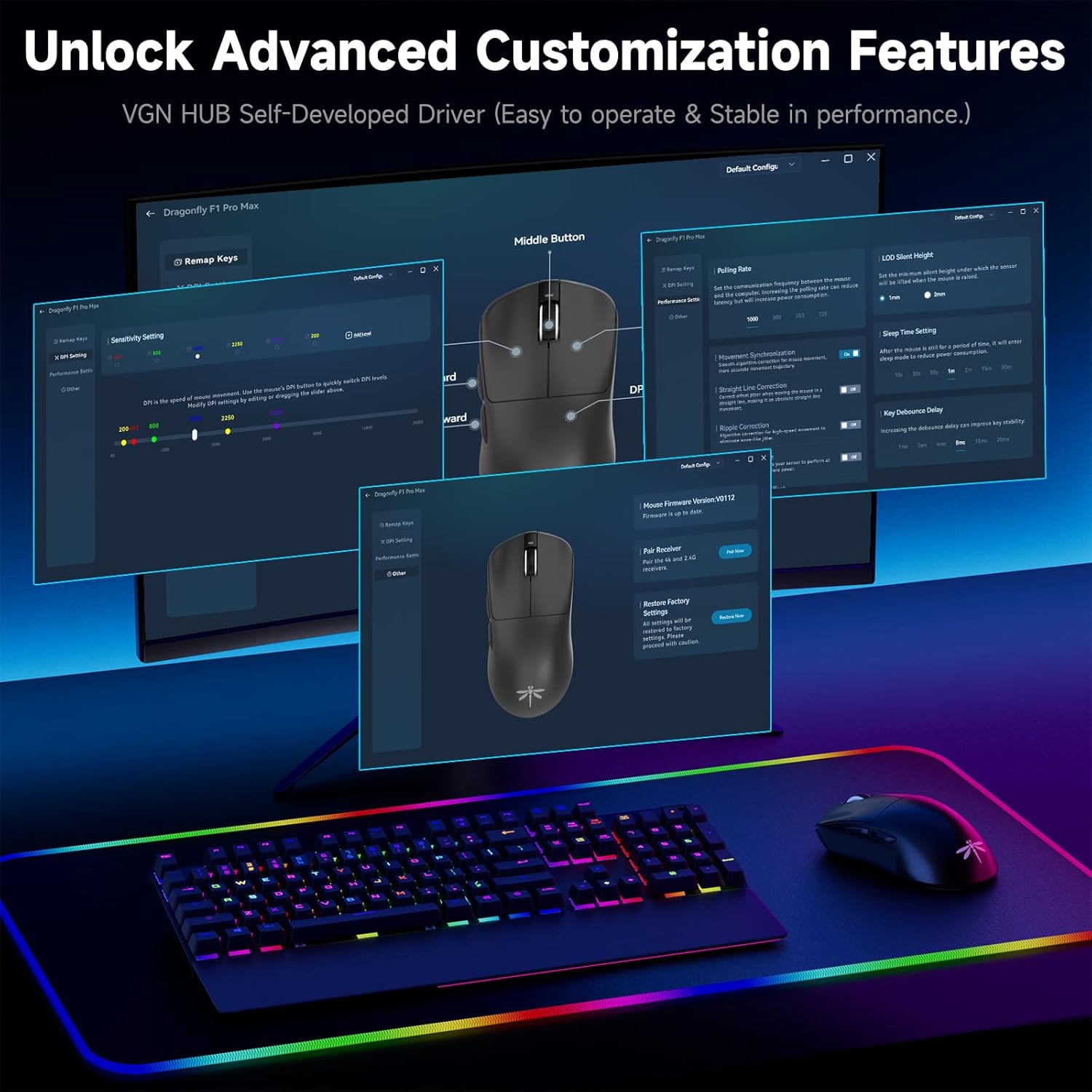
Image: A visual representation of the VGN HUB software, demonstrating its interface for unlocking advanced customization features for the mouse.

Image: The VGN HUB software interface, illustrating the various customization options available for the gaming mouse, including button remapping and performance settings.
Battery Management
The VGN F1 Pro Max is equipped with a 500mAh battery, providing up to 200 hours of wireless runtime on a full charge. The LED indicator on the scroll wheel provides battery status:
- Green light: Battery level normal.
- Orange color: Charging in progress.
- Red light: Battery low, recharge soon.

Image: The VGN F1 Pro Max mouse with a visual emphasis on its impressive 200-hour ultra-long wireless runtime.

Image: A graphic representation of the VGN F1 Pro Max mouse's super long runtime, indicating 200 hours of battery life from a full charge.
Automatic Sleep Mode:
To conserve power, the mouse will enter a light sleep mode after 1 minute of inactivity and a deep sleep mode after 5 minutes. This feature helps extend battery life by up to 50% compared to other mice.

Image: The VGN F1 Pro Max mouse illustrating its automatic sleep and energy-saving capabilities, which activate after 1 minute (light sleep) or 5 minutes (deep sleep) of no operation.
Ergonomics and Grip
Weighing only 55g, the VGN F1 Pro Max is designed to minimize wrist fatigue during extended use. Its ambidextrous shape accommodates various grip styles, including claw, palm, and fingertip grips, ensuring a comfortable and secure hold for both left and right-handed users.

Image: The VGN F1 Pro Max mouse held in a hand, highlighting its 55g ultralight design for comfortable and fatigue-free gaming.

Image: Three illustrations showing how the VGN mouse is designed to fit various hand grips: grasp grip, tummy grip, and half grip, emphasizing its ergonomic versatility.
Switch Durability
The mouse features Kailh Black Gold Mamba switches, rated for 100 million clicks, ensuring long-term durability and consistent performance without double-click issues.

Image: A graphic emphasizing the 100 million click lifespan of the mouse's button switches, ensuring long-term durability.

Image: A close-up view of a Kailh Golden Black Mamba switch, highlighting its design and branding.
Maintenance
Cleaning
To maintain optimal performance and hygiene, regularly clean your mouse. Use a soft, dry cloth to wipe the surface. For stubborn dirt, a slightly damp cloth can be used, but ensure no moisture enters the internal components. Avoid using harsh chemicals or abrasive materials.
Storage
When not in use for extended periods, store the mouse in a cool, dry place away from direct sunlight and extreme temperatures. Ensure the USB receiver is stored in its dedicated slot on the mouse to prevent loss.
Replacing Mouse Feet
The VGN F1 Pro Max comes with extra mouse feet (glides). If your current mouse feet show signs of wear, you can replace them for continued smooth gliding. Carefully peel off the old feet and apply the new ones, ensuring they are clean and free of debris before application.

Image: The VGN F1 Pro Max mouse with its dimensions (4.77 inches length, 2.5 inches width, 1.48 inches height) and various patterns of included grip tape for customization.
Troubleshooting
| Problem | Possible Cause | Solution |
|---|---|---|
| Mouse not responding | Mouse is off; Low battery; Receiver not connected; Driver issue. | Ensure mouse is on. Charge the mouse. Re-plug the USB receiver. Try a different USB port. Reinstall mouse drivers if necessary. |
| DPI settings not changing | DPI button not pressed correctly; Software conflict. | Ensure a firm press on the DPI button. Check VGN HUB software for custom profiles that might override button functions. |
| Wireless connectivity issues | Interference; Distance from receiver; Low battery. | Reduce distance between mouse and receiver. Use the USB extension adapter. Ensure no strong wireless interference sources nearby. Charge the mouse. |
| Battery not charging | Cable issue; USB port issue; Mouse power switch off. | Ensure the USB-C cable is securely connected. Try a different USB port or charging adapter. Ensure the mouse power switch is in the ON position. |
| Buttons not responding or double-clicking | Software issue; Hardware defect. | Reset mouse settings via VGN HUB. If problem persists, contact customer support. |
Specifications
| Feature | Detail |
|---|---|
| Model Number | F1 Pro Max-B |
| Product Dimensions | 4.8 x 2.5 x 0.1 inches |
| Item Weight | 1.94 ounces (approx. 55g) |
| Connectivity Technology | 2.4GHz Wireless, USB-C Wired |
| Movement Detection Technology | Optical (PAW 3395 Sensor) |
| DPI Range | 50 - 26,000 DPI (Adjustable) |
| IPS Tracking Speed | 650 IPS |
| Polling Rate | 1000Hz (Up to 4000Hz with optional receiver) |
| Battery Life | Up to 200 hours (wireless mode) |
| Buttons | 6 Programmable Buttons |
| Switches | Kailh Black Gold Mamba (100 million click lifespan) |
| Compatibility | Windows, Mac, Linux, Chrome OS, PlayStation/Xbox (via USB) |
| Included Batteries | 1 9V battery (included) |
Warranty and Support
VGN stands by the quality of its products. The VGN F1 Pro Max Wireless Gaming Mouse comes with a 12-month warranty covering inherent issues. Additionally, VGN offers lifetime technical support and a 24/7 online team to assist with any damage, malfunctions, or missing parts. For support, please reach out to the VGN customer service team.
You can also visit the official VGN Store on Amazon for more information and support resources: VGN Store
