
1. Introduction
Thank you for purchasing the CCHKFEI M20 64GB MP3 Player. This manual provides essential information for setting up, operating, and maintaining your device. Please read it thoroughly to ensure optimal performance and longevity of your MP3 player.
What's in the Box
- 64GB MP3 Player (1 unit)
- Headphone (1 unit)
- USB Cord (1 unit)
- User Manual (1 unit)
Video 1: Unboxing the CCHKFEI M20 MP3 Player. This video demonstrates the contents of the package, including the MP3 player, headphones, USB cable, and user manual.
2. Product Overview
The CCHKFEI M20 MP3 Player features a sleek design with a 2.4-inch HD curved screen and a durable metal body with a glass back. It includes a built-in speaker for audio playback without headphones.
Device Layout

Image 1: Front view of the CCHKFEI M20 MP3 Player, showing the screen and control buttons.

Image 2: Side and bottom view of the MP3 player, highlighting the USB-C port, Micro SD card slot, and 3.5mm audio jack.
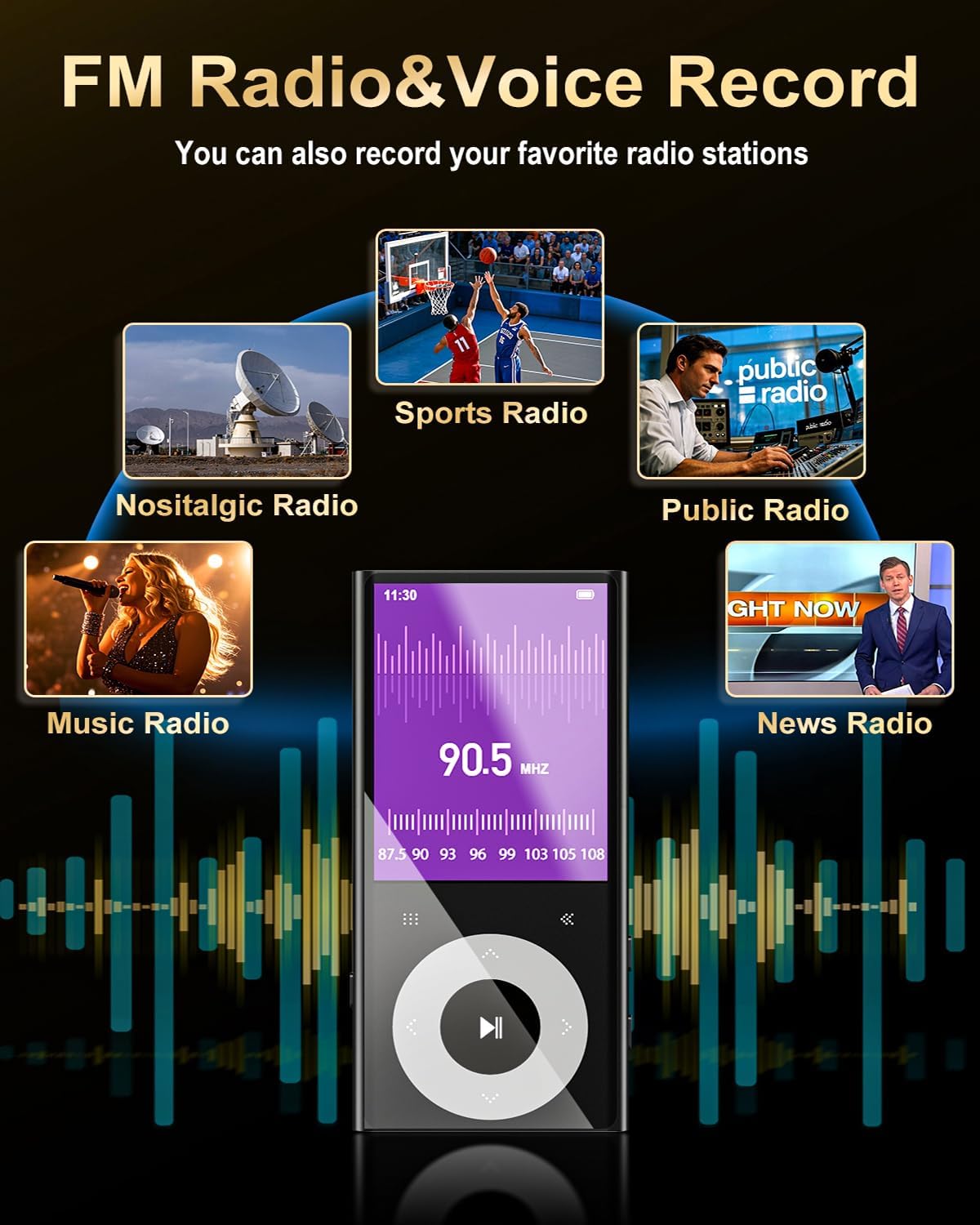
Image 3: Top view of the MP3 player, showing the integrated speaker grille.
3. Setup
Charging the Device
Before first use, fully charge the MP3 player using the provided USB cable connected to a computer or a 5V/500mA USB power adapter. A full charge takes approximately 2.5 hours and provides up to 80 hours of playback time.
Inserting a Micro SD Card
The device comes with 64GB of built-in storage and supports expansion up to 128GB via a Micro SD card (not included), for a total of 192GB storage capacity.
- Locate the Micro SD card slot on the side of the device.
- Gently insert the Micro SD card into the slot until it clicks into place.
- To remove, push the card inward until it springs out.
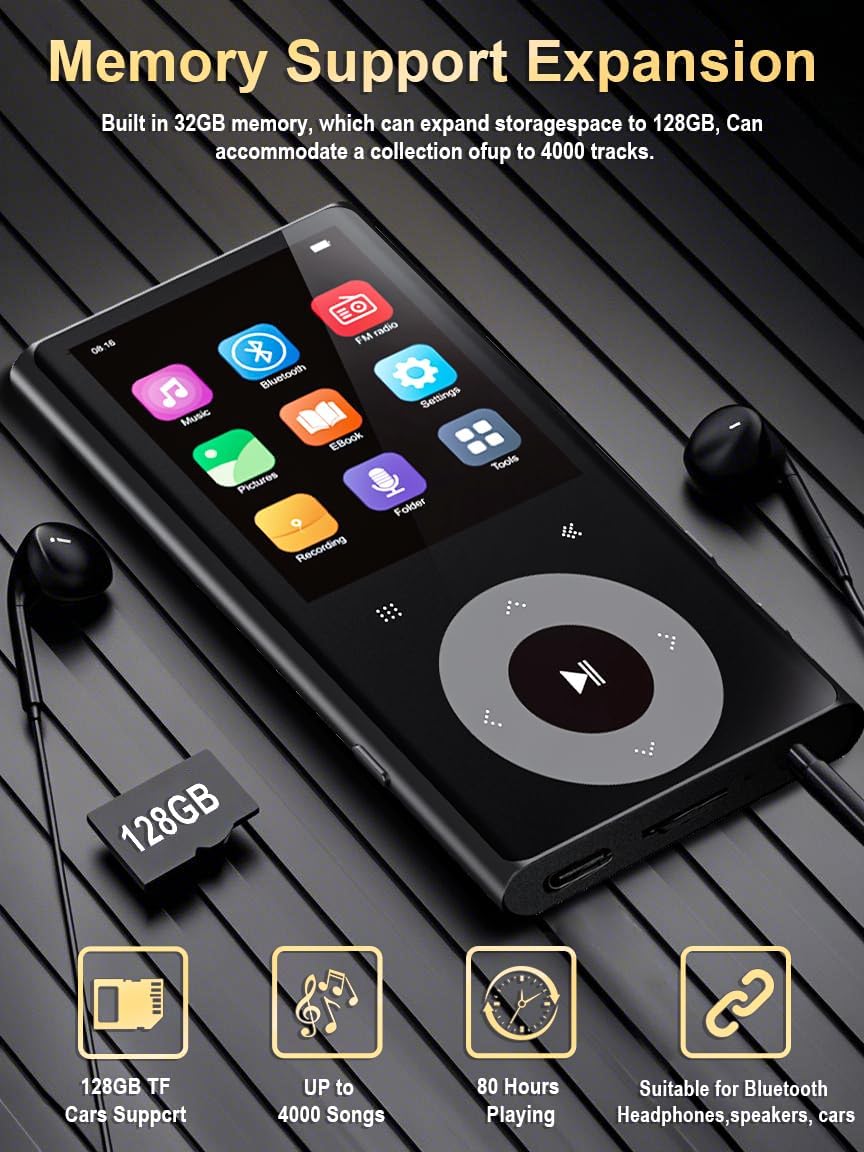
Image 4: Illustration of inserting a Micro SD card into the MP3 player's dedicated slot.
4. Basic Operation
Power On/Off
- To Power On: Press and hold the power button (usually on the side) until the screen lights up.
- To Power Off: Press and hold the power button until the device prompts you to shut down, then confirm.
Navigation
The device features a circular control pad for navigation. Use the directional buttons to move through menus and select options. The center button typically acts as a confirmation or play/pause button.
Video 2: This video demonstrates the basic navigation and music playback features of the MP3 player, including how to browse songs and adjust volume.
5. Music Playback
The M20 MP3 player supports various audio formats including MP3, WMA, WAV, APE, FLAC, ACC-LC, M4A, and OGG, delivering Hi-Fi lossless sound quality.
Playing Music
- From the main menu, select 'Music'.
- Choose to browse by 'All Songs', 'Artists', 'Albums', 'Genres', or 'Playlists'.
- Select a song to begin playback.
- Use the central control pad for Play/Pause, Next/Previous track. Long press the Next/Previous buttons to fast forward or rewind.
Adjusting Volume and Tempo
The device allows you to adjust the playback volume and music tempo. It also features a volume limit function to protect hearing.
Video 3: This video demonstrates how to adjust the music tempo and set a volume limit on the MP3 player.
Equalizer Settings
Customize your audio experience with the built-in equalizer. Options include Rock, Funk, Hip hop, Jazz, Classical, Techno, and a customizable setting.
6. Bluetooth Connectivity
The M20 MP3 player features Bluetooth 5.3 for faster transmission, longer connection distance, and stronger anti-interference capabilities. It can pair with Bluetooth speakers and headphones.
Pairing with Bluetooth Devices
- From the main menu, select 'Bluetooth'.
- Ensure Bluetooth is turned 'On'.
- Select 'Search Devices' to find available Bluetooth headphones or speakers.
- Select your desired device from the list to pair.
- Once paired, audio will be routed to the connected Bluetooth device.

Image 5: The MP3 player displaying its Bluetooth connection menu, showing it can connect to both headphones and speakers.
7. FM Radio
The M20 MP3 player includes a built-in FM radio function, allowing you to listen to your favorite stations.
Using the FM Radio
- From the main menu, select 'Radio'.
- Connect wired headphones to the 3.5mm audio jack; they act as the antenna.
- Long press the appropriate button (refer to on-screen prompts) to initiate auto-tuning and scan for available stations.
- Use the directional buttons to navigate between saved stations or manually tune.

Image 6: The MP3 player screen showing the FM radio interface with frequency display.
8. Voice Recorder
The device includes a voice recorder function for capturing audio notes or lectures.
Recording Audio
- From the main menu, select 'Record'.
- Press the record button (usually the center button) to start recording.
- Press the button again to pause/resume recording.
- To stop and save the recording, navigate to the 'Exit' option and confirm saving.

Image 7: The MP3 player screen showing the voice recorder interface with recording time and controls.
9. Other Functions
The CCHKFEI M20 MP3 player offers additional features for enhanced usability:
- E-Book: Read text files directly on the device.
- Pictures: View image files.
- Tools: Access additional utilities such as Alarm Clock.

Image 8: The main menu of the MP3 player, displaying icons for Music, Bluetooth, Radio, Pictures, Ebook, Settings, Folder, Record, and Tools.
10. Maintenance
Proper care ensures the longevity of your MP3 player.
- Cleaning: Use a soft, dry cloth to clean the device. Avoid liquid cleaners or abrasive materials.
- Storage: Store the device in a cool, dry place away from direct sunlight and extreme temperatures.
- Battery Care: To maintain battery health, avoid fully discharging the battery frequently. Charge the device regularly, even if not in use for extended periods.
11. Troubleshooting
If you encounter issues with your MP3 player, refer to the following common solutions:
- Device not turning on: Ensure the battery is charged. Connect the device to a power source and try again.
- No sound: Check the volume level. Ensure headphones or Bluetooth speakers are properly connected and functioning.
- Music not playing: Verify that the audio files are in a supported format and are not corrupted. Ensure the Micro SD card (if used) is inserted correctly.
- Bluetooth pairing issues: Ensure the Bluetooth device is in pairing mode and within range. Try restarting both the MP3 player and the Bluetooth device.
- Device unresponsive: Perform a soft reset by pressing and holding the power button for an extended period (e.g., 10-15 seconds) until the device restarts.
12. Specifications
| Feature | Detail |
|---|---|
| Brand | CCHKFEI |
| Model Name | M20 64GB MP3 Player |
| Memory Storage Capacity | 64 GB (expandable up to 128 GB via Micro SD) |
| Connectivity Technology | Aux, Bluetooth 5.3, USB |
| Screen Size | 2.4 Inches |
| Supported Audio Formats | MP3, WMA, WAV, APE, FLAC, ACC-LC, M4A, OGG |
| Battery Average Life | 80 Hours |
| Special Features | Built-In Speaker, Equalizer, FM Radio, Video Playback, Voice Recorder |
| Item Weight | 2.8 Ounces |
| Dimensions (D x W x H) | 1.96"D x 4.1"W x 0.31"H |
13. Warranty and Support
Your CCHKFEI M20 MP3 Player comes with a standard manufacturer's warranty. For detailed warranty information, product support, or service inquiries, please refer to the contact information provided with your purchase or visit the official CCHKFEI website.