
1. Introduction
The HCSTVCON HC-KBD350N is an advanced NDI PTZ camera controller designed for intuitive and efficient operation of multiple PTZ cameras. It supports various control protocols and offers a range of features for professional video production environments such as worship services, churches, and live streaming.
2. Package Contents
Please verify that all items are present in your package:
- HCSTVCON HC-KBD350N NDI PTZ Controller
- Power Adapter/Charger
- User Instruction Manual (this document)
- (Additional cables or accessories may vary by region or package)
3. Product Overview
The HC-KBD350N controller features a precision structural design for intuitive control. It includes a 3.49-inch color display screen for real-time camera image preview and multiple control interfaces.
3.1 Front Panel Controls

Image 3.1: Top and bottom view of the HCSTVCON HC-KBD350N NDI PTZ Controller. The top view shows the joystick, control knobs, buttons, and the integrated display screen. The bottom view shows the various connectivity ports.
- 4D Joystick: Controls camera pan, tilt, and zoom (with rotation).
- Control Knobs: For fine-tuning parameters such as focus, aperture, and zoom.
- 3.49-inch Color Display Screen: Provides real-time preview of camera images and menu navigation.
- Numeric Keypad (CAM 1-9, 0): For selecting cameras and inputting values.
- Function Buttons: Including SETUP, CAM ID, MENU, ENTER, ESC, ONEPUSH TRIGGER, WHITE BALANCE CYCLE, BACKLIGHT, EXPOSURE CYCLE, SET PRESET, CALL PRESET, PT SPEED, FOCUS AUTO, FOCUS MODE.
3.2 Rear Panel Interfaces

Image 3.2: Rear view of the controller, highlighting the RS232, RS422/RS485, RJ45 (PoE), and power input ports.
- RS232 Port: Serial communication interface for camera control.
- RS422/RS485 Port: Serial communication interface for camera control.
- RJ45 (PoE) Port: Network interface supporting Power over Ethernet (PoE) for both data and power.
- Power Input: For connecting the external power adapter.
4. Setup
This section guides you through connecting your HC-KBD350N controller to PTZ cameras.
4.1 Connecting Cameras via Network (PoE)
The controller and cameras support PoE, simplifying wiring. You will need network cables and a PoE switch.
- Ensure you have sufficient network cables and a PoE switch.
- Connect each PTZ camera to the PoE switch using a network cable.
- Connect the HC-KBD350N controller to the PoE switch using a network cable.
- Power on the PoE switch. The cameras and controller will receive power and establish network connections.
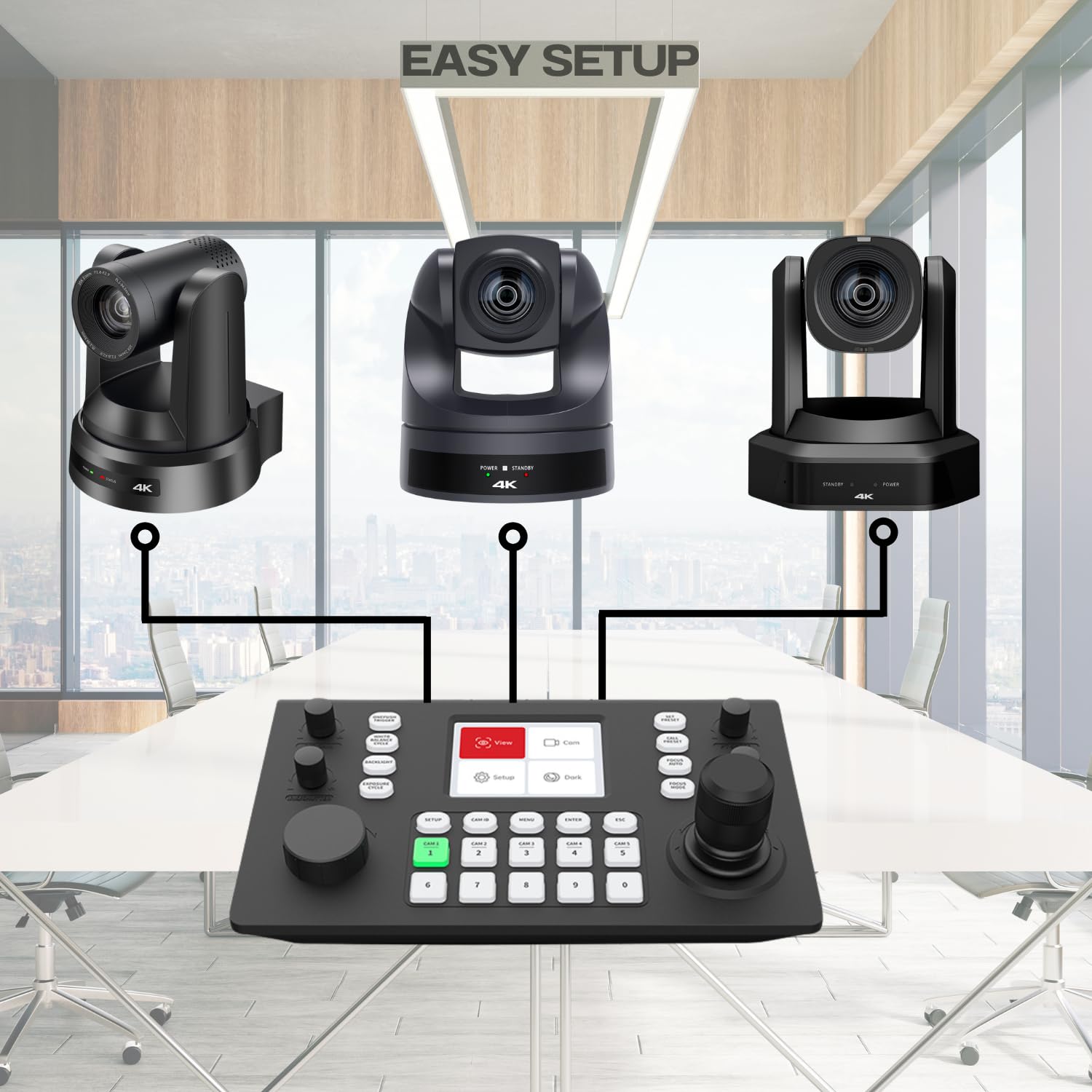
Image 4.1: Example setup showing the HC-KBD350N controller connected to multiple PTZ cameras and a PoE switch.
4.2 Initial Camera Discovery and Connection
Follow these steps to discover and connect your cameras to the controller:
Video 4.2: This video demonstrates the unpacking, connection, and initial camera setup process for the HCSTVCON HC-KBD350N NDI PTZ Controller, including how to search for camera IP addresses and assign them to the controller.
- On the controller's display, navigate to the "Cam" menu.
- Locate and select the "Magnifying Glass" icon to initiate a device search.
- The controller will search for available cameras on the network. Once found, select the camera's IP address from the list.
- Confirm the camera's account and password. The default for both is typically "admin".
- Return to the home page, select "Preview", then "CAM ID", and choose the serial number corresponding to the camera's IP address. This will link the camera to a specific CAM button on the controller.
5. Operating Instructions
This section details the primary functions and controls of the HC-KBD350N controller.
5.1 Camera Selection
- Use the numeric keypad (CAM 1-9, 0) to quickly select the desired camera for control.
- The controller supports up to 7 camera shortcut buttons for convenient switching.
5.2 Pan, Tilt, and Zoom Control

Image 5.1: Close-up of the controller's display and main controls, including the joystick and focus/zoom knobs.
- Right Joystick: Controls the camera's pan (left/right) and tilt (up/down) movements.
- Left Knob: Controls the camera's zoom function (zoom in/out).
- PT SPEED Button: Adjusts the speed of pan and tilt movements.
5.3 Focus Control
- FOCUS AUTO Button: Activates automatic focus for the selected camera.
- FOCUS MODE Button: Toggles between different focus modes (e.g., manual, auto).
- Focus Knob: Allows for manual adjustment of focus when in manual focus mode.
5.4 Exposure and White Balance
- EXPOSURE CYCLE Button: Cycles through various exposure settings.
- WHITE BALANCE CYCLE Button: Cycles through different white balance presets.
- ONEPUSH TRIGGER Button: Initiates one-push white balance or exposure adjustment.
- BACKLIGHT Button: Activates or deactivates backlight compensation.
5.5 Presets
- SET PRESET Button: Saves the current camera position and settings as a preset.
- CALL PRESET Button: Recalls a previously saved preset.
6. Maintenance
To ensure the longevity and optimal performance of your HC-KBD350N controller, follow these maintenance guidelines:
- Keep the device clean and free from dust. Use a soft, dry cloth for cleaning.
- Avoid exposing the controller to extreme temperatures, humidity, or direct sunlight.
- Do not use harsh chemicals or abrasive cleaners.
- Ensure all cables are securely connected and not under strain.
- Regularly check for firmware updates from the manufacturer's official channels to ensure compatibility and access to new features.
7. Troubleshooting
If you encounter issues with your HC-KBD350N controller, refer to the following common problems and solutions:
| Problem | Possible Cause | Solution |
|---|---|---|
| Controller does not power on. | No power supply, faulty power adapter, or incorrect connection. |
|
| Cannot connect to cameras. | Incorrect IP settings, network issues, or protocol mismatch. |
|
| Joystick or knobs are unresponsive. | Software glitch, physical damage, or calibration issue. |
|
| Camera preview not displayed. | Network connectivity, camera settings, or display issue. |
|
8. Specifications
| Feature | Detail |
|---|---|
| Model | HC-KBD350N |
| Display | 3.49-inch Color Display Screen |
| Joystick | 4D Joystick (Pan, Tilt, Zoom, Rotate) |
| Control Modes | Network (IP) and Analog |
| Supported Protocols | VISCA, VISCA over IP, Onvif, PELCO-P, PELCO-D |
| Interfaces | RS232, RS422/RS485, RJ45 (PoE) |
| Power Supply | Standard PoE, External Power Adapter |
| Item Weight | 4.8 pounds (approx. 2.18 kg) |
| Package Dimensions | 14 x 8.66 x 5.5 inches (approx. 35.56 x 21.99 x 13.97 cm) |
9. Warranty and Support
For warranty information, technical support, or service inquiries, please contact HCSTVCON directly through their official website or the retailer where the product was purchased. Please retain your proof of purchase for warranty claims.
Note: Some users have reported challenges with support availability. It is recommended to consult the manufacturer's official resources for the most up-to-date support information.