
1. Introduction
This manual provides detailed instructions for the installation, operation, and maintenance of your DEATTI 2K Light Bulb Security Camera (Model LB323). Please read this manual thoroughly before using the product to ensure proper setup and functionality.
2. Package Contents
- DEATTI 2K Light Bulb Security Camera (Model LB323)
- User Manual (this document)
- Mounting accessories (if applicable)
Note: A MicroSD card for local storage is not included and must be purchased separately.
3. Setup and Installation
3.1 Physical Installation
- Ensure the power to the light bulb socket is turned OFF before installation.
- Carefully screw the DEATTI 2K Light Bulb Security Camera into a standard E27 light bulb base.
- Ensure the camera is securely fastened but do not overtighten.
- Turn the power to the light bulb socket ON. The camera will power on and initiate its startup sequence.

Figure 3.1: DEATTI 2K Light Bulb Security Camera installed in an E27 socket.
3.2 App Installation and Connection
- Download the "CloudEdge" app from your smartphone's app store (iOS App Store or Google Play Store).
- Open the CloudEdge app and create a new account or log in if you already have one.
- Follow the in-app instructions to add your new camera. You will typically scan a QR code on the camera or manually select the device type.
- Connect the camera to a 2.4GHz Wi-Fi network. Note: 5GHz Wi-Fi networks are not supported.
- Once connected, the camera will be ready for use.
4. Operating Instructions
4.1 Live View and Recording
Access the live feed of your camera through the CloudEdge app. The camera provides crystal-clear 2K video quality. You can initiate manual recordings or rely on motion-activated recording.

Figure 4.1: MicroSD card slot for local storage and continuous recording.
4.2 Night Vision Modes
The camera features dual night vision modes: full-color and black & white. These can be adjusted within the CloudEdge app settings. Advanced IR LEDs provide clear footage up to 10 meters in low-light conditions.

Figure 4.2: Comparison of standard and color night vision capabilities.
4.3 Smart Motion Detection and Alerts
The camera is equipped with smart motion detection. Upon detecting movement, it sends real-time notifications to your smartphone. You can customize settings such as sensitivity, enable human-only detection, and define specific activity zones to reduce false alerts.
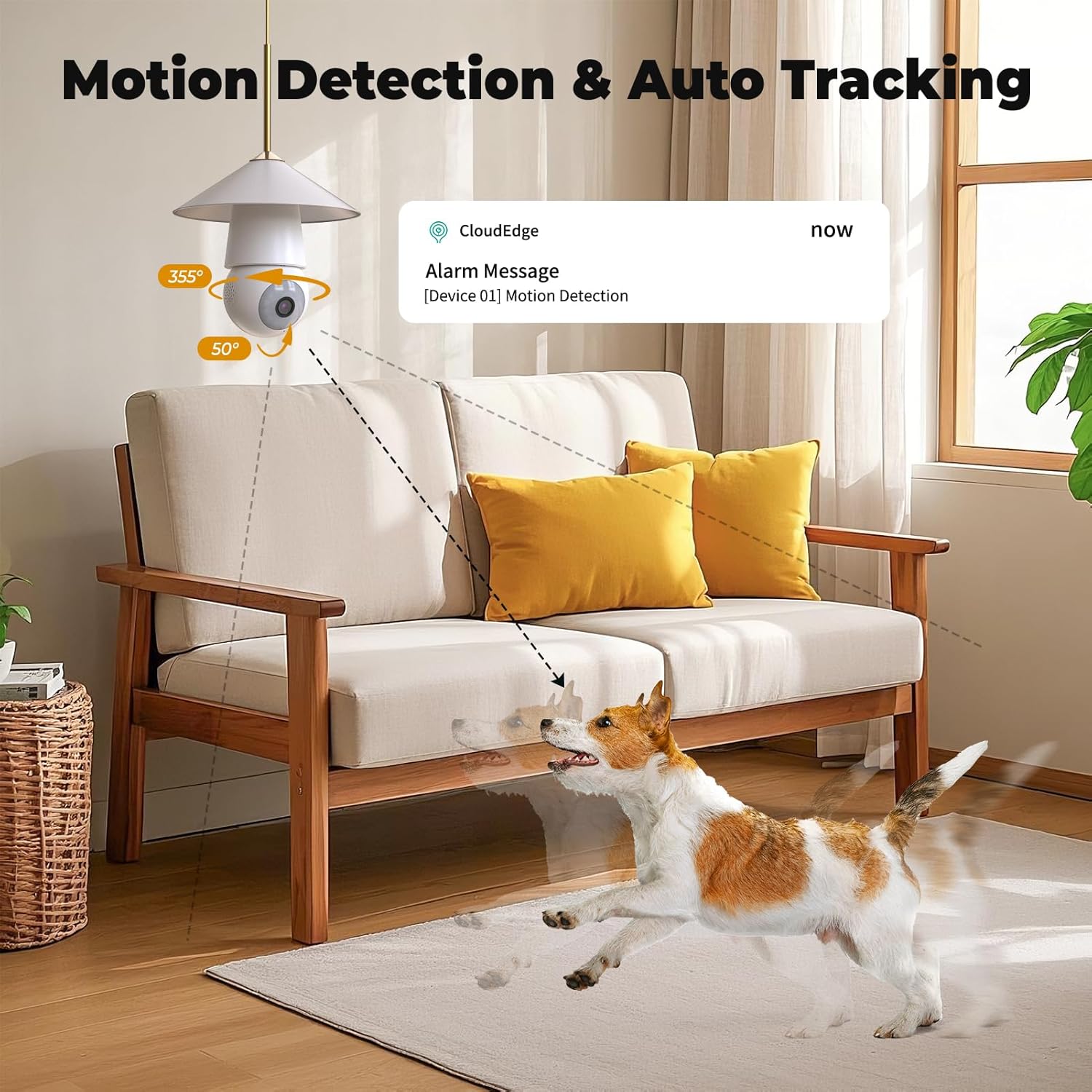
Figure 4.3: Motion detection and alert notification example.
4.4 Two-Way Audio and Deterrent Alarms
Utilize the built-in microphone and speaker for two-way audio communication. This allows you to speak with visitors or deter unwanted individuals. For enhanced security, activate sound alarms or flashing lights directly from the app to warn off intruders, particularly at night.
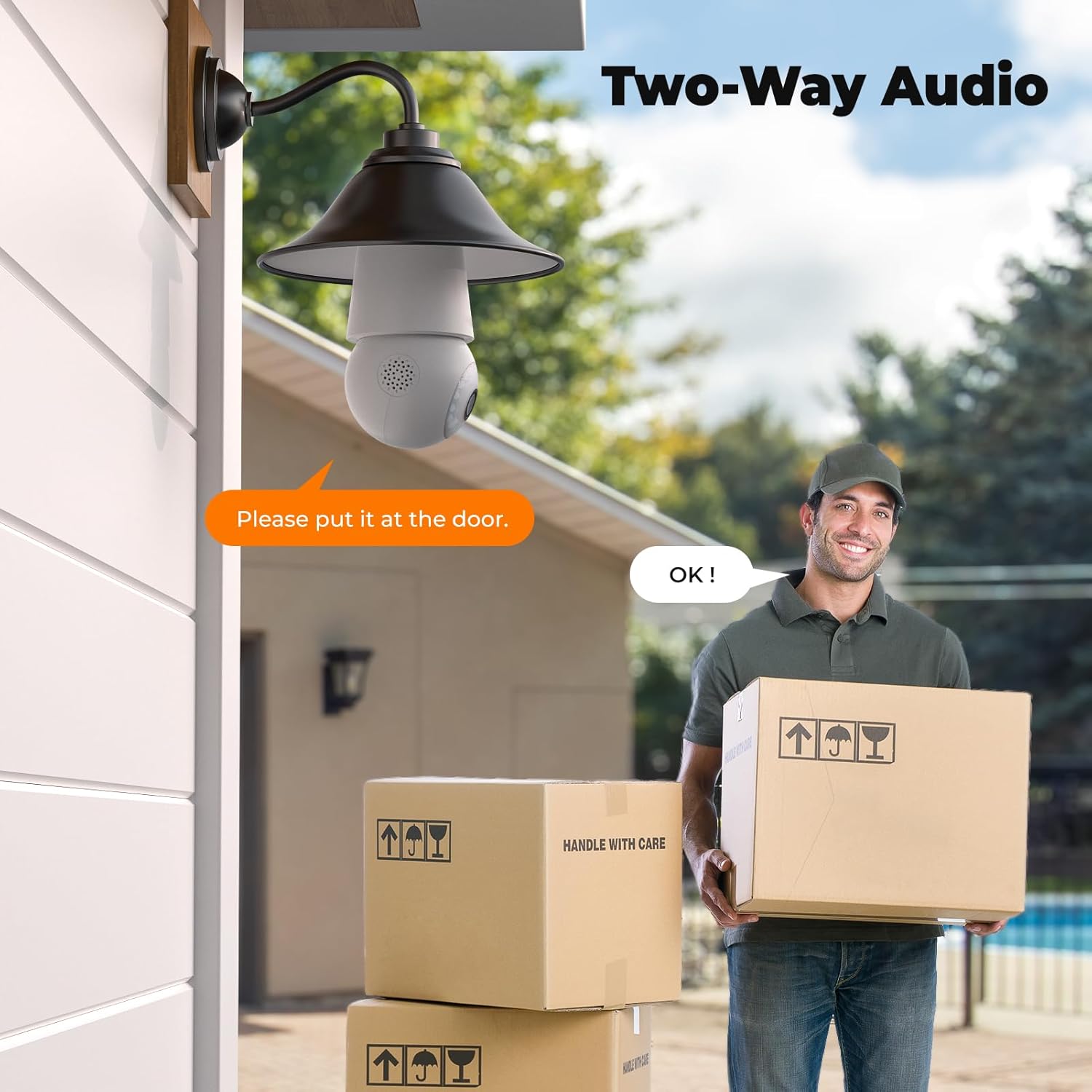
Figure 4.4: Two-way audio functionality in use.

Figure 4.5: Deterrent alarm options including sound and white light.
4.5 Multi-User Access
The camera supports sharing access with up to 5 family members, allowing multiple users to monitor the feed simultaneously.
4.6 Local Storage and Cloud Storage
Recordings can be stored locally on a MicroSD card (up to 128GB, not included). The camera also offers cloud storage options, typically with a free trial period. Refer to the CloudEdge app for details on cloud storage plans.
4.7 Human AI Intelligent Analytics
The camera includes human detection analytics as a standard feature. Additional analytics for animals, cars, or packages may require a subscription.

Figure 4.6: Human AI Intelligent Analytics demonstrating object detection.
5. Specifications
| Feature | Detail |
|---|---|
| Model Number | LB323 |
| Video Resolution | 2K (1920x1080p HD) |
| Connectivity | 2.4GHz Wi-Fi (5GHz not supported) |
| Power Source | Corded Electric (E27 Bulb Base) |
| Night Vision | Color and B&W, up to 10 meters |
| Storage Options | MicroSD card (up to 128GB, not included), Cloud Storage |
| Two-Way Audio | Supported |
| Motion Detection | Smart Motion Detection, Human-only detection |
| App Compatibility | CloudEdge |
| Dimensions | 0.2 x 6.5 x 7.5 inches |
| Item Weight | 9.6 ounces |
| Indoor/Outdoor Usage | Indoor/Outdoor |
6. Maintenance
6.1 Cleaning
To clean the camera lens and body, use a soft, dry cloth. Avoid using harsh chemicals, abrasive cleaners, or solvents, as these can damage the camera's surface or lens.
6.2 Storage
If storing the camera for an extended period, ensure it is powered off and kept in a cool, dry place away from direct sunlight and extreme temperatures.
7. Troubleshooting
7.1 Camera Not Connecting to Wi-Fi
- Ensure your Wi-Fi network is 2.4GHz. The camera does not support 5GHz networks.
- Verify that the Wi-Fi password entered in the CloudEdge app is correct.
- Place the camera closer to your Wi-Fi router to ensure a strong signal.
- Restart your Wi-Fi router and the camera, then attempt the connection process again.
7.2 Poor Video Quality
- Check your internet connection speed. A stable and fast connection is required for optimal 2K streaming.
- Ensure the camera lens is clean and free from dust or smudges.
- Adjust the video quality settings within the CloudEdge app if your network bandwidth is limited.
7.3 Motion Detection Not Working or Too Many False Alarms
- Verify that motion detection is enabled in the CloudEdge app settings.
- Adjust the motion detection sensitivity. Lower sensitivity for fewer false alarms, higher for more sensitive detection.
- Define specific activity zones to monitor only relevant areas and exclude areas with frequent, non-threatening movement (e.g., trees swaying).
- Enable "Human-only detection" if available in the app to filter out non-human movements.
7.4 MicroSD Card Not Recording
- Ensure the MicroSD card is inserted correctly into the camera's slot.
- Check if the MicroSD card is formatted correctly (usually FAT32). Format it via the CloudEdge app if necessary.
- Verify that the MicroSD card is not full. If it is, enable loop recording or replace the card.
- Ensure the card is a genuine, high-quality card (Class 10 or higher recommended).
8. Warranty and Support
For warranty information and technical support, please refer to the official DEATTI website or contact DEATTI customer service directly. Contact details are typically available on the product packaging or within the CloudEdge app's 'About Us' section.
You can also visit the DEATTI Store on Amazon for more product information and support resources.