1. Introduction and Overview
The Lenovo Tab M11 is an 11-inch Android tablet designed for versatile use, from streaming and reading to productivity. It features a vibrant 1920x1200 Full HD display, a MediaTek Helio G88 processor for responsive performance, and 64GB of internal storage expandable via microSD. Enhanced by a quad-speaker system with Dolby Atmos, it delivers immersive audio. This bundle includes essential accessories such as a Folio Case and a Stylus Pen, along with a 12-Month CPS Protection Plan.

Figure 1.1: The Lenovo Tab M11 tablet bundle, showcasing the tablet, folio case, stylus pen, and the 12-month protection plan packaging.
2. What's in the Box
Upon unboxing your Lenovo Tab M11, please verify that all the following items are present:
- Lenovo Tab M11 Tablet
- Folio Case
- Lenovo Stylus Pen
- USB-C Charging Cable
- Power Adapter
- Quick Start Guide / Safety & Warranty Information
- 12-Month CPS Protection Plan documentation

Figure 2.1: The Lenovo Tab M11 tablet shown alongside its included stylus pen.

Figure 2.2: The Lenovo Tab M11 tablet securely placed within its protective folio case.
3. Setup
3.1 Initial Charging
Before first use, it is recommended to fully charge your Lenovo Tab M11. Connect the USB-C charging cable to the tablet's USB-C port and the power adapter to a wall outlet. The charging indicator will illuminate.
3.2 Powering On/Off
- To Power On: Press and hold the Power button (refer to Figure 3.1 for location) until the Lenovo logo appears on the screen.
- To Power Off: Press and hold the Power button until the power options menu appears. Select "Power off" from the menu.
3.3 Initial Setup Wizard
Upon first power-on, the tablet will guide you through an initial setup wizard. Follow the on-screen prompts to:
- Select your language.
- Connect to a Wi-Fi network.
- Sign in with your Google account or create a new one.
- Set up screen lock (PIN, pattern, or password).
3.4 Inserting a MicroSD Card
The Lenovo Tab M11 supports microSD card expansion for additional storage. Locate the microSD card slot (refer to Figure 3.1) and gently insert the card until it clicks into place. Ensure the tablet is powered off before inserting or removing the card.
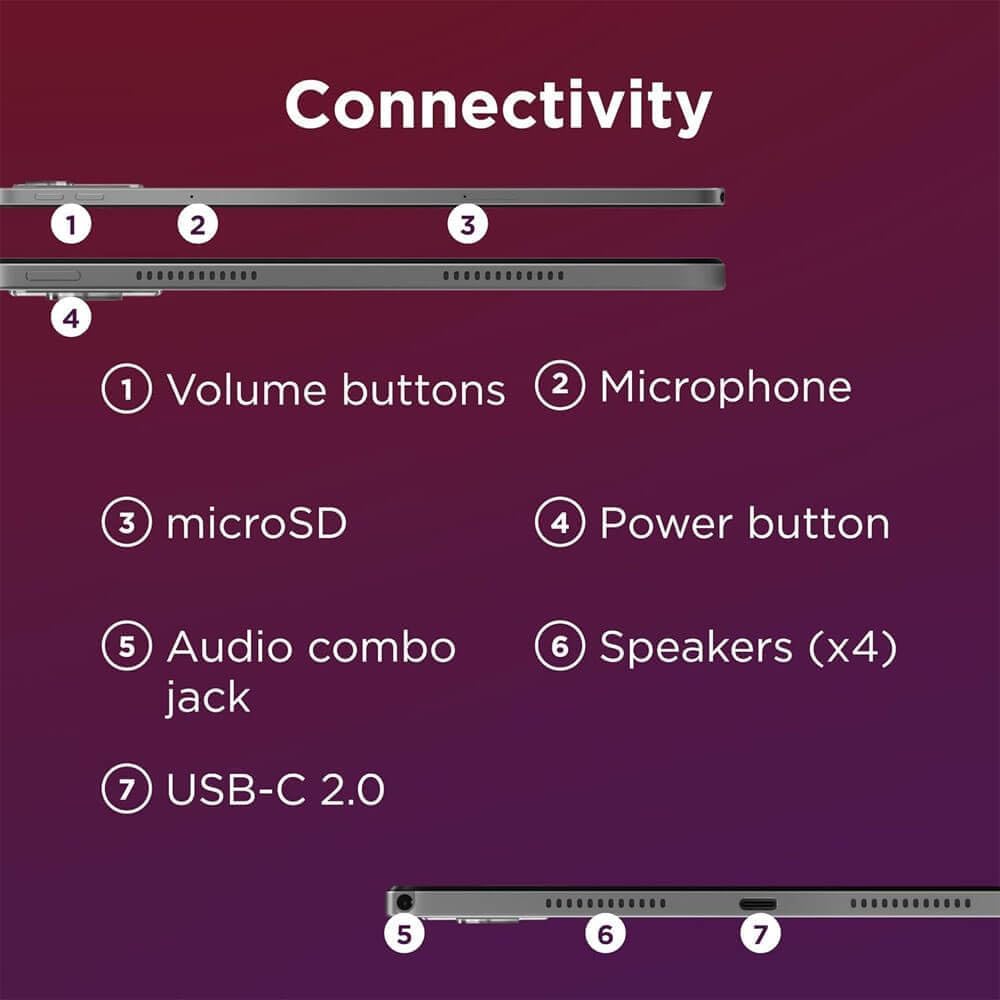
Figure 3.1: Diagram illustrating the location of volume buttons, microphone, microSD slot, power button, audio combo jack, speakers, and USB-C port on the Lenovo Tab M11.
4. Operating Instructions
4.1 Basic Navigation
The Lenovo Tab M11 uses a touch-based interface. Common gestures include:
- Tap: To select an item or open an app.
- Swipe: To scroll through pages or lists.
- Pinch-to-zoom: To zoom in or out on images or web pages.
- Long press: To access contextual menus or move app icons.
4.2 Connecting to Wi-Fi
To connect to a Wi-Fi network:
- Go to Settings > Network & internet > Internet.
- Turn on Wi-Fi.
- Select your desired network from the list and enter the password if prompted.
4.3 Using the Camera
The tablet features integrated cameras. To use the camera:
- Open the Camera app from the home screen or app drawer.
- Tap the shutter button to take a photo or switch to video mode.
- Utilize the AI smart camera scanner for enhanced functionality.
4.4 Audio and Display
The Lenovo Tab M11 features a cinematic WUXGA 11-inch display and quad-speakers with Dolby Atmos for an immersive audio-visual experience.

Figure 4.1: The Lenovo Tab M11 display showcasing its vivid colors and the immersive audio setup with AI smart camera scanner capabilities.
4.5 Stylus Pen Usage
The included Lenovo Stylus Pen allows for precise input, drawing, and note-taking. Simply touch the pen to the screen to interact. Some applications may offer enhanced features when using the stylus.

Figure 4.2: The Lenovo Tab M11 highlighting its durable, kid-proof design, the included Lenovo Tab Pen, and up to 10 hours of battery life.
5. Maintenance
5.1 Cleaning the Device
To clean your tablet:
- Use a soft, lint-free cloth to wipe the screen and body.
- For stubborn smudges, slightly dampen the cloth with water or a screen cleaner specifically designed for electronics.
- Avoid using harsh chemicals, abrasive materials, or excessive moisture.
5.2 Battery Care
To prolong battery life:
- Avoid extreme temperatures.
- Do not let the battery fully discharge frequently.
- Unplug the charger once the battery is full.
5.3 Software Updates
Regularly check for and install system updates to ensure optimal performance, security, and access to new features. Go to Settings > System > System update.
5.4 Storage Management
Periodically review your tablet's storage. Delete unnecessary files, uninstall unused apps, or move large media files to a microSD card to free up space and maintain performance. Go to Settings > Storage.
6. Troubleshooting
6.1 Device Not Turning On
- Ensure the battery is charged. Connect the tablet to its charger and wait a few minutes before attempting to power on.
- Press and hold the Power button for at least 10-15 seconds to perform a forced restart.
6.2 Wi-Fi Connectivity Issues
- Toggle Wi-Fi off and on in Settings.
- Restart your Wi-Fi router.
- Forget the network in tablet settings and reconnect.
6.3 Apps Crashing or Freezing
- Close and reopen the app.
- Clear the app's cache and data (Settings > Apps > [App Name] > Storage > Clear cache/Clear data).
- Update the app from the Google Play Store.
6.4 Slow Performance
- Close unused background apps.
- Free up storage space.
- Restart the tablet regularly.
6.5 Factory Reset (Last Resort)
If issues persist, a factory reset can resolve many software-related problems. Warning: This will erase all data on your tablet. Back up important data before proceeding. Go to Settings > System > Reset options > Erase all data (factory reset).
7. Specifications
Detailed technical specifications for the Lenovo Tab M11:
| Feature | Specification |
|---|---|
| Model Name | ZADA0204USK1 |
| Display Size | 11 Inches |
| Screen Resolution | 1920 x 1200 Pixels (FHD) |
| Processor Brand | MediaTek Helio G88 |
| RAM | 4GB |
| Internal Storage | 64 GB |
| Expandable Storage | MicroSD (up to 1TB, typically) |
| Operating System | Android 13 (at launch) |
| Wireless Type | 802.11ac |
| Color | Luna Grey |
| Item Weight | 3.13 pounds (approx. 1.42 kg) |
| Product Dimensions | 10 x 6 x 0.3 inches (approx. 25.4 x 15.24 x 0.76 cm) |
| Audio | Quad Speakers with Dolby Atmos |

Figure 7.1: Visual representation of the Lenovo Tab M11's dimensions (width, depth, height) and weight.
8. Warranty and Support
8.1 CPS Protection Plan
Your Lenovo Tab M11 bundle includes a 12-Month CPS Protection Plan. Please refer to the documentation provided with your product for details on coverage, terms, and how to file a claim.
8.2 Official Support
For further assistance, technical support, or to view the latest drivers and manuals, please visit the official Lenovo support website. You can also find more information and products at the Lenovo Store on Amazon.


