
Introduction
This manual provides detailed instructions for the operation and maintenance of your Ticktime TK3 Pomodoro Timer Cube. Please read this manual thoroughly to ensure proper use and to maximize the functionality of your device. Keep this manual for future reference.
Product Overview
The Ticktime TK3 is a versatile timer cube designed to enhance productivity and time management. It features multiple timing modes, including Pomodoro, preset countdowns, custom countdowns, and a stopwatch, alongside a desk clock and triple alarm function. Its intuitive gravity sensor allows for quick activation of preset timers by simply flipping the cube.

Image: The Ticktime TK3 Pomodoro Timer Cube, displaying its main interface and charging base.
What's in the Box
Upon opening the package, please verify that all the following items are included:
- 1 x Ticktime TK3 Pomodoro Timer Cube
- 1 x Charging Dock
- 1 x USB-A to USB-C Charging Cable
- 1 x User Manual (this document)
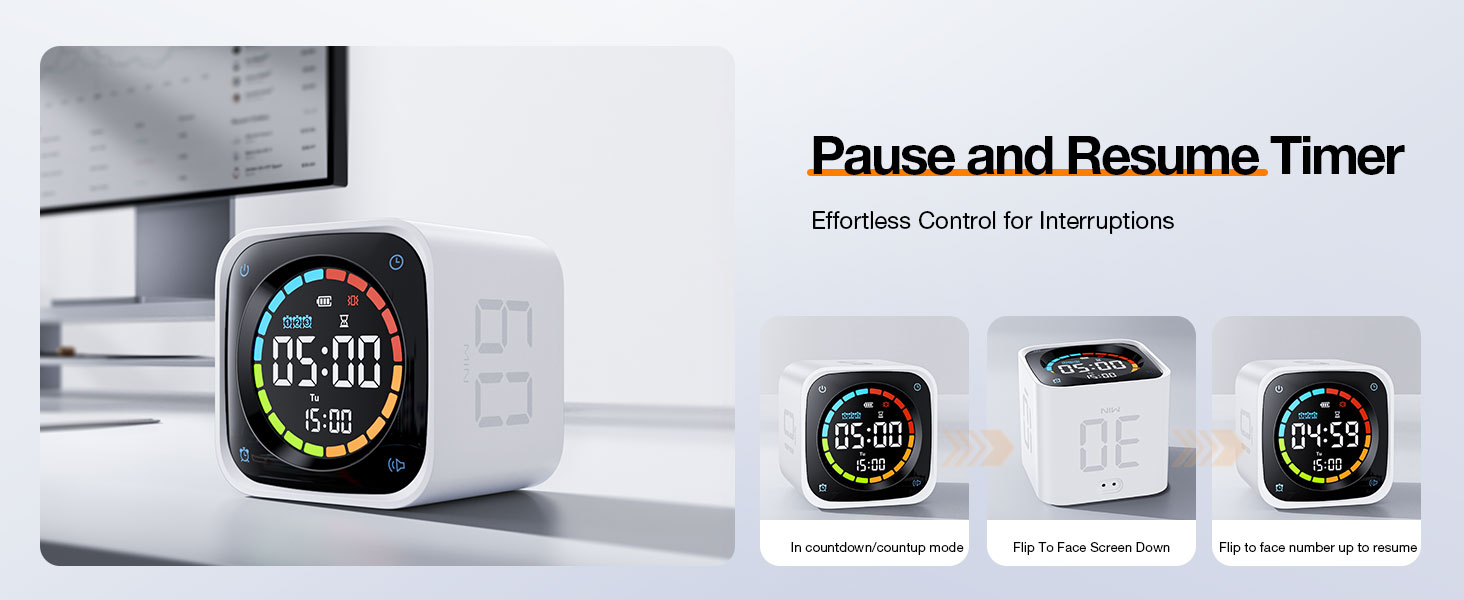
Image: Contents of the Ticktime TK3 package, showing the timer, charging dock, cable, and manual.
Setup
Component Identification

Image: Labeled diagram of the TK3 timer cube and charging dock, indicating power button, dial wheel, volume, alarm, USB-C port, and decorative buttons.
- Four-color countdown ring
- Battery level indicator
- Alarm icon
- Countdown display
- Day of the week display
- Clock display
- Clock button
- Power button
- Dial wheel
- Volume button
- Alarm button
- USB-C charging port
- Magnetic charging dock
- Decorative buttons (on dock)
Initial Charging
Before first use, fully charge the Ticktime TK3. The device can be charged directly via its USB-C port or by placing it on the magnetic charging dock. Ensure the charging dock is connected to a power source using the provided USB-C cable and your own USB power adapter.
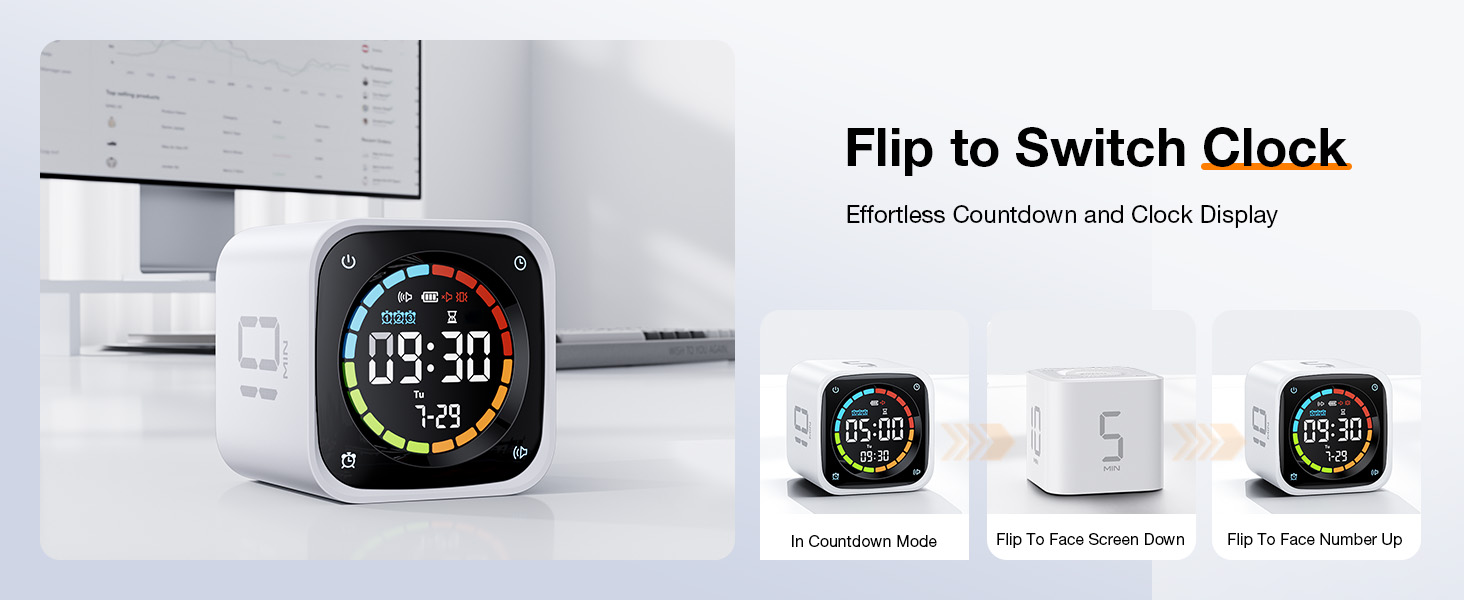
Image: Proper charging methods for the TK3 timer, either directly via USB-C or using the charging dock.
Power On/Off
- To Power On: Press and hold the Power button (8) located on the side of the cube.
- To Power Off: Press and hold the Power button (8) until the display turns off.
Setting Time and Date
When in Desk Clock Mode, use the Dial Wheel (9) to adjust the time and date. Refer to the detailed instructions in the Operating Instructions section for Desk Clock Mode.
Operating Instructions
Pomodoro Timer Mode
The TK3 features a dedicated Pomodoro mode with preset 25-minute work and 5-minute break intervals. It automatically cycles through 4 Pomodoro sessions (25/5 x 4).
- To Activate: Place the timer with the designated Pomodoro icon facing up. The timer will automatically start the first 25-minute work session.
- Cycle Progression: After 25 minutes, the timer will alert you and automatically begin a 5-minute break. This cycle repeats four times.
- To Stop: Flip the timer face down to return to Desk Clock Mode.

Image: Illustration of the Pomodoro technique with the TK3 timer, showing 25-minute focus and 5-minute break periods.
Quick Flip Countdown (Preset Timers)
The TK3 has preset countdown times of 5, 10, 30, and 60 minutes, activated by its gravity sensor.
- To Activate: Simply flip the timer so that the desired time (5, 10, 30, or 60 MIN) is facing upwards. The countdown will begin instantly.
- To Stop: Flip the timer face down to return to Desk Clock Mode.
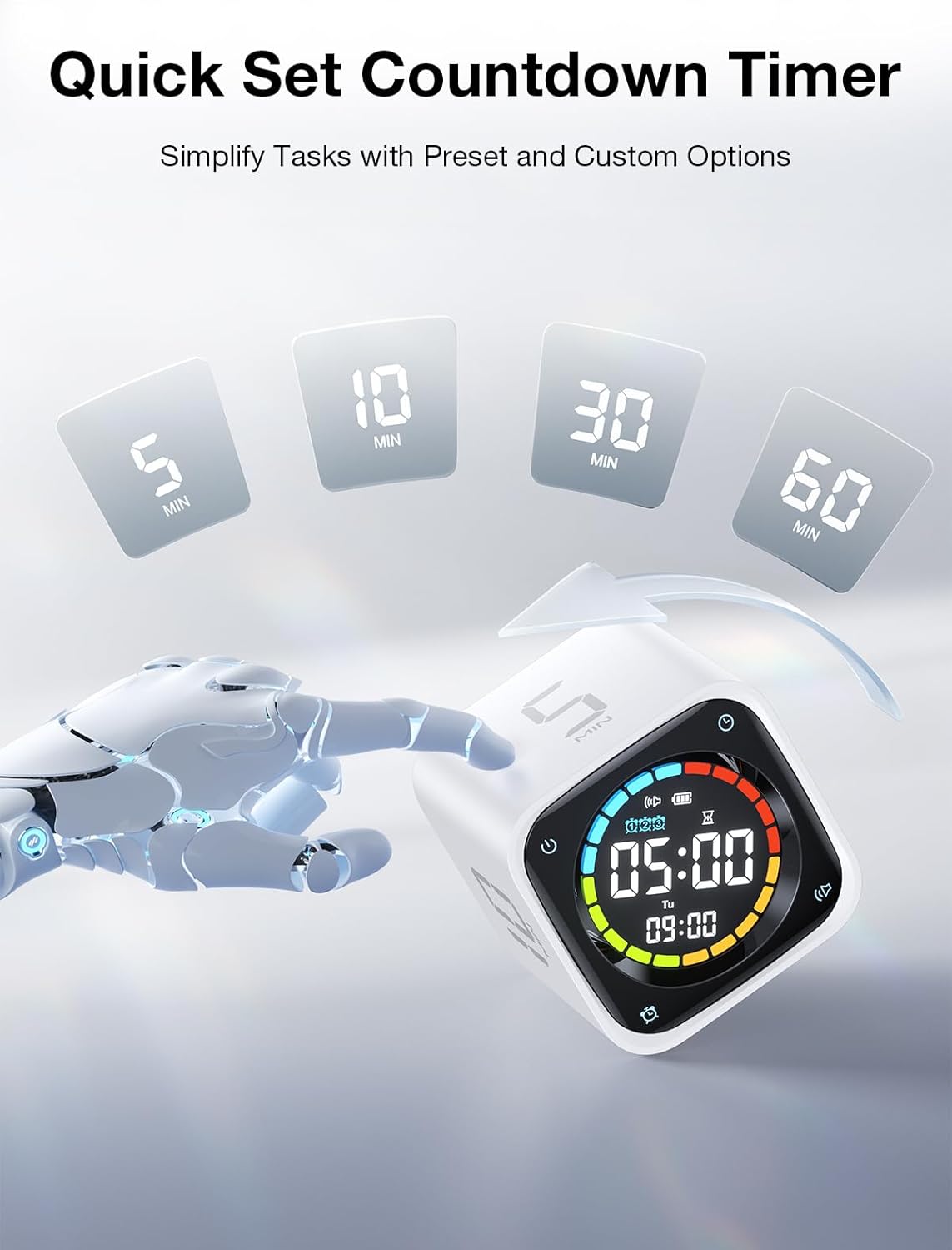
Image: Activating preset countdowns by flipping the TK3 timer to the desired minute value.
Custom Countdown Mode
For specific timing needs, the TK3 allows for custom countdowns from 99:00 to 00:01.
- To Enter Custom Mode: In Desk Clock Mode, press the Clock button (7) to cycle through modes until 'Custom Countdown' is displayed.
- To Set Time: Use the Dial Wheel (9) to adjust the minutes and seconds. Press the Dial Wheel to confirm.
- To Start/Stop: Press the Clock button (7) to start or pause the custom countdown. Flip the timer face down to exit.
Stopwatch Mode
Track elapsed time with the stopwatch function (00:01 to 99:00).
- To Activate: In Desk Clock Mode, press the Clock button (7) to cycle through modes until 'Stopwatch' is displayed.
- To Start/Pause: Press the Clock button (7) to start or pause the stopwatch.
- To Reset: While paused, press and hold the Clock button (7) to reset the stopwatch to 00:00.
- To Exit: Flip the timer face down to return to Desk Clock Mode.
Desk Clock Mode
When not actively timing, the TK3 functions as a desk clock, displaying the current time, day of the week, and date.
- To Enter: Flip the timer face down from any active timing mode.
- To Set Time/Date: In Desk Clock Mode, press and hold the Clock button (7) to enter setting mode. Use the Dial Wheel (9) to adjust values and the Clock button (7) to move between settings (hour, minute, year, month, day). Press and hold the Clock button (7) again to exit setting mode.

Image: Demonstrating how to switch the TK3 timer between countdown and clock display modes by flipping its orientation.
Triple Alarm Function
Set up to three independent alarms for daily reminders.
- To Set Alarms: In Desk Clock Mode, press the Alarm button (11) to cycle through Alarm 1, Alarm 2, and Alarm 3 settings. Use the Dial Wheel (9) to adjust the alarm time. Press the Alarm button (11) again to confirm and move to the next alarm or exit.
- To Enable/Disable: While viewing an alarm setting, press the Volume button (10) to toggle the alarm on or off. An alarm icon will appear on the display when active.

Image: Examples of setting three distinct alarms for different times of the day using the TK3 timer.
Alert Modes (Sound, Vibration, Silent)
Customize how you receive notifications from the timer.
- To Change Mode: In any timing mode or Desk Clock Mode, press the Volume button (10) to cycle through Sound, Vibration, and Silent alert modes. The corresponding icon will appear on the display.
- Sound Mode: Produces an audible beep when a timer ends or an alarm triggers.
- Vibration Mode: The device vibrates when a timer ends or an alarm triggers.
- Silent Mode: No audible or vibratory alert. The display will flash when a timer ends or an alarm triggers.

Image: The TK3 timer's customizable alert modes: Vibration, Silent, and Sound, suitable for various environments.
Pause and Resume
You can temporarily pause an active countdown or stopwatch.
- To Pause: During an active countdown or stopwatch, flip the timer so its screen faces upwards (flat on a surface). The display will show 'PAUSE' or the time will freeze.
- To Resume: Flip the timer back to its active position (e.g., with a number side up for preset timers, or screen facing forward for custom/stopwatch). The timer will resume from where it left off.

Image: Instructions for pausing and resuming the TK3 timer by flipping its screen up or back to an active position.
Maintenance
Charging
The Ticktime TK3 is equipped with a 1400mAh rechargeable battery, providing up to 10 days of use on a single charge. A full charge typically takes 3 hours.
- Charge the device when the battery indicator on the display shows low power.
- Use the provided USB-C cable. Connect it directly to the timer's USB-C port (12) or place the timer on the magnetic charging dock (13) and connect the cable to the dock.
- The timer remains fully functional while charging.

Image: The TK3 timer emphasizing its rechargeable battery, offering extended use and efficient charging.
Cleaning
- Wipe the timer cube with a soft, dry, or slightly damp cloth.
- Do not use abrasive cleaners, solvents, or harsh chemicals.
- Avoid submerging the device in water.
Troubleshooting
| Issue | Possible Cause | Solution |
|---|---|---|
| Timer not turning on | Low battery; Device is off | Charge the timer; Press and hold the Power button (8) to turn on. |
| Preset timer not starting | Incorrect orientation; Device is paused | Ensure the desired time (5, 10, 30, 60 MIN) is facing directly upwards; Flip the timer to resume if paused. |
| Display is dim or blank | Low battery; Device is off; In silent mode with no active timer | Charge the timer; Turn on the device; Activate a timer or check if it's in Desk Clock Mode. |
| Alarms not sounding/vibrating | Alarm disabled; Alert mode set to Silent | Ensure the alarm is enabled in settings; Change the Alert Mode to Sound or Vibration using the Volume button (10). |
| Custom countdown not setting | Not in Custom Countdown Mode; Dial Wheel not used correctly | Ensure you are in Custom Countdown Mode; Use the Dial Wheel (9) to adjust time and press to confirm. |
Specifications
| Feature | Detail |
|---|---|
| Brand | Ticktime |
| Model Number | TK3 |
| Color | White |
| Material | Acrylonitrile Butadiene Styrene (ABS) |
| Product Dimensions | 2.5"D x 2.5"W x 2.3"H |
| Item Weight | 0.3 Pounds (4.8 ounces) |
| Battery | 1400mAh Nonstandard Battery (included) |
| Charging Port | USB-C |
| Manufacturer | SHENZHEN GREEN GIANT ENERGY TECHNOLOGY DEVELOPMENT CO.,LTD |
Warranty and Support
Warranty Information
The Ticktime TK3 Pomodoro Timer Cube comes with a standard manufacturer's warranty. Please refer to the warranty card included in your product packaging for specific terms, conditions, and duration. Keep your proof of purchase for warranty claims.
Customer Support
For technical assistance, troubleshooting not covered in this manual, or warranty inquiries, please contact Ticktime customer support. Contact details can typically be found on the official Ticktime website or on the product packaging.
Online Support: Visit the official Ticktime website for FAQs and support resources.
Email Support: Refer to your warranty card or product packaging for the customer service email address.
