
1. Introduction
Thank you for choosing the VGN F1 MOBA Wireless Gaming Mouse. This manual provides essential information for the proper setup, operation, and maintenance of your device. Please read it thoroughly to ensure optimal performance and longevity of your mouse.
2. What's in the Box
- F1 MOBA Wireless Gaming Mouse
- Braided USB-C Charging Cable
- 2.4GHz USB Receiver
- Receiver Extender
- Small PTFE Feet (Replacement)
- Anti-slip Grip Sticker Set
- Help Manual & Warranty Certificate
3. Product Overview
Familiarize yourself with the components and features of your VGN F1 MOBA Wireless Gaming Mouse.

Figure 3.1: Diagram of the VGN F1 MOBA mouse highlighting its key components: LED Indicator, Scroll Wheel, Left Button, Right Button, Forward Button, Backward Button, DPI Button, Optical Sensor, Power Switch, Receiver Storage Slot, and PTFE Feet.
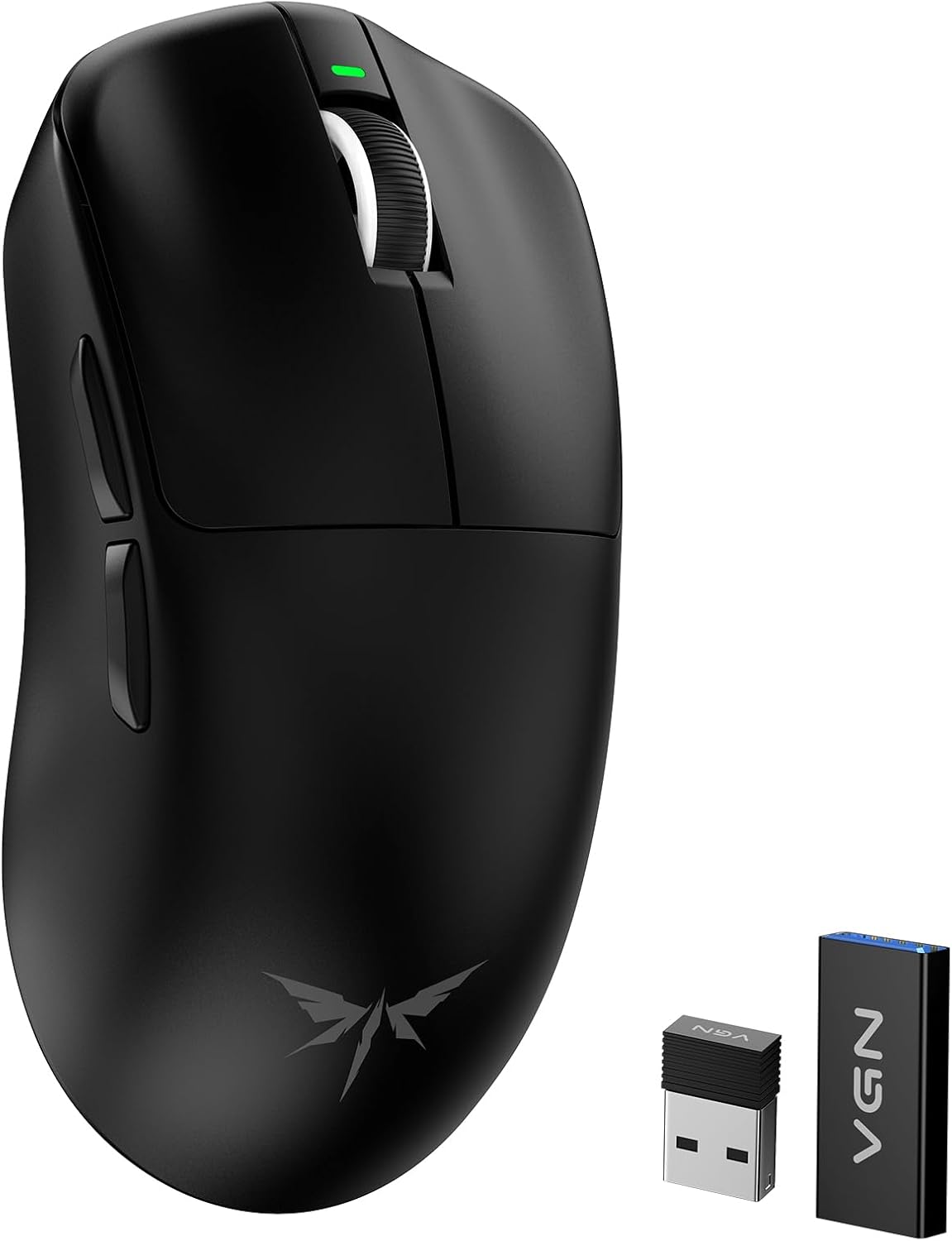
Figure 3.2: The VGN F1 MOBA Wireless Gaming Mouse, shown alongside its 2.4GHz USB receiver and receiver extender, ready for connection.
4. Setup Instructions
4.1 Wireless Connection (2.4GHz)
- Locate the 2.4GHz USB receiver. It is typically stored in the magnetic compartment on the underside of the mouse.
- Insert the USB receiver into an available USB port on your computer. For optimal signal, use the included receiver extender to position the receiver closer to the mouse.
- Turn on the mouse using the power switch located on the bottom of the device.
- The mouse should automatically connect to your computer. The LED indicator may flash briefly during connection and then remain solid.
4.2 Wired Connection (USB-C)
- Connect the braided USB-C charging cable to the USB-C port on the front of the mouse.
- Connect the other end of the cable to an available USB port on your computer.
- The mouse will function in wired mode and begin charging simultaneously.
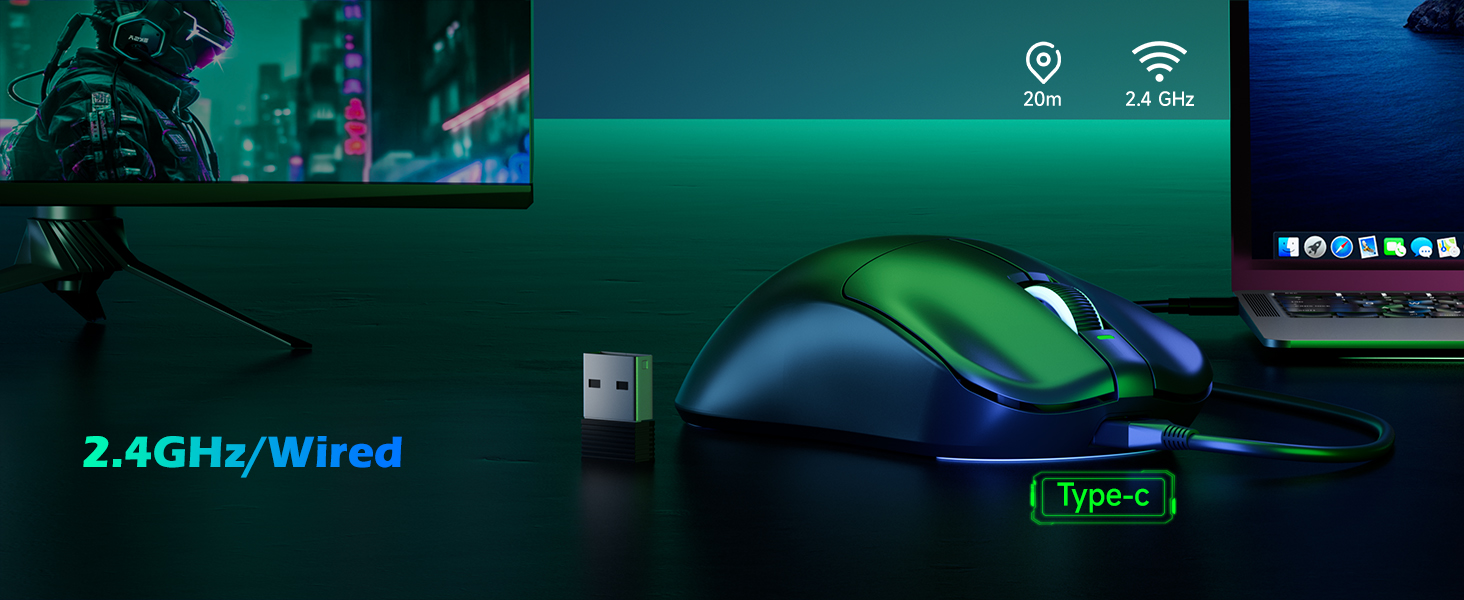
Figure 4.1: Illustration demonstrating both 2.4GHz wireless connectivity via USB receiver and wired operation/charging via USB-C cable for the VGN F1 MOBA mouse.
5. Operating Instructions
5.1 Basic Functions
- Left Button: Primary click function.
- Right Button: Secondary click function (context menu).
- Scroll Wheel: Scroll up/down, middle click.
- Forward Button: Navigates forward in web browsers or file explorers.
- Backward Button: Navigates backward in web browsers or file explorers.
5.2 DPI Adjustment
The DPI (Dots Per Inch) button, located on the underside of the mouse, allows you to cycle through different sensitivity levels. Press the button to instantly change the tracking speed of the mouse cursor. The LED indicator may change color or flash to indicate the current DPI setting.
5.3 Programmable Buttons and Software
The VGN F1 MOBA mouse features programmable buttons. To customize button functions, adjust DPI stages, polling rate, and other settings, download the official VGN software from the manufacturer's website. The software provides a comprehensive interface for personalization.
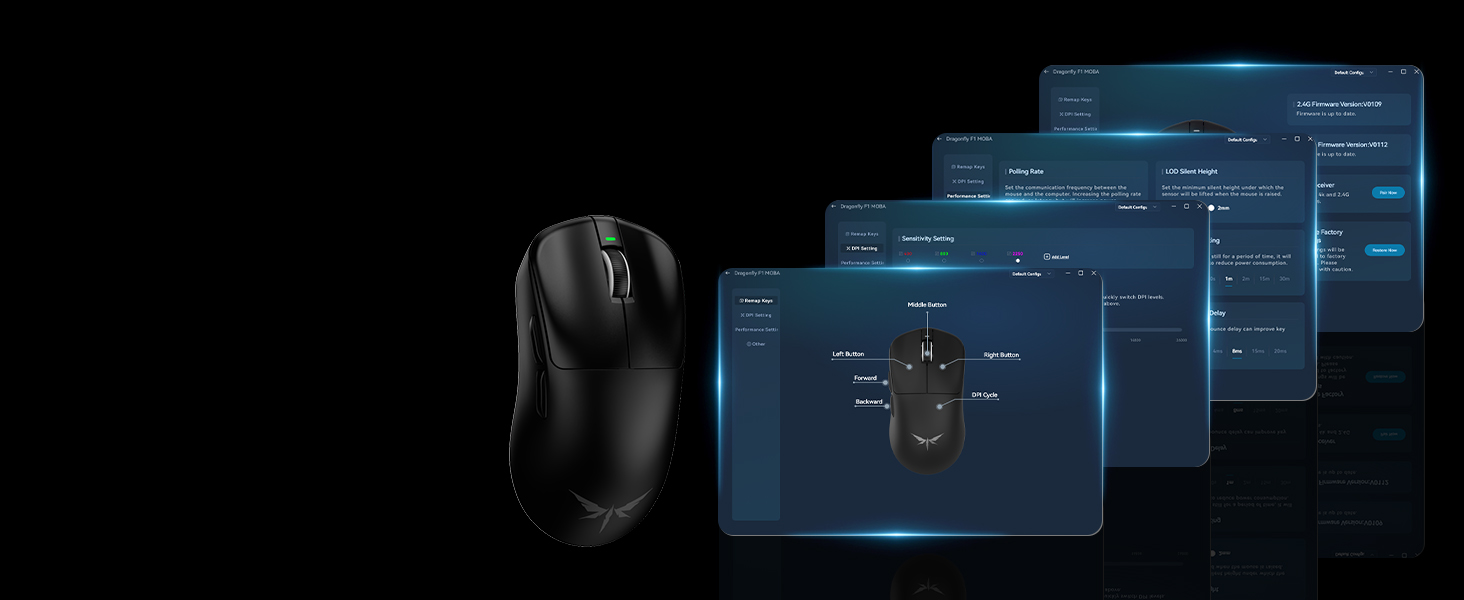
Figure 5.1: Screenshot of the VGN mouse configuration software, illustrating options for polling rate, sensitivity, button assignments, and firmware updates for personalized control.
6. Advanced Features
6.1 High Precision Optical Sensor
The VGN F1 MOBA is equipped with a PixArt PAW3395 optical sensor, offering up to 26,000 DPI, 650 IPS (Inches Per Second) tracking speed, and 50G acceleration. This ensures precise and responsive tracking for various applications.
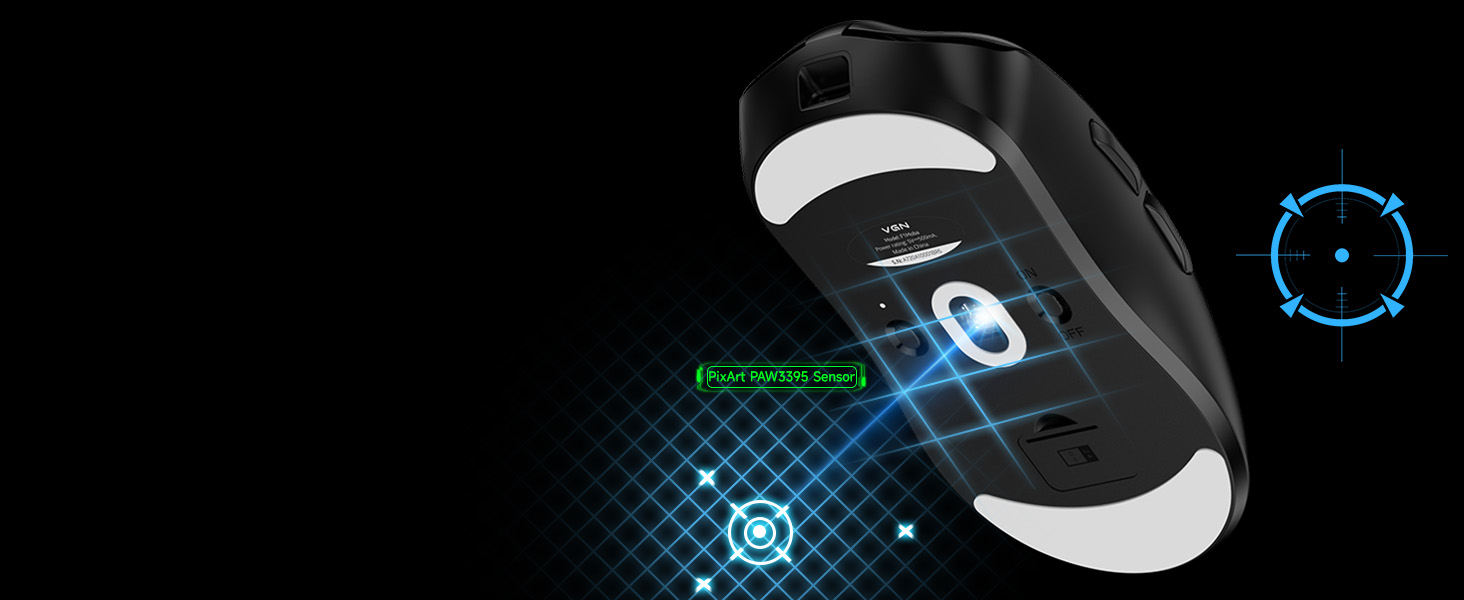
Figure 6.1: Diagram highlighting the PixArt PAW3395 optical sensor on the underside of the mouse, emphasizing its precision tracking capabilities for high-performance use.
6.2 High Polling Rate
The mouse supports an ultra-responsive polling rate of up to 4000Hz when paired with a compatible 4K receiver (sold separately). This quadruples the response rate of traditional 1000Hz mice, significantly reducing latency for competitive gaming.
6.3 Lightweight Design
Weighing approximately 55 grams, the VGN F1 MOBA mouse is designed for effortless movement and reduced fatigue during extended use.
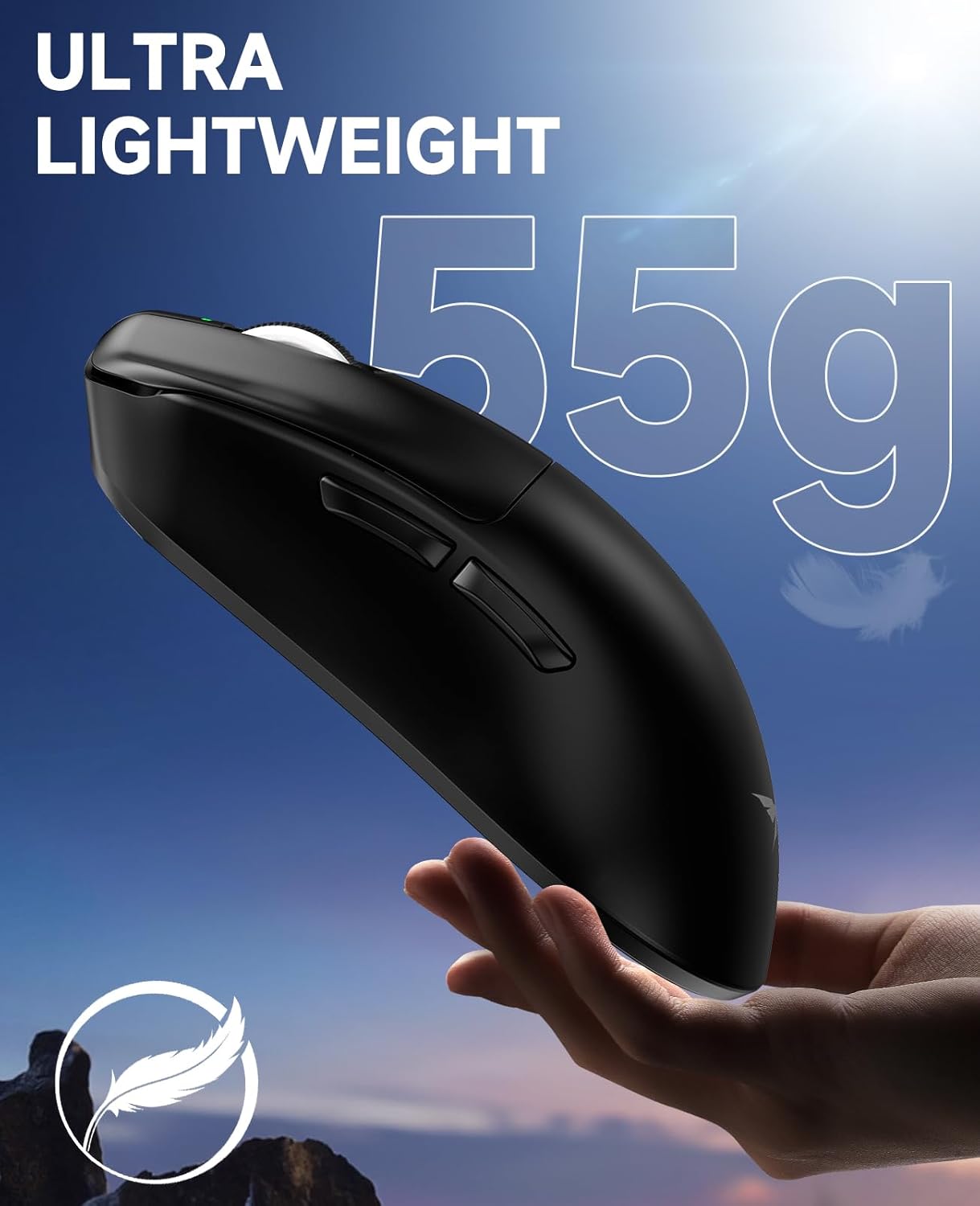
Figure 6.2: The VGN F1 MOBA mouse held in a hand, illustrating its ultra-lightweight design of approximately 55 grams for enhanced maneuverability.
7. Battery and Charging
The VGN F1 MOBA Wireless Gaming Mouse features a built-in rechargeable battery, offering up to 200 hours of usage on a single charge. Actual battery life may vary depending on usage conditions and settings.
7.1 Charging the Mouse
To charge the mouse, connect the provided USB-C cable to the mouse's charging port and to a USB power source (e.g., computer USB port, wall adapter). The LED indicator will typically show charging status and turn off or change color when fully charged.
7.2 Advanced Sleep Mode
The mouse incorporates an advanced sleep mode to conserve energy during periods of inactivity. This feature automatically puts the mouse into a low-power state, extending battery life. Settings for sleep mode can be adjusted via the VGN software.
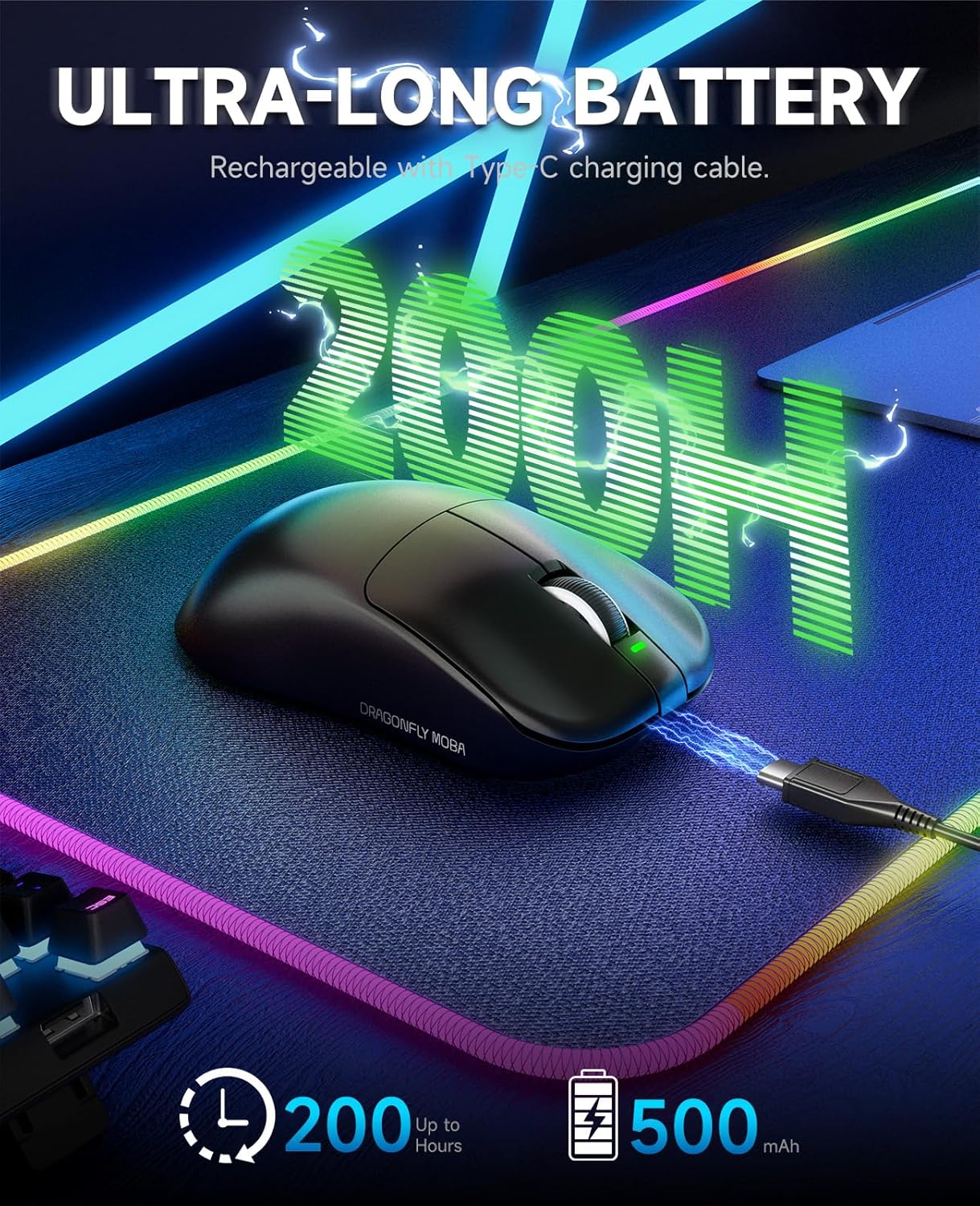
Figure 7.1: The VGN F1 MOBA mouse charging via USB-C cable on a mouse pad, indicating an ultra-long battery life of up to 200 hours on a full charge.
8. Maintenance
8.1 Cleaning
To clean your mouse, use a soft, dry cloth. Avoid using abrasive cleaners, solvents, or excessive moisture, as these can damage the device. Regularly clean the optical sensor area to ensure accurate tracking.
8.2 PTFE Feet
The mouse features low-friction PTFE feet for smooth gliding. Ensure these feet are kept clean and free of debris. Replacement PTFE feet are included in the box for future use if the original feet wear out.
8.3 Anti-slip Grip Stickers
For enhanced grip and control, apply the included anti-slip grip stickers to the designated areas on your mouse. Ensure the surface is clean and dry before application for best adhesion.

Figure 8.1: The VGN F1 MOBA mouse with anti-slip grip stickers applied, demonstrating the included six pieces for enhanced grip and personalized feel.
9. Troubleshooting
| Problem | Possible Cause | Solution |
|---|---|---|
| Mouse not responding | Power switch off, low battery, receiver disconnected, incorrect USB port. | Ensure power switch is ON. Charge the mouse. Reconnect the USB receiver. Try a different USB port. Test in wired mode. |
| Lag or erratic movement | Interference, dirty sensor, outdated firmware/drivers, receiver too far. | Ensure receiver is close to the mouse. Clean the optical sensor. Update mouse firmware and drivers via VGN software. Avoid using on highly reflective surfaces. |
| DPI not changing | DPI button not pressed correctly, software issue. | Ensure the DPI button on the bottom is pressed firmly. Check DPI settings in the VGN software. |
| Mouse not charging | Faulty cable, USB port issue. | Try a different USB-C cable. Use a different USB port or power adapter. |
10. Specifications

Figure 10.1: Diagram illustrating the dimensions of the VGN F1 MOBA mouse: approximately 4.77 inches (length), 2.5 inches (width), and 1.48 inches (height).
- Model: F1 MOBA
- Brand: VGN
- Product Dimensions: Approximately 4.77 x 2.5 x 1.48 inches
- Item Weight: Approximately 55g (1.94 ounces)
- Connectivity Technology: 2.4GHz Wireless, USB-C Wired
- Movement Detection Technology: Optical (PixArt PAW3395 Sensor)
- Max DPI: 26,000
- Polling Rate: Up to 4000Hz (with optional 4K receiver)
- Battery Type: Built-in Rechargeable
- Battery Life: Up to 200 hours (may vary with usage)
- Special Features: Lightweight, Portable, Programmable Buttons, Rechargeable
- Compatibility: Windows series, VISTA, Mac, Chrome OS, Linux (programmable features may vary by OS)
11. Warranty and Support
Your VGN F1 MOBA Wireless Gaming Mouse comes with a limited warranty. Please refer to the included Warranty Certificate for details regarding coverage, terms, and conditions. For technical support, driver downloads, or further assistance, please visit the official VGN website or contact their customer service department.


