
Introduction
Thank you for choosing the VGN Dragonfly F1 Pro Wireless Gaming Mouse. This manual provides detailed instructions to help you set up, operate, maintain, and troubleshoot your new gaming mouse. Designed for competitive gamers, the F1 Pro combines an ultra-lightweight build with a high-precision optical sensor and long-lasting battery life to deliver an exceptional gaming experience.
What's in the Box
Please verify that all items are present in your package:
- 1 x VGN Dragonfly F1 Pro Wireless Gaming Mouse
- 1 x USB Receiver
- 1 x Type-C Charging Cable
- 1 x Set of PTFE Feet
- 1 x User Manual (this document)
Product Overview
Components

Top View: Illustrates the primary left and right click buttons, and the scroll wheel with its LED indicator.
Side View: Shows the ergonomic design and the two accessible side buttons.

Bottom View: Displays the high-precision optical sensor, power switch, and the storage slot for the USB receiver.
Key Features
- Ultra-Lightweight 49g Build: Designed for rapid movements and reduced fatigue during extended use.
- Pro-Level Performance: Engineered for responsiveness and precision in competitive gaming environments.
- True 4000Hz Wireless Polling (with optional 4K receiver): Provides near-zero latency and superior tracking accuracy.
- Next-Gen Optical Sensor & Smooth PTFE Feet: Ensures flawless tracking and smooth gliding across various surfaces.
- Dual-Mode Connection: Offers both ultra-fast 2.4GHz wireless and reliable wired USB-C connectivity.
- Long-Lasting Battery & Smart Power Saving: Up to 85 hours of continuous gameplay with intelligent energy conservation.

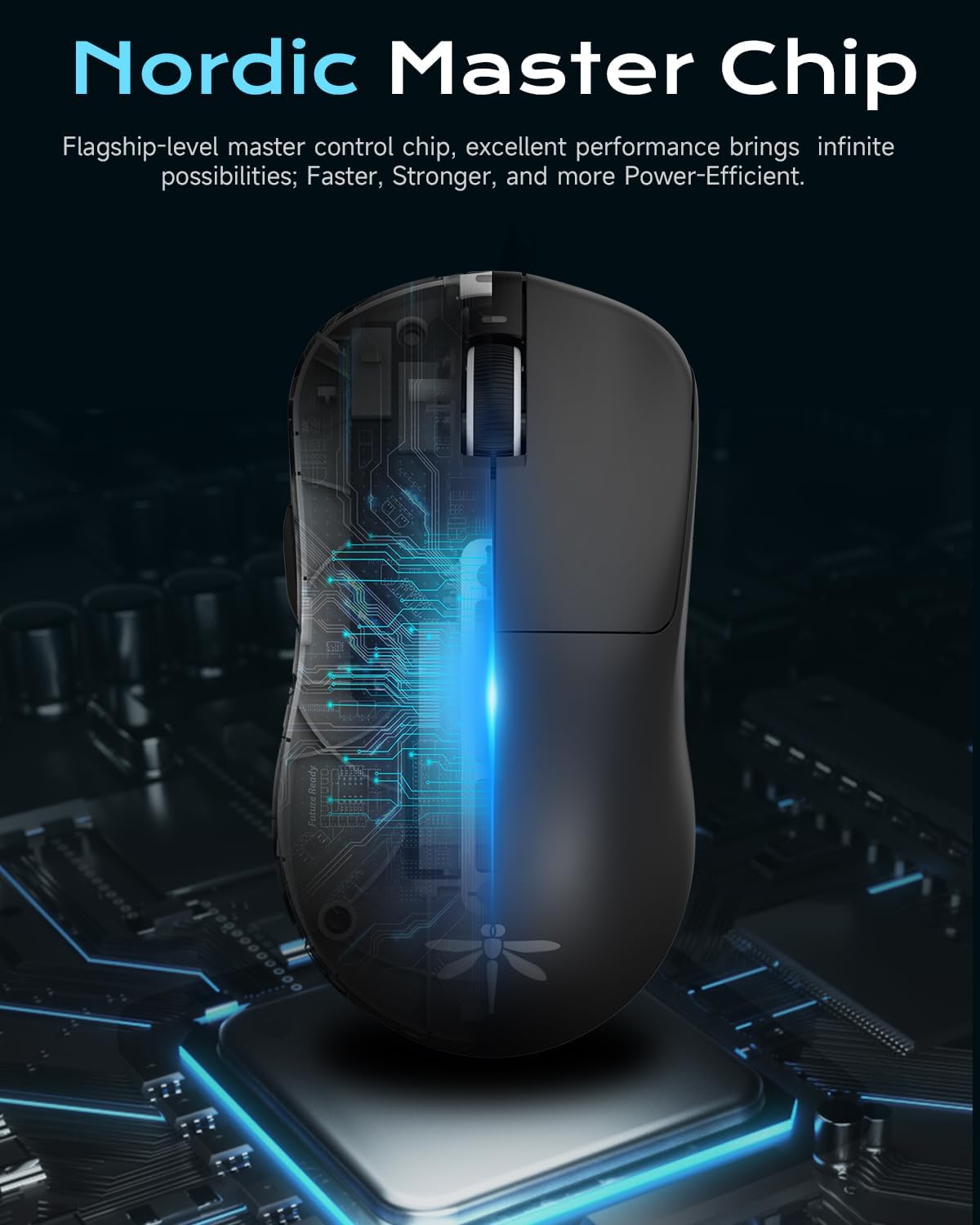
Nordic Master Chip: Flagship-level control chip for excellent performance and power efficiency.

Extended Battery Life: Enjoy prolonged gaming sessions with up to 65 hours of battery life.
Setup
Initial Charging
Before first use, it is recommended to fully charge your VGN Dragonfly F1 Pro mouse. Connect the included Type-C charging cable to the mouse's front port and the other end to a USB power source (e.g., computer USB port, wall adapter). The LED indicator on the scroll wheel will show charging status and turn solid green when fully charged.
Connecting the Mouse
The VGN Dragonfly F1 Pro supports two connection modes: 2.4GHz wireless and wired USB-C.
- 2.4GHz Wireless Connection:
- Locate the USB receiver stored in the compartment on the bottom of the mouse.
- Plug the USB receiver into an available USB port on your computer.
- Turn on the mouse using the power switch located on the bottom. The mouse should automatically connect to the receiver.
- Wired USB-C Connection:
- Connect the Type-C charging cable to the mouse's front port and the other end to a USB port on your computer.
- The mouse will function immediately in wired mode and will charge simultaneously.
Driver Installation (Optional)
For advanced customization and optimal performance, download and install the VGN HUB self-developed driver from the official VGN website. This software allows you to:
- Adjust DPI settings and create custom profiles.
- Configure polling rate (up to 4000Hz with optional 4K receiver).
- Program the 6 customizable buttons with macros and specific functions.
- Manage power saving settings.

VGN HUB Driver: Customize your mouse settings for a personalized experience.
Operating Instructions
Basic Functions
- Left Click: Primary action.
- Right Click: Secondary action/context menu.
- Scroll Wheel: Scroll up/down, middle click.
- Side Buttons: Default to Forward/Backward in web browsers. Customizable via VGN HUB.
DPI Adjustment
The VGN Dragonfly F1 Pro features a dedicated DPI button (often located behind the scroll wheel or programmable via software) to cycle through preset DPI levels. Refer to the VGN HUB software for precise DPI customization and to set your preferred sensitivity stages.
Programmable Buttons
Utilize the VGN HUB software to assign custom functions, macros, or key combinations to the 6 programmable buttons. This allows for optimized control in various applications and games.
Power Management
To conserve battery life, turn off the mouse using the power switch on the bottom when not in use. The mouse also features an advanced sleep mode (configurable via driver settings) that automatically conserves energy during inactivity.
Maintenance
Cleaning
To maintain optimal performance and hygiene, regularly clean your mouse:
- Use a soft, lint-free cloth slightly dampened with water or a mild cleaning solution to wipe the surface.
- For the optical sensor, use a cotton swab lightly dampened with isopropyl alcohol to gently clean the lens. Ensure no liquid enters the sensor opening.
- Avoid using harsh chemicals, abrasive cleaners, or excessive moisture.
Storage
When not in use for extended periods, store the mouse in a cool, dry place away from direct sunlight and extreme temperatures. Ensure the mouse is turned off to preserve battery life.
PTFE Feet Replacement
The VGN Dragonfly F1 Pro comes with high-precision PTFE feet for smooth gliding. Over time, these may wear down. Replace them with the included spare PTFE feet or genuine VGN replacement feet to maintain optimal glide performance.
Troubleshooting
If you encounter any issues with your VGN Dragonfly F1 Pro mouse, please refer to the following common solutions:
| Problem | Possible Solution |
|---|---|
| Mouse not responding / No connection |
|
| Erratic or inaccurate movement |
|
| Battery not holding charge / Short battery life |
|
| Buttons not responding or double-clicking |
|
Specifications
Key technical specifications for the VGN Dragonfly F1 Pro Wireless Gaming Mouse:
| Feature | Detail |
|---|---|
| Model Number | F1 Pro |
| Product Dimensions | 4.77 x 2.5 x 0.1 inches (approx. 121.2 x 63.5 x 37.6 mm) |
| Item Weight | 49 grams (1.73 ounces) |
| Connectivity Technology | 2.4GHz Wireless, USB-C Wired |
| Movement Detection Technology | Optical |
| DPI (Max) | 26,000 DPI |
| Polling Rate (Max) | 4000Hz (with optional 4K receiver) |
| Battery Life | Up to 65-85 hours (depending on usage and settings) |
| Programmable Buttons | 6 |

Dimensions and Weight: Compact and ultra-light for superior handling.
Warranty and Support
VGN products are manufactured to the highest quality standards. For information regarding warranty coverage, technical support, or replacement parts, please visit the official VGN website or contact VGN customer service through the contact information provided on your product packaging or purchase receipt.
Please retain your proof of purchase for any warranty claims.


