
1. Introduction
This manual provides detailed instructions for the setup, operation, maintenance, and troubleshooting of your TECWARE Phantom S 75% Gasket-Mounted Mechanical Keyboard. Please read this manual thoroughly before using the product to ensure optimal performance and longevity.

Image 1.1: The TECWARE Phantom S 75% Gasket-Mounted Mechanical Keyboard, showcasing its compact layout and RGB backlighting.
2. Package Contents
Verify that all items are present in the package:
- TECWARE Phantom S Mechanical Keyboard
- USB-C to USB-A Cable
- 2.4GHz Wireless Dongle (typically stored in the keyboard)
- Keycap Puller
- Switch Puller
- User Manual (this document)
3. Product Features
The TECWARE Phantom S keyboard incorporates several design and functional elements for an enhanced user experience:
3.1. Gasket-Mounted Design with Multi-layered Dampening
The keyboard features a gasket-mounted structure combined with multiple layers of foam padding. This design contributes to a softer, more cushioned typing feel and improved acoustic dampening, reducing typing noise.
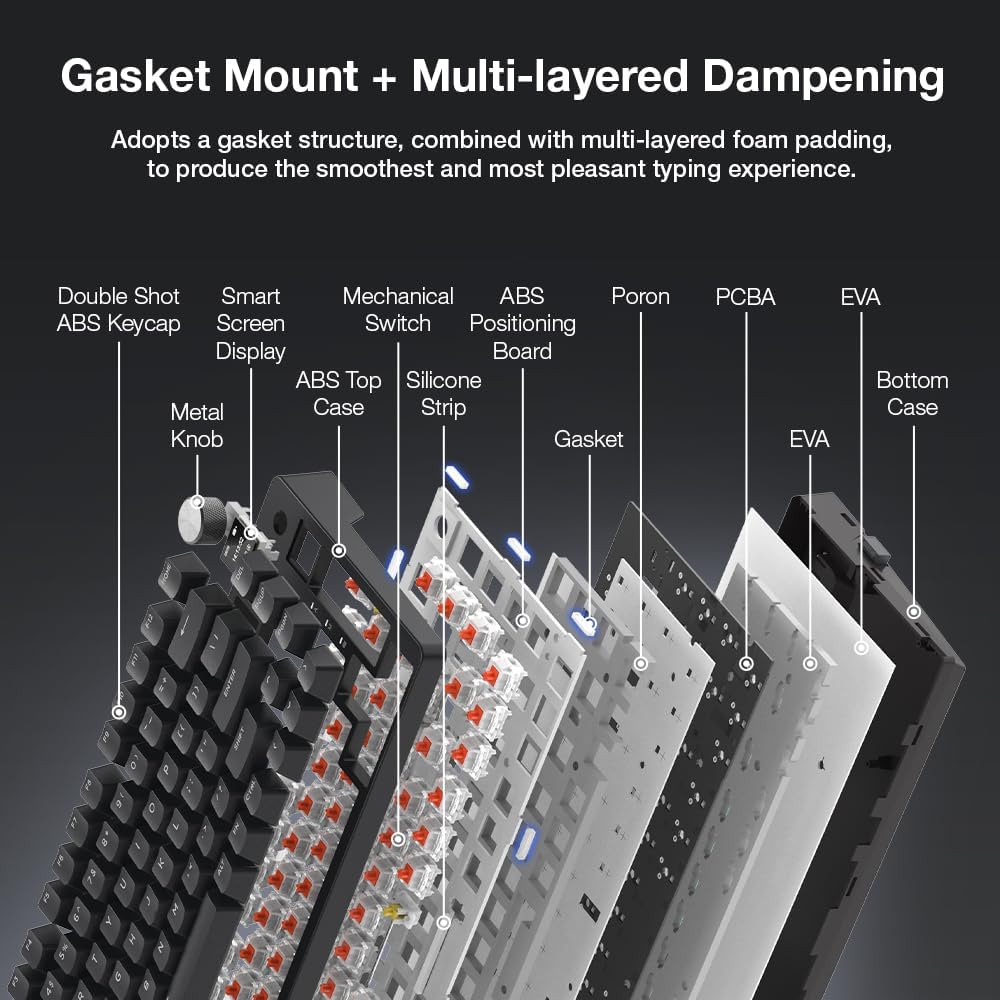
Image 3.1: Exploded diagram illustrating the gasket mount and multi-layered dampening components, including the metal knob, double shot ABS keycaps, smart screen display, ABS top case, silicone strip, mechanical switch, ABS positioning board, gasket, Poron, PCBA, EVA, and bottom case.
3.2. TFT Display and Multifunction Knob
An integrated TFT display provides visual feedback for various settings and system information. A dedicated multifunction knob allows for quick adjustments to volume, brightness, and mode selection.

Image 3.2: Close-up of the customizable TFT LCD display and the multifunction knob, alongside a representation of the dedicated software interface for customization.
3.3. Three Modes of Connectivity
The keyboard supports three connectivity options: wired via USB-C, 2.4GHz wireless via a dedicated dongle, and Bluetooth 5.0. This allows for versatile use across different devices and setups.
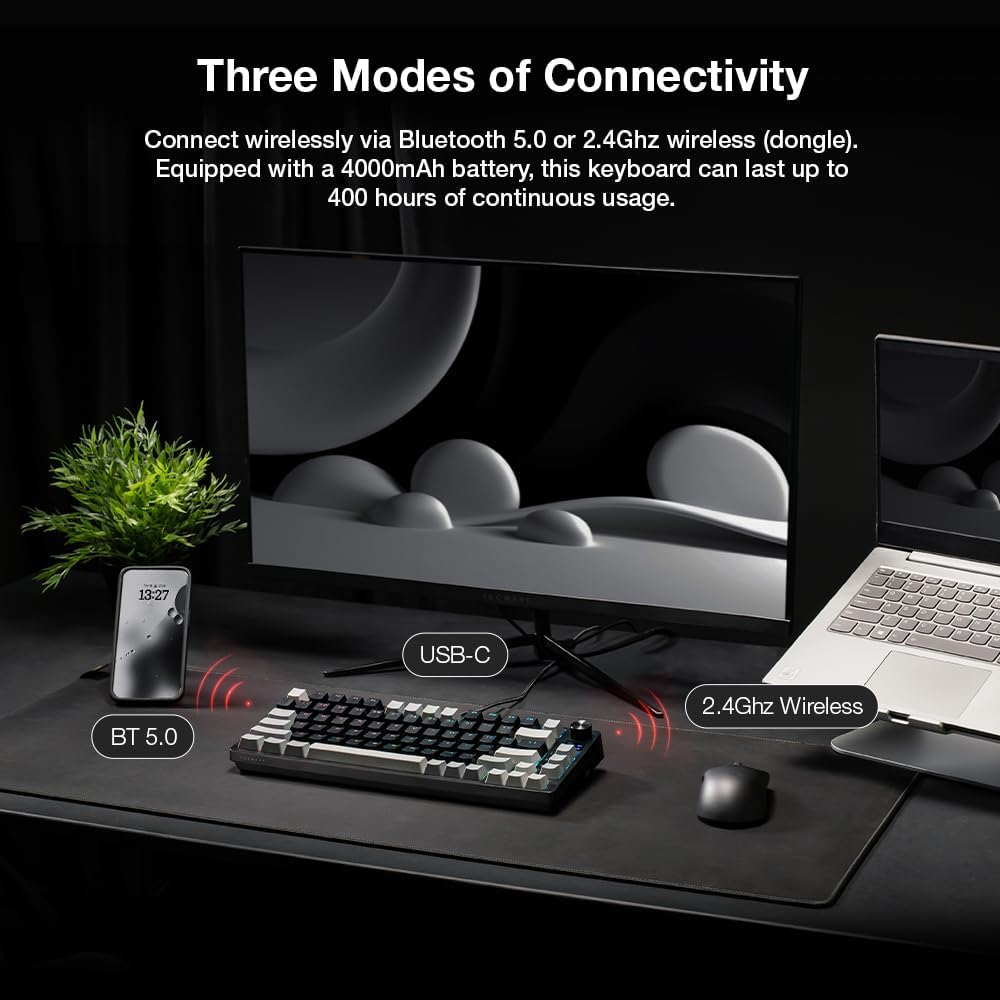
Image 3.3: Illustration of the three connectivity modes: Bluetooth 5.0, USB-C wired connection, and 2.4GHz wireless via a dongle, demonstrating its versatility with various devices.
3.4. Lubed & Tuned Tecware Custom Switches
Equipped with north-facing, pre-lubed Tecware Wraith Red switches, the keyboard offers smooth and consistent linear keystrokes. The switches are tuned for optimal performance and aligned with key legends for clear shine-through effects.
- Actuation Force: 45 ± 8gf
- Bottom Out Force: 60 ± 8gf
- Total Travel Distance: 3.6 ± 0.2mm
- Type: Linear

Image 3.4: Detailed view of the Tecware Wraith Red linear switches, highlighting their pre-lubed nature and key specifications.
3.5. Double Shot ABS Keycaps and Adjustable Feet
The keyboard features durable double shot ABS keycaps designed for longevity. Adjustable feet allow users to customize the typing angle for ergonomic comfort.

Image 3.5: Views of the keyboard's side profile, illustrating the OEM keycap profile and the adjustable feet for ergonomic customization.
3.6. Long Battery Life
Equipped with a 4000mAh battery, the keyboard offers extended usage times, up to 400 hours of continuous use, minimizing the need for frequent recharging.
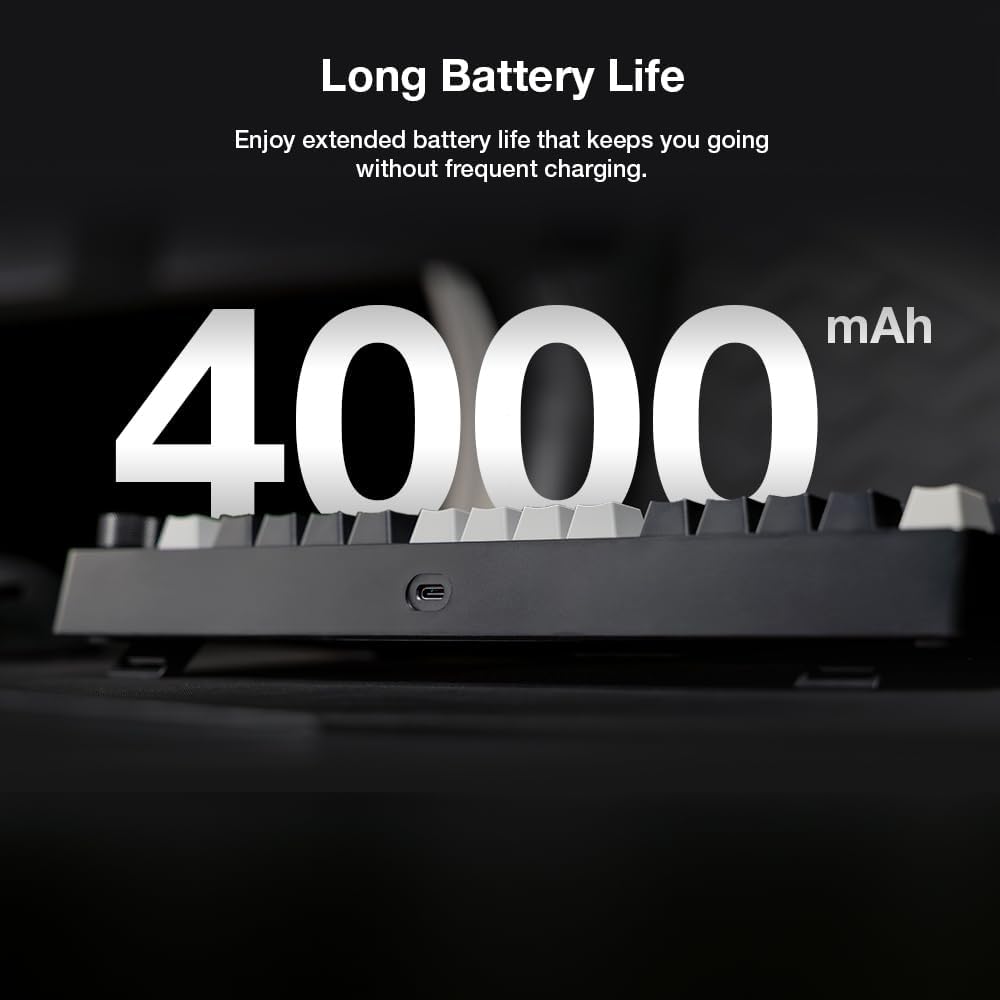
Image 3.6: Visual representation emphasizing the 4000mAh battery capacity of the keyboard, indicating extended battery life.
4. Setup
4.1. Initial Charging
Before first use, connect the keyboard to a USB power source using the provided USB-C cable. The TFT display will indicate charging status. A full charge is recommended for optimal battery performance.
4.2. Connecting via USB-C (Wired Mode)
- Locate the USB-C port on the keyboard.
- Connect one end of the USB-C cable to the keyboard and the other end to an available USB-A port on your computer.
- The keyboard will be automatically recognized by your operating system.
4.3. Connecting via 2.4GHz Wireless
- Locate the 2.4GHz wireless dongle, typically stored in a compartment on the keyboard.
- Insert the dongle into an available USB-A port on your computer.
- On the keyboard, switch the connectivity mode to 2.4GHz (refer to the operating section for mode switching instructions).
- The keyboard should connect automatically.
4.4. Connecting via Bluetooth 5.0
- On the keyboard, switch the connectivity mode to Bluetooth (refer to the operating section for mode switching instructions).
- The keyboard will enter pairing mode, indicated on the TFT display.
- On your device (computer, tablet, smartphone), open Bluetooth settings and search for new devices.
- Select "TECWARE Phantom S" from the list of available devices to pair.
5. Operating Instructions
5.1. Basic Keyboard Functions
The keyboard functions as a standard 75% layout mechanical keyboard. All keys perform their labeled functions. Utilize the Fn key in combination with other keys for secondary functions, typically indicated by smaller icons or text on the keycaps.
5.2. Using the Multifunction Knob
The knob located on the top right of the keyboard provides quick control over various settings:
- Rotate: Adjusts volume by default. Can be customized via software for brightness control or other functions.
- Press: Mutes/unmutes audio by default. Can be customized via software for mode switching or other functions.
5.3. TFT Display Functions
The TFT display provides real-time information and allows for customization:
- Indicators: Displays battery level, connectivity mode (wired, 2.4GHz, BT), Caps Lock, Num Lock, etc.
- Customization: Through the dedicated TECWARE software, you can upload custom animations (GIFs), set up keyboard profiles, and control RGB lighting effects directly on the display.
5.4. Software Installation and Usage
For advanced customization of the TFT display, key assignments, macros, and RGB lighting, download and install the dedicated TECWARE Phantom S software from the official TECWARE website. The software provides a graphical interface for managing keyboard settings.
Note: Ensure your keyboard is connected to the computer (preferably via USB-C) when using the software for firmware updates and settings synchronization.
6. Maintenance
6.1. Cleaning the Keyboard
- Disconnect the keyboard from all power sources before cleaning.
- Use a soft, lint-free cloth slightly dampened with water or a mild cleaning solution to wipe the keycaps and casing.
- For deeper cleaning, use the provided keycap puller to remove keycaps and a can of compressed air to clear debris from beneath them.
- Avoid using harsh chemicals or abrasive materials that could damage the keyboard's finish or keycap legends.
6.2. Switch Replacement (Hot-Swappable)
The TECWARE Phantom S features hot-swappable switches, allowing for easy replacement without soldering.
- Using the provided keycap puller, gently remove the desired keycap.
- Using the provided switch puller, carefully grip the switch from its top and bottom clips and pull it straight up.
- Align the pins of the new switch with the holes on the PCB. Ensure the pins are straight.
- Gently press the new switch into place until it clicks securely. Do not force it.
- Replace the keycap.
7. Troubleshooting
7.1. Keyboard Not Responding
- Wired: Ensure the USB-C cable is securely connected to both the keyboard and the computer. Try a different USB port or cable.
- 2.4GHz Wireless: Ensure the dongle is properly inserted and the keyboard is in 2.4GHz mode. Try re-pairing by switching modes.
- Bluetooth: Ensure Bluetooth is enabled on your device and the keyboard is in Bluetooth pairing mode. Re-pair the device if necessary.
- Battery: Check the battery level on the TFT display. Charge the keyboard if the battery is low.
7.2. RGB Backlighting Not Working/Incorrect
- Check keyboard shortcuts for RGB control (often Fn + arrow keys or specific function keys).
- Ensure the brightness is not set to zero.
- Use the TECWARE software to adjust or reset RGB settings.
7.3. TFT Display Issues
- If the display is blank, ensure the keyboard is powered on and charged.
- If custom animations are not displaying correctly, verify the file format and size requirements in the TECWARE software.
- Try resetting the keyboard settings via the software.
7.4. Keys Not Registering
- Remove the keycap and switch for the affected key. Inspect the switch pins for bends or damage. Straighten bent pins carefully or replace the switch if damaged.
- Ensure the switch is fully seated in the PCB.
8. Specifications
| Model | Phantom S (Red Switch Linear) |
| Layout | 75% (80-key) |
| Switch Type | Tecware Wraith Red (Linear, Hot-swappable) |
| Connectivity | USB-C Wired, 2.4GHz Wireless, Bluetooth 5.0 |
| Battery Capacity | 4000mAh |
| Keycaps | Double Shot ABS |
| Display | TFT Display |
| Dimensions | 14.57 x 7.32 x 2.2 inches |
| Item Weight | 2.29 pounds |
| Compatible Devices | PC |
| UPC | 810072523778 |
9. Warranty and Support
9.1. Warranty Information
TECWARE products are covered by a limited warranty against manufacturing defects. The specific terms and duration of the warranty may vary by region and retailer. Please retain your proof of purchase for warranty claims.
9.2. Customer Support
For technical assistance, warranty inquiries, or further information, please visit the official TECWARE website or contact their customer support channels. Contact details can typically be found on the TECWARE website or on the product packaging.

