
1. Introduction
This manual provides detailed instructions for the VGN F1 Pro Max Wireless Gaming Mouse. Please read this guide thoroughly before using the product to ensure proper setup, operation, and maintenance. This mouse offers dual-mode connectivity (2.4GHz wireless and Type-C wired), a high-precision sensor, and programmable buttons for an optimized user experience.
2. What's in the Box
Verify that all components are present in the package:
- 1 x VGN F1 Pro Max Gaming Mouse
- 1 x USB Receiver (for 2.4GHz wireless connection)
- 1 x Type-C Charging Cable
- 1 x PTFE Feet (replacement set)
- 1 x User Manual
- 1 x Extender (for USB receiver)
- 1 x Grip Tape
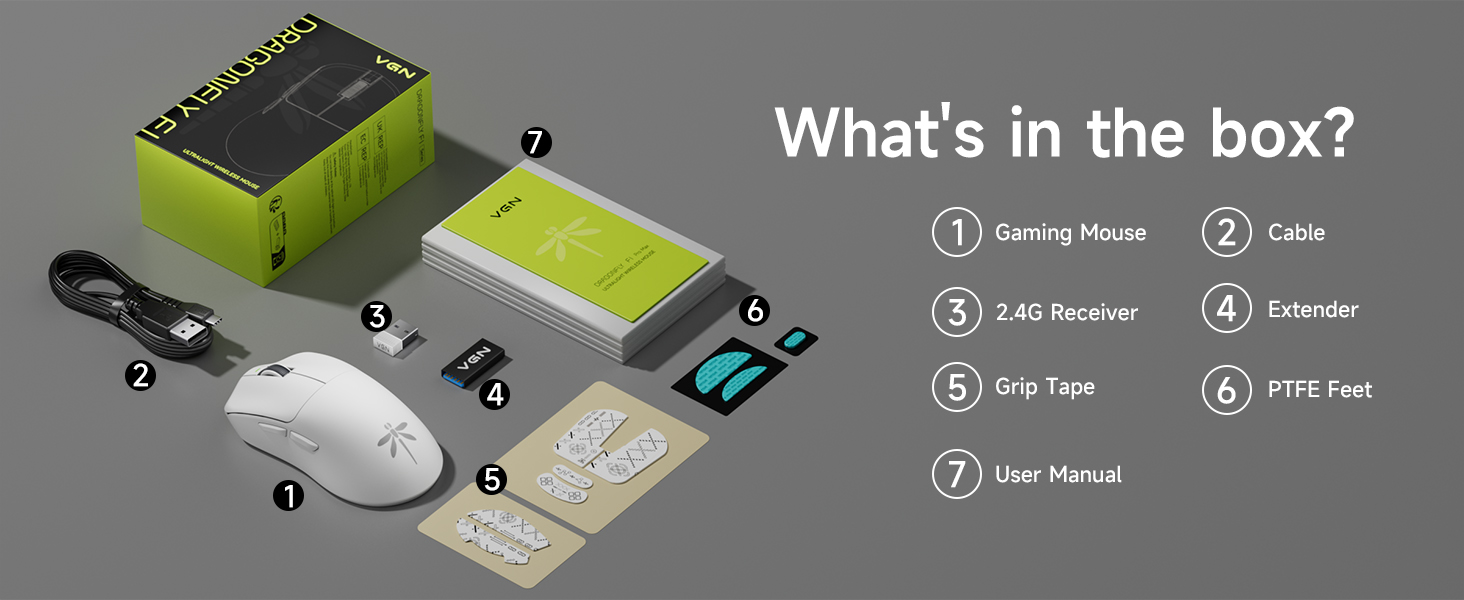
Image: Contents of the VGN F1 Pro Max package.
3. Product Features
3.1. PAW 3395 Sensor
The VGN F1 Pro Max is equipped with a PAW 3395 sensor, offering high precision and responsiveness. It features 650 IPS (Inches Per Second) tracking speed and 50G acceleration. The DPI (Dots Per Inch) is adjustable from 50 to 26,000. The default polling rate is 1,000Hz, with support for up to 4,000Hz with a separately purchased 4K receiver.
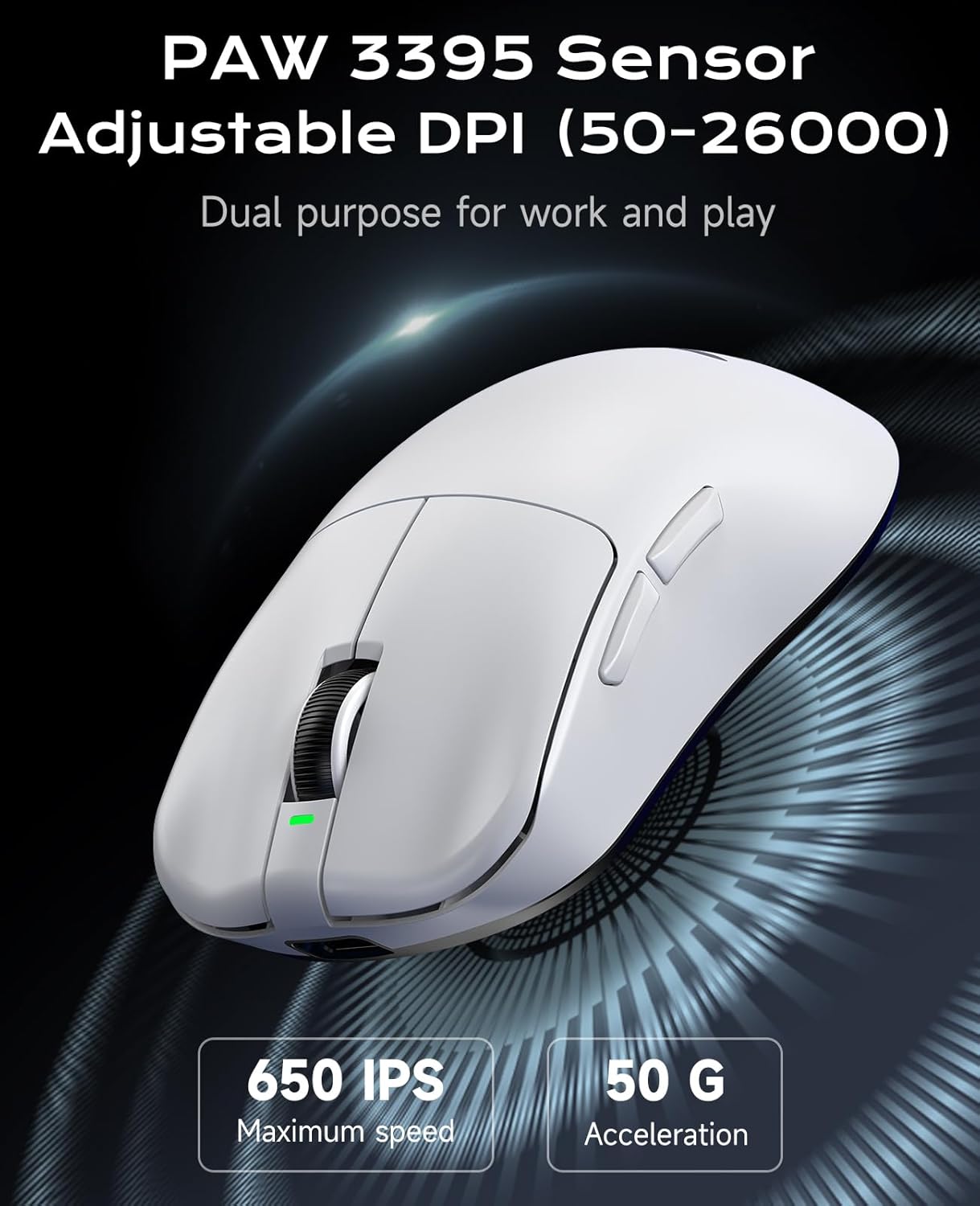
Image: PAW 3395 Sensor capabilities.
3.2. Black Gold Mamba Micro Motion Switches
This mouse utilizes Black Gold Mamba Micro Motion switches, designed for a distinct click feel with clear feedback and rapid rebound. These switches have a long lifespan of over 90 million clicks, making them suitable for demanding gaming scenarios.

Image: Black Gold Mamba Micro Motion switches.
3.3. Ultra-Lightweight Design
Weighing approximately 55g, the F1 Pro Max mouse features an ultra-lightweight design. This construction aims to reduce hand fatigue during extended use and enhance maneuverability.

Image: Ultra-lightweight design of the mouse.
3.4. Dual-Mode Connectivity
The mouse supports both 2.4GHz wireless connectivity via a USB receiver and wired connectivity via a Type-C cable. This allows for flexible usage depending on user preference and charging needs.
3.5. Extended Battery Life
Utilizing Smart Speed Wireless technology, the F1 Pro Max offers a continuous working battery life ranging from 130 hours to a maximum of 200 hours, depending on usage patterns.
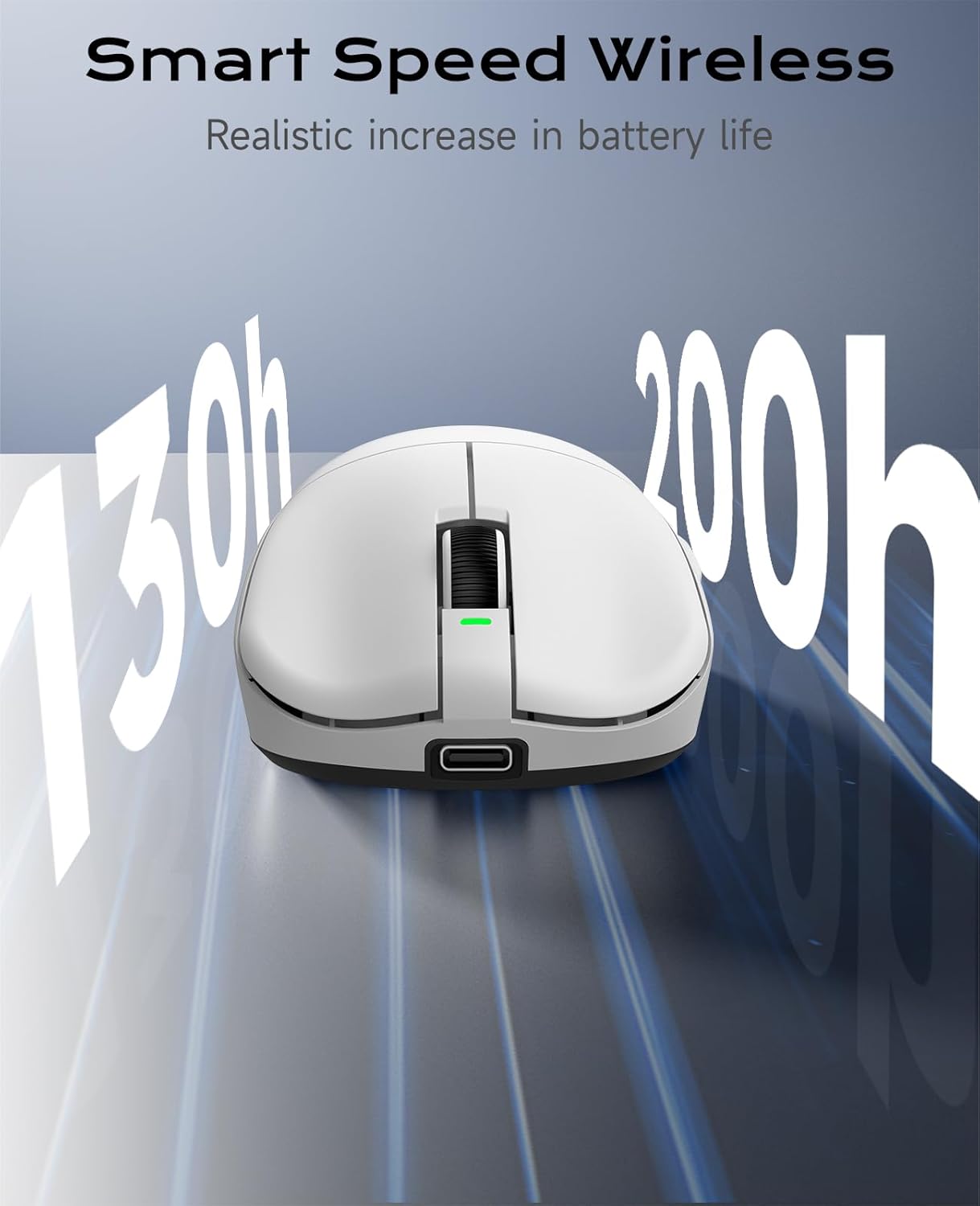
Image: Smart Speed Wireless for extended battery life.
4. Setup
4.1. Wireless Connection (2.4GHz)
- Locate the USB receiver stored in the compartment on the underside of the mouse.
- Plug the USB receiver into an available USB port on your computer.
- Turn on the mouse using the Power Switch located on the underside.
- The mouse should automatically connect to your computer.
4.2. Wired Connection (Type-C)
- Connect one end of the provided Type-C charging cable to the Type-C interface on the front of the mouse.
- Connect the other end of the cable to an available USB port on your computer.
- The mouse will function in wired mode and charge simultaneously.

Image: Wireless and Wired connection options.
5. Operating Instructions
5.1. Button Functions
The VGN F1 Pro Max mouse features 6 programmable buttons:
- Left Button: Primary click function.
- Right Button: Secondary click function.
- Scroll Wheel: Scrolls content up/down. Can also be pressed for a middle-click function.
- Forward Button: Navigates forward in web browsers or applications.
- Backward Button: Navigates backward in web browsers or applications.
- DPI Button: Cycles through preset DPI levels.
5.2. Power Switch and Receiver Storage
On the underside of the mouse, you will find:
- Power Switch: To turn the mouse ON or OFF.
- Receiver Storage Slot: A secure compartment for storing the USB receiver when not in use or during travel.

Image: Multi-function buttons and underside components.
6. Customization (VGN HUB Driver)
The VGN HUB custom driver software allows for advanced configuration of your F1 Pro Max mouse. This software enables you to:
- Adjust DPI settings.
- Modify the polling rate.
- Assign custom functions to macro keys.
- Program various other settings.
Note: The VGN HUB software is compatible only with Windows 10 and above operating systems. Please visit the official VGN website to download the latest driver software.
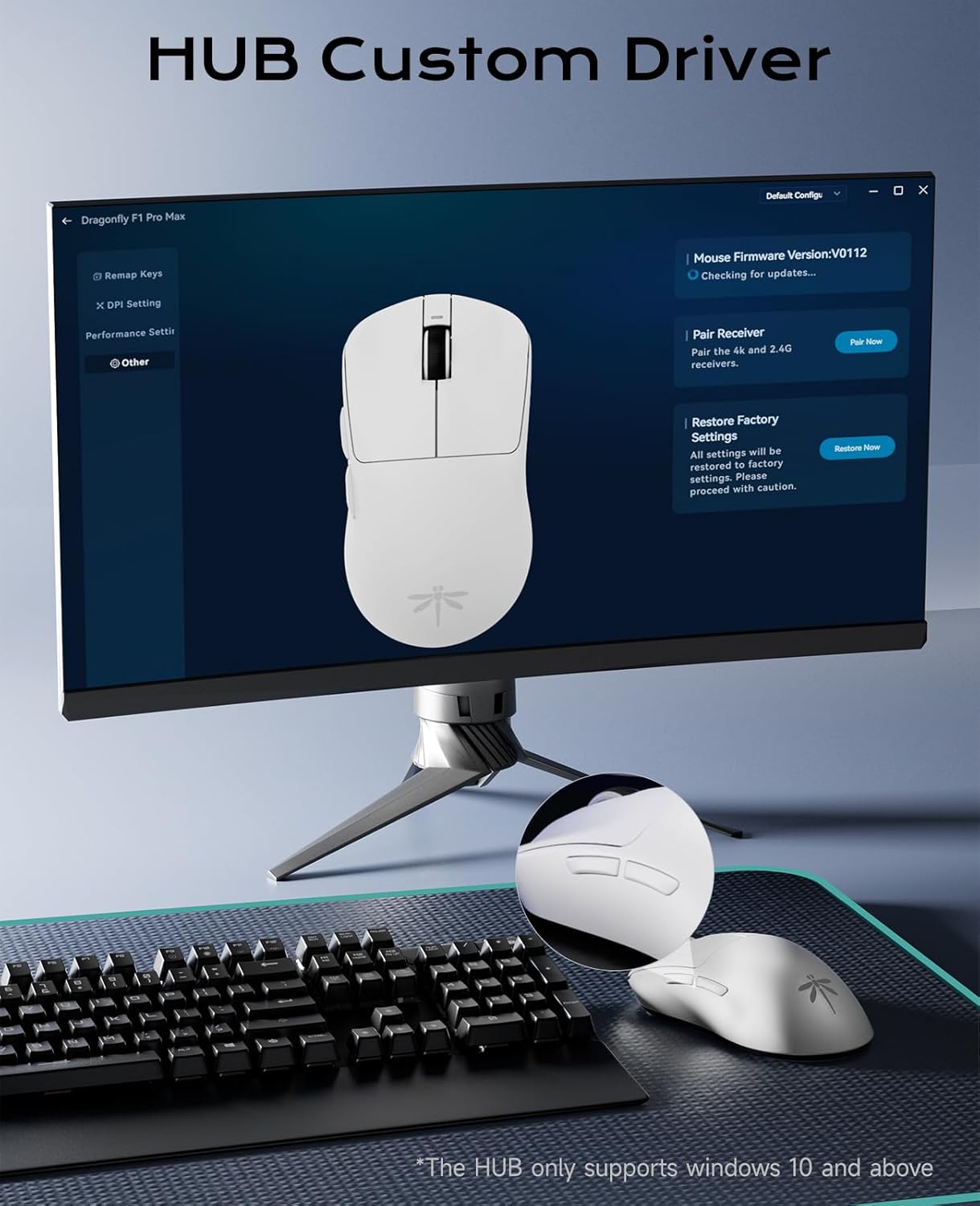
Image: VGN HUB custom driver interface.
7. Charging and Battery Life
7.1. Charging the Mouse
To charge the mouse, connect the provided Type-C cable to the mouse's Type-C port and the other end to a USB power source (e.g., computer USB port, USB wall adapter). The mouse can be used in wired mode while charging.
7.2. Battery Indicator
The charging indicator light provides information about the battery status:
- Green: Battery normal.
- Orange: Device is charging.
- Red: Battery low.
8. Maintenance
To ensure the longevity and optimal performance of your VGN F1 Pro Max mouse:
- Keep the mouse clean by wiping it with a soft, dry cloth. Avoid using harsh chemicals or abrasive materials.
- Ensure the optical sensor on the underside is free from dust and debris for accurate tracking.
- Store the USB receiver in its designated slot when transporting the mouse to prevent loss.
- If using the included grip tape, ensure it is applied cleanly to prevent residue buildup.

Image: Mouse with optional anti-slip tape.
9. Troubleshooting
9.1. Mouse Not Responding
- Ensure the mouse is turned ON using the power switch.
- For wireless mode, check if the USB receiver is securely plugged into a working USB port. Try a different USB port.
- For wired mode, ensure the Type-C cable is properly connected to both the mouse and the computer.
- Check the battery level. If low, connect the charging cable.
- Restart your computer.
9.2. Erratic Cursor Movement
- Clean the optical sensor on the underside of the mouse.
- Ensure you are using the mouse on a suitable surface (e.g., a mouse pad).
- Interference from other wireless devices might affect performance. Try moving the receiver closer to the mouse or using a wired connection.
9.3. Buttons Not Functioning
- Check if the VGN HUB software has remapped the buttons incorrectly. Reset to default settings if necessary.
- Ensure the mouse firmware is up to date via the VGN HUB software.
10. Specifications
| Model | F1 Pro Max |
| Connectivity | 2.4GHz Wireless, Type-C Wired |
| Sensor | PAW 3395 Optical Sensor |
| DPI Range | 50 - 26,000 (Adjustable) |
| IPS | 650 |
| Acceleration | 50G |
| Polling Rate | 1,000Hz (up to 4,000Hz with optional receiver) |
| Switches | Black Gold Mamba Micro Motion (90M+ clicks) |
| Buttons | 6 Programmable Buttons |
| Battery Life | 130-200 hours (continuous use) |
| Weight | Approximately 55g |
| Product Dimensions | 4.77 x 2.5 x 0.1 inches |
| OS Compatibility (VGN HUB) | Windows 10 and above |
11. Warranty and Support
For warranty information and technical support, please refer to the documentation included with your purchase or visit the official VGN website. Keep your proof of purchase for any warranty claims.


