
FOXWELL BT630
FOXWELL BT630 Smart Battery Monitor User Manual
Model: BT630
1. Introduction
The FOXWELL BT630 is a sophisticated Bluetooth Smart Shunt Battery Monitor designed for comprehensive battery management across various applications, including RVs, solar systems, marine vessels, and off-grid setups. It provides real-time data on battery voltage, current, power, capacity, temperature, and estimated runtime directly to your mobile device via the PRO BMS app. With support for up to 600A and 120V systems, the BT630 helps prevent overloads, extends battery life, and ensures safe operation of lithium, AGM, and other storage batteries.
This manual provides detailed instructions for the installation, operation, and maintenance of your BT630 battery monitor.

Figure 1.1: FOXWELL BT630 Battery Monitor and its corresponding mobile application interface, displaying real-time battery data.

Figure 1.2: The BT630 is compatible with diverse battery types (Li-ion, Pb-Acid, NiMH, Solar, AGM) and applications including boats, RVs, camping, household, cabins, and solar systems.
2. Safety Information
Always adhere to the following safety guidelines to prevent injury or damage to the device and connected systems:
- Power Disconnection: Always power off the battery system before installing or removing the BT630 monitor or any associated wiring. Failure to do so can result in electric shock or damage to the unit.
- Voltage and Current Limits: Ensure your battery system's voltage (10-120V) and current (up to 600A) are within the specified operating range of the BT630. Exceeding these limits can damage the device.
- Correct Wiring: Follow the wiring diagrams precisely. Incorrect connections can lead to short circuits, device malfunction, or battery damage. Pay close attention to positive and negative terminals.
- Environmental Conditions: Install the device in a dry, well-ventilated area, away from direct sunlight, extreme temperatures, and corrosive substances. The built-in temperature sensor and heat-resistant housing are designed for demanding electrical environments, but proper ventilation is still crucial.
- External Relay: For power-off protection features, an external relay (sold separately) is required. Ensure the relay is correctly rated for your system and wired according to instructions.
- Professional Installation: If you are unsure about any installation steps, consult a qualified electrician or technician.

Figure 2.1: The BT630 offers 8 security protection features, including safeguards against low voltage, over voltage, discharge over current, charging over current, over power, over temperature, low temperature, and low State of Charge (SoC).
3. Product Components
The FOXWELL BT630 package includes the following components:
- FOXWELL BT630 Shunt Battery Monitor Unit
- 600A Shunt
- Temperature Sensor
- Wiring Cables (4P and 3P shielded cables)
- User Manual (this document)

Figure 3.1: Contents of the FOXWELL BT630 package, showing the main unit, shunt, temperature sensor, and connecting cables, along with dimensions.
4. Setup and Installation
The BT630 is designed for straightforward installation. Always ensure the battery system is powered off before beginning installation.
4.1 Wiring Instructions
The BT630 can be powered in two modes: VSNS (self-power supply) or VEXT (external power supply). The shunt must be installed on the negative side of your battery circuit.
- Shunt Installation: Connect the 600A shunt to the negative terminal of your battery bank. All loads and chargers must be connected to the "LOAD-" side of the shunt, and the battery negative to the "BATT-" side.
- Temperature Sensor: Connect the temperature sensor to the designated port on the BT630 unit and attach the sensor to the battery for accurate temperature monitoring.
- Power Supply Mode Selection:
- VSNS Mode (Self-Power Supply): Flip the rear switch on the BT630 to the VSNS position. This mode allows the unit to draw power directly from the battery being monitored. This is the recommended mode for most installations.
- VEXT Mode (External Power Supply): If using an external DC power supply (e.g., 12V auxiliary power), flip the rear switch to the VEXT position. Connect the external power supply to the VEXT terminals. This mode is typically used when the main battery voltage is outside the BT630's operating range or for specific system configurations.
- Signal Cable Connection: Connect the provided shielded 4P and 3P cables from the shunt to the corresponding ports on the BT630 unit. Ensure connections are firm to reduce interference.
- RS-485 Expansion (Optional): For advanced users, the built-in RS-485 interface supports long-distance data transmission and integration into existing battery monitoring networks. Refer to the RS-485 protocol documentation for detailed setup.

Figure 4.1: Wiring diagram for the FOXWELL BT630 in VSNS (self-power supply) mode, showing connections to the battery, shunt, charger, and load.

Figure 4.2: Wiring diagram for the FOXWELL BT630 in VEXT (external power supply) mode, illustrating the connection of an external DC power source.
4.2 App Installation and Initial Setup
Download the "PRO BMS" app from your mobile device's app store (iOS or Android). Once installed, follow these steps:
- Power On: After completing all wiring, power on your battery system. The BT630 unit should power up.
- Bluetooth Connection: Open the PRO BMS app. The app will scan for nearby BT630 devices. Select your device from the list to establish a Bluetooth connection.
- Initial Settings: For initial use, you must configure the following parameters within the app:
- Battery Capacity: Enter the total Amp-hour (Ah) capacity of your battery bank.
- Full Charge Voltage: Set the voltage at which your battery is considered fully charged.
- Detection Time of Full Charge: Define the duration the battery must remain at full charge voltage for the system to recognize it as 100% SoC.
- Tail Current: Set the minimum current threshold below which the battery is considered fully charged (e.g., 0.5% of capacity).
- Auto Calibration: After a full charge cycle and initial setup, the BT630's State of Charge (SoC) will automatically calibrate to 100%.

Figure 4.3: Screenshots of the PRO BMS app illustrating the initial setup process for battery capacity, full charge voltage, detection time, and tail current.
4.3 Calibration
The BT630 features both automatic and manual calibration options to ensure high accuracy.
- Auto Calibration (SoC): The intelligent patented algorithm automatically corrects SoC drift, maintaining an error margin of ±0.4%. This happens automatically after a full charge.
- Manual Calibration (Voltage, Current, Temperature): For enhanced precision, you can manually calibrate voltage, current, and temperature readings within the PRO BMS app. This involves comparing the BT630's readings with a trusted external measurement device and adjusting accordingly.

Figure 4.4: Illustration of the BT630's dual calibration capabilities, showing both automatic SoC correction and manual adjustment options for voltage, current, and temperature.
5. Operating Instructions
The PRO BMS app is your primary interface for monitoring and managing your battery system.
5.1 Real-Time Monitoring
The main dashboard of the PRO BMS app displays critical battery data in real-time:
- State of Charge (SoC): Percentage of remaining battery capacity.
- Remaining Capacity: Available Amp-hours (Ah).
- Estimated Time of Use: Predicted runtime based on current discharge rate.
- Voltage (V): Current battery voltage.
- Current (A): Real-time current flow (positive for charging, negative for discharging).
- Power (W): Instantaneous power consumption or generation.
- Temperature (°C/°F): Battery temperature, monitored by the external sensor.
- Cumulative Charge/Discharge: Total energy charged and discharged over time.

Figure 5.1: The PRO BMS app's main screen, showing real-time data points such as Voltage, Current, Battery Level, Remaining Capacity, Estimated Time of Use, and Estimated Full Time.
5.2 Smart Threshold Alerts
The BT630 allows you to set custom thresholds for various parameters. If a value moves outside your defined safe range, the app will trigger an instant notification, helping prevent battery damage.
- Configurable Alerts: Set alerts for:
- Over Voltage (OVP)
- Low Voltage (LVP)
- Over Power (OPP)
- Low State of Charge (Low SoC)
- Charging Over Current (NCP)
- Discharge Over Current (OCP)
- Over Temperature (OTP)
- Low Temperature (LTP)
- Notifications: Receive immediate notifications on your mobile device when an alert condition is met.

Figure 5.2: The PRO BMS app's alert settings, showing various protection options like Over Voltage, Low Voltage, and Over Current, with customizable thresholds and pop-up notifications.
5.3 Historical Data Analysis
The BT630 stores up to 30 days of historical data, allowing you to review trends and identify potential issues.
- Trend Charts: View voltage, current, and temperature data over time in clear graphical charts.
- Data Review: Analyze past performance to understand usage patterns, diagnose intermittent problems, and optimize your energy consumption.

Figure 5.3: The PRO BMS app displaying historical data charts for voltage, current, and temperature, allowing users to track trends over 30 days.
6. Maintenance
Regular maintenance ensures the longevity and accuracy of your FOXWELL BT630 battery monitor.
- Cleaning: Periodically clean the exterior of the BT630 unit and shunt with a dry, soft cloth. Do not use harsh chemicals or abrasive cleaners. Ensure no dust or debris accumulates around the terminals.
- Connection Check: Regularly inspect all wiring connections to ensure they are secure and free from corrosion. Loose connections can lead to inaccurate readings or system instability.
- Firmware Updates: Check the PRO BMS app or the FOXWELL website for any available firmware updates for your BT630. Updates can improve performance, add features, or fix bugs. Follow the instructions provided with the update carefully.
- Long-Term Monitoring: The BT630 is designed for ultra-low power consumption (approx. 0.4W), allowing for extended monitoring periods without significantly draining your battery. For seasonal or long-term storage, ensure the battery is maintained at an appropriate charge level as recommended by the battery manufacturer.
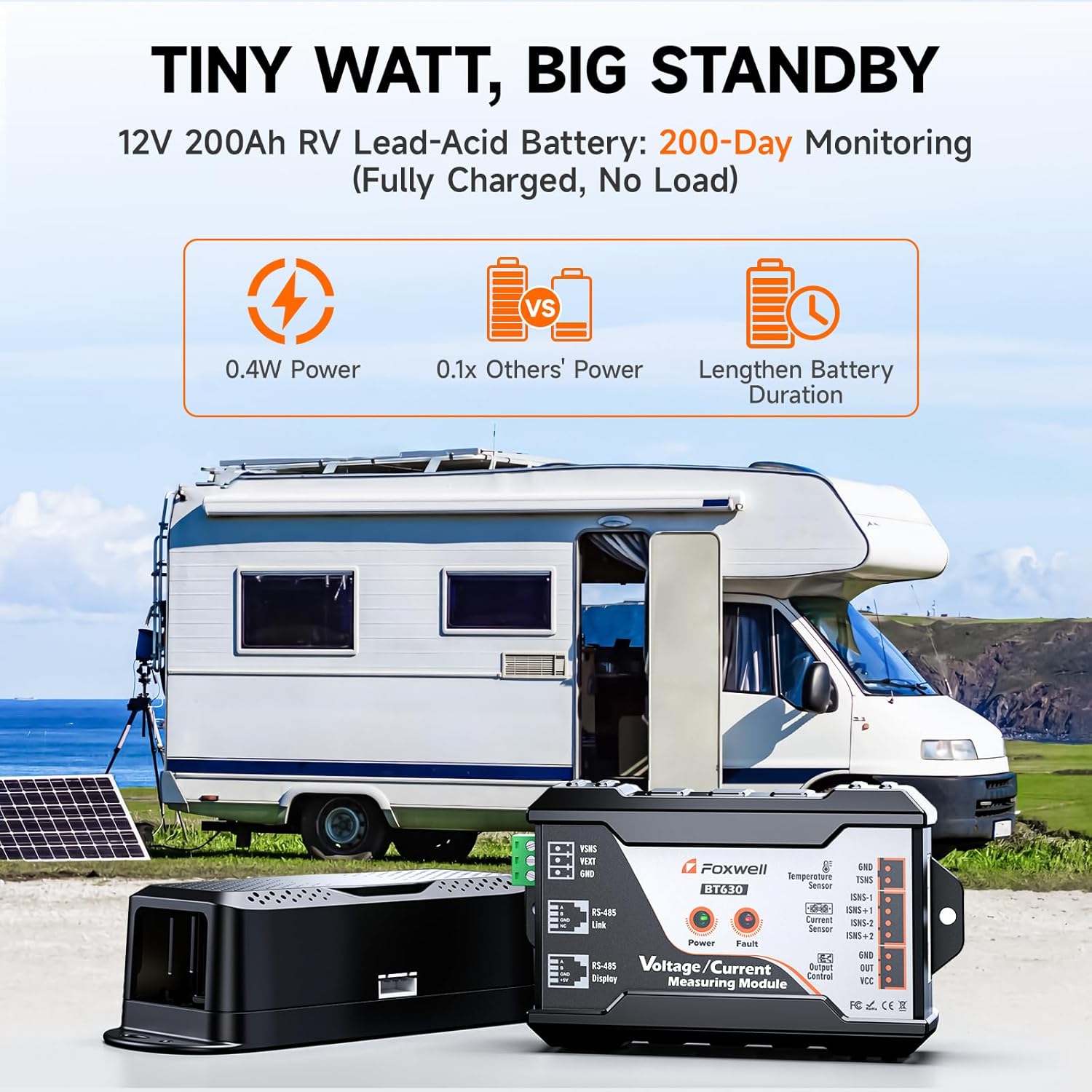
Figure 6.1: The BT630's ultra-low power consumption (0.4W) enables long-term monitoring, extending battery duration compared to other monitors.
7. Troubleshooting
This section addresses common issues you might encounter with your BT630 battery monitor.
| Problem | Possible Cause | Solution |
|---|---|---|
| Device not powering on. |
|
|
| Bluetooth connection issues. |
|
|
| Inaccurate readings (Voltage, Current, SoC). |
|
|
| No alerts received. |
|
|
8. Specifications
Technical specifications for the FOXWELL BT630 Battery Monitor:
| Parameter | Value |
|---|---|
| Working Voltage | 10-120V |
| Working Current | 0-600A |
| Battery Capacity Range | 0-9999.99Ah |
| Voltage Accuracy | ± 0.4% |
| Current Accuracy | ± 0.4% |
| Power Range | 0-72KW |
| Temperature Range | -4°F to 248°F (-20°C to 120°C) |
| Shunt Size | 5.12" x 1.93" x 1.49" |
| Bluetooth Communication Distance | Up to 33ft (10 meters) |
| Measuring Board Power Consumption | About 0.4W |
| Product Dimensions (Monitor Unit) | 4.33 x 2.55 x 1.1 inches |
| Item Weight | 0.92 Pounds (14.72 ounces) |

Figure 8.1: Overview of the FOXWELL BT630's technical specifications, including working voltage, current, accuracy, and dimensions.
9. Warranty and Support
FOXWELL products are designed for reliability and performance. For warranty information and technical support, please refer to the official FOXWELL website or contact their customer service directly. Keep your purchase receipt as proof of purchase for warranty claims.
For the latest information, FAQs, and additional resources, visit the official FOXWELL website: www.foxwelltech.com
Related documentsBT630


Ask a question about this manual
Ask about setup, troubleshooting, compatibility, parts, safety, or missing instructions. Manuals+ will review the question and use this page’s manual context to help answer it.