
1. Introduction
This manual provides detailed instructions for the installation, operation, and maintenance of your Yoidesu B85M-A Motherboard. Please read this manual thoroughly before proceeding with installation to ensure correct setup and optimal performance. The Yoidesu B85M-A is designed for reliable computing, supporting 4th generation Intel Core i3, i5, and i7 processors with an LGA 1150 socket, DDR3 memory, and various connectivity options.
2. Product Features
- CPU Compatibility: Features an LGA 1150 socket, supporting 4th generation Intel Core i7, i5, and i3 processors for robust performance across various computing tasks.
- Serial ATA M.2 Interface: Equipped with a Serial ATA M.2 NGFF M.2 interface supporting AHCI protocol, offering data transfer speeds up to 6Gbps. This provides an efficient alternative to traditional 2.5-inch SSDs.
- HD Video Output: Integrates dual high-performance display interfaces, VGA and HD Multimedia Interface (HDMI), supporting 1080p video and sound output for an enhanced multimedia experience.
- Efficient Power Interface: Designed with a 3+1 phase power supply, this DDR3 commercial motherboard ensures stable power delivery, crucial for demanding applications.
- Rugged Construction: Features a 4-layer PCB design for faster operating speeds, enhanced durability, and reduced susceptibility to damage. All solid capacitors ensure a stable power supply for uninterrupted CPU performance.
3. Package Contents
Verify that all items are present in the package:
- 1 x Yoidesu B85M-A Motherboard
- 1 x Metal I/O Plate
- 1 x SATA Connecting Cable
Note: Additional accessories such as drivers or manuals may be included.
4. Setup and Installation
Before beginning installation, ensure your system is powered off and disconnected from the power source. Handle the motherboard by its edges to avoid static discharge.
4.1. Motherboard Overview

Figure 4.1: Top-down view of the Yoidesu B85M-A Motherboard.
4.2. Installing the I/O Plate
First, install the metal I/O plate into the rear opening of your computer case. This plate provides the necessary cutouts for the motherboard's external ports.
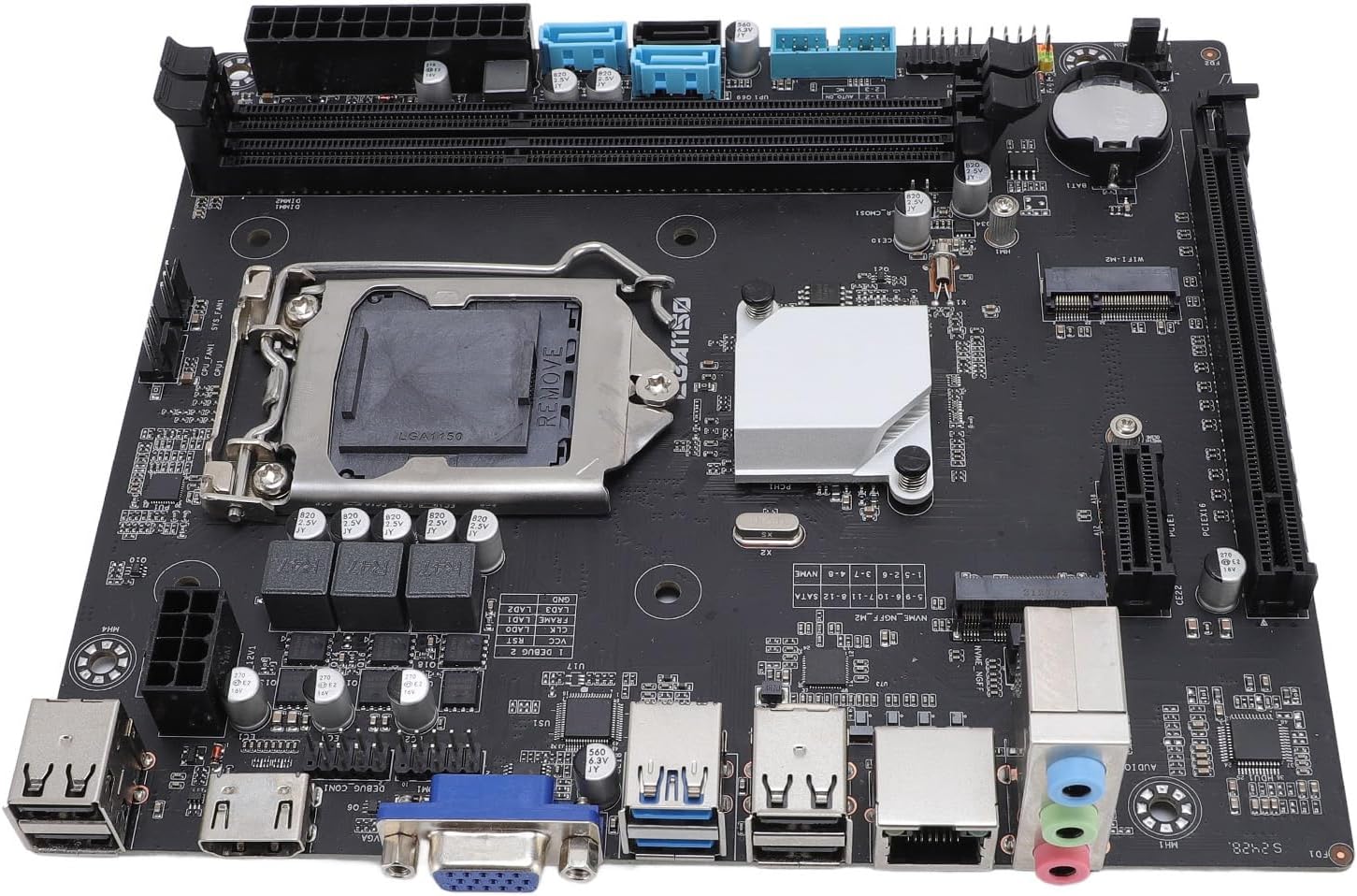
Figure 4.2: Rear I/O ports of the Yoidesu B85M-A Motherboard.
4.3. Motherboard Placement
Carefully align the motherboard with the standoffs inside your computer case. Ensure the I/O ports align with the openings in the I/O plate. Secure the motherboard with screws.
4.4. CPU Installation
Open the CPU socket lever. Carefully place your LGA 1150 CPU into the socket, ensuring the triangular markers on the CPU and socket align. Close the lever to secure the CPU.
4.5. Memory (RAM) Installation
The motherboard supports 2 x DDR3 memory modules. Open the clips on the RAM slots, insert the DDR3 modules firmly until the clips snap into place. Ensure proper orientation.
4.6. Storage Device Connection
Connect your SATA storage devices (HDDs/SSDs) to the SATA 3.0 ports using the provided SATA cable. If using an M.2 NVMe SSD, install it into the dedicated M.2 slot.

Figure 4.3: Serial ATA M.2 Interface.
4.7. Power Connections
Connect the 24-pin ATX power connector and the 4-pin ATX 12V power connector from your power supply to the corresponding ports on the motherboard.
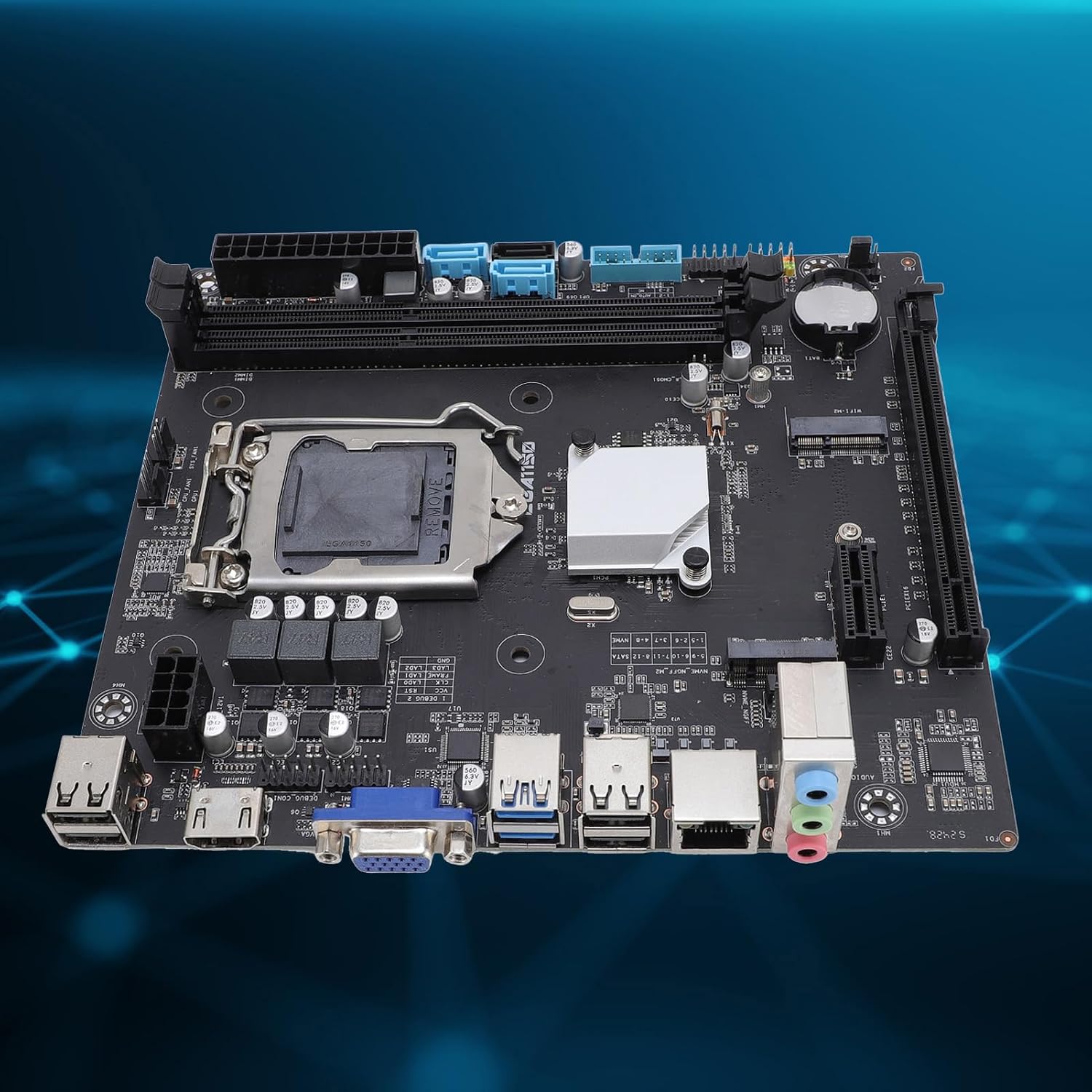
Figure 4.4: Efficient 3+1 Phase Power Interface.
4.8. Graphics Card Installation (Optional)
If using a dedicated graphics card, insert it into the PCI Express x16 slot and secure it. Connect any necessary PCIe power cables from your power supply to the graphics card.
4.9. Front Panel Connections
Connect the front panel headers (power button, reset button, USB ports, audio jacks, etc.) to their respective pins on the motherboard. Refer to the motherboard's silkscreen labels for correct pin assignments.
4.10. Driver Installation
After initial setup and operating system installation, install the necessary drivers for the motherboard chipset, audio, LAN, and other integrated components. These are typically provided on a driver CD or available for download from the manufacturer's website.
4.11. Visual Guide (Similar Model)
Video 4.1: This video demonstrates features of a similar LGA 1150 motherboard (SHANGZHAOYUAN H97 STRONG), including CPU socket, DDR3 memory slots, SATA ports, PCIe slot, and rear I/O. While not the exact B85M-A model, it provides a helpful visual reference for component identification and general layout.
5. Operating Instructions
5.1. First Boot
After all components are installed and connected, power on your system. The system should initiate the boot process. You may need to enter the BIOS/UEFI setup to configure boot order or other settings.
5.2. BIOS/UEFI Setup
To access the BIOS/UEFI, press the designated key (commonly DEL, F2, or F10) during the initial boot sequence. Here you can configure system settings, monitor hardware, and update firmware.
5.3. Operating System Installation
Install your preferred operating system from a bootable USB drive or DVD. Ensure all necessary drivers are installed post-OS installation for full functionality.
6. Maintenance
- Keep Clean: Regularly clean dust from inside your computer case, especially around the motherboard and CPU cooler, to prevent overheating. Use compressed air.
- Proper Ventilation: Ensure your computer case has adequate airflow to dissipate heat generated by components.
- BIOS/UEFI Updates: Periodically check the Yoidesu website for BIOS/UEFI updates. Updates can improve stability, compatibility, and performance. Follow manufacturer guidelines carefully when updating.
- Driver Updates: Keep your motherboard drivers updated to ensure optimal performance and compatibility with new software and hardware.
7. Troubleshooting
If you encounter issues, consider the following common troubleshooting steps:
- No Power: Check all power connections (24-pin ATX, 4-pin CPU, power supply to wall outlet). Ensure the power supply switch is on.
- No Display: Verify that the monitor is connected to the correct video output (motherboard or graphics card). Reseat the graphics card and RAM modules.
- System Instability/Crashes: Check for overheating (monitor temperatures in BIOS/UEFI). Ensure RAM modules are properly seated and compatible. Test with one RAM stick at a time.
- Peripheral Not Detected: Ensure USB devices, SATA drives, or other peripherals are correctly connected. Check device manager for driver issues.
- BIOS Reset: If system settings are incorrect, you can reset the BIOS to default settings. This is usually done via a jumper on the motherboard (refer to the motherboard diagram) or by removing the CMOS battery for a few minutes.
8. Specifications
| Feature | Specification |
|---|---|
| Item Type | Motherboard |
| Material | PCB+Metal |
| Motherboard Type | ATX |
| Motherboard Size | Approx. 167 x 187mm / 6.57 x 7.36in |
| CPU Socket | LGA 1150 |
| Compatible Processors | Intel Core i7-4xxx, Intel Core i5-4xxx, Intel Core i3-4xxx |
| Chipset Type | Intel B85 |
| Memory Slots | 2 x DDR3 |
| Maximum Memory Capacity | Up to 32GB |
| Hard Drive Interfaces | SATA3.0 x2, SATA2.0 x1, M.2 NGFF (AHCI protocol) |
| Graphics Card Slot | Supports Expansion PCIEX16 Graphics Card |
| Network Card | Gigabit Ethernet |
| Power Supply | 24PIN + ATX 4PIN |
| USB Interfaces | 2 x USB3.0 + 4 x USB2.0 (rear), USB3.0 Header x1, USB2.0 Header x1 (internal) |
| Built-in Battery | CR2032 x1 240mAh |
| Item Weight | 1.07 pounds |
| Package Dimensions | 8.27 x 7.87 x 2.36 inches |
9. Warranty and Support
For warranty information, please refer to the documentation included with your purchase or contact your retailer. For technical support, driver downloads, and further assistance, please visit the official Yoidesu brand store or contact their customer service.
Yoidesu Brand Store: https://www.amazon.com/stores/Yoidesu/page/9E42D849-CC6F-49C2-A653-8E737C09458E