
Introduction
This manual provides detailed instructions for the operation and maintenance of your TIMMKOO SR1 AI Voice Recorder. Please read this manual thoroughly before using the device to ensure proper functionality and to maximize its features. The TIMMKOO SR1 is a digital voice recorder equipped with advanced AI capabilities for transcription, summarization, and translation.
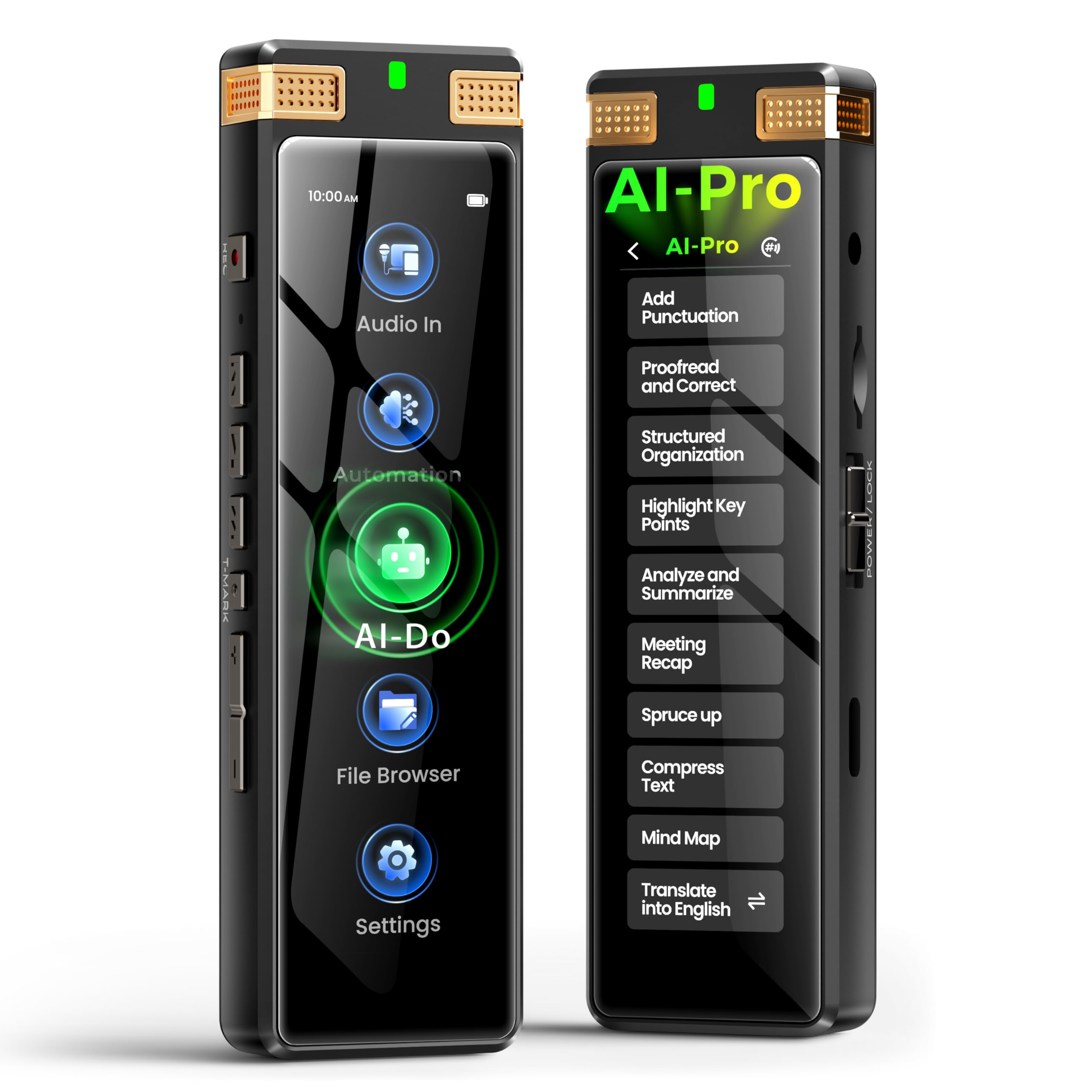
Image: The TIMMKOO SR1 AI Voice Recorder, a compact black device with a screen, shown from the front.
Product Overview
The TIMMKOO SR1 features a 3.7-inch high-definition touchscreen for intuitive navigation, complemented by traditional physical buttons for tactile control. It is designed for ease of use and versatility in various recording scenarios.

Image: A diagram illustrating the dual control options of the TIMMKOO SR1, showing both the physical buttons on the side and the touchscreen interface.
Key Components:
- Display: 3.7-inch high-definition touchscreen.
- Microphones: Dual high-precision built-in microphones.
- Controls: Touchscreen interface and physical buttons (REC, T-MARK, Play/Pause, Volume, Power/Lock).
- Ports: USB Type-C for charging and data transfer, 3.5mm headphone jack, external microphone input.
- Storage: 8GB internal storage, expandable via 128GB SD card (included), supports up to 1TB.
Setup
1. Charging the Device
Before first use, fully charge the TIMMKOO SR1.
- Connect the provided USB Type-C cable to the device's charging port.
- Connect the other end of the cable to a USB power adapter (not included) or a computer's USB port.
- The charging indicator will illuminate. A full charge typically takes approximately 2-3 hours.
- Once fully charged, the indicator light may change or turn off, depending on the device's status.
2. Power On/Off
- To Power On: Press and hold the Power/Lock button on the side of the device until the screen illuminates.
- To Power Off: Press and hold the Power/Lock button until a power-off prompt appears on the screen. Select "Power Off" to shut down the device.
- To Lock/Unlock Screen: Briefly press the Power/Lock button to lock or unlock the screen during operation.
3. Initial Configuration
Upon first power-on or after a factory reset, you may be prompted to set up basic device parameters.
- Language Selection: Choose your preferred operating language from the list.
- Date and Time: Set the current date and time for accurate recording timestamps.
- Wi-Fi Connection: Connect to a Wi-Fi network to enable online AI features and firmware updates.
Operating Instructions
1. Basic Recording
- From the main screen, tap the "Record" icon or press the dedicated REC button.
- The recording indicator will show that recording is in progress.
- To pause recording, tap the "Pause" icon on the screen or briefly press the REC button. Tap again to resume.
- To stop and save the recording, tap the "Stop" icon or press and hold the REC button. Confirm saving when prompted.
2. Recording Modes
The SR1 offers several preset recording modes to optimize audio capture for different environments.
- STT Boost: Optimized for speech-to-text conversion, ideal for lectures, meetings, and interviews in environments with background noise.
- Vocal Boost: Enhances vocal clarity, suitable for recording singing or spoken word where voice quality is paramount.
- Hi-Fi: High-fidelity recording for capturing a wide range of sounds with minimal compression, suitable for music or ambient recordings.

Image: Visual representation of the TIMMKOO SR1's multiple recording modes: STT Boost for large audiences, Vocal Boost for close-up speech, and Hi-Fi for musical performances.
3. Automated Recording
The SR1 supports hands-free recording through scheduled and voice-activated modes.
- Scheduled Recording: Set a specific time for the device to start and stop recording automatically. Access this feature in the settings menu.
- Voice-Activated Recording (VOR): The recorder will automatically start recording when sound is detected and pause when silence occurs, conserving storage space. Adjust sensitivity in settings.

Image: The TIMMKOO SR1 recorder on a bedside table, illustrating its unattended and voice-activated capture capabilities.
4. External Audio Input
For enhanced recording flexibility, the SR1 supports external microphones and line-in audio.
- External Microphone: Connect a 3.5mm TRS or TRRS microphone to the designated port for improved audio quality or directional recording.
- Line-in Audio: Use an AUX cable to connect the SR1 to an external audio source for direct recording.

Image: A diagram showing the TIMMKOO SR1 connected to various external audio sources, including an external microphone and an AUX cable for line-in input.
5. Playback
Access your recorded files through the "Files" or "Recordings" menu on the device.
- Select the desired recording to play.
- Use the on-screen controls or physical buttons to play, pause, fast forward, or rewind.
- Connect headphones to the 3.5mm jack for private listening.
6. AI Features: Transcription and Text Processing
The TIMMKOO SR1 integrates advanced AI technology for converting speech to text and processing textual content.
Offline Transcription:
The device supports offline speech-to-text conversion in up to 92 languages without requiring an internet connection. This ensures privacy as audio files are not uploaded.
- Post-Recording Transcription: Offers higher accuracy and broader language support. Select a recorded file and choose the transcription option.
- Real-Time Transcription: Provides faster transcription during recording with lower power consumption. Enable this feature in recording settings.

Image: Two TIMMKOO SR1 devices demonstrating the two ways of offline transcription: Post-Recording Trans for higher accuracy and Real-Time Trans for faster processing.
Online AI-Powered Text Processing:
When connected to Wi-Fi, the SR1 can leverage AI big data models for advanced text analysis and manipulation. Your audio files remain on the device; only the transcribed text is processed online.
- Proofreading and Correction: Improve the accuracy and grammar of transcribed text.
- Structured Organization: Organize text into logical sections.
- Analysis and Summarization: Generate concise summaries or extract key points from lengthy texts.
- Mind Mapping: Create visual mind maps from your notes.
- Meeting Recap: Automatically generate a summary of meeting discussions.
- Translation: Translate transcribed text into various target languages.

Image: A person using a laptop with the TIMMKOO SR1 connected, demonstrating the powerful AI-driven tools for text processing such as summarization, mind mapping, and translation.
7. Data Management
- Backup Feature: The SR1 automatically creates a duplicate of your recordings during the saving process to protect against data loss.
- File Transfer: Connect the device to a computer using the USB Type-C cable to transfer recorded audio files and transcribed text. The device will appear as a removable storage drive.
- External Audio Import: The SR1 allows importing external audio files (MP3, MKA, OGG, AAC, WAV, MP2, AMR) for playback, transcription, and AI processing.

Image: The TIMMKOO SR1 resting on a laptop, highlighting its 1100mAh battery and 8GB internal storage plus 128GB SD card for large capacity and long battery life.
Maintenance
- Cleaning: Use a soft, dry cloth to clean the device's exterior. Avoid liquid cleaners or abrasive materials.
- Storage: Store the device in a cool, dry place away from direct sunlight, extreme temperatures, and humidity.
- Battery Care: To prolong battery life, avoid fully discharging the battery frequently. If storing for an extended period, charge the device to about 50% and recharge every few months.
- Software Updates: Periodically check for firmware updates through the device settings to ensure optimal performance and access to new features.
Troubleshooting
| Issue | Possible Solution |
|---|---|
| Device does not power on. | Ensure the battery is charged. Connect to a power source and try again. If unresponsive, perform a hard reset (refer to manufacturer's support for specific instructions). |
| Poor recording quality. | Check microphone placement. Ensure no obstructions. Select an appropriate recording mode (e.g., STT Boost for speech, Hi-Fi for music). Consider using an external microphone for specific needs. |
| Transcription is inaccurate. | Ensure clear audio input. Speak clearly and at a moderate pace. Use the "STT Boost" recording mode. For online AI features, ensure a stable Wi-Fi connection. Review and correct the transcribed text manually if needed. |
| Device is unresponsive or frozen. | Press and hold the Power/Lock button for approximately 10-15 seconds to force a restart. If the issue persists, contact customer support. |
| Cannot connect to Wi-Fi. | Ensure Wi-Fi is enabled on the device. Verify the Wi-Fi password. Check if the router is within range and functioning correctly. |
Specifications
| Feature | Detail |
|---|---|
| Brand | TIMMKOO |
| Model | SR1 |
| Memory Storage Capacity | 136 GB (8GB internal + 128GB SD card, expandable up to 1TB) |
| Hardware Interface | USB Type C |
| Compatible Devices | Personal Computer |
| Screen Display Size | 3.7 Inches |
| Microphone Format | Built-In (Dual high-precision) |
| Battery Average Life | Up to 30 Hours (continuous recording) |
| Battery Cell Composition | Lithium Ion (1100mAh) |
| Media Format Supported | WAV, MP3, MKA, OGG, AAC, MP2, AMR |
| Product Dimensions | 1.52 x 3.56 x 11.18 cm (0.6 x 1.4 x 4.4 inches) |
| Item Weight | 96 Grams (3.39 ounces) |
| Headphones Jack | 3.5 millimeters |
Warranty and Support
For detailed warranty information and customer support, please refer to the official TIMMKOO website or contact their customer service directly. Keep your purchase receipt for warranty claims.
Online Resources: For the latest FAQs, software updates, and additional support, visit the TIMMKOO official support page.
