Welcome to the Audeze Maxwell Wireless Gaming Headset (Flora Limited Edition) user manual. This headset is designed to provide an immersive audio experience for gaming across multiple platforms including Xbox, PlayStation, Mac, PC, and Switch. Featuring Audeze's renowned 90mm Planar Drivers and advanced A.I. noise filtering technology, the Maxwell delivers exceptional sound quality and clear communication. This limited Flora Edition boasts a unique floral design on the earpads and headband.<
/p>
Please read this manual carefully to ensure proper setup, operation, and maintenance of your new headset.<
/p>

Figure 1: Audeze Maxwell Flora Limited Edition Headset, showing the floral pattern on the earcups and headband, with the detachable boom microphone connected.<
/p><
/div><
/section>2. Setup<
/h2>2.1 Charging the Headset<
/h3>
Before first use, fully charge your Audeze Maxwell headset. The headset provides over 80 hours of battery life on a full charge, and a 20-minute charge can provide a full day of gaming.<
/p>
- Connect the provided USB-C charging cable to the headset's USB-C port.<
/li>
- Connect the other end of the cable to a compatible USB power source (e.g., computer USB port, wall adapter).<
/li>
- The LED indicator on the headset will show charging status. Refer to the LED indicator section for details.<
/li><
/ul>
2.2 Connecting to Devices<
/h3>
The Audeze Maxwell headset offers multiple connectivity options: wireless (via USB-C dongle), Bluetooth, and wired (via USB-C cable).<
/p>
2.2.1 Wireless Connection (USB-C Dongle)<
/h4>
For low-latency wireless gameplay on Xbox, PlayStation, Mac, PC, and Switch, use the included USB-C wireless dongle.<
/p>
- Insert the USB-C wireless dongle into an available USB-C port on your gaming console or computer.<
/li>
- Power on your Audeze Maxwell headset by pressing and holding the Power button until the LED illuminates.<
/li>
- The headset and dongle should automatically pair. The LED on both devices will indicate a successful connection (e.g., solid blue).<
/li>
- Ensure the headset is selected as the audio output and input device in your system settings.<
/li><
/ul>
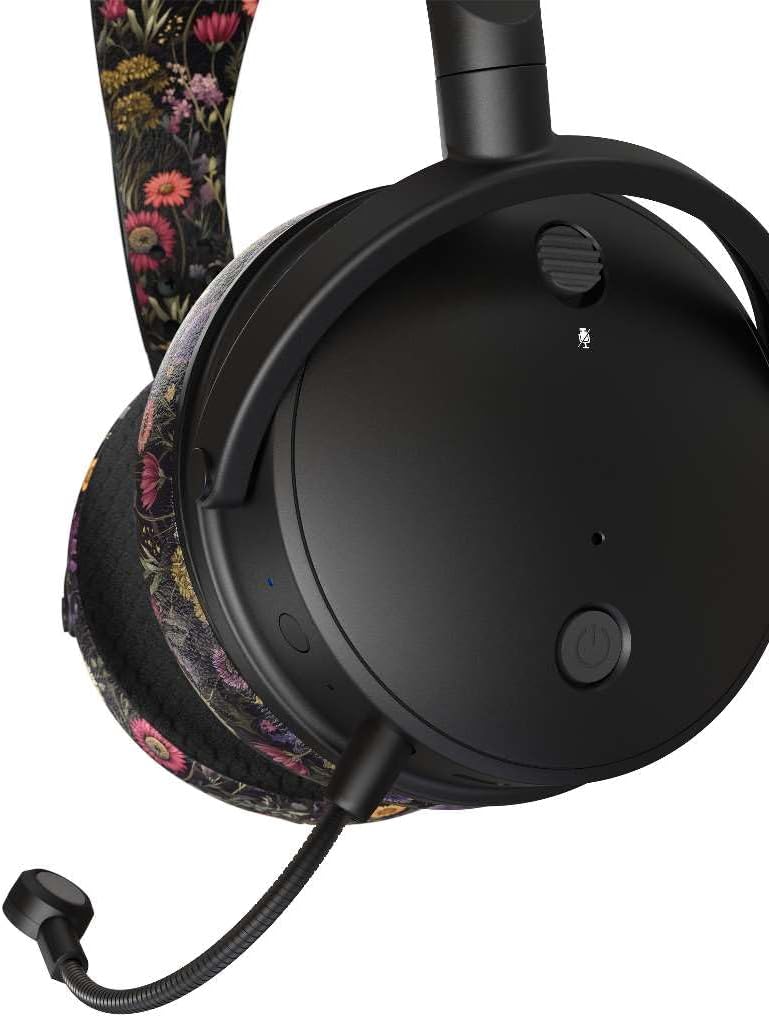
Figure 2: Right earcup controls, including the power button and microphone port.<
/p><
/div>
2.2.2 Bluetooth Connection<
/h4>
Connect your headset to Bluetooth-enabled devices like smartphones, tablets, or computers.<
/p>
