
XBJ TYYA2PRO-A001
XBJ A2Pro Smart Projector User Manual
Model: TYYA2PRO-A001
Introduction
Welcome to the XBJ A2Pro Smart Projector user manual. This guide provides detailed instructions for setting up, operating, and maintaining your new projector. The XBJ A2Pro combines a portable projector with an interactive touch tablet, offering native 1080P resolution with 4K decoding support, auto-focus, auto-keystone correction, Wi-Fi 6, and Bluetooth 5.2 connectivity. It is designed for versatile use in various environments, from home theaters to outdoor settings.
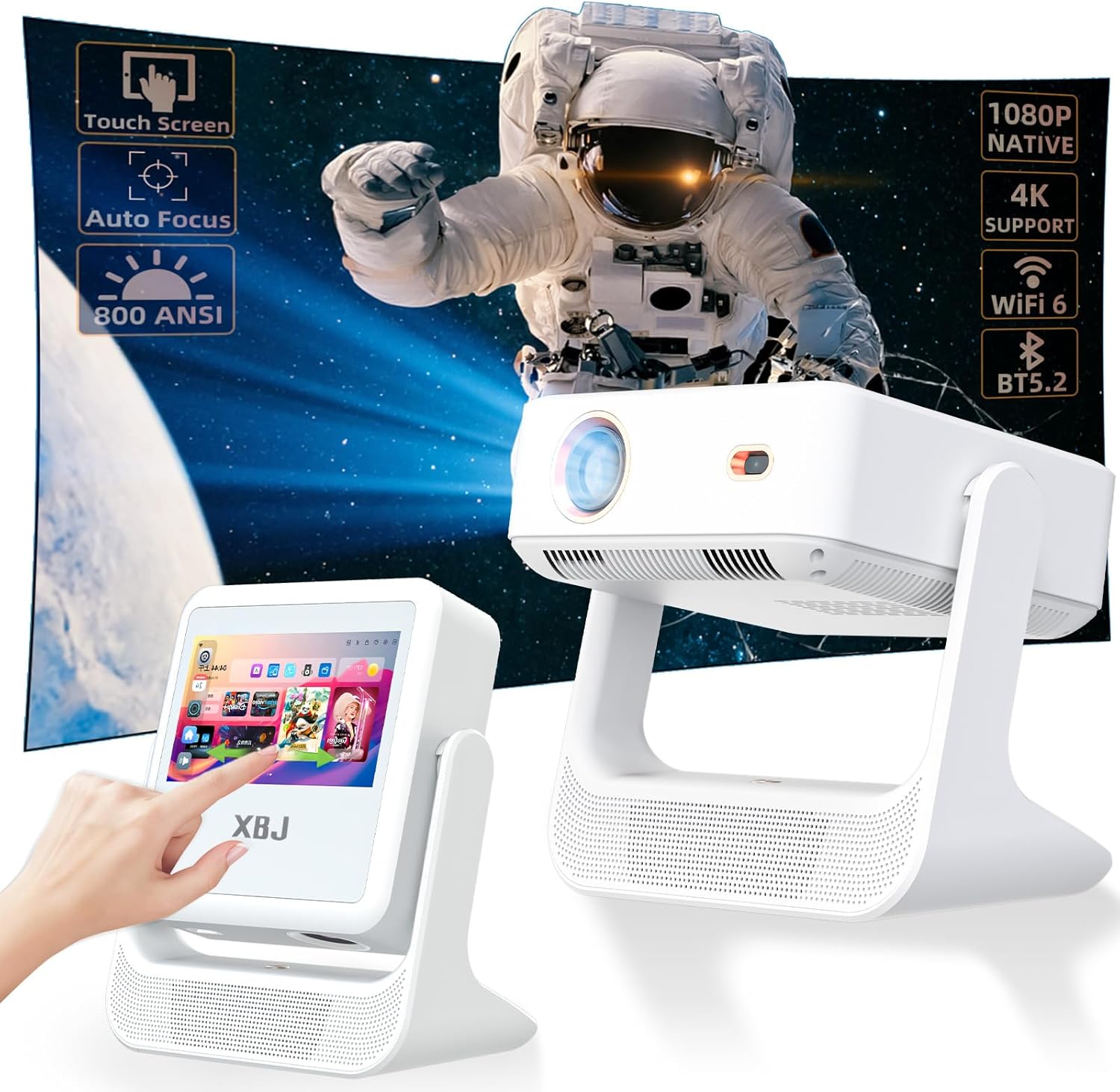
Figure 1: The XBJ A2Pro Smart Projector, showcasing its dual functionality as a touch tablet and a projector. Key features like touch screen, auto focus, 800 ANSI lumens, 1080P native resolution, 4K support, Wi-Fi 6, and Bluetooth 5.2 are highlighted.
What's in the Box
Please verify that all items are present in the package:
- XBJ A2Pro Touchscreen Projector
- Remote Control
- HDMI Cable
- Power Cord
- User Manual (this document)
Product Overview
The XBJ A2Pro Smart Projector offers a unique blend of portability and advanced features.
- Unique Touchscreen Design: Functions as both a touch tablet and a projector. Easily switch between the interactive smart panel for settings and navigation, and projecting content onto a large screen.
- Native 1080P with 4K Decoding: Delivers clear images with 800 ANSI lumens brightness. Features auto-focus and auto-keystone correction for optimal picture quality.
- Quiet and Portable: Equipped with an ultra-quiet cooling system (below 30dB). The 180° rotatable stand allows projection onto various surfaces.
- Smart Android System: Built-in Android OS with pre-installed apps.
- Fast Connectivity: Dual-band Wi-Fi 6 for low-latency streaming and Bluetooth 5.2 for audio device connections. Supports USB and HDMI inputs.

Figure 2: The XBJ A2Pro projector demonstrating its two operational modes: an 8-inch touch screen tablet mode and a traditional projector mode displaying content on a large screen.

Figure 3: The XBJ A2Pro projector positioned on a table, projecting an image onto a bedroom ceiling, illustrating its 180° rotatable stand for flexible projection angles.
Setup
- Power Connection: Connect the provided power cord to the projector and then to a power outlet. The projector will typically power on or enter standby mode.
- Placement: Position the projector on a stable surface. Utilize the 180° rotatable stand to adjust the projection angle as needed. The ideal projection distance ranges from 1.1 to 8 meters, with a recommended projection size of 30 to 250 inches.

Figure 4: An illustration of the XBJ A2Pro projector's projection capabilities, showing recommended distances (1.1 - 8m) and screen sizes (30" - 250"), with examples of 100", 200", and 300" projections.
- Initial Power-On: Press the power button on the projector or the remote control to turn on the device.
- Automatic Screen Adjustment: The projector features automatic focus and keystone correction. Upon startup or movement, the device will automatically adjust the image for clarity and correct geometric distortion.

Figure 5: Visual representation of the XBJ A2Pro's auto screen adjustment features, including auto keystone correction, auto focus, intelligent eye protection, and 100%-50% zoom functionality.
Operating Instructions
- Switching Modes: The XBJ A2Pro can operate in two modes:
- Tablet Mode: Use the built-in 8-inch touchscreen for direct interaction with the Android OS and apps.
- Projector Mode: Project content onto a larger screen. The touchscreen can still be used for navigation or the remote control can be used.
- Connectivity:
- Wi-Fi 6: Connect to a 5G Wi-Fi network for optimal streaming performance and screen mirroring. Navigate to Settings > Network & Internet > Wi-Fi to connect.

Figure 6: The XBJ A2Pro projector illustrating its Dual-Band Wi-Fi 6 capability, showing faster streaming with 5G+2.4G Wi-Fi compared to 2.4G Wi-Fi.
- Bluetooth 5.2: Pair with external speakers or headphones for enhanced audio. Go to Settings > Connected devices > Pair new device.
- USB/HDMI: Connect external devices such as gaming consoles, laptops, or USB drives using the available ports.
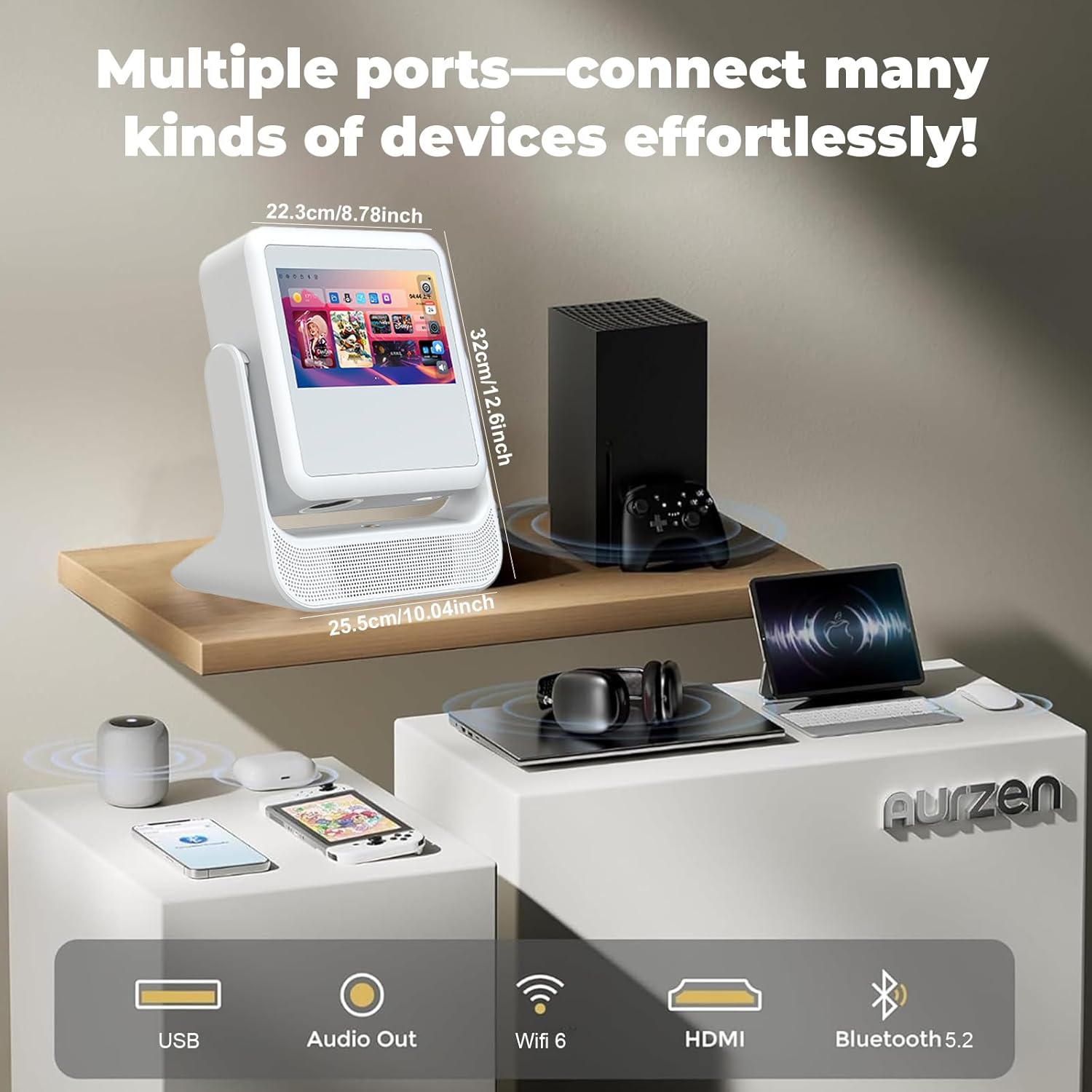
Figure 7: An image detailing the multiple connectivity options of the XBJ A2Pro projector, including USB, Audio Out, Wi-Fi 6, HDMI, and Bluetooth 5.2, with various devices connected.
- Wi-Fi 6: Connect to a 5G Wi-Fi network for optimal streaming performance and screen mirroring. Navigate to Settings > Network & Internet > Wi-Fi to connect.
- Smart Android System and Apps: The projector runs on an Android operating system. Access pre-installed applications or download new ones from the app store (if available). Navigate using the touchscreen or the remote control.
- Screen Mirroring: Use the Wi-Fi connection to mirror content from your smartphone or tablet. Refer to the specific screen mirroring instructions within the projector's Android interface (e.g., Miracast, Airplay, DLNA).
- Remote Control Usage: Point the remote control directly at the projector for optimal response. The remote allows navigation, volume control, input selection, and access to settings.
Maintenance
- Cleaning the Lens: Use a soft, lint-free cloth specifically designed for optical lenses to gently wipe the projector lens. Avoid abrasive materials or harsh chemicals.
- Cleaning the Exterior: Wipe the projector's exterior with a soft, dry cloth. For stubborn marks, a slightly damp cloth can be used, followed by a dry cloth.
- Ventilation: Ensure the projector's ventilation openings are clear of dust and obstructions to prevent overheating. Do not block the air vents during operation.
- Storage: When not in use for extended periods, store the projector in a cool, dry place, away from direct sunlight and extreme temperatures.
Troubleshooting
If you encounter any issues or have questions regarding your XBJ A2Pro Smart Projector, please refer to the following common solutions:
| Problem | Possible Solution |
|---|---|
| No Power / Projector Not Turning On |
|
| No Image / Blank Screen |
|
| Blurry Image |
|
| Distorted Image (Trapezoid Shape) |
|
| No Sound / Low Volume |
|
| Wi-Fi / Bluetooth Connection Issues |
|
| Apps Not Working / Crashing |
|
Specifications
| Feature | Detail |
|---|---|
| Brand | XBJ |
| Model Number | TYYA2PRO-A001 |
| Display Resolution | 1920 x 1080 (Native 1080P), 4K Support |
| Brightness | 800 ANSI Lumens |
| Connectivity Technology | Wi-Fi 6 (Dual-Band), Bluetooth 5.2, HDMI, USB, 3.5mm Audio Jack |
| Special Features | Touch Screen, Auto Focus, Digital Keystone Correction, Built-In Speaker, Portable, 180° Rotatable Stand, Built-In Wi-Fi |
| Recommended Uses | Business, Education, Gaming, Home Cinema |
| Item Weight | 4.81 pounds |
| Product Dimensions | 10.43 x 4.13 x 12.44 inches |
| Color | White |
Warranty and Support
XBJ products are designed for reliability and performance. For specific warranty details, please refer to the warranty card included with your product or contact XBJ customer support.
Customer Support
If you encounter any issues or have questions regarding your XBJ A2Pro Smart Projector, please contact our technical support team. We are committed to resolving any problems you may experience.
- Email: ESzxkj@outlook.com
- Availability: 24/7 Customer Support
- Assistance: Technical support, troubleshooting, and replacement services.

Figure 8: The XBJ brand logo, emphasizing their commitment to making technology simpler and more enjoyable.

Figure 9: An illustration representing XBJ customer support, highlighting 24/7 availability, email contact (ESzxkj@outlook.com), and replacement services.
Ask a question about this manual
Ask about setup, troubleshooting, compatibility, parts, safety, or missing instructions. Manuals+ will review the question and use this page’s manual context to help answer it.