
1. Introduction
The ORICO X50 is a high-performance M.2 NVMe SSD enclosure designed for ultra-fast data transfer. Featuring an advanced Intel JHL9480 controller chip, it supports speeds up to 80Gbps when connected to Thunderbolt 5 compatible devices. Its fanless design, combined with an aluminum chassis and innovative cooling technologies, ensures efficient heat dissipation and silent operation. This manual provides detailed instructions for setting up, operating, and maintaining your ORICO X50 enclosure.
2. Package Contents
Please verify that all items listed below are included in your package:
- 1 x ORICO X50 80Gbps M.2 NVMe SSD Enclosure
- 1 x 0.5cm Data Cable (USB-C to USB-C)
- 1 x User Manual
- 1 x Thermal Pad
- 1 x Screwdriver
- 1 x SSD Mounting Screw

3. Setup Instructions
Follow these steps to install an M.2 NVMe SSD into your ORICO X50 enclosure:
- Remove the Back Cover: Use the provided screwdriver to loosen the screw on the back cover of the enclosure. Gently slide off the back cover.
- Insert the SSD: Carefully insert your M.2 NVMe SSD (2280 form factor, M-Key or M+B-Key) into the slot at a 30-degree angle. Ensure it is fully seated. Secure the SSD with the provided mounting screw.
- Apply Thermal Pad: Place the thermal pad onto the installed SSD. This helps in efficient heat transfer to the enclosure's aluminum body.
- Reinstall the Cover: Slide the back cover back into place and tighten the screw using the screwdriver.
- Connect to Computer: Connect the enclosure to your computer using the supplied USB-C data cable.
Note: This enclosure supports M.2 NVMe M-Key and M+B-Key 2280 SSDs. It is not compatible with M.2 PCIe 5.0 SSDs.

4. Operating Instructions
Once the SSD is installed and the enclosure is connected to your computer, it should be recognized as an external storage device. You may need to format the SSD before its first use, especially if it's new or contains data you wish to erase.
4.1. Initializing and Formatting the SSD
For new SSDs, you will need to initialize and format them through your operating system's disk management utility:
- Windows: Open Disk Management (right-click Start button > Disk Management). Locate the unallocated disk, right-click it, and select 'Initialize Disk'. Follow the prompts to create a new simple volume and format it (NTFS recommended).
- macOS: Open Disk Utility (Applications > Utilities > Disk Utility). Select the ORICO X50 enclosure from the sidebar, then click 'Erase'. Choose a format (APFS or Mac OS Extended recommended) and a scheme (GUID Partition Map), then click 'Erase'.
- Linux: Use a disk utility like GParted or the `fdisk`/`mkfs` commands in the terminal to partition and format the drive.
4.2. Data Transfer
After formatting, the SSD will appear as a removable drive. You can drag and drop files, copy, paste, or use any file management software to transfer data to and from the enclosure. For optimal performance, ensure your computer's port and cable support the highest possible transfer speeds (Thunderbolt 5/4/3 or USB 4).
5. Compatibility
The ORICO X50 enclosure offers broad compatibility with various operating systems and devices:
- System Support: Windows, macOS, Linux.
- Interface Compatibility: Backward compatible with Thunderbolt 4/3 and USB 4.
- Compatible Devices: MacBook Pro (M4 Pro/M4 Max), Mac mini (M4 Pro), Mac Studio (M4 Max/M3 Ultra), Razer Blade 16 laptops, and other devices with Thunderbolt 5/4/3 or USB 4 ports.
Important Note for Thunderbolt 3 Interface:
Thunderbolt 3 equipment may not fully utilize the 80Gbps speed of this enclosure and could default to USB speeds, limiting performance to 10Gbps. For Thunderbolt 3 equipped interfaces, a 40Gbps SSD enclosure is recommended for potentially faster speeds than a USB connection, as this 80Gbps enclosure might not achieve its full potential on such interfaces.

6. Cooling Technology
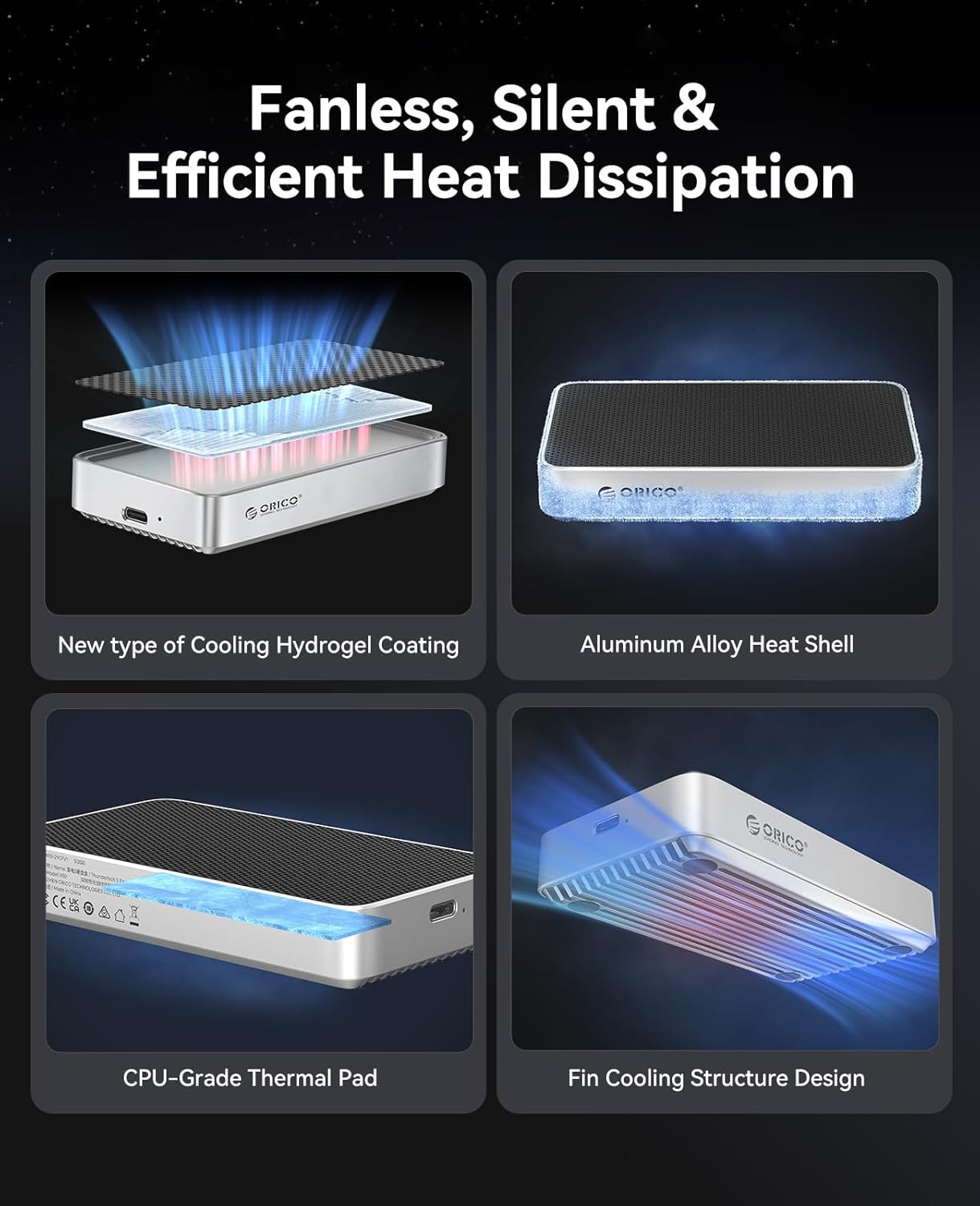
The ORICO X50 is engineered for optimal thermal management to prevent performance throttling and ensure silent operation:
- Fanless Design: Ensures completely silent operation without any moving parts.
- Aluminum Chassis: The robust aluminum alloy body acts as a large heatsink, efficiently drawing heat away from the SSD.
- Thermal Grease & Hydrogel Cooling Coating: These materials enhance heat transfer from the SSD to the enclosure, distributing heat evenly.
- Finned Heat Dissipation Surfaces: The design of the enclosure includes finned surfaces that double the heat dissipation area, further improving cooling efficiency.

7. Performance
The ORICO X50 enclosure is engineered for high-speed data transfer and large capacity storage, making it suitable for demanding professional workflows.
- Transfer Speed: Up to 80Gbps theoretical speed when connected to Thunderbolt 5 compatible devices. This allows for transferring large files, such as a 6 GB file, in under a second.
- Read/Write Speeds: Supports up to 6,000 MB/s read and 5,800 MB/s write speeds with compatible SSDs and host interfaces.
- Controller Chip: Equipped with the Intel JHL9480 controller chip for stable and high-speed performance.
- Massive Capacity: Supports M.2 NVMe SSDs up to 4 TB, ideal for video editing, 3D rendering, and large data migration.
To achieve 3,000 MB/s+ speeds, please use an SSD with PCIe 4.0 x4 and NVMe 1.4 or above. Avoid M.2 PCIe 5.0 SSDs as they are not compatible.


Video: An official product video demonstrating the features and performance of the ORICO 80Gbps M.2 NVMe SSD Enclosure.
8. Troubleshooting
If you encounter issues with your ORICO X50 enclosure, consider the following troubleshooting steps:
- Drive Not Recognized:
- Ensure the SSD is correctly installed and secured within the enclosure.
- Verify the data cable is securely connected to both the enclosure and your computer's port.
- Check your computer's Disk Management (Windows) or Disk Utility (macOS) to see if the drive appears but needs initialization or formatting.
- Test with a different USB-C port or cable if available.
- Confirm your SSD is an M.2 NVMe (M-Key or M+B-Key 2280) and not an incompatible type like M.2 SATA or M.2 PCIe 5.0.
- Frequent Disconnections:
- Ensure the cable is firmly connected and not loose.
- If using a Thunderbolt 3 port, be aware that performance may be limited to 10Gbps, and some compatibility issues might arise.
- Test the enclosure with another computer or port to rule out host system issues.
- Monitor the enclosure's temperature during heavy use. While designed for efficient cooling, extreme workloads in hot environments might still cause issues.
- Slow Transfer Speeds:
- Ensure your computer's port supports Thunderbolt 5/4 or USB 4 for maximum speeds. Connecting to older USB ports will result in lower speeds.
- Verify your SSD is PCIe 4.0 x4 and NVMe 1.4 or above for optimal performance.
- Check if other applications or background processes are consuming system resources or disk I/O.
- Ensure the thermal pad is correctly placed on the SSD to facilitate heat dissipation.
9. Specifications
| Feature | Detail |
|---|---|
| Model Number | X50 |
| Product Dimensions | 4.33 x 2.36 x 0.74 inches (110 x 60 x 19 mm) |
| Item Weight | 3.84 ounces (109 g) |
| Hardware Interface | Thunderbolt 5/4/3, USB 4 |
| Compatible SSDs | M.2 NVMe M-Key / M+B-Key 2280 SSDs (Not compatible with M.2 PCIe 5.0) |
| Max Capacity | Up to 4 TB |
| Controller Chip | Intel JHL9480 |
| Cooling System | Fanless, Aluminum Alloy Housing, Thermal Pad, Hydrogel Coating, Fin Structure |
| Supported OS | Windows, macOS, Linux |
| Color | Silver |
10. Warranty and Support
ORICO products come with a standard manufacturer's warranty. For specific warranty details, technical support, or service inquiries, please contact ORICO customer support through their official website or the retailer where you purchased the product. Please have your product model number (X50) and purchase information ready when contacting support.

