1. Introduction
The MoKo Wireless CarPlay Adapter is designed to convert your car's factory-installed wired CarPlay system into a wireless one, providing a seamless and convenient driving experience. This adapter utilizes advanced WiFi 6 5.8GHz and Bluetooth 5.3 dual-band chipset technology for fast, stable, and low-latency connections. Enjoy cable-free access to navigation, music, calls, and Siri, eliminating messy cords and enhancing your in-car connectivity.

Image 1: The MoKo Wireless CarPlay Adapter, a compact device designed to convert wired CarPlay to wireless.

Image 2: Visual comparison showing a messy wired setup before using the adapter versus an orderly wireless setup after installation.
2. Key Features
- Lightning-Fast Wireless Connection: Features WiFi 6 5.8GHz and Bluetooth 5.3 dual-band chipset for improved performance, converting wired CarPlay to wireless in just 10 seconds and reconnecting in 3 seconds, ensuring enhanced stability and near-zero latency.
- Plug and Play, Superior Stability: Innovative cable-free design eliminates issues like frayed cables and sudden disconnections. The adapter auto-connects when you start your car, protecting your phone's charging port.
- Wide Compatibility: Compatible with cars featuring factory-installed wired Apple CarPlay and iPhone 6 or later with iOS 10 and above. Includes USB-A and Type-C extension cables for various usage scenarios. Note: Only supports Apple CarPlay, not Android Auto.
- Anti-loss, Long-lasting, Mini Design: Equipped with an anti-loss lanyard for easy carrying and prevention of loss. Tested for 10,000+ insertions for durability. 50% reduction in size for a perfect fit in narrow car slots.
- Online Updates and Reliable Support: Provides free firmware updates to maintain compatibility with your car and future CarPlay features. Professional technical support is available for assistance.
3. Package Contents
- 1 x MoKo Wireless CarPlay Adapter (Model: KY-348)
- 1 x USB-A to USB-C Adapter Cable
- 1 x USB-A to USB-A Adapter Cable
- 1 x Anti-loss Lanyard

Image 3: The adapter shown with its included USB-A to USB-C and USB-A to USB-A adapter cables, demonstrating versatility for different car ports.
4. Compatibility
This MoKo Wireless CarPlay Adapter is specifically designed for vehicles with factory-installed wired Apple CarPlay. It is compatible with iPhone 6 and later models running iOS 10 or above. Please ensure your vehicle supports wired Apple CarPlay before purchasing. This adapter does not support Android Auto.

Image 4: A visual guide illustrating the adapter's compatibility with wired CarPlay cars and iPhone iOS 10+, explicitly stating it is not for Android Auto.
5. Setup Instructions
Follow these simple steps to connect your MoKo Wireless CarPlay Adapter and enjoy effortless wireless CarPlay:
- Plug in the Device: Connect the MoKo Wireless CarPlay Adapter into your car’s USB port (either USB-A or USB-C using the provided adapter cables). The device will power on, indicated by a green light.
- Turn on Wi-Fi on your iPhone: On your iPhone, go to Settings > Wi-Fi and ensure Wi-Fi is turned on.
- Enable Bluetooth and Pair: Go to Settings > Bluetooth on your iPhone. Enable Bluetooth and search for the device named "AutoLink-****" (the last four digits may vary). Select it to pair your iPhone with the car system.
- Connect to CarPlay: Once connected via Bluetooth, a prompt will appear on your car's display to connect to CarPlay. Confirm the connection.
After the initial setup, the adapter will automatically connect to your iPhone when you start your car, typically within 3-5 seconds.
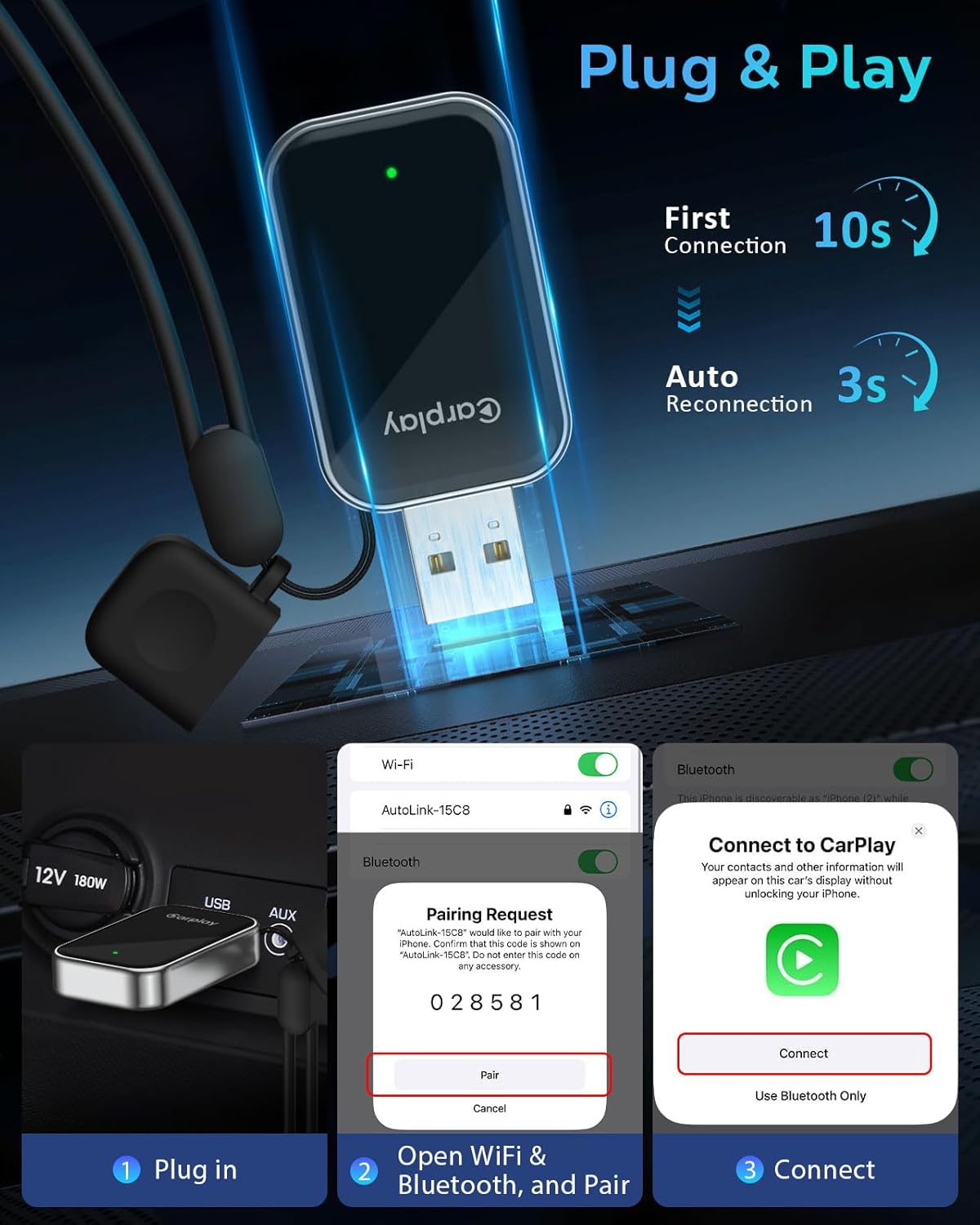
Image 5: A visual representation of the plug-and-play setup process, showing the adapter plugged into the car's USB port and the iPhone's Wi-Fi and Bluetooth pairing steps.
6. Operating Instructions
Once connected, your car's display will mirror your iPhone's CarPlay interface. You can interact with CarPlay using your car's original controls, including:
- Voice Assistant (Siri): Use voice commands for navigation, music, calls, and more.
- Touch Control: Directly interact with the car's touchscreen display.
- Wheel Control: Utilize steering wheel buttons for audio and call management.
- OEM Knob/Button Control: Navigate CarPlay menus using your car's built-in rotary knobs or buttons.
The adapter ensures near-zero latency, providing a smooth and responsive experience for all CarPlay functions.

Image 6: Depicts the seamless wireless connection, highlighting Bluetooth 5.3, WiFi 2.4-5.8GHz, and Dual-Core A7 processor for stable performance.
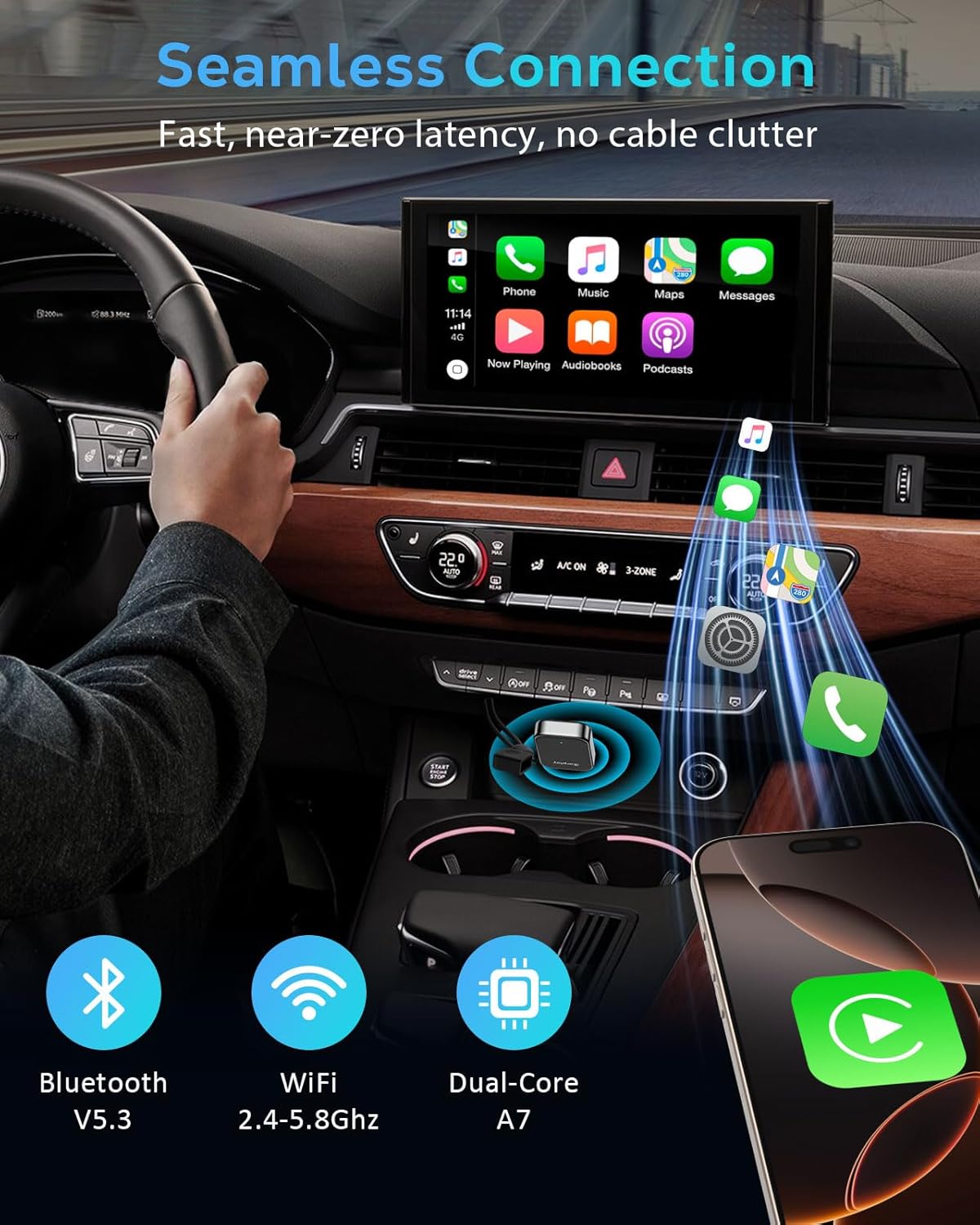
Image 7: Shows various control methods for CarPlay, including voice assistant, steering wheel controls, touch control, and OEM knob interaction.
7. Maintenance
To ensure the longevity and optimal performance of your MoKo Wireless CarPlay Adapter, please follow these maintenance guidelines:
- Cleaning: Use a soft, dry cloth to wipe the adapter. Avoid using liquid cleaners or abrasive materials, which may damage the surface or internal components.
- Storage: When not in use for extended periods, store the adapter in a cool, dry place away from direct sunlight and extreme temperatures.
- Handling: Handle the adapter with care. Avoid dropping it or subjecting it to strong impacts, as this can damage the internal circuitry.
- Connection Ports: Ensure the USB ports on both the adapter and your car are clean and free of debris to maintain a stable connection.
8. Troubleshooting
If you encounter any issues while using your MoKo Wireless CarPlay Adapter, please refer to the following common problems and solutions:
| Problem | Possible Cause / Solution |
|---|---|
| Adapter not powering on (no green light) | Ensure the adapter is fully inserted into a functional USB port in your car. Try a different USB port if available. Check your car's manual for USB port power requirements. |
| Cannot find "AutoLink-****" in Bluetooth settings | Make sure Bluetooth is enabled on your iPhone. Restart your iPhone and the car's infotainment system. Unplug and re-plug the adapter. |
| CarPlay does not launch after connecting | Verify your car has factory-installed wired Apple CarPlay. Ensure your iPhone is running iOS 10 or above. Try forgetting the Bluetooth device on your iPhone and re-pairing. |
| Intermittent connection or audio issues | Ensure no other Bluetooth devices are interfering. Check for firmware updates for the adapter (refer to Section 9). Move your iPhone closer to the adapter if possible. |
| Lag or delay in CarPlay response | While the adapter offers near-zero latency, some minor delays can occur. Ensure your iPhone's software is up to date. Close unnecessary apps on your iPhone. |
If the issue persists after trying these solutions, please contact MoKo customer support for further assistance.
9. Specifications
| Attribute | Detail |
|---|---|
| Model Number | KY-348 |
| Product Dimensions | 12 x 8 x 4 inches |
| Item Weight | 0.42 ounces |
| Connectivity Technology | Bluetooth 5.3, Wi-Fi 6 (5.8GHz) |
| Material | Acrylonitrile Butadiene Styrene (ABS), Aluminum |
| Special Feature | Convert Wired CarPlay to Wireless, Plug and Play, Hands-Free Calls, Low Latency |
| Manufacturer | MoKo |
| First Available Date | May 19, 2025 |

Image 8: The rear side of the adapter, displaying regulatory markings and the model number KY-348.
10. Warranty and Support
MoKo products come with a standard manufacturer's warranty. For specific warranty details, please refer to the product packaging or contact MoKo customer service. Our professional technical support team is always ready to assist you with any questions or issues you may have regarding your Wireless CarPlay Adapter. You can also find free firmware updates to keep your device compatible with your car and future CarPlay features.
For support, please visit the official MoKo website or contact us via the contact information provided with your product.


