
1. Introduction
This manual provides essential information for the proper setup, operation, and maintenance of your BL Android 14.0 TV Box R69. Please read it thoroughly before using the device to ensure optimal performance and longevity.
The BL Android 14.0 TV Box R69 is a smart media player designed to transform your television into a smart entertainment hub. It features the latest Android 14.0 OS, a powerful RK3518 quad-core processor, Wi-Fi 6 connectivity, and support for 4K HDR10+ video playback.
2. What's in the Box
Upon opening the package, verify that all components are present and in good condition:
- 1 × BL Android TV Box R69
- 1 × Bluetooth Voice Remote Control
- 1 × HD Cable (2.0 High Speed)
- 1 × US Power Adapter
- 1 × User Manual

Image: The BL Android TV Box R69, its remote control, power adapter, HD cable, and user manual, illustrating the contents of the package.
Video: An unboxing demonstration of the BL Android TV Box R69, showing all included components and initial handling.
3. Product Features
- Android 14.0 Operating System: Experience enhanced privacy controls and improved system compatibility for stable performance with your favorite content.
- RK3518 Quad-Core Chipset: Features an RK3518 quad-core CPU for efficient performance and smooth handling of app installations and 4K playback. Supports storage expansion via TF card (up to 256GB) and USB 3.0 hard drive (up to 1TB).
- 4K HDR10+ Video Output: Delivers 4K@60fps ultra-sharp resolution with real-time decoding technology, ensuring low latency for gaming and entertainment. HDR10+ dynamic color enhancement and H.265 decoding provide theater-grade visuals.
- Wi-Fi 6 & Screen Casting: Equipped with Wi-Fi 6 technology for speeds up to 2.4Gbps and dual-band 2.4G/5.8G connectivity, ensuring stable multi-device connections. Supports AirScreen/Wi-Fi Display for seamless phone-to-TV casting.
- USB 3.0 & Bluetooth 5.0: Offers 10x faster data transfers than USB 2.0, allowing quick loading of 4K content or large games. Bluetooth 5.0 maintains stable connections with speakers, headphones, and other devices.

Image: The BL Android TV Box R69 with icons representing its core features: RK3518 processor, Wi-Fi 6, Android 14, Bluetooth 5.0, 4K video, and HDR10+.

Image: A visual representation of the powerful RK3518 chipset, emphasizing its role in providing higher computing power and lower power consumption for the TV box.

Image: A television screen displaying a high-resolution 4K image, demonstrating the superior visual quality provided by the BL Android TV Box R69.
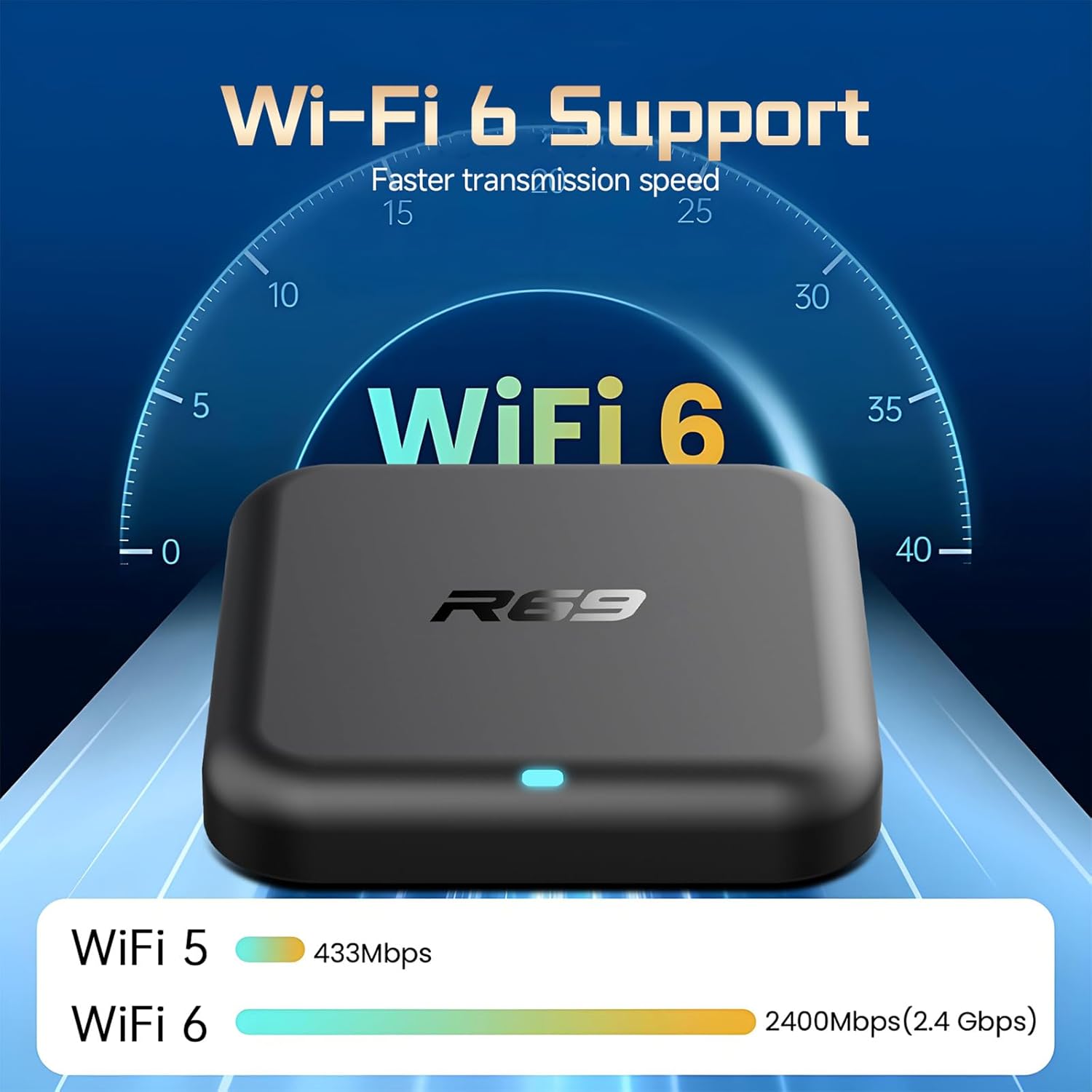
Image: A graphic illustrating the faster transmission speeds of Wi-Fi 6 (2400Mbps) compared to Wi-Fi 5 (433Mbps), highlighting the advanced connectivity of the BL Android TV Box R69.

Image: A smartphone screen casting content to a television via the BL Android TV Box R69, demonstrating the multi-screen interaction feature.

Image: A comparison graphic showing USB 3.0 data transfer speeds (5120Mbps) are 10 times faster than USB 2.0 (480Mbps), emphasizing the high-speed data transfer capabilities of the BL Android TV Box R69.
4. Specifications
| Feature | Description |
|---|---|
| Brand | BL |
| Model Number | R69 |
| Operating System | Android 14.0 |
| CPU | Rockchip RK3518 Quad-core ARM Cortex-A53 |
| GPU | Quad-core ARM Cortex-A53 |
| Memory (RAM) | 2GB |
| Storage (Flash) | 16GB |
| Wi-Fi | 2.4G/5.8G Wi-Fi 6 |
| Bluetooth | BT 5.0 |
| Video Output | 4K*2K UHD Output (HDMI) |
| Ethernet | 100M |
| USB Ports | 1 × USB 3.0, 1 × USB 2.0 |
| Card Slot | 1 × TF CARD Port (Supports up to 128GB) |
| Power Input | DC 5V/2A |
| Dimensions | 4.2 x 4.2 x 0.9 inches |
| Weight | 11.3 ounces |

Image: A detailed view of the BL Android TV Box R69's rear and side interfaces, including DC power, SPDIF, HD (HDMI), LAN, AV, USB ports, and TF card slot.
5. Setup Guide
Follow these steps to connect your BL Android TV Box R69 to your television and power source:
- Connect to TV: Insert one end of the provided HD Cable into the HDMI port on the back of the TV Box. Connect the other end to an available HDMI input on your television.
- Connect to Power: Plug the US Power Adapter into the DC 5V port on the TV Box. Then, plug the power adapter into a wall outlet.
- Power On: The TV Box should automatically power on. If not, press the power button on the remote control.
- Select Input: On your television, use the TV remote to select the correct HDMI input source that corresponds to where you connected the TV Box.
Video: A segment from the unboxing and installation guide, demonstrating how to connect the BL Android TV Box R69 to a television and power supply.
6. Operating Instructions
6.1 Initial Boot and Home Screen
After successful connection, the device will boot up and display the Android TV logo, followed by the home screen. You may be prompted to customize your home screen or set up channels.
6.2 Wi-Fi Connection
To access online content, connect your TV Box to a Wi-Fi network:
- From the home screen, navigate to the 'Apps' section.
- Select 'Settings' (gear icon).
- Go to 'Network & Internet'.
- Toggle Wi-Fi 'On' if it's off.
- Select your desired Wi-Fi network from the 'Available networks' list.
- Enter the Wi-Fi password using the on-screen keyboard and confirm.
- Once connected, the status will show 'Connected successfully'.
Video: A segment from the installation guide, demonstrating the steps to connect the BL Android TV Box R69 to a Wi-Fi network.
6.3 Application Usage
The BL Android TV Box R69 comes with pre-installed applications. You can also download more from the Google Play Store.
- Navigate Apps: From the home screen, select the 'Apps' tab to view all installed applications.
- Launch App: Use the remote control's directional pad and 'OK' button to select and launch an application (e.g., Netflix, YouTube).
- Install New Apps: Access the Google Play Store to browse and install additional applications.
Video: A segment demonstrating how to navigate and switch between applications on the BL Android TV Box R69, including launching Netflix.
6.4 Voice Remote Control
The included Bluetooth voice remote allows for convenient navigation and voice commands. Press the dedicated voice assistant button (often a microphone icon) to activate voice input for searching or controlling the device.
7. Maintenance
- Cleaning: Use a soft, dry cloth to clean the device. Avoid liquid cleaners or abrasive materials.
- Ventilation: Ensure the TV Box is placed in a well-ventilated area to prevent overheating. Do not block ventilation openings.
- Power Off: When not in use for extended periods, it is recommended to unplug the power adapter.
- Software Updates: Periodically check for system updates in the 'Settings' menu to ensure optimal performance and security.
8. Troubleshooting
| Problem | Possible Solution |
|---|---|
| No power/Device not turning on | Check if the power adapter is securely connected to both the device and the power outlet. Try a different outlet. Ensure the power button on the remote or device is pressed. |
| No picture on TV | Verify the HDMI cable is securely connected to both the TV Box and the TV. Ensure the correct HDMI input source is selected on your TV. Try a different HDMI cable or port. |
| Remote control not working | Check if the remote control batteries are correctly inserted and not depleted. For Bluetooth remotes, ensure it is paired with the TV Box (refer to remote pairing instructions if available). |
| Wi-Fi connection issues | Ensure your Wi-Fi router is on and functioning. Re-enter the Wi-Fi password carefully. Try restarting both the TV Box and your router. Move the TV Box closer to the router if possible. |
| Applications freezing or crashing | Close and restart the application. Clear the app's cache in 'Settings > Apps'. Ensure the device has enough free storage. Perform a system update if available. |
9. Warranty and Support
Your BL Android 14.0 TV Box R69 comes with a standard manufacturer's warranty. Please refer to the warranty card included in your package for specific terms and conditions, including the warranty period and coverage details.
For technical support, troubleshooting assistance, or warranty claims, please contact the retailer or manufacturer's customer service. Contact information can typically be found on the product packaging or the official BL website.


