
Introduction
This manual provides essential information for setting up, operating, maintaining, and troubleshooting your Acer Aspire 3 Laptop (Model A325-42). Please read this guide thoroughly to ensure proper use and to maximize the performance and lifespan of your device.
The Acer Aspire 3 features an AMD Ryzen 7 7730U 8-Core Processor, AMD Radeon Graphics, a 15.6-inch Full HD display, 32GB DDR4 RAM, and a 4TB NVMe SSD, running on Windows 10 Pro. It is designed for efficient performance and versatile use.
Setup
1. Unboxing and Initial Inspection
Carefully remove all components from the packaging. Ensure the following items are present:
- Acer Aspire 3 Laptop
- 65W AC Adapter
- 1 x 32GB USB Drive
Inspect the laptop for any physical damage. If any damage is found, contact your retailer immediately.
2. Connecting the Power Adapter
Connect the 65W AC adapter to the laptop's power input port and then plug it into a power outlet. It is recommended to fully charge the battery before initial use.
3. Initial Power On and Windows Setup
Press the power button to turn on the laptop. Follow the on-screen instructions to complete the Windows 10 Pro setup process. This includes selecting your region, language, creating a user account, and connecting to a Wi-Fi network.

Image: The Acer Aspire 3 laptop in an open position, showcasing its display and keyboard. This image illustrates the general appearance of the laptop during initial setup.
Operating Instructions
1. Display Features
Your laptop features a 15.6-inch Full HD (1920 x 1080) display with anti-glare properties and ComfyView technology for reduced eye strain. The display also supports a 180-degree hinge, allowing for versatile viewing angles.

Image: The laptop display showcasing vibrant, high-definition visuals, highlighting the Full HD resolution and ComfyView features.

Image: The Acer Aspire 3 laptop demonstrating its 180-degree hinge, allowing the screen to lay flat for various viewing and sharing scenarios.
2. Keyboard and Touchpad
The laptop is equipped with a full-size backlit keyboard, including a Numpad for enhanced productivity. The integrated touchpad supports multi-touch gestures for navigation.
3. Connectivity
The Acer Aspire 3 supports Realtek Wi-Fi 6 (802.11ax) for fast wireless internet access and Bluetooth 5.1 for connecting wireless peripherals.
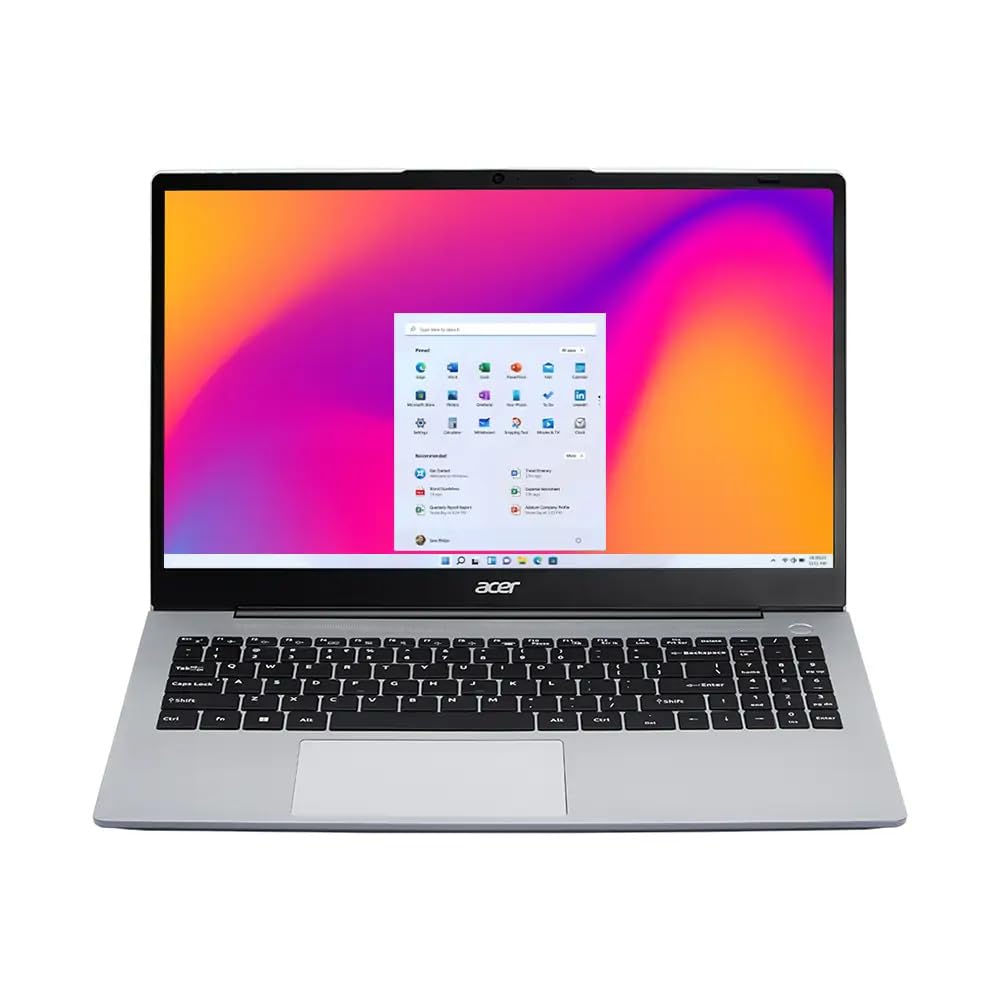
Image: A visual representation of the laptop's fast and reliable wireless connectivity, indicating Wi-Fi 6 and Bluetooth 5.1 capabilities.
4. Ports and External Connections
The laptop provides a variety of ports for connecting external devices:
- 2x USB-C 3.2 Gen 2 (10Gbps)
- 2x USB 3.2 Gen 1 (5Gbps)
- 1x USB 2.0
- 1x HDMI v1.4
- 1x Headphone/microphone combo jack
5. Camera and Audio
The integrated 1080p FHD Camera with a privacy shutter, along with two built-in digital microphones and stereo speakers, ensures clear audio and video for conferencing and communication.

Image: The laptop screen showing a video conferencing application with multiple participants, illustrating the clarity of audio and video features.
Maintenance
1. Cleaning Your Laptop
- Use a soft, lint-free cloth to clean the screen. Avoid harsh chemicals.
- For the keyboard and chassis, use a slightly damp cloth. Ensure no liquid enters the device.
- Regularly clean the ventilation openings to prevent dust buildup, which can affect performance.
2. Software Updates
Keep your Windows 10 Pro operating system and drivers updated to ensure optimal performance and security. Check for updates regularly through Windows Update.
3. Battery Care
To prolong battery life, avoid extreme temperatures and do not leave the laptop plugged in at 100% charge for extended periods. For long-term storage, charge the battery to about 50-60%.
4. Storage Management
Periodically review and delete unnecessary files to maintain sufficient free space on your 4TB SSD, which contributes to system performance.
Troubleshooting
If you encounter issues with your Acer Aspire 3 laptop, consider the following common troubleshooting steps:
- No Power: Ensure the AC adapter is securely connected to both the laptop and a working power outlet. Try a different outlet.
- Display Issues: If the screen is blank, try connecting an external monitor to check if the issue is with the laptop's display or graphics card. Adjust brightness settings.
- Wi-Fi Connectivity: Check if Wi-Fi is enabled in Windows settings. Restart your router and the laptop. Ensure drivers are updated.
- Slow Performance: Close unnecessary applications. Check for malware. Ensure sufficient free storage space and update your operating system.
- Peripheral Not Detected: Try connecting the peripheral to a different USB port. Ensure drivers for the peripheral are installed.
For more complex issues, refer to the Acer support website or contact customer service.
Specifications
| Feature | Detail |
|---|---|
| Model Name | Aspire 3 (A325-42) |
| Processor | AMD Ryzen 7 7730U (8-Core, up to 4.5 GHz) |
| Graphics | AMD Radeon Graphics (Integrated) |
| Display | 15.6" FHD (1920 x 1080) 60Hz, Anti-glare, 250 nits, 45% NTSC, ComfyView |
| RAM | 32GB DDR4 SDRAM 3200 MHz |
| Storage | 4TB NVMe M.2 SSD |
| Operating System | Windows 10 Pro |
| Keyboard | Backlit Keyboard with Numpad |
| Wireless Connectivity | Realtek Wi-Fi 6 (2x2), Bluetooth 5.1 |
| Ports | 2x USB-C 3.2 Gen 2, 2x USB 3.2 Gen 1, 1x USB 2.0, 1x HDMI v1.4, 1x Headphone/Mic Combo |
| Webcam | 1080p FHD Camera |
| Battery | 55Wh Lithium-Ion (up to 6 hours) |
| Dimensions (LxWxH) | 14.22 x 10 x 0.77 inches |
| Weight | 3.94 lbs (1.79 kg) |
| Color | Pure Silver |

Image: The Acer Aspire 3 laptop from various angles, highlighting its sleek design, thickness (19.3mm), and overall dimensions and weight (1.79 kg).
Warranty and Support
1. Product Warranty
Your Acer Aspire 3 laptop comes with a 12-month warranty. This warranty covers manufacturing defects and ensures your product functions as intended under normal use. For specific terms and conditions, please refer to the warranty card included with your product or visit the official Acer support website.
2. Customer Support
For technical assistance, troubleshooting, or warranty claims, please contact Acer customer support. You can find contact information and additional resources on the official Acer website.
Online Support: Visit www.acer.com/support for drivers, manuals, and FAQs.


