Introduction
Welcome to the user manual for your new Lenovo Legion T7 34IAS10 Gaming Desktop Computer. This guide provides essential information for setting up, operating, maintaining, and troubleshooting your system. The Lenovo Legion T7 series is engineered for powerful gaming performance, featuring advanced processors and discrete graphics to deliver an immersive experience.
What's in the Box
Upon unboxing your Lenovo Legion T7, please verify that all the following components are included:
- Lenovo Legion T7 34IAS10 Gaming Desktop Tower
- Keyboard
- Mouse
- Power Cable
- Documentation (Quick Start Guide, Warranty Information)

Image: The Lenovo Legion T7 34IAS10 Gaming Desktop Tower, showcasing its sleek design and front panel.
Setup
Initial Placement and Connections
Before powering on your desktop, ensure proper placement and connection of all necessary peripherals.
- Placement: Position the desktop tower on a stable, flat surface with adequate ventilation. Avoid blocking air vents on the front, back, top, and sides of the unit.
- Connect Monitor: Connect your monitor to the graphics card output ports (HDMI, DisplayPort) on the rear of the desktop.
- Connect Keyboard and Mouse: Plug the keyboard and mouse into the available USB ports.
- Connect Power: Connect the power cable to the power supply unit (PSU) input on the rear of the desktop, then plug the other end into a grounded electrical outlet.
- Network Connection (Optional): For wired internet, connect an Ethernet cable to the LAN port. For wireless, ensure your Wi-Fi network is available.

Image: Side view of the Lenovo Legion T7 desktop, showing the ventilation and general chassis design.
Operating Instructions
Powering On and Off
- Power On: Press the power button located on the top-front panel of the desktop. The system will boot up, and the RGB lighting will illuminate.
- Power Off: To safely shut down, click the Start button in Windows, then select Power > Shut down. Avoid directly unplugging the power cable while the system is running.
- Restart: To restart the system, click the Start button, then select Power > Restart.
- Sleep Mode: To put the system into sleep mode, click the Start button, then select Power > Sleep.
Basic Usage and Features
Your Lenovo Legion T7 comes pre-installed with Windows 11 Pro, offering a robust platform for gaming and productivity. Key features include:
- High Performance: Equipped with an Intel Core Ultra 9 processor and NVIDIA GeForce RTX 5080 graphics, ensuring smooth gameplay and efficient multitasking.
- Storage: A 2 TB SSD provides ample and fast storage for games, applications, and files.
- Memory: 64 GB DDR5 RAM allows for running multiple demanding applications simultaneously without performance degradation.
- RGB Lighting: The integrated RGB lighting system enhances the aesthetic appeal and can often be customized via pre-installed Lenovo software (e.g., Lenovo Vantage). Refer to the software's help section for detailed customization options.
- Connectivity: Features 802.11ax Wi-Fi and Bluetooth for wireless connectivity, along with multiple USB ports for peripherals.
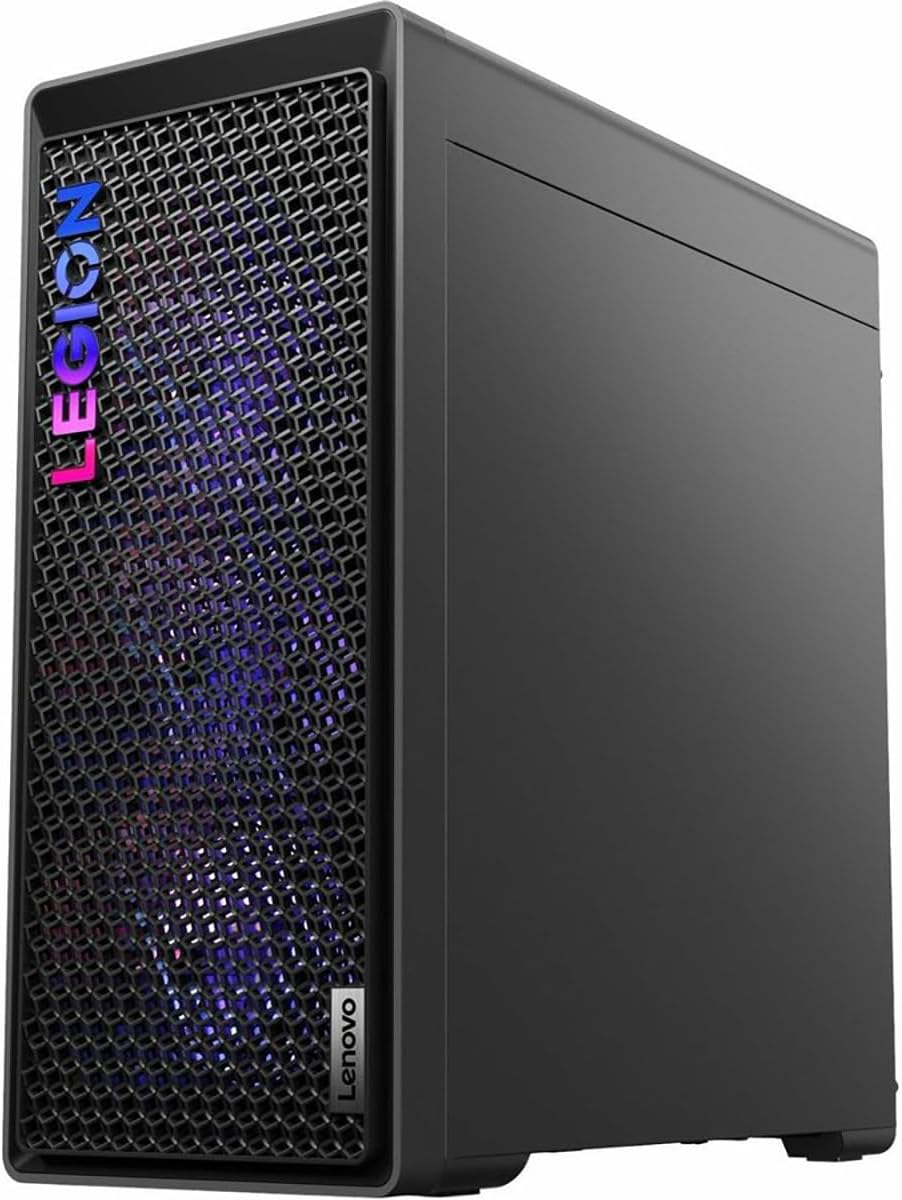
Image: Front view of the Lenovo Legion T7 desktop, highlighting the customizable RGB lighting and mesh design.
Maintenance
Cleaning Your Desktop
Regular cleaning helps maintain optimal performance and extends the lifespan of your computer.
- Exterior: Use a soft, lint-free cloth slightly dampened with water or a mild cleaning solution to wipe down the exterior surfaces. Avoid harsh chemicals.
- Dust Removal: Periodically use compressed air to clear dust from the ventilation grilles and internal components (fans, heatsinks). Ensure the system is powered off and unplugged before performing internal cleaning.
- Monitor/Screen: Use a specialized screen cleaner and a microfiber cloth for your monitor.
Software Updates
Keep your operating system, drivers, and applications updated to ensure security, stability, and optimal performance.
- Windows Updates: Regularly check for Windows updates via Settings > Windows Update.
- Driver Updates: Use Lenovo Vantage software or visit the official Lenovo support website to download the latest drivers for your system components, especially graphics drivers from NVIDIA.
- Antivirus Software: Ensure your antivirus software is up-to-date and performing regular scans.
Troubleshooting
This section addresses common issues you might encounter. For more complex problems, refer to Lenovo's official support resources.
| Problem | Possible Solution |
|---|---|
| No power / System won't turn on |
|
| No display on monitor |
|
| System is slow or unresponsive |
|
| Unusual fan noise or overheating |
|
If the issue persists, please contact Lenovo Support for further assistance.
Specifications
Detailed technical specifications for your Lenovo Legion T7 34IAS10 Gaming Desktop Computer:
| Component | Detail |
|---|---|
| Model Number | 90Y6003JUS |
| Processor | Intel Core Ultra 9 (5.6 GHz) |
| RAM | 64 GB DDR5 (5600 MHz) |
| Storage | 2 TB SSD |
| Graphics Card | Nvidia GeForce RTX 5080 (16 GB Dedicated) |
| Operating System | Windows 11 Pro |
| Wireless Connectivity | 802.11ax, Bluetooth |
| USB 2.0 Ports | 4 |
| Color | Storm Gray |
| Item Weight | 39.7 pounds |
| Product Dimensions (LxWxH) | 17.8 x 8.3 x 18.8 inches |
Warranty and Support
Your Lenovo Legion T7 34IAS10 is covered by Lenovo's standard warranty. For specific warranty terms and conditions, please refer to the documentation included with your product or visit the official Lenovo support website.
For technical support, driver downloads, and service inquiries, please visit the Lenovo Support Website or contact their customer service directly.


