
Introduction
This instruction manual provides comprehensive guidance for the installation, operation, and maintenance of your AINAVI 15-inch Touchscreen Car Stereo Radio. Please read this manual thoroughly before using the product to ensure proper functionality and safety. Retain this manual for future reference.
1. Setup
1.1 Unboxing and Package Contents
Carefully unpack all components and verify that all items listed below are present. If any items are missing or damaged, please contact customer support immediately.
- Car Head Unit with Frame for Toyota FJ Cruiser (x1)
- User Manual (x1)
- Power Cable (x1)
- AHD 1080P Rear View Camera (x1)
- GPS Antenna (x1)
- USB 4Pin Cable (x1)
- USB 6Pin Cable (x1)
- Microphone (x1)
- Blue Frame Removal Tool (x1)

Image: All components included in the package, such as the head unit, cables, camera, and tools.
1.2 Pre-Installation Checklist
Before beginning installation, ensure the following:
- The vehicle's ignition is off and the battery is disconnected.
- You have all necessary tools for vehicle panel removal and wiring.
- The installation environment is clean and well-lit.
- Confirm compatibility with your Toyota FJ Cruiser (2007-2021 models).
1.3 Installation Steps
Installation of the AINAVI car stereo involves replacing the existing head unit and connecting the new components. Professional installation is recommended. The following steps provide a general overview:
- Using the blue frame removal tool, carefully remove the original car stereo and dashboard trim.
- Disconnect all wiring from the original unit.
- Connect the new power cable, GPS antenna, USB cables, and microphone to the AINAVI head unit.
- Route and connect the AHD 1080P Rear View Camera cable to the appropriate input on the head unit.
- Secure the AINAVI head unit with its frame into the dashboard opening.
- Reconnect the vehicle's battery and test the unit's functionality.
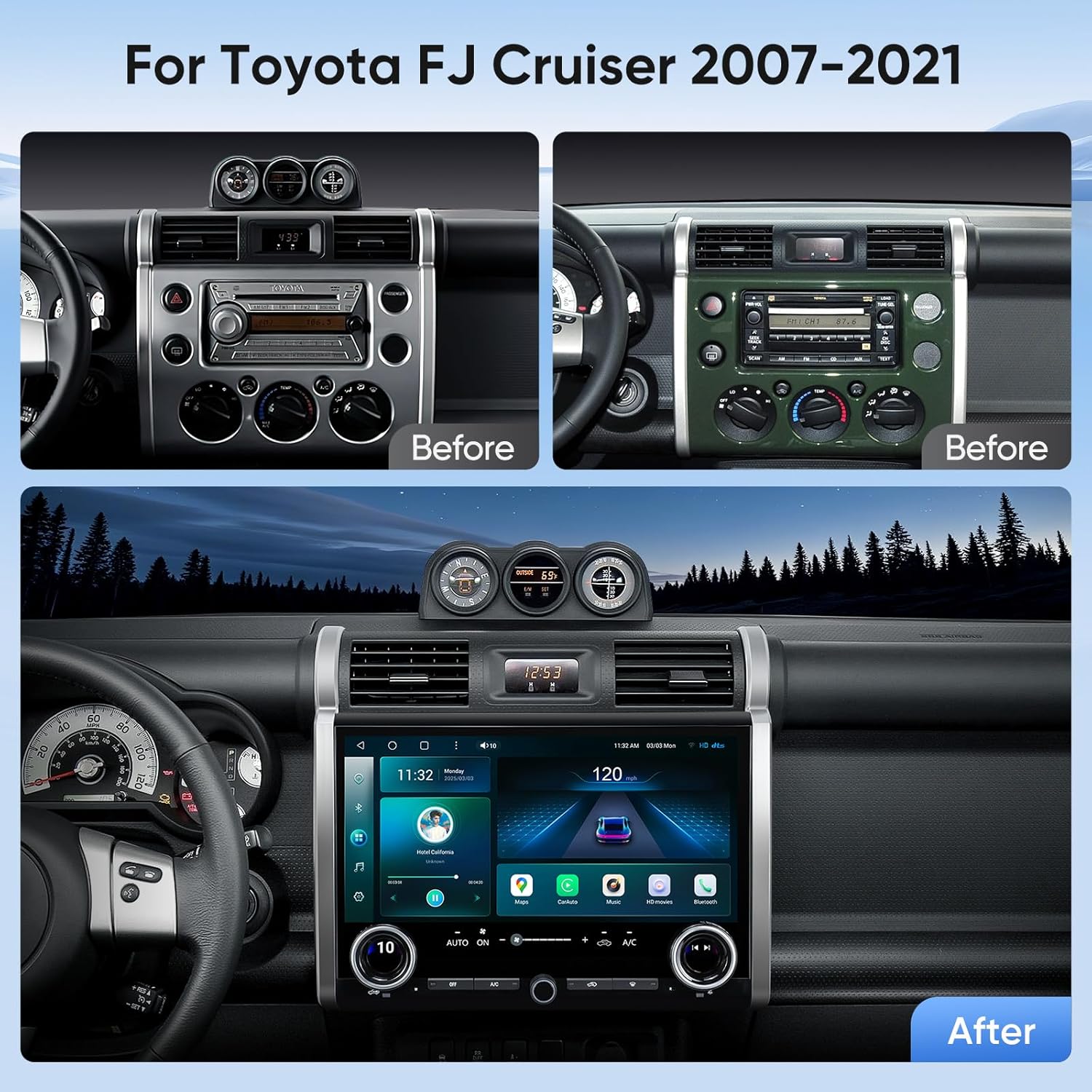
Image: Visual comparison of the dashboard before and after the installation of the AINAVI stereo.
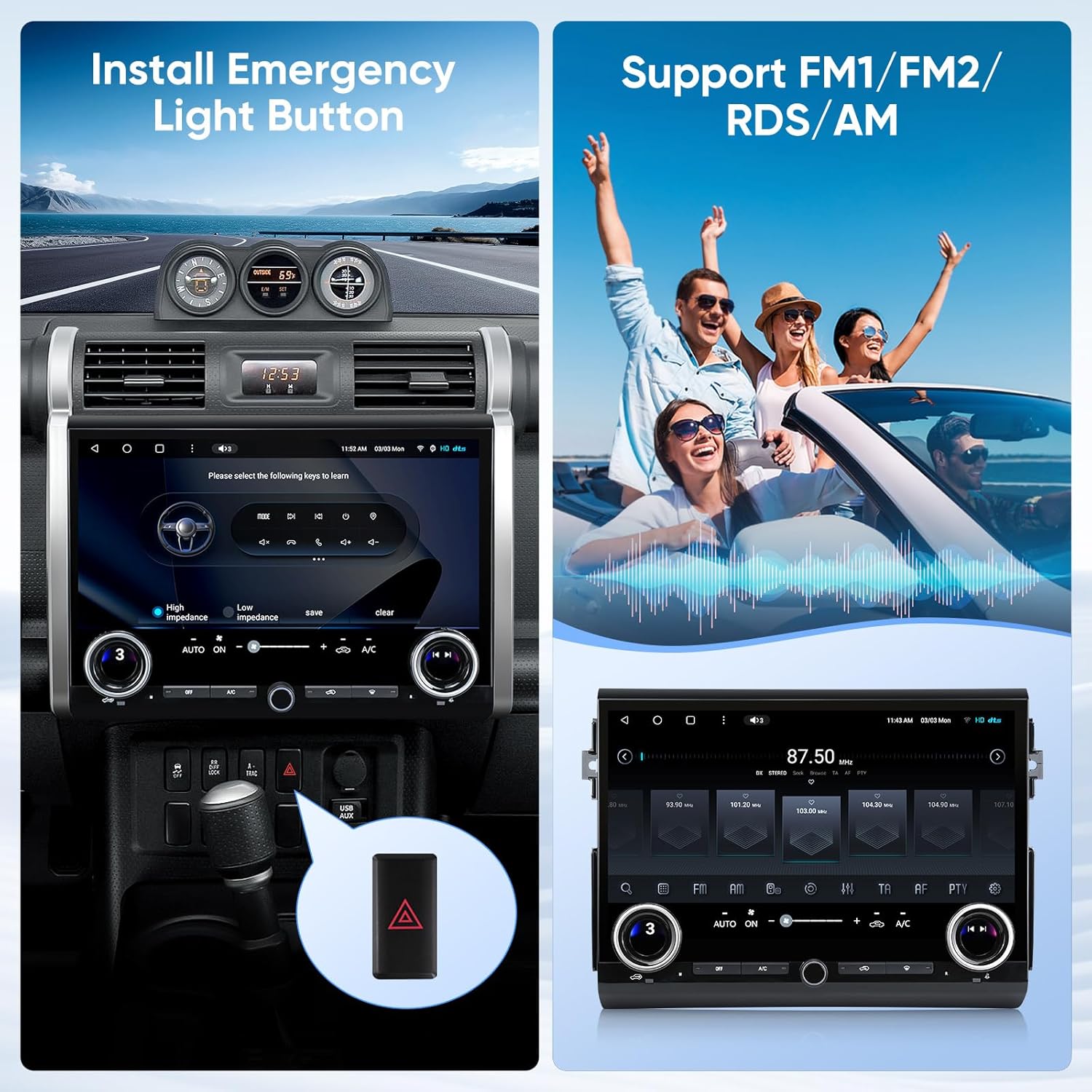
Image: Detail of the emergency light button integration during installation.
Video: A brief overview of the 15-inch Touchscreen Car Stereo Radio for Toyota FJ Cruiser 07-21, showcasing its physical features and design.
2. Operating Instructions
2.1 Power On/Off
To power on the unit, ensure the vehicle's ignition is on. The unit will typically power on automatically. To power off, turn off the vehicle's ignition. The unit will enter standby mode or shut down completely depending on vehicle wiring.
2.2 Touchscreen Interface
The 15-inch QLED touchscreen provides a high-resolution graphical user experience. Navigate through menus and applications by tapping, swiping, and pinching on the screen.

Image: The main interface of the 15-inch touchscreen car stereo.

Image: Key features of the HD 1080P touchscreen, highlighting resolution and viewing angles.
2.3 Knob and Button Controls
The unit features two large physical knobs and several physical buttons for convenient control of essential functions:
- Large Knobs: Adjust AC temperature and wind speed. Pressing the knob switches between these functions.
- Small Knob: Adjusts the audio volume.
- Physical AC Buttons: Control various air conditioning functions directly.

Image: Demonstrating the use of manual knobs for climate control.
2.4 Connectivity (Wireless CarPlay & Android Auto, Bluetooth, Wi-Fi)
The stereo supports various connectivity options for seamless integration with your mobile devices and online services:
- Wireless CarPlay & Android Auto: Enjoy stable signal flow for navigation, music, and communication. Supports wired and wireless mirroring (Airplay + Android) with 1920x1080 resolution.
- Bluetooth: Connect your smartphone for hands-free calling and audio streaming.
- Wi-Fi (2.4GHz & 5GHz): Connect to a Wi-Fi hotspot for faster network speeds, real-time traffic information, and access to online applications.

Image: Display of Apple CarPlay and Android Auto functionality on the stereo screen.
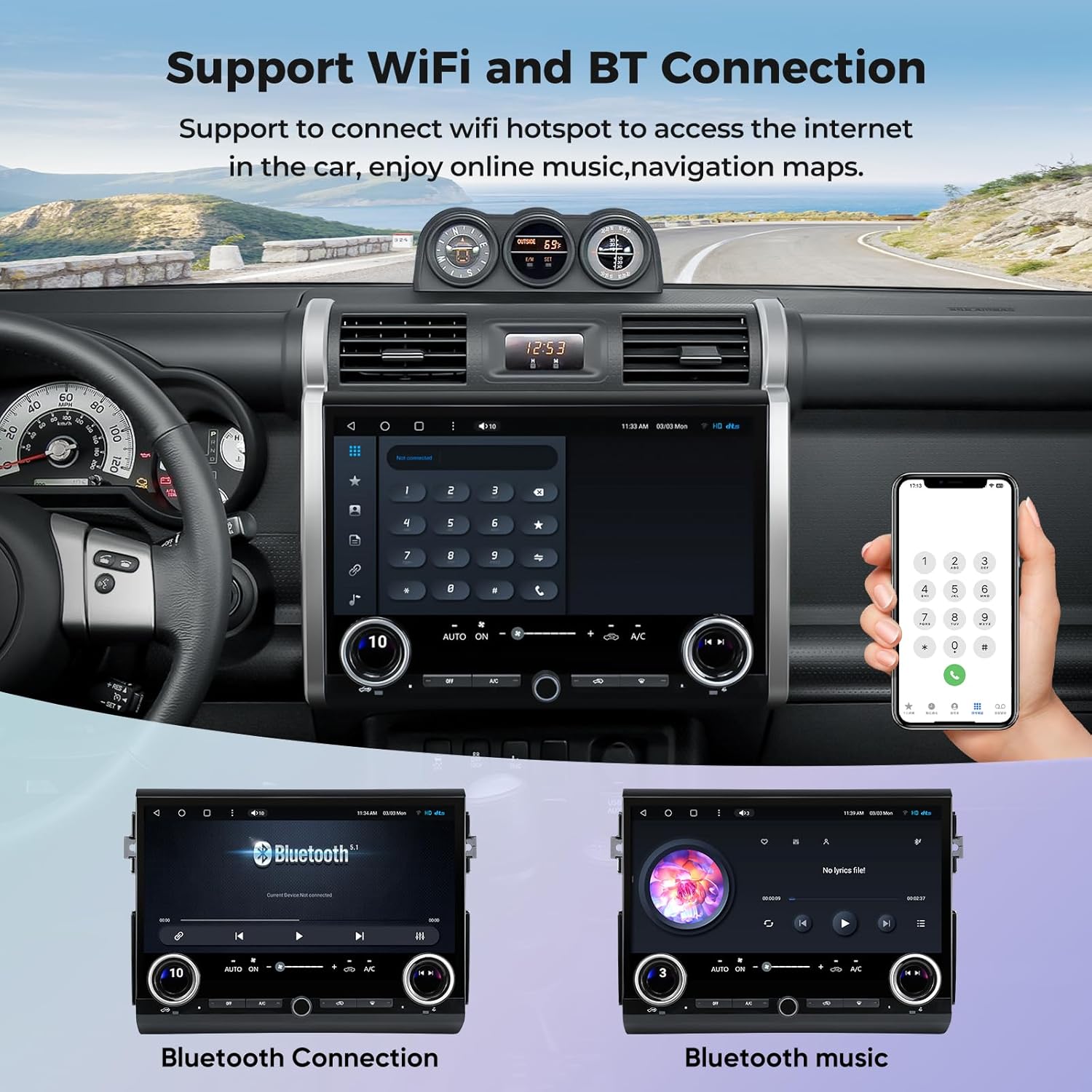
Image: Demonstrating Wi-Fi and Bluetooth connection capabilities.
2.5 GPS Navigation
The unit supports most satellite services and features a built-in GPS module. With 5G WiFi, navigation is highly accurate. Utilize Google Maps for 2D and 3D perspectives, various route options (driving, cycling, pedestrian), obstacle alerts, and voice guidance for intelligent driving.

Image: GPS navigation interface with various map application options.
2.6 Audio Features (DSP, EQ)
Experience enhanced audio quality with the integrated Professional DSP (Digital Sound Processor) and 48-band EQ (Equalizer). Adjust the voice point according to seating position for optimal sound. Choose from 7 sound modes (Normal, Jazz, Pop, Classical, Heavy Metal, Vocal, Soft) and 6 surround sound patterns. Features include Bass Boost and individual speaker volume control for a powerful and customizable audio experience.

Image: DSP system interface showing equalizer and sound adjustment options.
2.7 Rear View Camera
The included AHD 1080P Rear View Camera provides clear, high-definition reversing scenes. The astern ruler line assists with parking by indicating position, and if your car supports astern trajectory, it will also be displayed on the screen for added convenience and safety.
Image: Rearview camera display with parking assistance features.
2.8 Split Screen Mode
The split-screen function allows you to run multiple applications simultaneously on the large display. For example, you can view navigation maps on one side while controlling music playback or browsing another application on the other side, enhancing multitasking capabilities.

Image: Example of split screen mode with two applications running concurrently.

Image: Further illustration of split screen and mirroring functions.
2.9 Steering Wheel Control
The unit supports steering wheel controls, allowing you to manage audio, calls, and other functions without taking your hands off the wheel. This feature enhances driving safety and convenience.

Image: Steering wheel control integration for convenient operation.
2.10 Full RCA Output
The USB to RCA Output function allows you to connect external displays, such as headrest monitors, to the stereo. This enables independent video playback on multiple screens simultaneously, providing entertainment for passengers in the back seats during trips.

Image: Demonstration of full RCA output to external displays.
3. Maintenance
3.1 Cleaning
To maintain the clarity and responsiveness of the touchscreen, regularly wipe it with a soft, lint-free cloth. For stubborn smudges, slightly dampen the cloth with a screen cleaner specifically designed for electronics. Avoid abrasive materials or harsh chemicals.
3.2 Software Updates
Periodically check for software updates to ensure optimal performance, new features, and bug fixes. Refer to the manufacturer's website or contact support for instructions on how to check for and apply updates.
4. Troubleshooting
This section addresses common issues you might encounter with your AINAVI car stereo. For problems not listed here, or if solutions do not resolve the issue, please contact customer support.
| Problem | Possible Cause | Solution |
|---|---|---|
| Unit does not power on. | Loose power connection, blown fuse, vehicle ignition off. | Check power cable connections. Inspect vehicle fuses. Ensure vehicle ignition is on. |
| No audio output. | Volume too low, incorrect audio source, speaker wiring issue. | Increase volume. Select correct audio source. Check speaker connections. |
| GPS signal lost or inaccurate. | GPS antenna obstruction, poor satellite reception. | Ensure GPS antenna has a clear view of the sky. Move vehicle to an open area. |
| Touchscreen unresponsive. | Software glitch, temporary freeze. | Restart the unit (turn vehicle off and on). If issue persists, perform a factory reset (refer to settings menu). |
| Air conditioner issues after installation. | Wiring or compatibility issue. | Contact AINAVI technical support for assistance. |
5. Specifications
| Feature | Detail |
|---|---|
| Brand | AINAVI |
| Model Name | 15" Touchscreen Car Stereo Radio for Toyota FJ Cruiser |
| ASIN | B0F8B943NK |
| Display Size | 15 Inches |
| Resolution | 1920 x 1080 (QLED) |
| Processor | Qualcomm 8 Core CPU, Dual-Core GPU |
| Memory (RAM) | 8GB |
| Storage (ROM) | 128GB |
| Operating System | Android 13 |
| Connectivity | Bluetooth, USB, Wi-Fi (2.4GHz & 5GHz), Wired, Wireless |
| Special Features | Wireless CarPlay, Android Auto Mirroring, DTS Sound Effect, Off-Road Intelligence, RDS, Split Screen Function, 48-EQ (Sound Point Control), Premium DSP, 1080P Rear View Camera Support, Physical Knobs for AC/Volume. |
| Audio Output Mode | Surround Stereo |
| Map Type Support | Europe, North America, South America, Worldwide |
| Mounting Type | Dashboard Mount |
| Item Weight | 6.83 pounds |
| Package Dimensions | 15.44 x 13.12 x 5.59 inches |
6. Warranty
The AINAVI 15-inch Touchscreen Car Stereo Radio comes with a 12 Months Manufacturer Guarantee. This warranty covers defects in materials and workmanship under normal use. Please retain your proof of purchase for warranty claims. For detailed warranty terms and conditions, refer to the product documentation or contact AINAVI customer support.
7. Support
AINAVI is committed to providing excellent customer service and technical support. Our professional technical support team is available to assist with installation queries and any issues you may encounter, including air conditioner integration problems.
Contact Information:
- Customer Service Phone: +1 (833) 858-5016
- Working Hours: 3:00 PM to 12:00 PM PST
- Email: info@ainavi.com
You can also seek help via your order center on the platform where you purchased the product.

Image: Visual representation of customer support contact options.

Image: Steps to access customer installation support.

Image: Overview of superior customer care process.