
1. Introduction and Overview
The DOOGEE Blade 20 Ultra is a rugged smartphone designed for durability and performance in challenging environments. It features a robust build, a large battery, and advanced camera capabilities, making it suitable for outdoor activities and demanding work conditions.
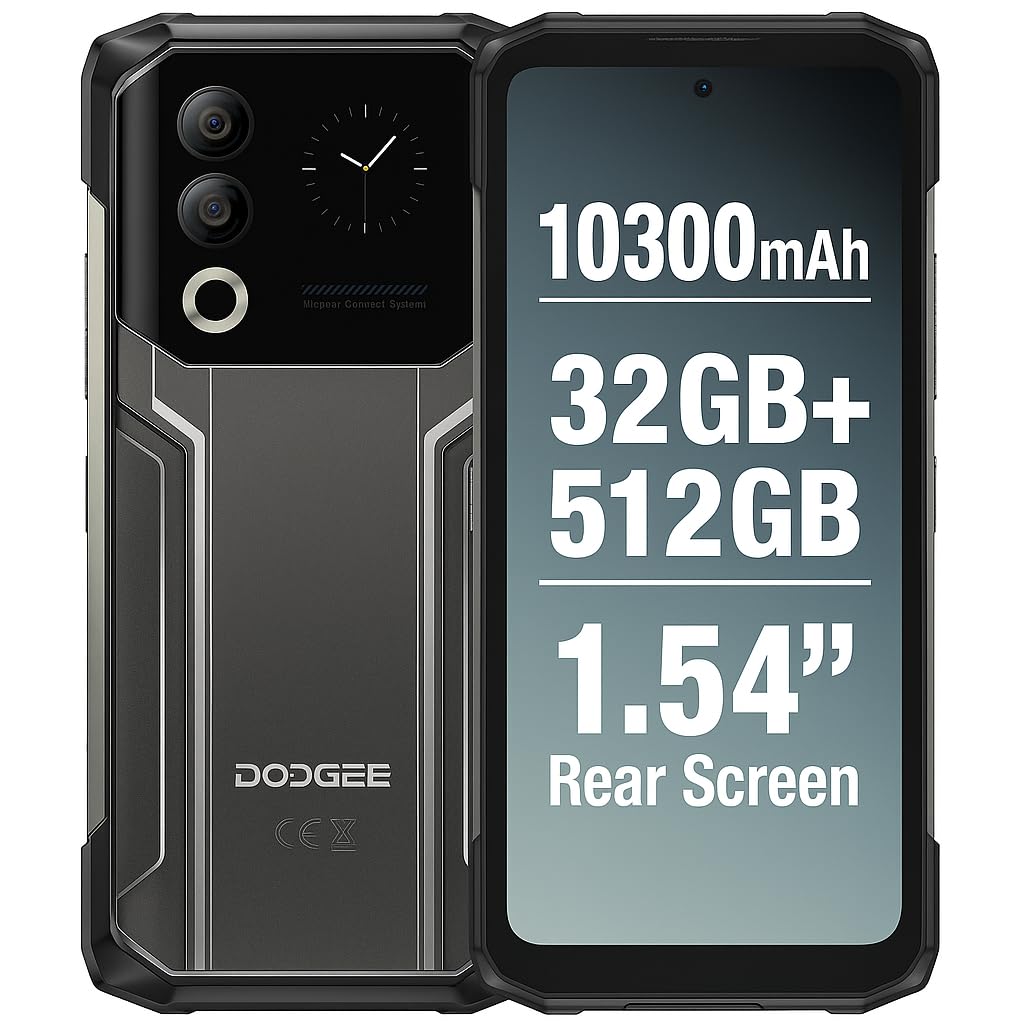
Figure 1: DOOGEE Blade 20 Ultra device overview.
Key Features:
- Ultra-Rugged Design: IP68/IP69K and MIL-STD-810H certified for water, dust, and shock resistance.
- Powerful Performance: Unisoc T7250 Octa-Core processor with 8GB RAM (expandable to 32GB virtual RAM) and 512GB internal storage (expandable up to 2TB).
- Dual Display: 6.6-inch FHD+ 90Hz main display and an innovative 1.54-inch smart rear display for quick access and customization.
- Long-lasting Battery: 10300 mAh battery with 18W fast charging and OTG reverse charging capability.
- Advanced Camera System: 50MP AI main camera and 8MP front camera with multiple shooting modes.
- Enhanced Security: Side-mounted fingerprint sensor and facial recognition.
- Connectivity: NFC with Google Pay support, GPS, Glonass, Galileo, Beidou for accurate navigation.
2. Setup
2.1 Package Contents
Before you begin, ensure all items are present in the box:
- 1 x DOOGEE Blade 20 Ultra Smartphone
- 1 x Screen Protector Film (pre-applied or separate)
- 1 x USB Cable (Type-C)
- 1 x Protective Case
- 1 x Charger
2.2 SIM Card and MicroSD Card Installation
The device supports a triple slot system for two Nano SIM cards and one MicroSD card.
- Locate the SIM card tray on the side of the phone.
- Use the provided SIM ejector tool to open the tray.
- Carefully place your Nano SIM cards and/or MicroSD card into the designated slots. Ensure the gold contacts face downwards.
- Gently push the tray back into the phone until it clicks into place.

Figure 2: Illustration of SIM and MicroSD card installation.
2.3 Initial Charging
Before first use, it is recommended to fully charge the device. Connect the USB cable to the phone's Type-C port and the charger, then plug the charger into a power outlet. The phone supports 18W fast charging.
2.4 Powering On/Off
- To Power On: Press and hold the Power button (usually on the side) until the DOOGEE logo appears.
- To Power Off: Press and hold the Power button, then select 'Power off' from the options on the screen.
- To Restart: Press and hold the Power button, then select 'Restart' from the options.
3. Operating the Device
3.1 Main Display (6.6" HD+ 90Hz)
The 6.6-inch HD+ display offers a smooth visual experience with a 90Hz refresh rate. Navigate through apps, menus, and content using touch gestures.
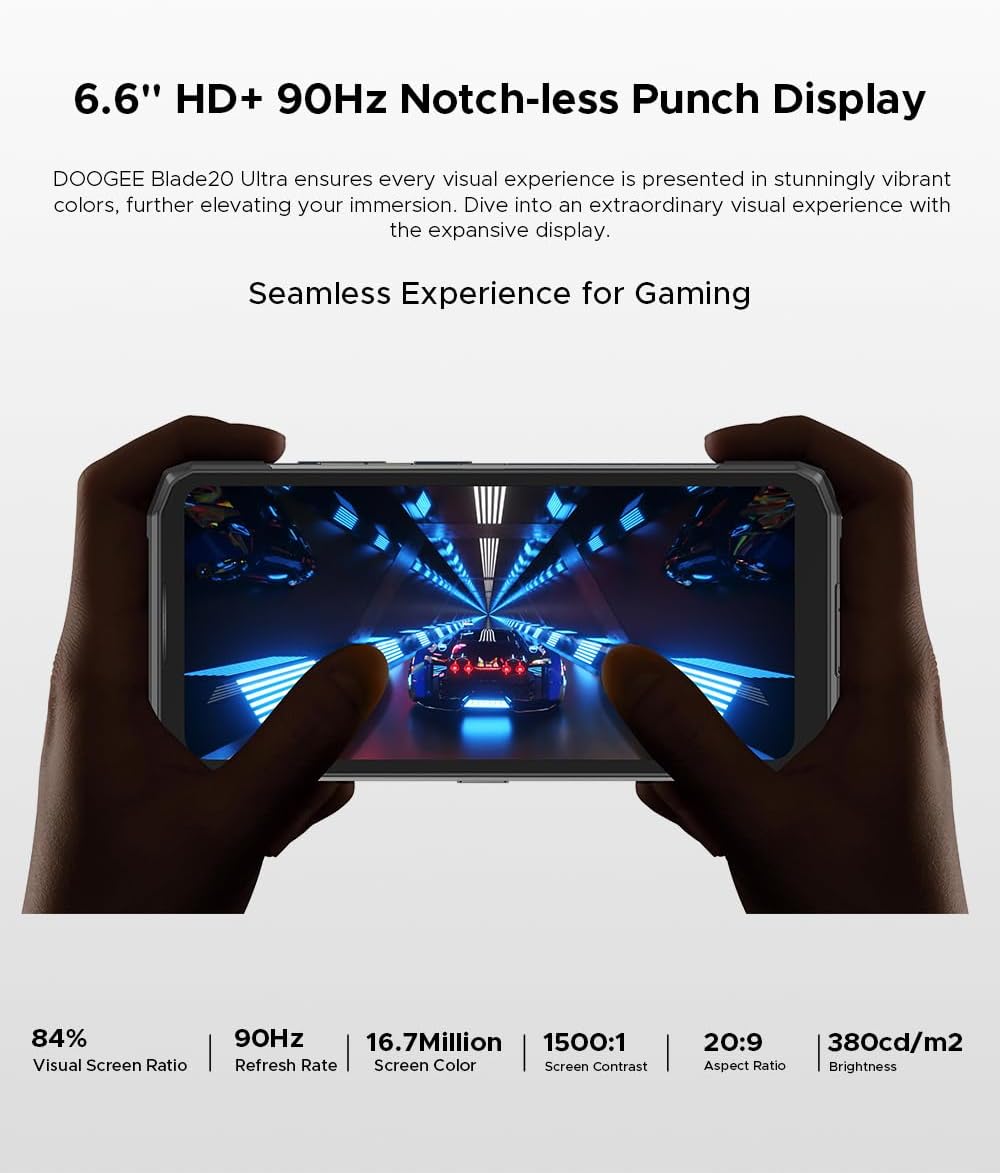
Figure 3: The 6.6-inch HD+ 90Hz main display provides a seamless viewing experience.
3.2 1.54" Smart Rear Display
The innovative 1.54-inch rear display provides quick access to essential functions and customizable backgrounds. Double-tap to activate it.
- Quick Access: Control music, view notifications, check the calendar, and answer calls without opening the main screen.
- Selfies: Use the rear display to frame selfies with the main camera.
- Customization: Choose from over 16 customizable wallpapers, including dynamic, business, and personalized photo settings.

Figure 4: The 1.54-inch smart rear display offers quick functions and personalization.
3.3 Camera Functions
The DOOGEE Blade 20 Ultra features a 50MP AI main camera and an 8MP front camera. It supports Google Intelligent Camera features.
- Main Camera: 50MP (OV50C40 sensor, F/1.8 aperture) with autofocus and LED flash.
- Front Camera: 8MP (Hi-842 sensor, F/2.2 aperture).
- Modes: Underwater mode, Night Vision, Professional Photography, Beauty Mode, Time-lapse, Portrait Mode, HDR, Panoramic Mode, Filter, Pro Mode.
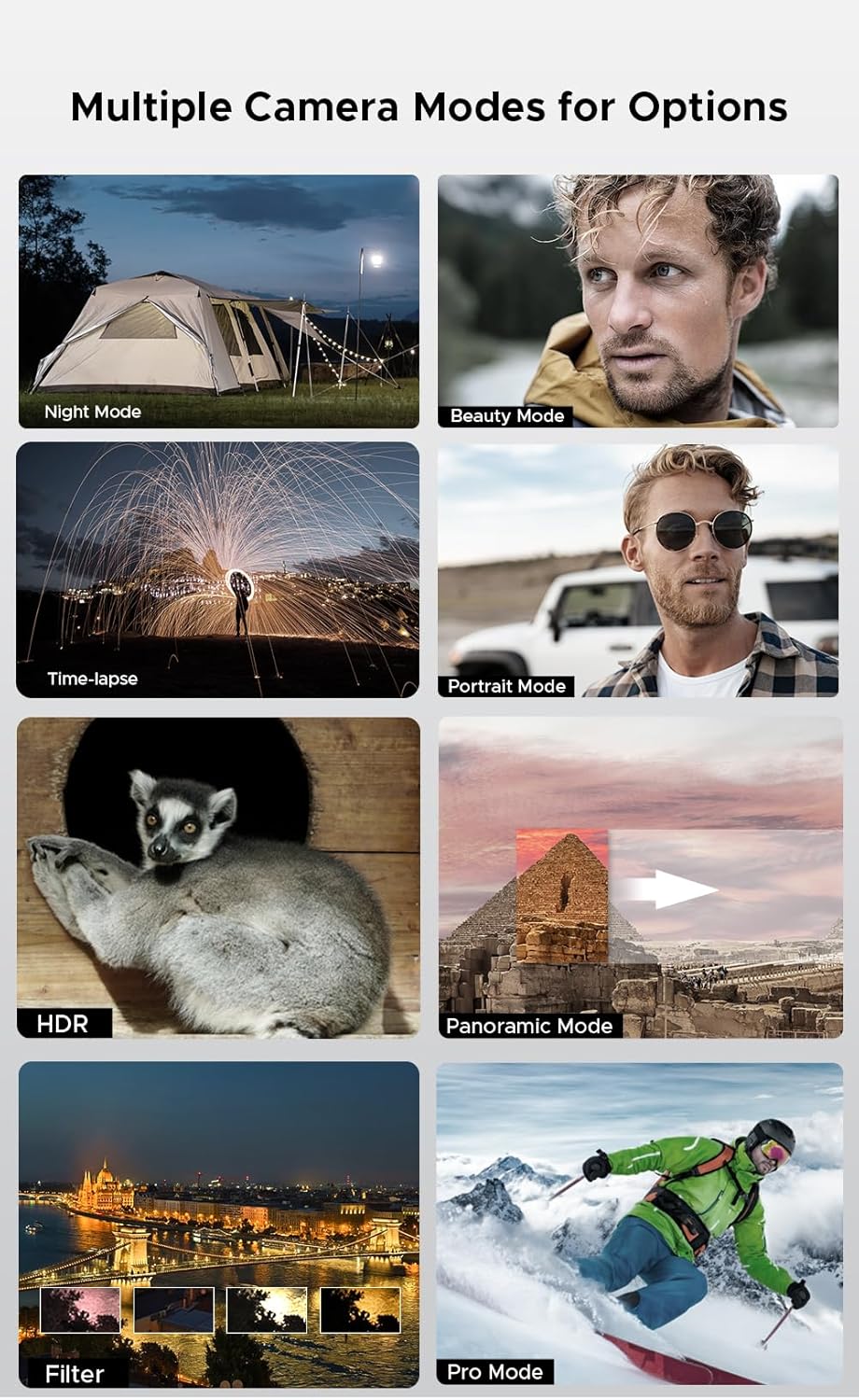
Figure 5: Various camera modes available on the Blade 20 Ultra.
3.4 Battery Management
The device is equipped with a 10300 mAh battery, providing extended usage times.
- Fast Charging: Supports 18W fast charging to quickly replenish battery life.
- Power Bank Function (OTG Reverse Charging): Use your phone to charge other devices.
- Usage: Up to 35 hours of talk time.
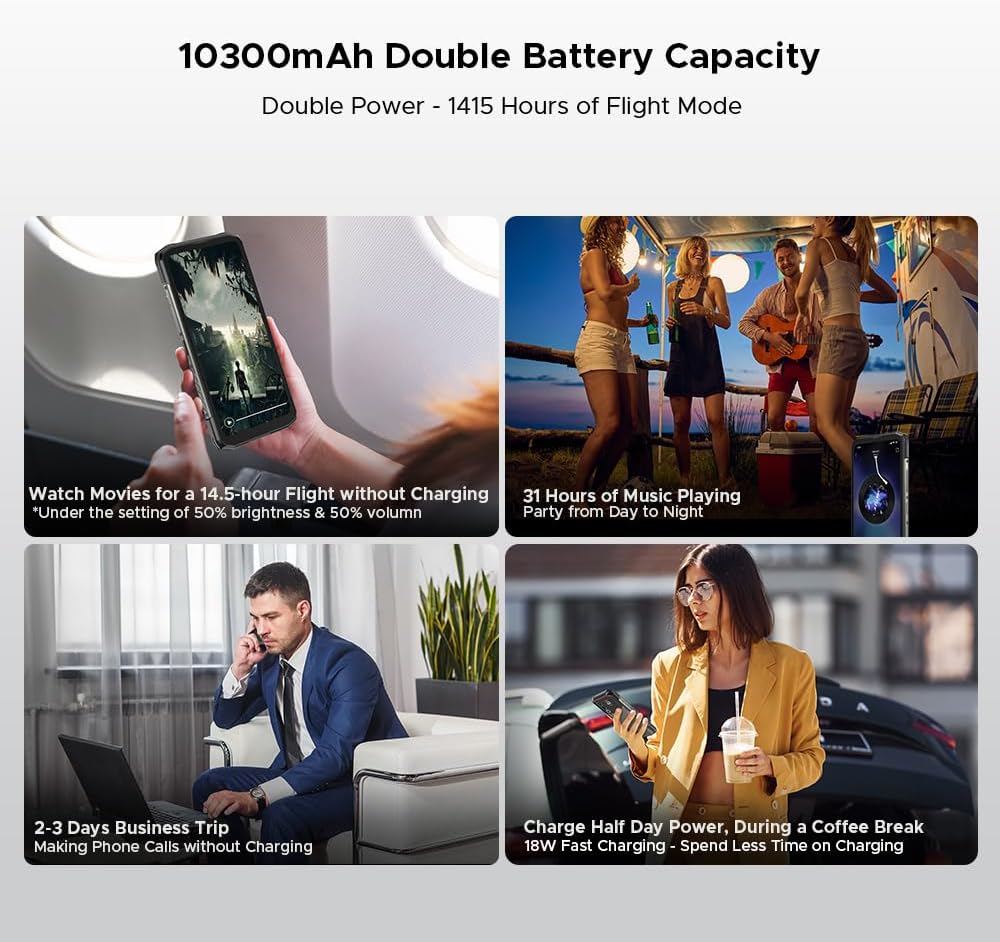
Figure 6: Examples of extended battery life for various activities.
3.5 Security Features
- Side Fingerprint Sensor: Unlock your device quickly and securely using the side-mounted fingerprint sensor.
- Facial Recognition: Use your face to unlock the phone.
3.6 Connectivity and Navigation
The Blade 20 Ultra supports various connectivity options and global navigation systems.
- NFC: Supports Near Field Communication for contactless payments (Google Pay) and data transfer.
- Wireless: GSM, 3G, 4G, Bluetooth, Wi-Fi.
- Navigation: Integrated GPS, Glonass, Galileo, and Beidou for accurate positioning.

Figure 7: The phone supports multiple global navigation satellite systems.
4. Maintenance
4.1 Cleaning the Device
To maintain the device's appearance and functionality:
- Wipe the screen and body with a soft, lint-free cloth.
- For stubborn dirt, slightly dampen the cloth with water or a screen cleaner.
- Avoid using harsh chemicals or abrasive materials.
- Ensure all port covers are securely closed before exposing the device to water or dust.
4.2 Battery Care
- Avoid extreme temperatures, which can degrade battery life.
- Do not leave the phone fully charged or fully discharged for extended periods.
- Use only the original charger and cable or certified compatible accessories.
4.3 Software Updates
The DOOGEE Blade 20 Ultra runs on Android 14. Regularly check for and install software updates to ensure optimal performance, security, and access to new features. You can usually find this option in the phone's Settings menu under 'System' or 'About phone'.
4.4 Storage Management
With 512GB of internal storage and support for up to 2TB MicroSD, you have ample space. Periodically review your files and applications to free up space if needed. Uninstall unused apps and transfer large media files to external storage or cloud services.
5. Troubleshooting
This section addresses common issues you might encounter with your DOOGEE Blade 20 Ultra.
5.1 Device Not Turning On
- Ensure the battery is charged. Connect the charger and wait a few minutes before attempting to power on.
- Press and hold the Power button for at least 10-15 seconds to force a restart.
5.2 Charging Issues
- Check if the charger and USB cable are properly connected and undamaged.
- Try using a different power outlet.
- Ensure the charging port is clean and free of debris.
5.3 Network Connectivity Problems
- Check if your SIM card is correctly inserted and activated.
- Ensure 'Airplane mode' is off.
- Restart the device.
- Go to Settings > Network & internet > Mobile network and check network settings.
5.4 Apps Crashing or Freezing
- Close and reopen the app.
- Clear the app's cache and data (Settings > Apps > [App Name] > Storage & cache).
- Ensure the app is updated to the latest version.
- If the issue persists, uninstall and reinstall the app.
5.5 Factory Reset
If you experience persistent software issues, a factory reset may resolve them. Warning: This will erase all data on your phone. Back up important data before proceeding.
- Go to Settings > System > Reset options.
- Select 'Erase all data (factory reset)'.
- Confirm your decision and enter your PIN/password if prompted.
6. Specifications
| Feature | Specification |
|---|---|
| Model Number | Blade 20 Ultra |
| Dimensions | 174 x 81.2 x 15.8 mm |
| Weight | 326 g |
| Operating System | Android 14 |
| Processor | Unisoc T7250 Octa-Core, 1.8 GHz (12 nm) |
| RAM | 8 GB (expandable to 32 GB virtual RAM) |
| Internal Storage | 512 GB (UFS), expandable up to 2 TB via MicroSD |
| Main Display | 6.6 inches IPS HD+, 90 Hz refresh rate, 1920 x 1080 resolution, 367 PPI |
| Rear Smart Display | 1.54 inches IPS, 240 x 240 pixels |
| Rear Camera | 50 MP AI (OV50C40 sensor, F/1.8 aperture) |
| Front Camera | 8 MP (Hi-842 sensor, F/2.2 aperture) |
| Battery Capacity | 10300 mAh |
| Charging | 18W Fast Charging, OTG Reverse Charging |
| SIM Card Slots | Dual Nano SIM + 1 MicroSD (Triple Slot) |
| Connectivity | 4G, 3G, GSM, Wi-Fi, Bluetooth, GPS, NFC (Google Pay) |
| Navigation | GPS, Glonass, Galileo, Beidou |
| Security | Side Fingerprint Sensor, Facial Recognition |
| Durability | IP68/IP69K, MIL-STD-810H (Waterproof, Dustproof, Shockproof) |
| Headphone Jack | No 3.5mm jack |
7. Warranty and Support
7.1 Warranty Information
Your DOOGEE Blade 20 Ultra is covered by a standard manufacturer's warranty. The specific terms and duration of the warranty may vary by region and retailer. Please refer to the warranty card included in your product packaging or contact your point of purchase for detailed information.
7.2 Customer Support
For technical assistance, troubleshooting beyond this manual, or warranty claims, please contact DOOGEE customer support or the retailer from whom you purchased the device. Keep your proof of purchase handy when contacting support.
Information regarding spare parts availability is not provided at this time.


