
1. Introduction
This manual provides detailed instructions for the safe and efficient use of your Rfiver Mobile TV Stand with Power Outlet, Model B0F89BJFHH. Please read this manual thoroughly before assembly and operation to ensure proper setup and to prevent damage or injury. Keep this manual for future reference.
2. Product Features
The Rfiver Mobile TV Stand is designed for versatility and convenience, offering a range of features to enhance your viewing experience.
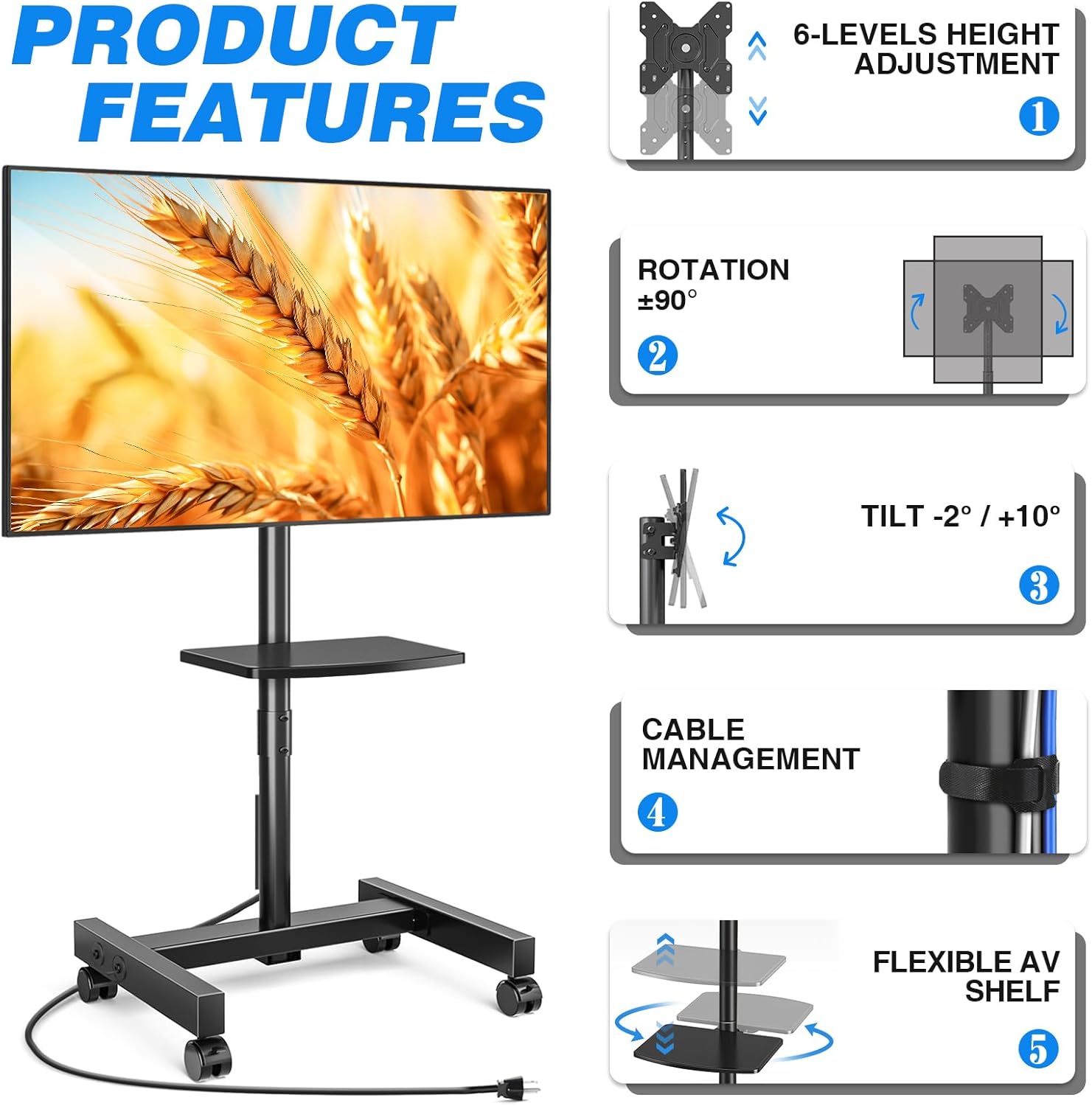
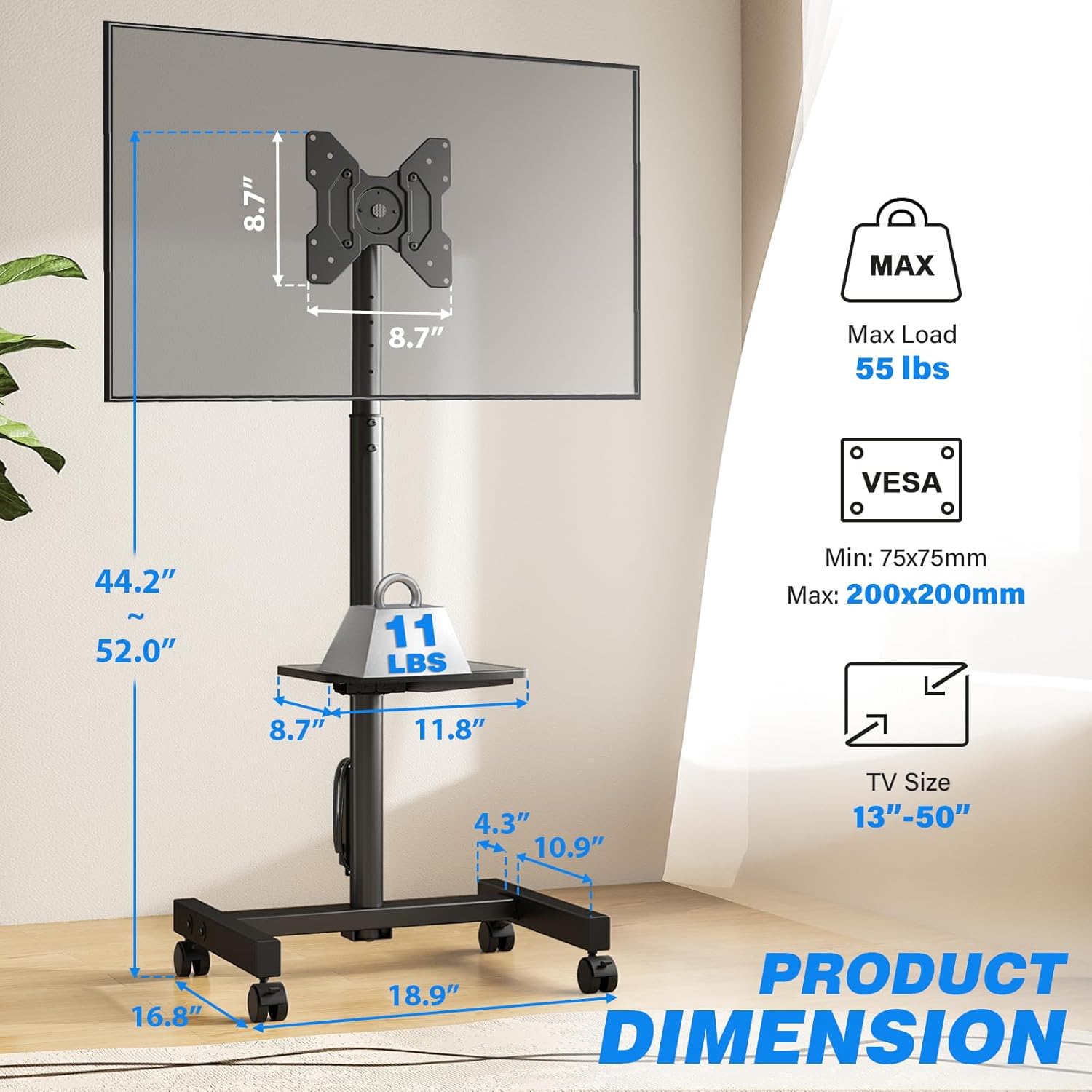
- Wide Compatibility: Supports most 13-50 inch LCD/LED/OLED Flat/Curved screens or monitors with a maximum load capacity of 55 lbs. Compatible with VESA mounting patterns from 75x75mm to 200x200mm.
- Integrated Power Outlet: Features a built-in power strip with 4 AC outlets (120V/12A) and a 6.5-foot heavy-duty extension cord. Includes a one-touch power switch for electrical safety.
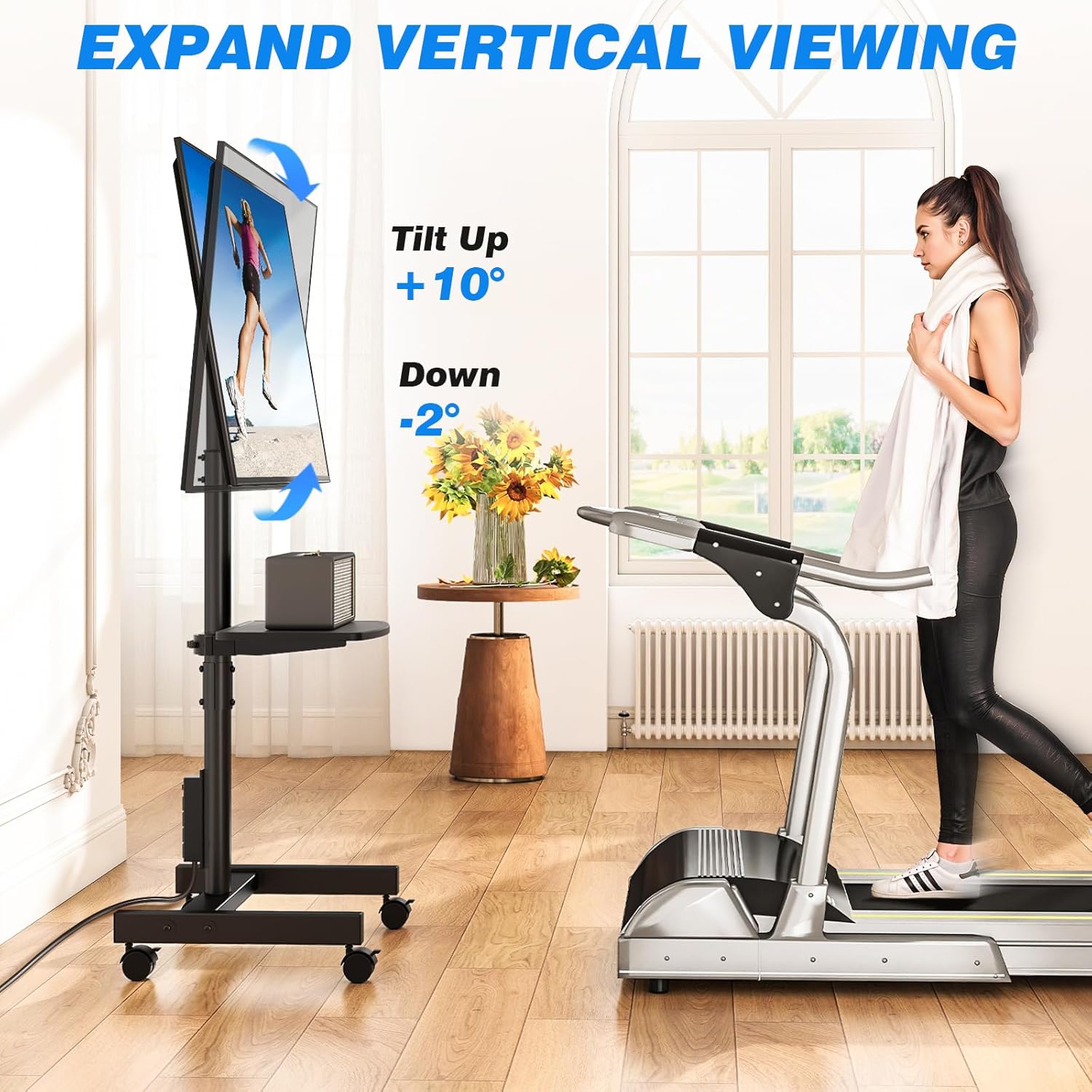
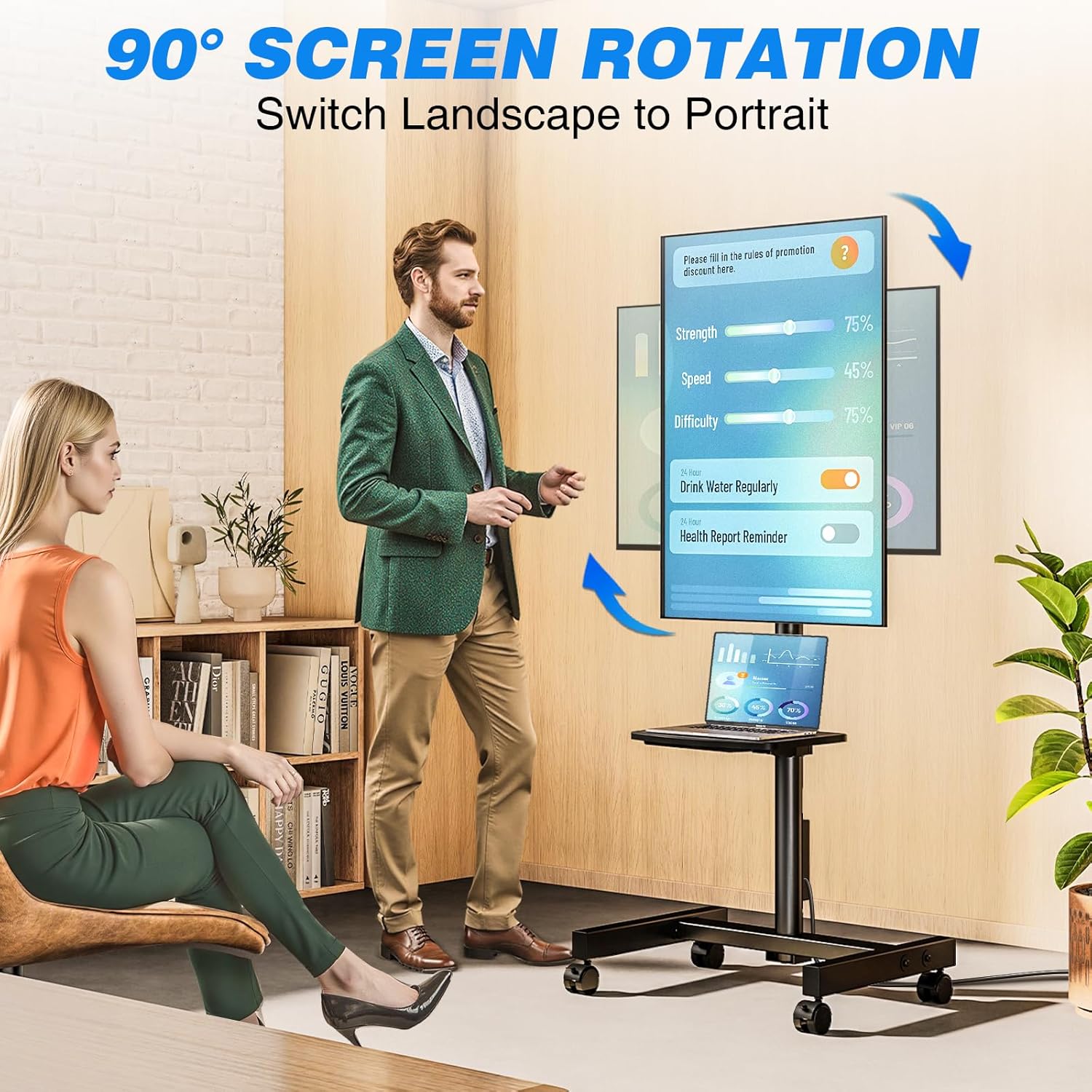
- Flexible Angle Adjustment: Allows TV rotation between portrait and landscape modes (90 degrees). Tilt angle adjustment from +10° to -2° for optimal viewing.
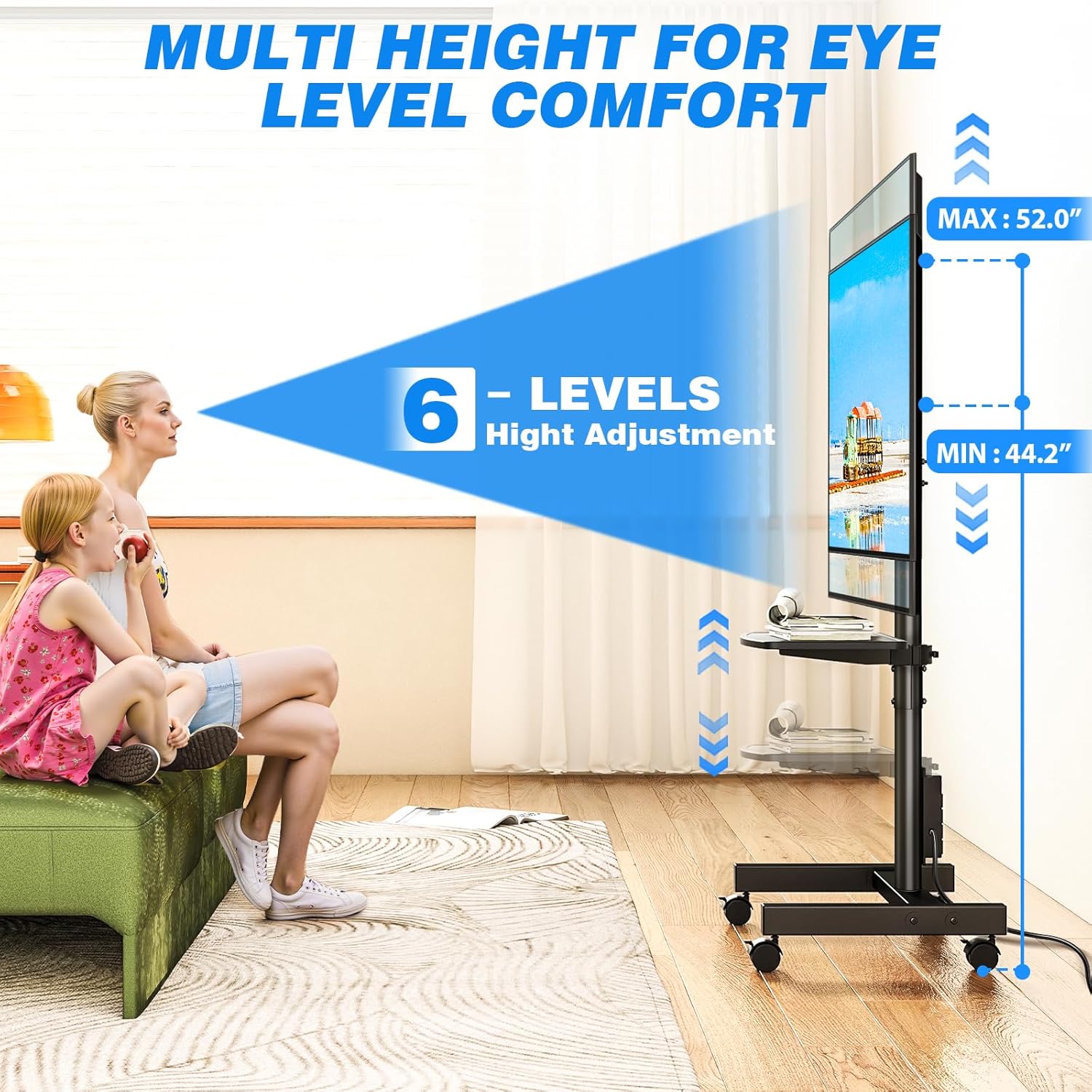
- Height Adjustment: Offers 6 levels of height adjustment to position the screen at eye level.
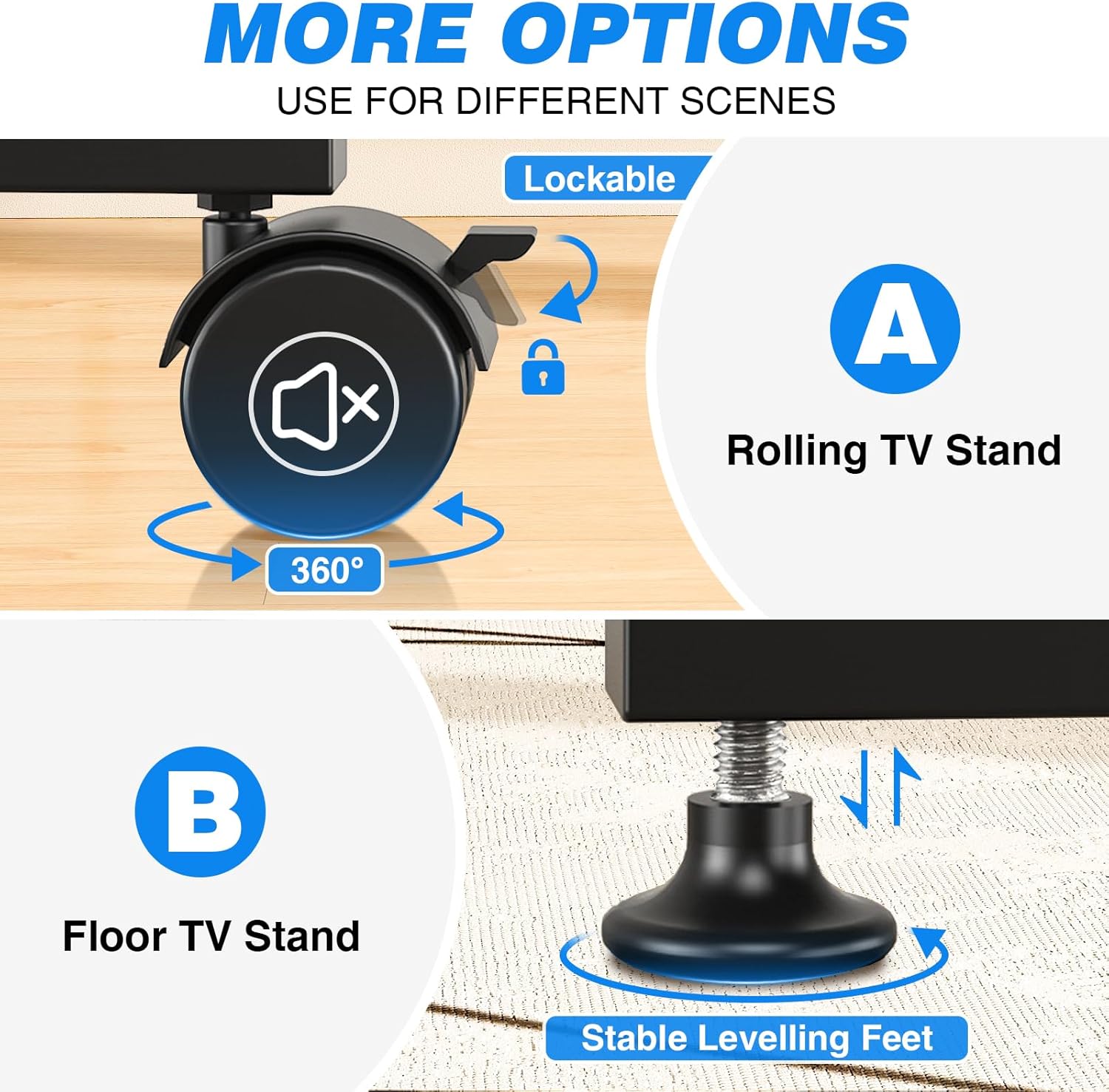
- Mobile or Fixed Use: Comes with both 360° rotating lockable castors for easy mobility and adjustable feet for stable, stationary use on various surfaces.
- Space-Saving Design: Compact design allows placement close to walls or behind furniture. Integrated cable management system keeps wires organized.
- Adjustable Media Shelf: Includes a shelf for media devices or accessories.
Feature Overview
Integrated Power Outlet

Adjustable Viewing Angles
Mobility Options
Product Dimensions and VESA Compatibility
Height Adjustment Range
Product Video
This video provides a visual overview of the Rfiver Rolling TV Stand's features, including height adjustment, adjustable storage shelf, 90-degree vertical assembly, tilt functionality, cable management, integrated power outlet, and VESA compatibility.
3. Specifications
| Attribute | Value |
|---|---|
| Brand | Rfiver |
| Model Number | B0F89BJFHH |
| Item Weight | 12.45 pounds |
| Product Dimensions | 18.8 x 16.8 x 52 inches |
| Color | Black |
| Material | Metal |
| Mounting Type | Floor Mount |
| Movement Type | Rotate |
| Compatible Devices | Monitor, Television |
| Maximum Tilt Angle | +10° / -2° |
| TV Size Compatibility | 13-50 inches |
| Max Load Capacity | 55 lbs |
| VESA Compatibility | 75x75mm to 200x200mm |
| Power Outlet | 4 AC outlets (120V/12A), 6.5ft cord |
4. Safety Information
Please observe the following safety precautions to prevent injury or damage to the product:
- Do not exceed the maximum load capacity of 55 lbs (25 kg).
- Ensure your TV's VESA mounting pattern is within the supported range (75x75mm to 200x200mm).
- Always follow assembly instructions carefully. Incorrect assembly can lead to product failure.
- Distribute weight evenly on the media shelf. Do not overload.
- When moving the stand, ensure all wheels are unlocked. Lock wheels when the stand is in its desired position to prevent accidental movement.
- Keep children and pets away from the stand during assembly and adjustment.
- Do not attempt to modify the product. Any modifications may void the warranty and create safety hazards.
- Ensure the power outlet is properly grounded and rated for the connected devices. Do not exceed the power strip's electrical limits (120V/12A).
5. Package Contents
Before beginning assembly, verify that all parts are present and undamaged. Refer to the included assembly instructions for a complete list of components and hardware.
- TV Stand Base (with pre-installed power outlet)
- Vertical Support Pole
- TV Mounting Bracket
- Adjustable Media Shelf
- Set of 360° Rotating Lockable Castors
- Set of Adjustable Leveling Feet
- Hardware Kit (screws, washers, spacers for TV mounting and stand assembly)
- Assembly Tools (e.g., Allen wrench, open-end wrench)
- User Manual
6. Assembly Instructions
Assembly typically requires two people. Follow the step-by-step instructions provided in the separate assembly guide included with your product. Ensure all connections are secure before mounting your TV.
- Unpack and Verify: Carefully unpack all components and compare them against the parts list in your assembly guide.
- Assemble the Base: Attach the vertical support pole to the base. Decide whether to install the lockable castors for mobility or the adjustable leveling feet for a stationary setup.
- Install Media Shelf: Secure the adjustable media shelf to the vertical support pole at your desired height.
- Attach TV Brackets: Secure the TV mounting brackets to the back of your television using the appropriate screws, washers, and spacers from the hardware kit. Ensure VESA compatibility.
- Mount the TV: Carefully lift and attach the TV (with brackets) to the main mounting plate on the stand. Secure it according to the assembly guide.
- Cable Management: Route all cables through the integrated cable management system to maintain a tidy appearance.
Note: Detailed diagrams and specific hardware identifiers are found in the dedicated assembly manual.
7. Operating Instructions
7.1 Adjusting Height
The TV stand offers 6 levels of height adjustment. To adjust the height:
- Loosen the locking mechanisms on the vertical support pole.
- Carefully raise or lower the TV to the desired viewing height.
- Securely tighten all locking mechanisms to prevent the TV from slipping.
7.2 Tilting the TV
The TV mount allows for a tilt range of +10° (up) to -2° (down).
- Locate the tilt adjustment knobs or bolts on the TV mounting bracket.
- Loosen them slightly.
- Adjust the TV to your preferred tilt angle.
- Tighten the knobs/bolts firmly to secure the TV in place.
7.3 Rotating the TV (Portrait/Landscape)
The TV can be rotated 90 degrees to switch between portrait and landscape orientations.
- Ensure there is sufficient clearance around the TV to rotate it without hitting obstacles.
- Carefully rotate the TV to the desired orientation.
- The mount is designed to hold the TV securely in both positions.
7.4 Using the Integrated Power Outlet
The stand includes a power strip with 4 AC outlets.
- Plug the stand's 6.5-foot power cord into a wall outlet.
- Connect your TV and other media devices to the 4 AC outlets on the power strip.
- Use the one-touch power switch to turn the power strip on or off, conserving energy when devices are not in use.
7.5 Moving the Stand (with Castors)
If you have installed the lockable castors:
- Ensure all castor locks are disengaged before moving.
- Gently push the stand to its new location.
- Once in position, engage all castor locks to prevent unwanted movement.

8. Maintenance
- Cleaning: Wipe the stand with a soft, damp cloth. Avoid abrasive cleaners or solvents that could damage the finish.
- Hardware Check: Periodically check all bolts and screws to ensure they remain tight and secure. Retighten as necessary.
- Cable Management: Ensure cables are neatly routed and not pinched or stressed.
- Castors/Feet: If using castors, keep them free of debris. If using leveling feet, ensure they are stable and adjusted correctly.
9. Troubleshooting
| Problem | Possible Cause | Solution |
|---|---|---|
| TV is not stable/wobbles | Loose bolts; uneven floor; overloaded. | Check and tighten all assembly bolts. Ensure the stand is on a level surface. If using leveling feet, adjust them. Do not exceed weight capacity. |
| TV cannot be tilted/rotated | Locking mechanisms are too tight; obstruction. | Loosen tilt/rotation bolts slightly. Check for any cables or objects obstructing movement. |
| Power outlet not working | Stand's power cord unplugged; power switch off; circuit breaker tripped. | Ensure the stand's power cord is securely plugged into a live wall outlet. Press the one-touch power switch on the power strip. Check your home's circuit breaker. |
| Stand is difficult to move (with castors) | Castor locks engaged; debris in castors. | Disengage all castor locks. Clean any hair or debris from the castor wheels. |
10. Warranty and Support
Rfiver products are designed for durability and performance. For warranty information, technical support, or to order replacement parts, please refer to the warranty card included with your product or visit the official Rfiver website. Please have your model number (B0F89BJFHH) ready when contacting support.
Contact Information:
- Website: Rfiver Official Store on Amazon
- Email: Refer to product packaging or official website for customer service email.


