
1. Setup Guide
This section provides instructions for the initial setup of your HP ProOne 600 G4 All-in-One Desktop Computer.
1.1 Unboxing and Initial Inspection
Carefully remove all components from the packaging. Verify that all items listed below are present:
- HP ProOne 600 G4 All-in-One Desktop
- Power Adapter
- Keyboard
- Mouse
- USB WiFi Adapter
- USB Bluetooth Adapter
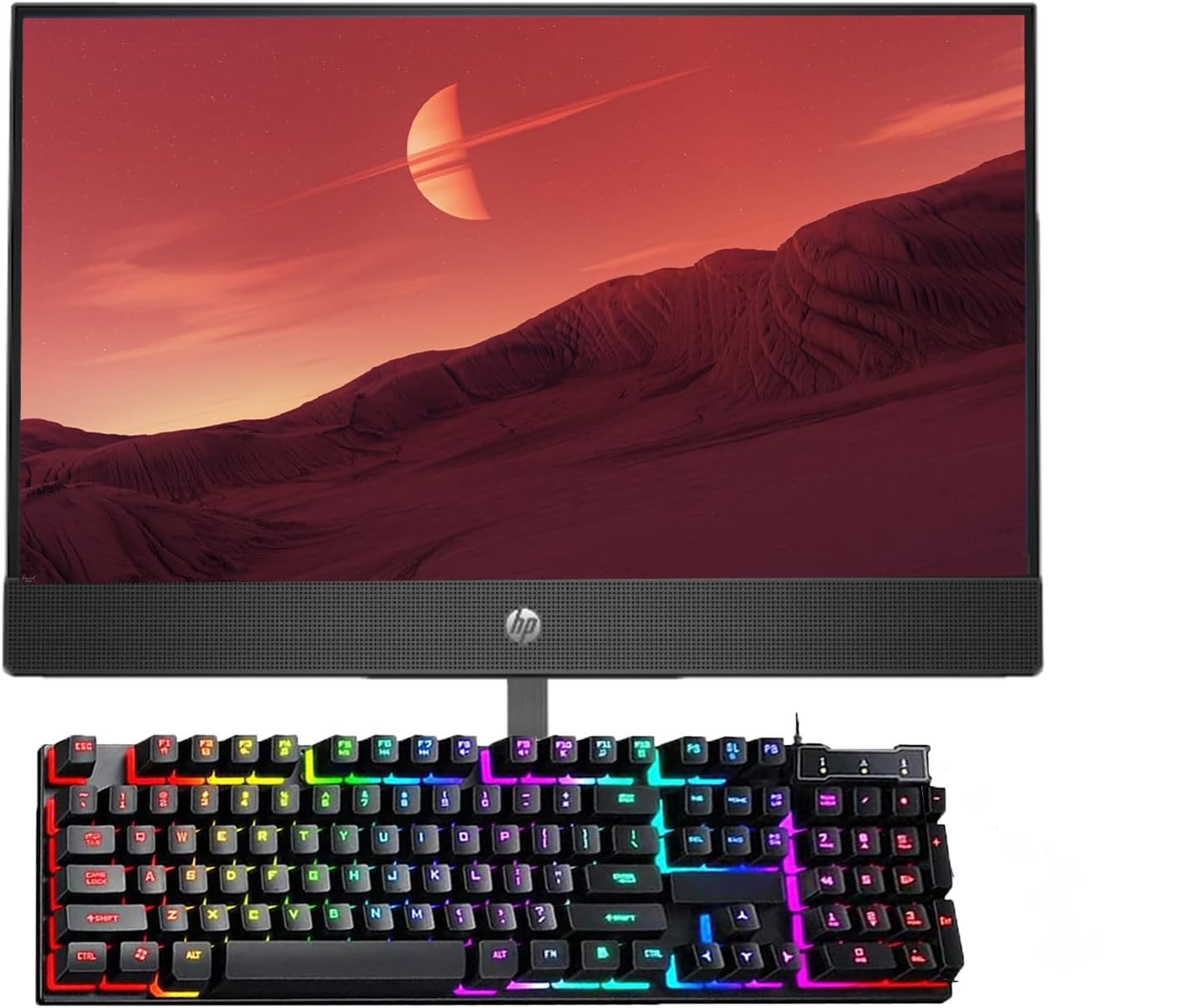
Figure 1.1: Front view of the HP ProOne 600 G4 All-in-One Desktop with included keyboard and mouse.
1.2 Connecting Peripherals
- Connect the Keyboard and Mouse: Plug the USB cables of the keyboard and mouse into any available USB ports on the back or side of the All-in-One computer.
- Connect the USB WiFi + Bluetooth Adapter: Insert the provided USB WiFi + Bluetooth adapter into an available USB port. This adapter provides wireless internet and Bluetooth connectivity.

Figure 1.2: Side view of the HP ProOne 600 G4, illustrating the location of USB ports for peripheral connections.

Figure 1.3: The USB WiFi + Bluetooth adapter. Ensure it is securely plugged into a USB port.
1.3 Powering On
- Connect Power: Plug the power adapter into the power input port on the back of the All-in-One, then connect the power cable to a wall outlet.
- Power Button: Locate the power button, typically on the side or bottom bezel of the display, and press it to turn on the computer.

Figure 1.4: Rear view of the HP ProOne 600 G4, highlighting the power input and various connectivity ports.
1.4 Initial Windows 11 Pro Setup
Upon first boot, the system will guide you through the Windows 11 Pro setup process. Follow the on-screen prompts to:
- Select your region and keyboard layout.
- Connect to a Wi-Fi network (if not already connected via Ethernet).
- Accept the license agreement.
- Create a user account or sign in with a Microsoft account.
- Adjust privacy settings.
2. Operating Instructions
This section covers the basic operation of your HP ProOne 600 G4 All-in-One Desktop Computer.
2.1 Basic Usage
Your HP ProOne 600 G4 comes pre-installed with Windows 11 Pro, offering a familiar and intuitive user experience. Utilize the keyboard and mouse for navigation and input.
- Start Menu: Access applications, settings, and power options via the Start button on the taskbar.
- File Explorer: Manage your documents, photos, and other files.
- Web Browsing: Use your preferred web browser to access the internet.
2.2 Connectivity
The system supports both Wi-Fi and Bluetooth connectivity through the included USB adapter.
- Wi-Fi: To connect to a wireless network, click the Wi-Fi icon in the taskbar, select your network, and enter the password.
- Bluetooth: To pair Bluetooth devices (e.g., headphones, speakers), go to Settings > Bluetooth & devices, turn on Bluetooth, and select "Add device."
2.3 Keyboard Features
The included keyboard may feature customizable lighting effects. Refer to the keyboard's specific instructions for details on adjusting these settings.
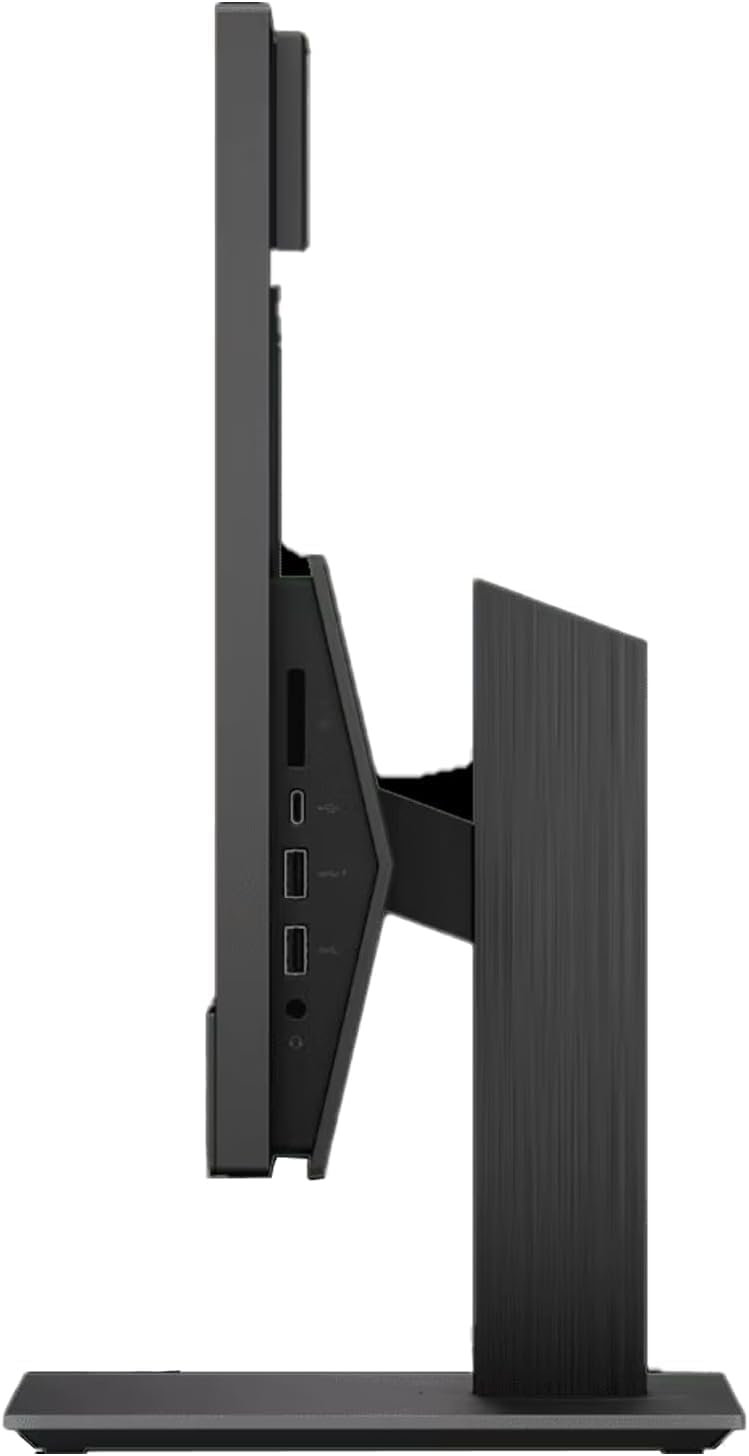
Figure 2.1: Example of a keyboard with customizable lighting effects. Press the designated button (e.g., "Scroll Lock") to toggle or change lighting modes.
3. Maintenance
Proper maintenance ensures the longevity and optimal performance of your All-in-One desktop.
3.1 Cleaning the Device
- Screen: Use a soft, lint-free cloth slightly dampened with water or a screen-cleaning solution. Avoid harsh chemicals.
- Exterior: Wipe the exterior surfaces with a soft, dry cloth. For stubborn marks, use a slightly damp cloth.
- Vents: Periodically clean dust from the ventilation grilles using compressed air to prevent overheating. Ensure the device is powered off before cleaning vents.
3.2 Software Updates
Regularly update your operating system and drivers to ensure security and performance.
- Windows Updates: Go to Settings > Windows Update to check for and install the latest updates.
- Driver Updates: HP provides driver updates through their support website or HP Support Assistant software.
4. Troubleshooting
This section addresses common issues you might encounter with your HP ProOne 600 G4.
4.1 No Power
- Ensure the power cable is securely connected to both the computer and the wall outlet.
- Verify the wall outlet is functional by plugging in another device.
- Check the power adapter for any visible damage.
4.2 No Display
- Confirm the computer is powered on (check power indicator light).
- If an external monitor is connected, ensure it is powered on and correctly connected.
- Try restarting the computer.
4.3 Wi-Fi or Bluetooth Connectivity Issues
- Ensure the USB WiFi + Bluetooth adapter is properly inserted into a USB port.
- Check if Wi-Fi and Bluetooth are enabled in Windows settings.
- Restart your router/modem for Wi-Fi issues.
- For Bluetooth, try removing and re-pairing the device.
4.4 System Slowdown
- Close unnecessary applications running in the background.
- Check for and install any pending Windows updates.
- Run a disk cleanup and defragmentation (for HDD, though this is SSD). For SSD, ensure TRIM is enabled (usually automatic).
- Scan for malware or viruses.
5. Specifications
Detailed technical specifications for the HP ProOne 600 G4 All-in-One Desktop Computer.
| Feature | Detail |
|---|---|
| Brand | HP |
| Model Number | HP ProOne 600 G4 |
| Operating System | Windows 11 Pro |
| CPU Model | Intel Core i5-8400T |
| CPU Speed | 1.7 GHz |
| RAM Memory | 8 GB DDR4 |
| Storage | 256 GB SSD |
| Screen Size | 21.5 Inches |
| Display Resolution | 1920 x 1200 |
| Graphics Card | Integrated Graphics |
| Connectivity | Bluetooth, USB, Wi-Fi |
| Human-Interface Input | Keyboard, Mouse |
| USB Ports | Multiple |
| HDMI Ports | 1 |
6. Warranty and Support
Your HP ProOne 600 G4 All-in-One Desktop Computer comes with a limited warranty and technical support.
- Warranty: This product includes a limited warranty. For specific terms and conditions, please refer to the documentation provided with your purchase or visit the official HP support website.
- Technical Support: For technical assistance, troubleshooting beyond this manual, or warranty claims, please contact HP customer support. You can find contact information on the official HP website.
- Renewed Product Information: As a renewed product, it has undergone professional inspection, testing, and cleaning by an Amazon qualified vendor. Accessories may not be original but are compatible and fully functional.
For the most up-to-date support resources, visit www.hp.com/support.


