
1. Introduction
This manual provides detailed instructions for the installation, operation, and maintenance of your Oskkude TISU-05 Car Stereo. This unit is specifically designed for the VW Touareg models from 2003 to 2010, offering a 9-inch touchscreen with Android 13, Wireless Carplay, Android Auto, GPS navigation, Bluetooth, WiFi, FM radio, Mirror Link, and AHD backup camera support. Please read this manual thoroughly before installation and use to ensure proper functionality and safety.
2. Safety Information
- Professional Installation Recommended: Due to the complexity of car electrical systems, professional installation is highly recommended to prevent damage to the unit or vehicle.
- Power Disconnection: Always disconnect the vehicle's battery before performing any installation or wiring work.
- Wiring: Ensure all wiring connections are secure and properly insulated to prevent short circuits.
- Driving Safety: Do not operate the unit's advanced features or watch videos while driving. Always prioritize road safety.
- Temperature: Avoid exposing the unit to extreme temperatures or direct sunlight for prolonged periods.
- Cleaning: Use a soft, dry cloth for cleaning the screen and unit. Avoid abrasive cleaners or solvents.
3. Package Contents
Verify that all items listed below are included in your package:
- Oskkude TISU-05 Car Stereo Head Unit
- Power Cable
- RCA Input/Output Cables
- 2 USB Cables
- Camera Input Cable
- GPS Antenna
- Instruction Manual
- Radio Adapter
- Canbus Box

4. Product Overview
The Oskkude TISU-05 is an advanced car stereo system designed to enhance your driving experience. Key features include:
- Android 13.0 System: Equipped with 2GB RAM and 32GB ROM for smooth operation and fast response.
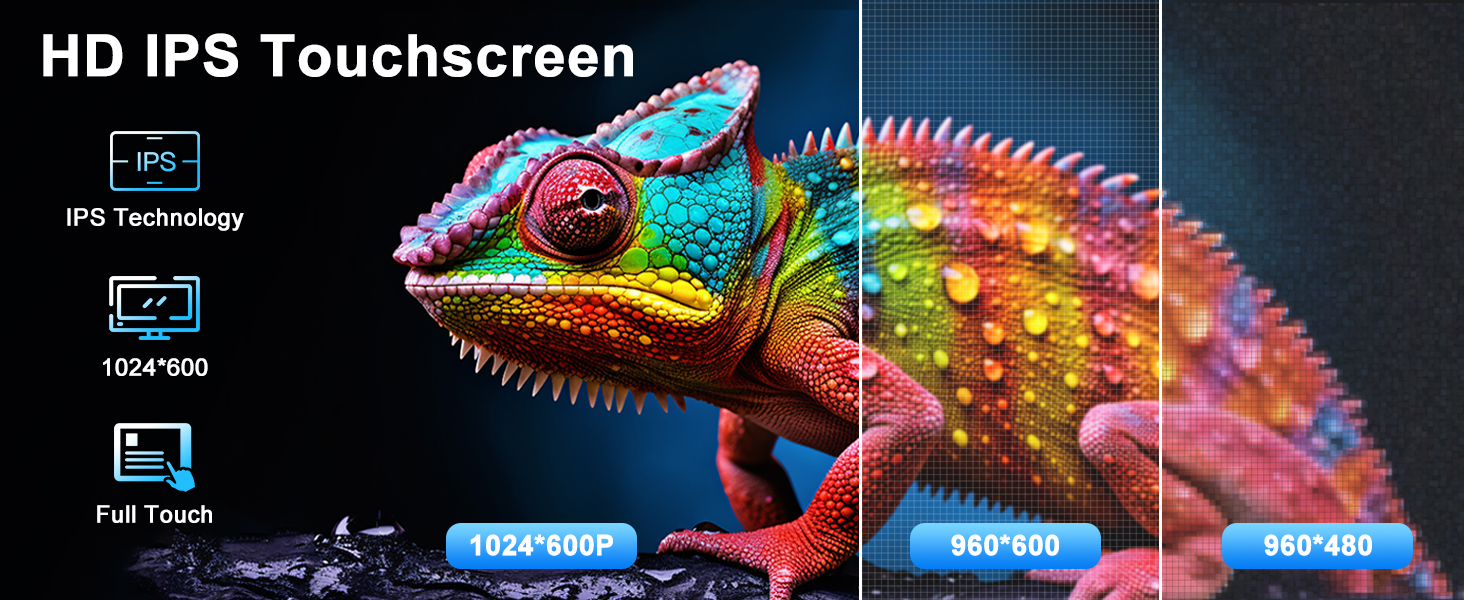
- 9-inch IPS Touch Screen: Provides a clear and vibrant visual experience.
- Wireless Carplay & Android Auto: Seamless integration with your smartphone for navigation, calls, messages, and music.
- GPS Navigation: Supports both online and offline maps for reliable guidance.
- Built-in WiFi & Bluetooth: For internet connectivity and hands-free communication/audio streaming.
- FM/RDS Radio: Automatic and manual station searching with clear reception.
- Mirror Link: Project your smartphone screen directly onto the car stereo display.
- Steering Wheel Control: Retains original steering wheel control functionality for convenience and safety.
- AHD Backup Camera Support: Enhances parking safety with a wide-angle view.
- Split Screen Functionality: Run two applications simultaneously.
5. Setup and Installation
This car stereo is designed for a direct fit in VW Touareg models from 2003 to 2010. Before beginning installation, ensure your vehicle's year, dimensions, and center console shape match the product's compatibility.
5.1 Pre-Installation Check
- Verify all package contents are present.
- Disconnect the negative terminal of your vehicle's battery.
- Carefully remove the original car stereo and trim panels.
5.2 Wiring Connections
Connect the provided wiring harness to the car stereo and your vehicle's existing wiring. Refer to the wiring diagram for specific connections.

5.3 Mounting the Unit
Once all connections are made, carefully mount the new car stereo into the dashboard opening. Secure it using the appropriate brackets and screws. Reinstall any removed trim panels.

5.4 Initial Power-Up
Reconnect the vehicle's battery. Turn on the ignition and power on the car stereo. Follow any on-screen prompts for initial setup.
6. Operating Instructions
6.1 Wireless Carplay and Android Auto
The unit supports both wireless Carplay and wired Android Auto. This allows for seamless integration of your smartphone's functions, including navigation, calls, messages, and music, directly onto the car stereo display.
- Bluetooth Connection: First, connect your phone to the car stereo via Bluetooth. Go to the Bluetooth settings on the car stereo and your phone, pair the devices. The device name for the car stereo is typically 'CarBT'. Enter '0000' if a PIN is requested. Once connected, 'phone audio' and 'music audio' should be displayed.
- ZLINK Connection: After successful Bluetooth pairing, open the 'ZLINK' application on the car stereo. The system will attempt to connect to your phone for Carplay or Android Auto.
- Manual WiFi Connection (if ZLINK fails): If the ZLINK connection is not successful, you may need to manually connect to the car stereo's WiFi hotspot. Go to Android Settings > Network & Internet > Hotspot & tethering > Wi-Fi hotspot. Turn on the Wi-Fi hotspot. On your phone, connect to the displayed network name (e.g., 'AndroidAP_B442'). Once connected, delete the history record in ZLINK and try connecting again.

6.2 GPS Navigation
The unit comes with a built-in GPS module and supports both online and offline navigation. An offline map of North America is pre-installed. Connect to WiFi to use online maps and download additional map data.

6.3 Bluetooth Connectivity
Pair your smartphone via Bluetooth to enjoy hands-free calling and wireless audio streaming. Access the Bluetooth menu from the main screen to manage paired devices and settings.
6.4 FM/RDS Radio
Tune into your favorite radio stations using the built-in FM/RDS radio. The unit supports both automatic and manual station searching.

6.5 Mirror Link
Use the Mirror Link function to display your smartphone's screen directly on the car stereo. This allows you to access apps, navigation, and media from your phone on the larger display.
6.6 Steering Wheel Control
The unit is compatible with your vehicle's existing steering wheel controls. This allows you to safely adjust volume, change tracks, and answer calls without taking your hands off the wheel.

6.7 AHD Backup Camera
When the vehicle is in reverse, the unit automatically displays the feed from the AHD backup camera, providing a 170° wide field of view for enhanced parking safety.
6.8 Split Screen
The split-screen feature allows you to run two applications simultaneously, such as navigation on one side and music playback on the other, improving multitasking convenience.
7. Maintenance
- Software Updates: Periodically check for software updates to ensure optimal performance and access to new features. Updates can typically be found on the manufacturer's website or through the unit's settings.
- Screen Cleaning: Use a soft, lint-free cloth to clean the touchscreen. For stubborn smudges, slightly dampen the cloth with water. Avoid harsh chemicals or abrasive materials.
- General Care: Keep the unit free from dust and debris. Ensure proper ventilation around the unit to prevent overheating.
8. Troubleshooting
If you encounter issues with your Oskkude TISU-05 Car Stereo, refer to the following common problems and solutions:
| Problem | Possible Cause | Solution |
|---|---|---|
| Unit does not power on | Loose power connection, blown fuse, vehicle battery issue. | Check power cables, inspect fuses, verify vehicle battery charge. |
| No sound | Volume too low, incorrect audio source, loose speaker wires. | Increase volume, select correct audio source, check speaker connections. |
| Bluetooth not connecting | Bluetooth off on phone/unit, incorrect pairing process. | Ensure Bluetooth is enabled on both devices, re-attempt pairing with PIN '0000'. Restart Bluetooth on both devices if necessary. |
| Carplay/Android Auto not starting | Bluetooth not connected, ZLINK app issue, WiFi connection required. | Ensure Bluetooth is connected. Open ZLINK app. If still failing, manually connect to the unit's WiFi hotspot (see Section 6.1). |
| GPS signal lost or inaccurate | GPS antenna obstruction, poor satellite reception. | Ensure GPS antenna has a clear view of the sky. Check antenna connection. |
| Backup camera not displaying | Loose camera connection, faulty camera, incorrect wiring. | Check camera input cable connection. Verify camera power supply. |
9. Specifications
Detailed technical specifications for the Oskkude TISU-05 Car Stereo:
| Feature | Specification |
|---|---|
| Brand | Oskkude |
| Model Name | TISU-05 |
| Vehicle Service Type | Car (VW Touareg 2003-2010) |
| Screen Size | 9 Inches |
| Operating System | Android 13 |
| Memory Storage Capacity | 32 GB (ROM) + 2GB (RAM) |
| Connectivity Technology | Bluetooth, USB, Wi-Fi |
| Supported Navigation System | GPS |
| Map Type | Worldwide (North America offline map included) |
| Touch Screen Type | Capacitive |
| Display Type | LED |
| Human-Interface Input | Touchscreen |
| Control Method | Touch, Voice |
| Audio Output Mode | Stereo |
| Item Weight | 1800 Grams |
10. Warranty and Support
For warranty information, technical support, or service inquiries, please refer to the contact details provided with your purchase or visit the official Oskkude website. Keep your purchase receipt as proof of purchase for warranty claims.