
1. Product Overview
This manual provides instructions for the Surakey Android 13 Car Stereo, model JIAQI-QJ0254X-WYQ-2505. This device integrates an Android 13 operating system with a 6.86-inch touchscreen, offering features such as wireless CarPlay, Android Auto, GPS navigation, Bluetooth connectivity, WiFi, and FM radio. It is designed for specific Chrysler, Jeep, and Dodge vehicle models.
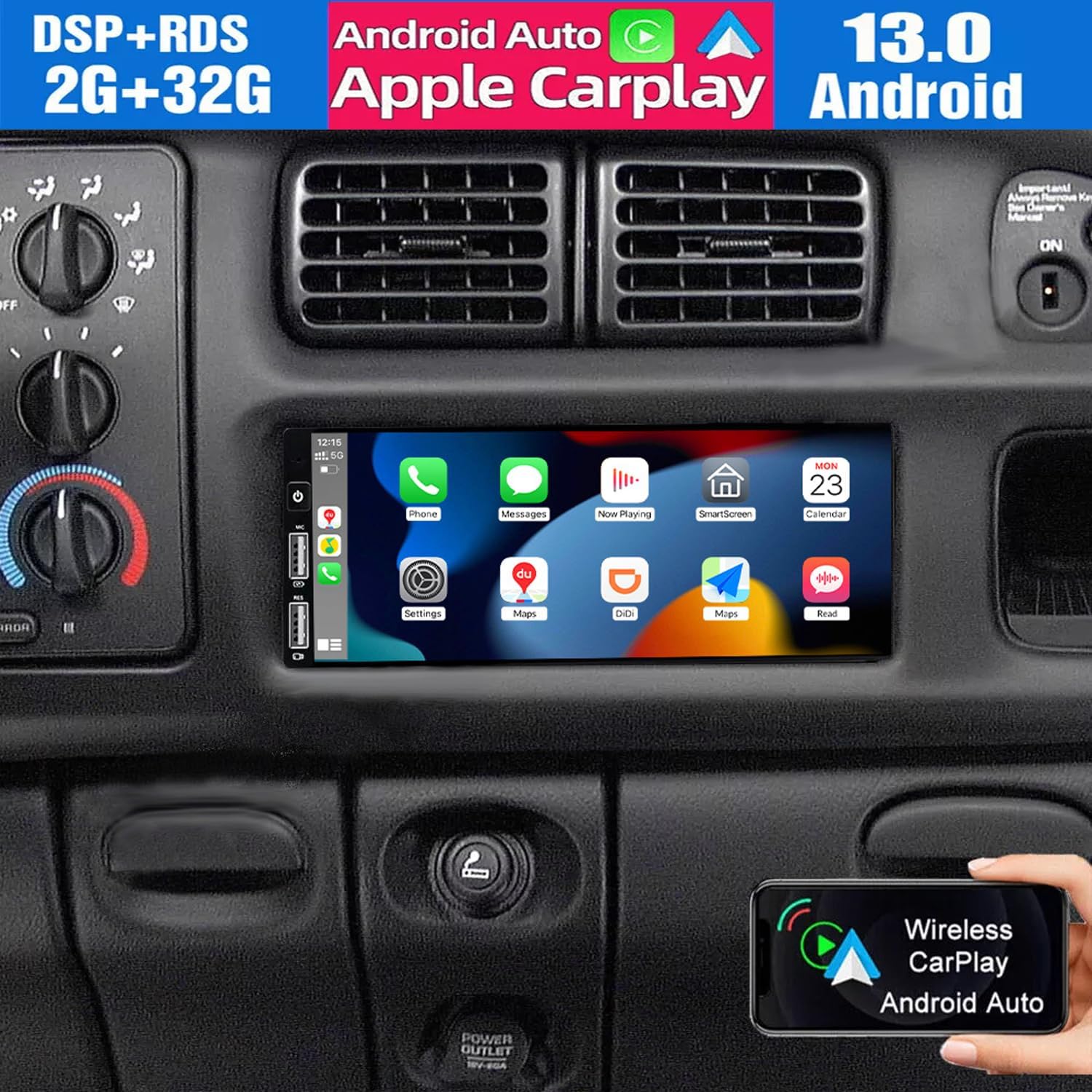
Image: The Surakey Android 13 Car Stereo with its 6.86-inch touchscreen, showing a variety of app icons, integrated into a vehicle's dashboard.
2. Package Contents
Verify that all items are present in the package before installation:
- Android 13 Car Stereo Unit
- Power Cable
- RCA Input/Output Cables
- USB Cables (x2)
- Camera Input Cable
- GPS Antenna
- External Microphone
- Backup Camera
- Instruction Manual

Image: A visual representation of the car stereo unit and its accompanying accessories, such as power cables, RCA cables, USB cables, camera input, GPS antenna, and the instruction manual.
3. Installation Guide
3.1 Vehicle Compatibility
This car stereo is compatible with the following vehicle models:
- Jeep Cherokee (1997-2001)
- Jeep Grand Cherokee (1993-1998)
- Jeep Wrangler (1997-2002)
- Dodge Ram Pickup 2500/3500 (1997-2002)
- Chrysler Town & Country (1990-2000)
- And other compatible models as listed in the product specifications.
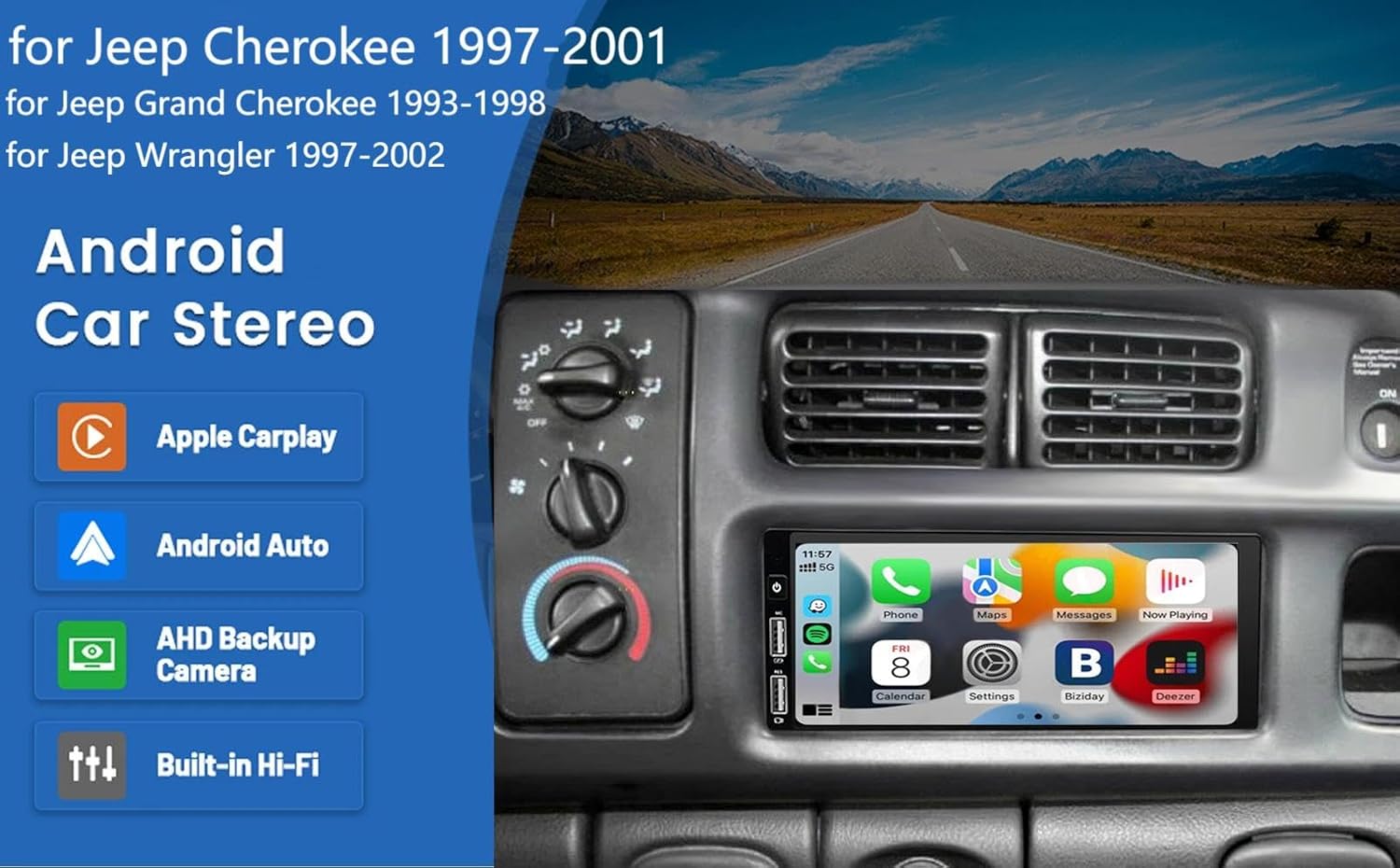
Image: The car stereo seamlessly integrated into a vehicle dashboard, with text indicating compatibility for Jeep Cherokee, Grand Cherokee, and Wrangler models.
3.2 Wiring Diagram
Refer to the detailed wiring diagram for proper connection of the power, audio, and accessory cables. Ensure all connections are secure to prevent malfunctions.

Image: A comprehensive wiring diagram illustrating the connections for the car stereo, including power, audio outputs, steering wheel controls, and various input/output ports.
3.3 Reversing Camera Installation
Connect the backup camera as shown in the diagram. The reversing input must be plugged in even if the camera is not used. The AHD rearview camera will automatically display the image when the vehicle is in reverse gear.
- Connect the camera's positive wire to the positive power supply of the car's reversing light.
- Connect the camera's negative wire to the negative power supply of the car's reversing light.
- The reversing trigger is controlled by the stereo; no additional connection is required for this.

Image: A visual guide for installing the reversing camera, detailing the connections to the car stereo and the vehicle's reversing light system.
4. Operating Instructions
4.1 Bluetooth Connection
To connect your phone via Bluetooth:
- On the car stereo, navigate to the Bluetooth settings.
- On your mobile device, enable Bluetooth and search for available devices.
- Select "CarBT" from the list of devices on your phone.
- Enter the PIN "0000" if prompted.
- Once connected, "phone audio" and "music audio" will be displayed on the car stereo, indicating a successful connection. If not, restart Bluetooth on both devices.
Video: Demonstrates the process of connecting a mobile phone to the car stereo via Bluetooth for audio and calls.
4.2 Wireless CarPlay & Android Auto (ZLINK Connection)
The car stereo supports wireless CarPlay and Android Auto for seamless smartphone integration. This allows you to access phone apps, make calls, send messages, and navigate using voice commands or the touchscreen.
- Ensure your phone's Bluetooth is connected to the car stereo.
- On the car stereo, open the "ZLINK" application.
- The system will attempt to connect to your phone for CarPlay or Android Auto.
- If the connection is not successful, manually connect to the car stereo's WiFi hotspot (see section 4.3). After connecting via WiFi, delete the history record of the WiFi connection on the vehicle, then click ZLINK again.

Image: An illustration showing the wireless CarPlay and Android Auto interfaces, demonstrating how to use voice commands for navigation, calls, and music playback.
4.3 WiFi Hotspot Connection
To manually connect to the car stereo's WiFi hotspot:
- On the car stereo, go to Settings > Android Settings > Network & Internet > Hotspot & tethering > Wi-Fi hotspot.
- Turn on the Wi-Fi hotspot. Note the network name (e.g., AndroidAP_B442) and password.
- On your mobile device, go to Wi-Fi settings and connect to the car stereo's hotspot using the provided password.
- Once connected, the device name will be displayed on the car stereo's hotspot screen, confirming a successful WiFi connection.
4.4 GPS Navigation
The unit supports GPS navigation. You can download maps directly from the Play Store for offline use. With a WiFi connection, Google Maps and other navigation apps can be used effectively.

Image: The car stereo displaying a GPS navigation map, indicating support for both online and offline navigation.
4.5 FM Radio Function
Enjoy comprehensive FM and RDS channel support for news, music, and real-time traffic updates.

Image: The FM radio interface of the car stereo, displaying current frequency and options for tuning and station selection.
4.6 Split-screen Display
The split-screen feature allows you to run multiple applications simultaneously, enhancing multitasking and efficiency.

Image: The car stereo screen demonstrating the split-screen function, with a navigation map on one side and a music player on the other.
4.7 DSP Function
The Digital Sound Processor (DSP) feature provides high-quality audio, personalized audio settings, and automatically optimized sound for an enhanced in-car audio experience.

Image: The DSP function interface on the car stereo, displaying various audio equalization and sound adjustment options for a customized listening experience.
4.8 Mirror Link
Mirror Link functionality supports screen mirroring from both iOS and Android smartphones via USB cable or WiFi, allowing you to display your phone's content on the car stereo screen.

Image: A visual representation of the Mirror Link feature, where a smartphone's screen content is duplicated onto the car stereo's larger display.
4.9 Steering Wheel Control (SWC)
The SWC function allows you to easily switch songs, change radio channels, and adjust the volume directly from your steering wheel controls, enhancing driving safety and convenience.

Image: The Steering Wheel Control (SWC) interface, demonstrating how to configure and use steering wheel buttons to control various functions of the car stereo.
5. Maintenance
To ensure the longevity and optimal performance of your Surakey Android 13 Car Stereo, follow these maintenance guidelines:
- Cleaning: Use a soft, dry cloth to clean the touchscreen and exterior. Avoid abrasive cleaners or solvents that could damage the surface.
- Temperature: Avoid exposing the unit to extreme temperatures, both hot and cold, as this can affect electronic components.
- Software Updates: Periodically check for available software updates through the system settings to ensure you have the latest features and bug fixes.
- Cable Connections: Regularly check all cable connections to ensure they are secure and free from damage.
6. Troubleshooting
If you encounter issues with your car stereo, refer to the following common troubleshooting steps:
6.1 Connection Issues (Bluetooth/CarPlay/Android Auto)
- Bluetooth Not Connecting: Ensure Bluetooth is enabled on both the stereo and your phone. Try restarting Bluetooth on both devices. Verify the correct PIN (0000) is entered.
- CarPlay/Android Auto Not Activating: Confirm Bluetooth is connected first. If ZLINK fails, manually connect to the stereo's WiFi hotspot (as described in section 4.3), then delete the WiFi history record on the vehicle and retry ZLINK.
6.2 General Issues
- No Power: Check all power connections and fuses. Ensure the vehicle's ignition is on.
- No Sound: Verify volume levels on both the stereo and your phone. Check speaker wiring connections.
- Touchscreen Unresponsive: Try restarting the unit. If the issue persists, a factory reset might be necessary (consult support).

Image: A warning note advising users to verify their car model and main unit plugs for compatibility before purchasing to ensure proper fit and function.
7. Specifications
| Feature | Detail |
|---|---|
| Model Number | JIAQI-QJ0254X-WYQ-2505 |
| Operating System | Android 13 |
| RAM + ROM | 2GB RAM + 32GB ROM |
| Screen Size | 6.86 inches |
| Connectivity | Wireless CarPlay, Android Auto, Bluetooth, WiFi, GPS |
| Product Dimensions | 11.42 x 8.46 x 5.12 inches |
| Item Weight | 2.73 pounds (1240 Grams) |
| Manufacturer | Surakey |
8. Warranty and Support
Warranty Information: Please refer to the product packaging or the official Surakey website for detailed warranty terms and conditions.
Customer Support: For technical assistance, troubleshooting, or any product-related inquiries, please contact Surakey customer service through their official channels or the retailer where the product was purchased.