
1. Product Overview
The UYXOERA Pandora Saga DX 9800 is a comprehensive DIY kit designed for building a multi-game arcade system. This kit includes the main arcade board, joysticks, buttons, and necessary wiring harnesses, providing a plug-and-play solution for arcade enthusiasts. It supports a vast library of 9800 games, including 3D titles, and is compatible with various emulators.
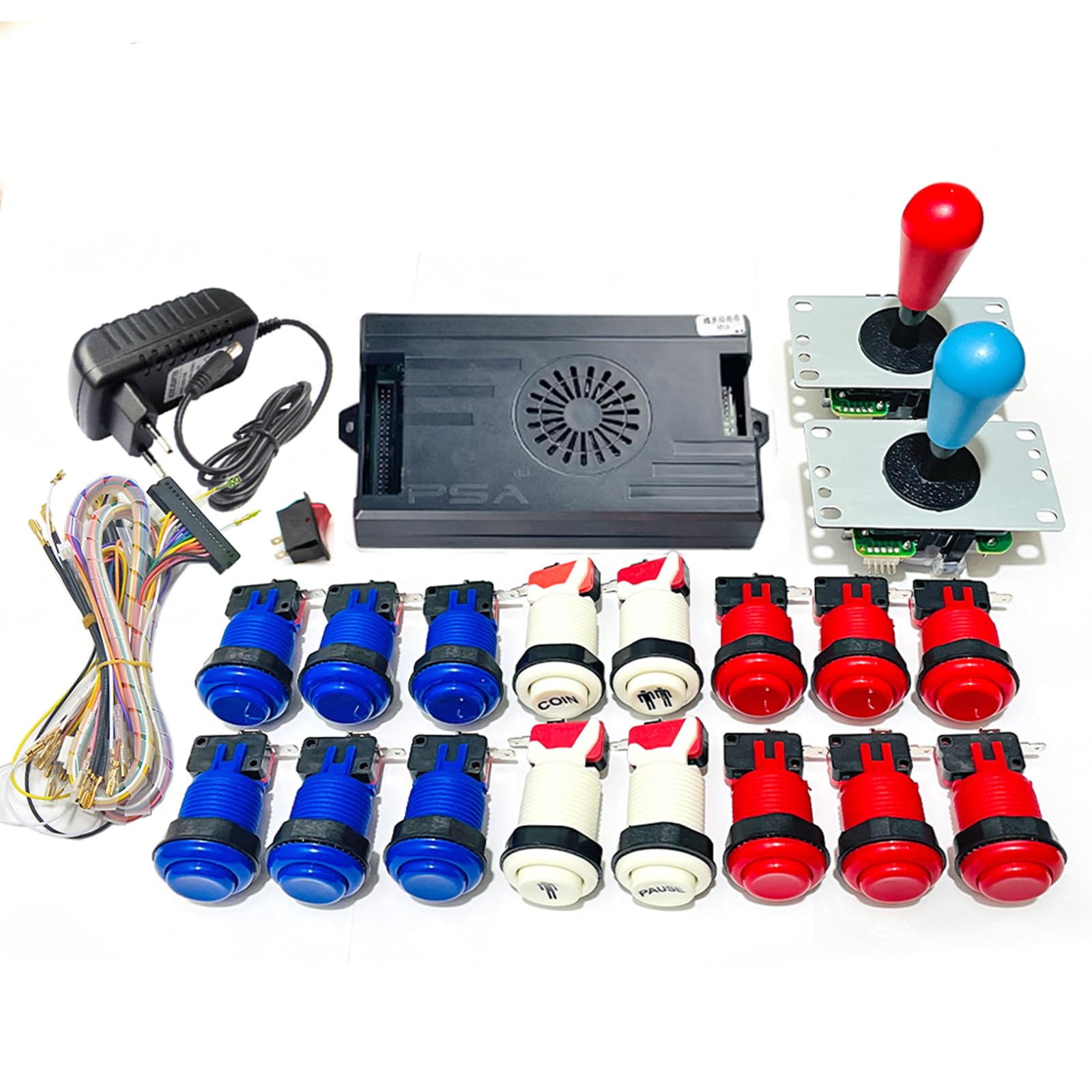
Image 1.1: UYXOERA Pandora Saga DX 9800 Arcade Board DIY Kit (Red Blue variant).
2. Package Contents
Verify that all components listed below are included in your package:
- 2x 5Pin 8-Way Joysticks
- 16x 28mm Happ Style Push Buttons
- 1x 40Pin Wiring Harness
- 1x 12VDC 3A Power Supply
- 1x Saga DX 9800 Games in 1 Arcade Board
3. Setup and Installation
This DIY kit is designed for straightforward assembly. Follow these steps to connect the components.
3.1 Arcade Board Connections

Image 3.1: Overview of the Saga DX 9800 arcade board, highlighting the 40-pin GPIO connector, TF card slot, and cooling fan.
The main arcade board features a 40-pin GPIO connector for controls, a TF card slot for game storage, and an integrated cooling fan for efficient heat dissipation.

Image 3.2: Rear view of the arcade board showing power input, HDMI, VGA, audio, volume, USB, and settings ports.
Connect the 12V DC power supply to the designated port. The board offers two video output options: HDMI and VGA. HDMI output is fixed at 1280x720 resolution, while VGA supports both 1280x720 and 640x480 resolutions. Connect your display device to either the HDMI or VGA port.
3.2 Joystick and Button Wiring

Image 3.3: Detailed diagram of the 40-pin wiring harness, indicating connections for joystick directions, buttons (A, B, C, D, E, F), Start, Coin, and ground (GND).
Use the provided 40-pin wiring harness to connect the joysticks and buttons to the arcade board. Each wire on the harness is labeled for its corresponding function (e.g., UP, DOWN, LEFT, RIGHT for joystick, A, B, C, D, E, F for action buttons, START, COIN). Ensure each connection is secure.

Image 3.4: Close-up view of the button switch mechanism, illustrating the contact points and spring for reliable input.
For buttons with integrated lighting, connect PIN 1 of the board to the button light lamp and PIN 3 to the button light positive (+) terminal. Refer to the wiring diagram for precise connections.

Image 3.5: Technical drawing providing dimensions for the joystick and push buttons, useful for panel mounting.
Once all connections are made, ensure the power switch is connected and then turn on the system.
4. Operating Instructions
The Pandora Saga DX 9800 board comes with 9800 games pre-installed, requiring no additional downloads. Simply power on the system to access the game selection menu.
4.1 Game Selection and Play
Navigate through the game list using the joystick. Select a game by pressing the designated action button. The system supports up to 4 players for compatible games and includes scan line and 3D game support.

Image 4.1: Example of an arcade control panel layout with joystick and various colored action buttons.
4.2 System Features
The arcade board includes several useful features:
- Pause/Exit: Pause or exit games during play.
- Save/Load Games: Save your game progress and load it later.
- Hide Games: Option to hide specific games from the main list.
- Favorite Game List: Create a personalized list of your preferred games for quick access.
- Search Games: Easily find games by name.
- Recent Games: Access a list of recently played games.
- Image Enhancement: Adjust visual settings for improved display.
- Customizable Buttons: Remap button functions to your preference.
- Game Classification: Games are categorized for easier browsing.
The system supports various emulators including MAME, FBA, FC, SFC, PCE, MD, and PS1.
5. Maintenance and Safety
To ensure the longevity and safe operation of your arcade board:
- Ventilation: Ensure adequate ventilation around the arcade board to prevent overheating. The integrated cooling fan assists with heat dissipation.
- Heat Sources: Keep the device away from direct heat sources.
- Moisture: Prevent water or other liquids from entering the device.
- Cleaning: Use a dry, soft cloth to clean the exterior of the board and components. Avoid abrasive cleaners.
6. Troubleshooting
If you encounter issues with your Pandora Saga DX 9800 kit, consider the following:
- No Power: Verify that the 12VDC 3A power supply is correctly connected and plugged into a working outlet. Ensure the power switch is in the 'ON' position.
- No Video Output: Check the HDMI or VGA cable connections to both the board and your display. Confirm your display is set to the correct input source. Try switching between HDMI and VGA outputs if available.
- Controls Unresponsive: Inspect the 40-pin wiring harness connections to the joysticks and buttons. Ensure all wires are securely attached according to the wiring diagram (Image 3.3).
- Audio Issues: Check the audio cable connection if using an external speaker. Adjust the volume knob on the board.
- Game Loading Problems: Ensure the TF card is properly inserted into its slot. If issues persist, the TF card may need to be re-seated or checked for corruption.
For further assistance, please refer to the support section.
7. Specifications
| Feature | Detail |
|---|---|
| Model Number | Pandora Saga DX 9800 |
| Manufacturer | UYXOERA |
| Controller Type | Button Control, Joystick |
| Hardware Interface | 2.5mm Audio, HDMI, USB, VGA |
| Video Output | HDMI (1280x720), VGA (1280x720, 640x480) |
| Memory Storage Capacity | 32 GB (TF Card) |
| Material | Plastic |
| Item Weight | Approx. 2.65 pounds (1.2 kg) |
| Product Dimensions | Approx. 6 x 6.5 x 7 inches (packaging) |
| Recommended Age | 12 months and up |
| UPC | 762949758281 |
8. Warranty and Support
8.1 Warranty Information
For specific warranty details regarding your UYXOERA Pandora Saga DX 9800 Arcade Board DIY Kit, please refer to the seller or manufacturer's official warranty policy at the time of purchase.
8.2 Customer Support
If you require further assistance with installation, operation, or troubleshooting, please contact UYXOERA customer support. Installation video tutorials may also be available upon request from the seller.
You can visit the official UYXOERA store for more information and support: UYXOERA Store on Amazon